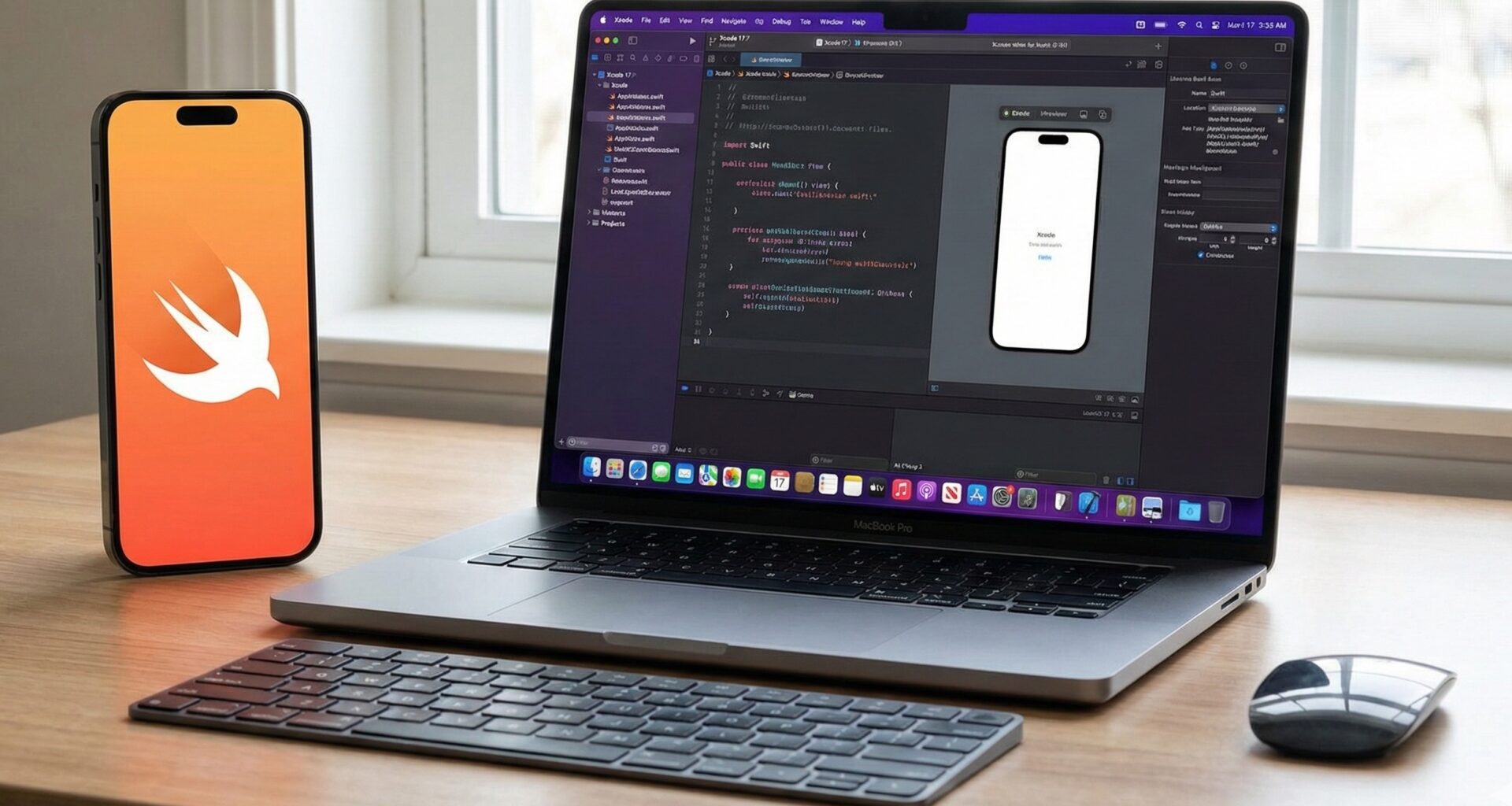

The environment of an iOS developer is their temple. We spend countless hours staring at lines of code, debugging errors in the console, and tweaking views in the SwiftUI Canvas. However, many developers still use the default Xcode theme (“Default” or “Midnight”), ignoring that the choice of color palette has a direct impact on visual fatigue, reading speed, and ultimately, the quality of our Swift programming.
Xcode is a powerful tool, but its default aesthetics aren’t always optimal for long work sessions or for quickly distinguishing between a structure (struct) and a class (class). The development community has created incredible color schemes that are not only aesthetic but are also optimized for Apple’s semantic syntax.
In this article, we will explore the best Xcode themes available, including an exclusive selection of favorites from the community and industry experts like Leith Majdoub and John Sundell. We will analyze why they work for Swift and SwiftUI, and we will provide the plain text links so you can install them easily.
Why Should You Change Your Xcode Theme?
Before jumping to the list, it is crucial to understand color psychology in programming. Swift is a syntax-rich language: we have keywords, types, protocols, attributes (like @State or @Binding in SwiftUI), and literals.
A good theme isn’t just “pretty”; it’s functional.
- Reduction of Visual Fatigue: Excessive contrast (pure white on pure black) can generate visual “halos.” The best dark themes use dark grays or deep blues to soften the impact.
- Semantic Recognition: A good theme for Swift programming must clearly differentiate between a local variable and an instance property, or between a method and a closure call.
- Focus and “Flow”: A harmonious color palette helps you enter a flow state, eliminating unnecessary visual distractions.
How to Install Custom Xcode Themes
Unlike VS Code, where there is an integrated extension store, the process in Xcode is manual but simple. Here is the quick tutorial for any iOS developer:
- Download the theme: Xcode theme files have the
.xccolorthemeextension. - Locate the folder: Open Finder and press
Cmd + Shift + G. - Paste this path:
~/Library/Developer/Xcode/UserData/FontAndColorThemes/- Note: If the
FontAndColorThemesfolder does not exist, create it manually insideUserData.
- Note: If the
- Copy the file: Paste your downloaded
.xccolorthemefile into that folder. - Restart Xcode: Completely close and reopen the IDE.
- Activate it: Go to
Xcode->Settings(orPreferences) ->Themesand select your new theme from the list on the left.
The Ultimate Collection: Recommended Themes for Swift
Below is a curated selection that includes classics and hidden gems recommended by industry experts.
1. Sundell’s Colors (The Expert’s Choice)
Created by John Sundell, one of the most respected figures in the Swift world, this theme is the result of years of tweaking based on “Solarized”.
- The Aesthetic: It is a theme that perfectly balances contrast. It is neither too dark nor too bright. It uses a very specific color palette that makes the code “breathe.”
- Why it works for Swift: Being created by a Swift educator, the semantic distinction is impeccable. SwiftUI Key Paths and Property Wrappers are instantly distinguishable. It is ideal for those who publish code in blogs or presentations, as it is highly legible.
- Verdict: If you want to code like the experts, this is your starting point.
- Download:
https://github.com/JohnSundell/XcodeTheme
2. Solarized Light & Dark (Fira Code Edition)
Solarized is an absolute classic in software engineering, but this specific version recommended by the community adds a vital twist: support for typographic ligatures (Fira Code).
- The Aesthetic: It is based on fixed CIELAB values to maintain perfect visual consistency between light and dark modes. The dark mode has that characteristic deep blue-green tone, while the light mode is a soft cream, not a nuclear white that damages eyesight.
- Why it works for Swift: Consistency is key. If you alternate between working during the day (light mode) and at night (dark mode), Solarized keeps the same colors for syntax, so your brain doesn’t have to “relearn” which color is a
funcand which color is aString. Additionally, this version promotes the use of the Fira Code font, making operators like!=or->look beautiful in Swift. - Verdict: For the pragmatic developer seeking scientific consistency and good typography.
- Download:
https://github.com/CartoonChess/solarized-xcode-with-fira-code
3. One Dark (The Atom Heritage)
Inspired by the default theme of the Atom editor and massively popularized by VS Code.
- The Aesthetic: A dark gray background (almost black but softened) with saturated pastel colors (soft reds, cyan blues, and purples).
- Why it works for Swift: Many iOS developers also touch web or backend code (Vapor, Node.js). Using One Dark in Xcode unifies your visual experience if you already use VS Code. The colors for variables and constants (
letvsvar) are very distinct, which prevents common mutability errors in Swift programming. - Verdict: The best balance between familiarity and modern elegance.
- Download:
https://github.com/bojan/xcode-one-dark
4. Gruvbox (The Retro Modern)
For lovers of vintage, Vim, and classic terminals. Gruvbox gained a lot of traction in 2023 and remains strong in 2026.
- The Aesthetic: Earth tones, browns, oranges, brick reds, and forest greens. It offers an “old paper” feel in its light version and a “retro terminal” feel in its dark version. It has very high but warm contrast.
- Why it works for Swift: Surprisingly, Gruvbox’s warm tones are less aggressive to the eyes than cold blues. In SwiftUI, where we nest many views (
VStack,HStack), the hierarchical structure reads very well thanks to how Gruvbox handles code block colors. - Verdict: For the iOS developer with a hacker soul who spends many hours in front of the screen.
- Download:
https://github.com/jstheoriginal/gruvbox-theme-for-xcode
5. Charmed Dark (Vibrant Elegance)
A theme that has gained popularity for its vibrant and cheerful approach without losing the elegance of a dark background.
- The Aesthetic: Uses more vivid and “electric” colors than Solarized or Nord. Pinks, lime greens, and electric blues predominate over a solid dark background.
- Why it works for Swift: In SwiftUI, code can sometimes become dense with many modifiers (
.padding,.background,.frame). Charmed Dark does an excellent job highlighting these modifiers so they don’t get lost in the sea of code. It is excellent for quickly identifying typos thanks to its high contrast. - Verdict: Ideal if you feel other dark themes are too “dull” or boring.
- Download:
https://github.com/kean/Charmed
6. Dracula (The King of Darkness)
If there is a universal standard in the development industry, it is Dracula.
- The Aesthetic: Dark blue-gray background with very specific colors (pink, purple, green, yellow). It is famous for its support in almost any existing application.
- Why it works for Swift: Dracula is excellent at differentiating data types. In SwiftUI, modifiers and Apple’s proprietary views highlight beautifully in cyan and pink tones, visually separating them from your own business logic.
- Verdict: The safe option. If you get used to Dracula, you can have the same theme in Xcode, Terminal, Slack, and VS Code.
- Download:
https://draculatheme.com/xcode
Advanced Tips: Typography and Customization
Choosing one of these themes is the first step. To fully optimize your Swift programming environment, consider these final adjustments:
1. The Importance of Font (Fira Code / JetBrains Mono)
Many of the themes mentioned above (especially the Solarized version) recommend using a font with ligatures.
- What are ligatures? They are combined symbols. Instead of seeing
!=as two characters, you will see a real mathematical inequality symbol.->becomes an arrow. - How to activate: Download the font (e.g., Fira Code), install it on your Mac (Font Book), and then in Xcode select the theme, press
Cmd+Ato select all syntax types, and change the font by clicking the “T” icon.
2. Cursor and Selection Adjustment
Sometimes, imported themes have a cursor or text selection color that doesn’t contrast well.
- Go to
Xcode->Settings->Themes. - At the bottom of the color list, look for “Selection” and “Cursor”. Ensure the selection color is semi-transparent and the cursor is a bright color (like neon yellow or white) so you never lose sight of it.
3. Presentation Mode
If you do demos or screen share on Zoom/Teams, consider having a variant of your favorite theme (like Sundell’s Colors) with an increased font size (e.g., 16pt or 18pt). Your colleagues will thank you.
Conclusion
Choosing a theme goes beyond aesthetics; it is a digital ergonomics decision. Whether you prefer the academic precision of Solarized, the expert touch of Sundell’s Colors, the retro warmth of Gruvbox, or the familiarity of One Dark, changing the look of Xcode will renew your desire to code.
As an iOS developer, you spend your life in this IDE. Make it a pleasant place to be.
Your next step? Copy the link of your favorite theme from the list above, install it following the steps, and write your next great SwiftUI feature with a fresh perspective.
If you have any questions about this article, please contact me and I will be happy to help you 🙂. You can contact me on my X profile or on my Instagram profile.