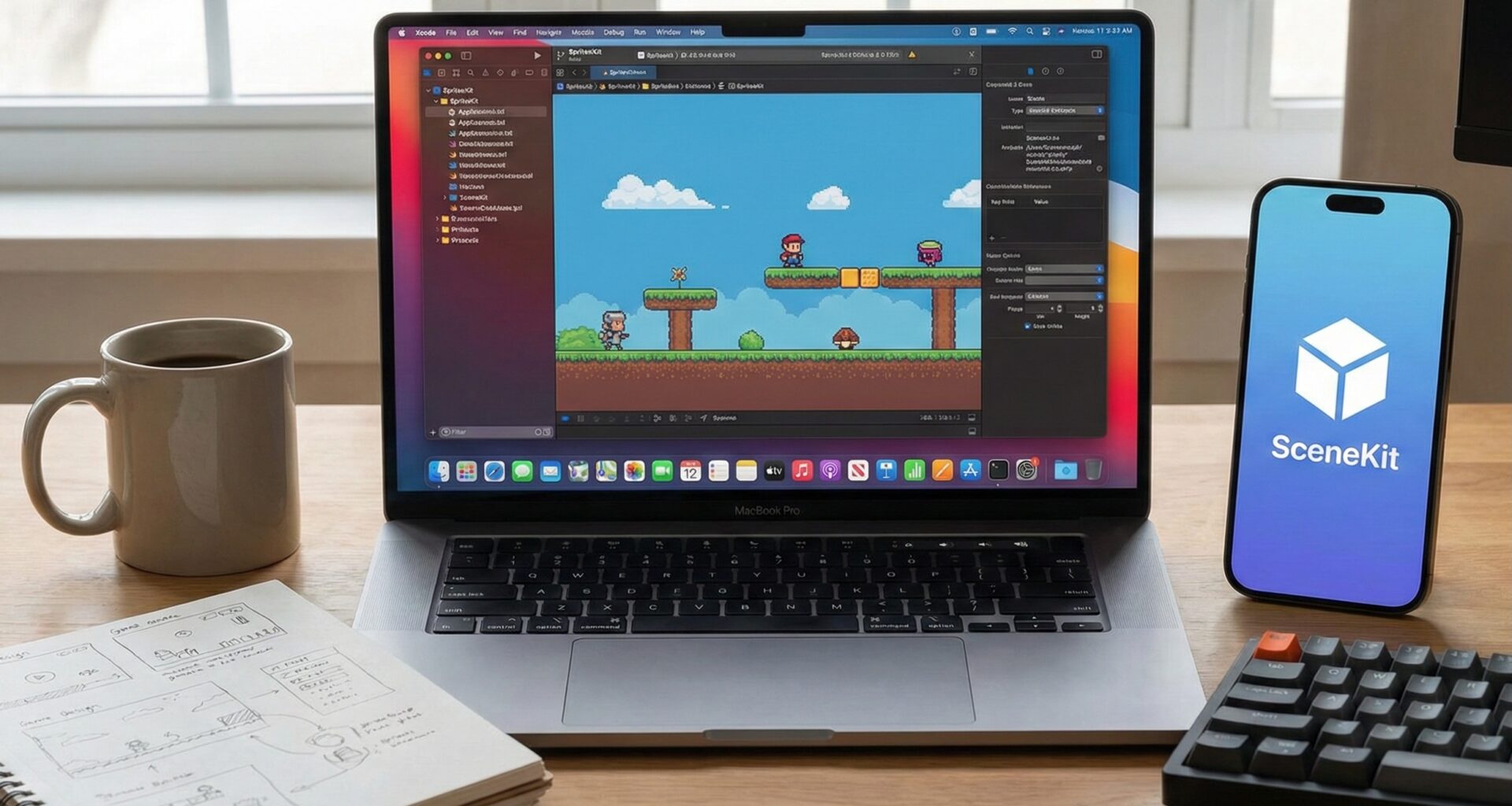

In the vast universe of Apple ecosystem development, when an iOS Developer decides to integrate advanced graphics or game mechanics into their applications, they face a classic crossroads: SpriteKit vs SceneKit. With the arrival and maturity of SwiftUI, this decision has taken on new nuances.
Although RealityKit is the future bet for AR, SpriteKit and SceneKit remain the undisputed kings for stable, efficient, and easy-to-implement 2D and 3D rendering. In this comprehensive Swift programming tutorial, we will break down the similarities, critical differences, and how to implement both frameworks natively in SwiftUI for iOS, macOS, and watchOS.
Understanding the Contenders in Xcode
Before writing code, let’s define the playing field. Both frameworks live inside Xcode and are highly optimized by Apple, but they serve distinct dimensional purposes.
SpriteKit: The Master of 2D
Launched in iOS 7, SpriteKit is a sprite-based rendering engine (2D images). It is ideal for platform games, complex animated user interfaces, and applications requiring efficient 2D physics. It works in pixels and points.
SceneKit: The Architect of 3D
SceneKit is a high-level 3D graphics engine. Unlike Metal (which is low-level), SceneKit abstracts away the complexity of OpenGL/Metal, allowing you to work with lights, cameras, geometry, and materials. It works in meters and vertices.
Integration with SwiftUI: SpriteView and SceneView
For the modern iOS Developer, the best news is that we no longer need complex UIViewRepresentable wrappers for basic cases. SwiftUI offers native components for both.
- SpriteView: Renders an
SKScene. - SceneView: Renders an
SCNScene.
Similarities: Shared DNA
Apple designed both frameworks with a similar philosophy. If you know Swift programming for one, learning the other is surprisingly fast.
1. Node Architecture
Both use a hierarchical scene graph. Everything is a node that can have children.
- In SpriteKit:
SKNodeis the base.SKSpriteNodeis for images. - In SceneKit:
SCNNodeis the base. Geometry (shapes) is attached to the node.
2. Action System
The way to animate is almost identical. You can move, scale, or fade objects imperatively.
// SpriteKit
let move2D = SKAction.move(to: CGPoint(x: 100, y: 100), duration: 1.0)
node2D.run(move2D)

// SceneKit
let move3D = SCNAction.move(to: SCNVector3(1, 0, 0), duration: 1.0)
node3D.runAction(move3D)
3. Physics and Delegates
Both have built-in physics engines. SKPhysicsBody for 2D collisions and SCNPhysicsBody for 3D. Both use BitMasks to define who collides with whom.
Critical Differences: Where Paths Diverge
| Feature | SpriteKit | SceneKit |
|---|---|---|
| Coordinate System | (0,0) is usually bottom-left (configurable). X, Y axes. | (0,0,0) is at the center of the world. X, Y, Z axes. |
| Units | Points. | Meters (real-world). |
| Lighting | Simulated (SKLightNode), very basic. | Realistic. PBR (Physically Based Rendering), shadows, reflections. |
| Camera | SKCameraNode (it’s a 2D window that moves). |
SCNCamera (perspective, orthographic, depth of field). |
| Performance | Handles thousands of sprites easily (Batching). | More expensive. Requires optimization of polygons and “Draw Calls”. |
Practical Tutorial: The “CosmosDual” Project
We are going to create a view in SwiftUI that integrates both worlds. We will create a space scene where SpriteKit handles the “HUD” style user interface and SceneKit renders a 3D planet.
Step 1: The 3D Scene (SceneKit)
First, we define our planet. Note how we use SCNMaterial to give it visual physical properties.
import SwiftUI
import SceneKit

class PlanetScene: SCNScene {
    override init() {
        super.init()
        setupScene()
    }

    required init?(coder: NSCoder) {
        fatalError("init(coder:) has not been implemented")
    }

    func setupScene() {
        // 1. Create the Earth node
        let earthGeometry = SCNSphere(radius: 1.0)
        let earthNode = SCNNode(geometry: earthGeometry)

        // 2. Materials (PBR for realism)
        let material = SCNMaterial()
        material.diffuse.contents = NSColor.blue // Or a UIImage texture
        material.specular.contents = NSColor.white
        material.shininess = 0.5
        earthGeometry.materials = [material]

        // 3. Constant animation
        let rotate = SCNAction.rotateBy(x: 0, y: CGFloat.pi * 2, z: 0, duration: 10)
        let repeatSpin = SCNAction.repeatForever(rotate)
        earthNode.runAction(repeatSpin)

        rootNode.addChildNode(earthNode)

        // 4. Lighting
        let lightNode = SCNNode()
        lightNode.light = SCNLight()
        lightNode.light?.type = .omni
        lightNode.position = SCNVector3(0, 10, 10)
        rootNode.addChildNode(lightNode)
    }
}
Step 2: The 2D Scene (SpriteKit)
Now, we will use SpriteKit to add particle effects (stars) that would be expensive to render individually in 3D, or for a floating UI. SpriteKit is excellent for HUDs.
import SpriteKit

class HUDScene: SKScene {
    override func didMove(to view: SKView) {
        self.backgroundColor = .clear // Transparent to see SceneKit behind

        // Floating Label
        let label = SKLabelNode(text: "SYSTEM: ONLINE")
        label.fontName = "Futura-Medium"
        label.fontSize = 24
        label.fontColor = .cyan
        label.position = CGPoint(x: size.width / 2, y: size.height - 100)

        // Blinking Animation
        let fadeOut = SKAction.fadeAlpha(to: 0.5, duration: 0.5)
        let fadeIn = SKAction.fadeAlpha(to: 1.0, duration: 0.5)
        let sequence = SKAction.sequence([fadeOut, fadeIn])
        label.run(SKAction.repeatForever(sequence))

        addChild(label)

        addParticles()
    }

    func addParticles() {
        // Simulating stardust with SKShapeNode
        let timer = Timer.scheduledTimer(withTimeInterval: 0.1, repeats: true) { _ in
            let star = SKShapeNode(circleOfRadius: 2)
            star.fillColor = .white
            star.position = CGPoint(
                x: CGFloat.random(in: 0...self.size.width),
                y: self.size.height
            )
            self.addChild(star)

            let move = SKAction.move(by: CGVector(dx: 0, dy: -self.size.height), duration: 2.0)
            let remove = SKAction.removeFromParent()
            star.run(SKAction.sequence([move, remove]))
        }
    }
}
Step 3: Fusion in SwiftUI
Here is where the magic of SwiftUI happens. We can overlay both views using a ZStack. This is extremely powerful for creating rich interfaces.
struct CosmosView: View {
    // Instantiate the scenes.
    // Note: Use @State or a ViewModel to keep them in memory.
    var scene3D = PlanetScene()
    var scene2D: HUDScene {
        let scene = HUDScene()
        scene.scaleMode = .resizeFill
        return scene
    }

    var body: some View {
        ZStack {
            // Background Layer: 3D
            SceneView(scene: scene3D, options: [.allowsCameraControl, .autoenablesDefaultLighting])
                .ignoresSafeArea()

            // Front Layer: 2D (UI and Particles)
            SpriteView(scene: scene2D, options: [.allowsTransparency])
                .ignoresSafeArea()
                .allowsHitTesting(false) // Allow touching the 3D planet behind
        }
    }
}

#Preview {
    CosmosView()
}
Multiplatform Considerations: iOS, macOS, and watchOS
As an iOS Developer working with Swift, you must know the hardware limitations of each device.
iOS (iPhone/iPad)
The ideal terrain. The touch screen allows for intuitive controls. In SpriteKit, you use touchesBegan. In SceneKit, rotation and pinch gestures come almost free with allowsCameraControl.
macOS
Here the input changes. You must handle mouse events (mouseDown) and keyboard events (keyDown). SwiftUI facilitates this with modifiers like .onKeyPress, but for deep gaming, you will need subclasses of NSView inside the scene logic.
watchOS
The ultimate challenge. SceneKit is heavy on the watch battery.
Recommendation: Use SpriteKit for complex animations on watchOS. If you must use SceneKit (e.g., to show a 3D product model), limit the FPS, reduce shadow quality, and use simple geometries with few polygons.
When to Choose Which? Decision Guide
To close this Swift programming tutorial, here is a golden rule for deciding:
- Use SpriteKit if: Your game is purely 2D, you need rigid body physics on a plane, you are making a very complex gamified user interface, or you are working on watchOS with severe battery constraints.
- Use SceneKit if: You need perspective, camera rotation, realistic lighting, materials (shininess, metal), or importing `.usdz` or `.dae` models created in tools like Blender or Maya.
- Mix them if: You want the best of both worlds (3D World + High-performance 2D UI).
Mastering the interaction between SpriteKit and SceneKit within SwiftUI is a skill that separates the junior developer from the senior capable of creating immersive experiences in the Apple ecosystem.
If you have any questions about this article, please contact me and I will be happy to help you 🙂. You can contact me on my X profile or on my Instagram profile.