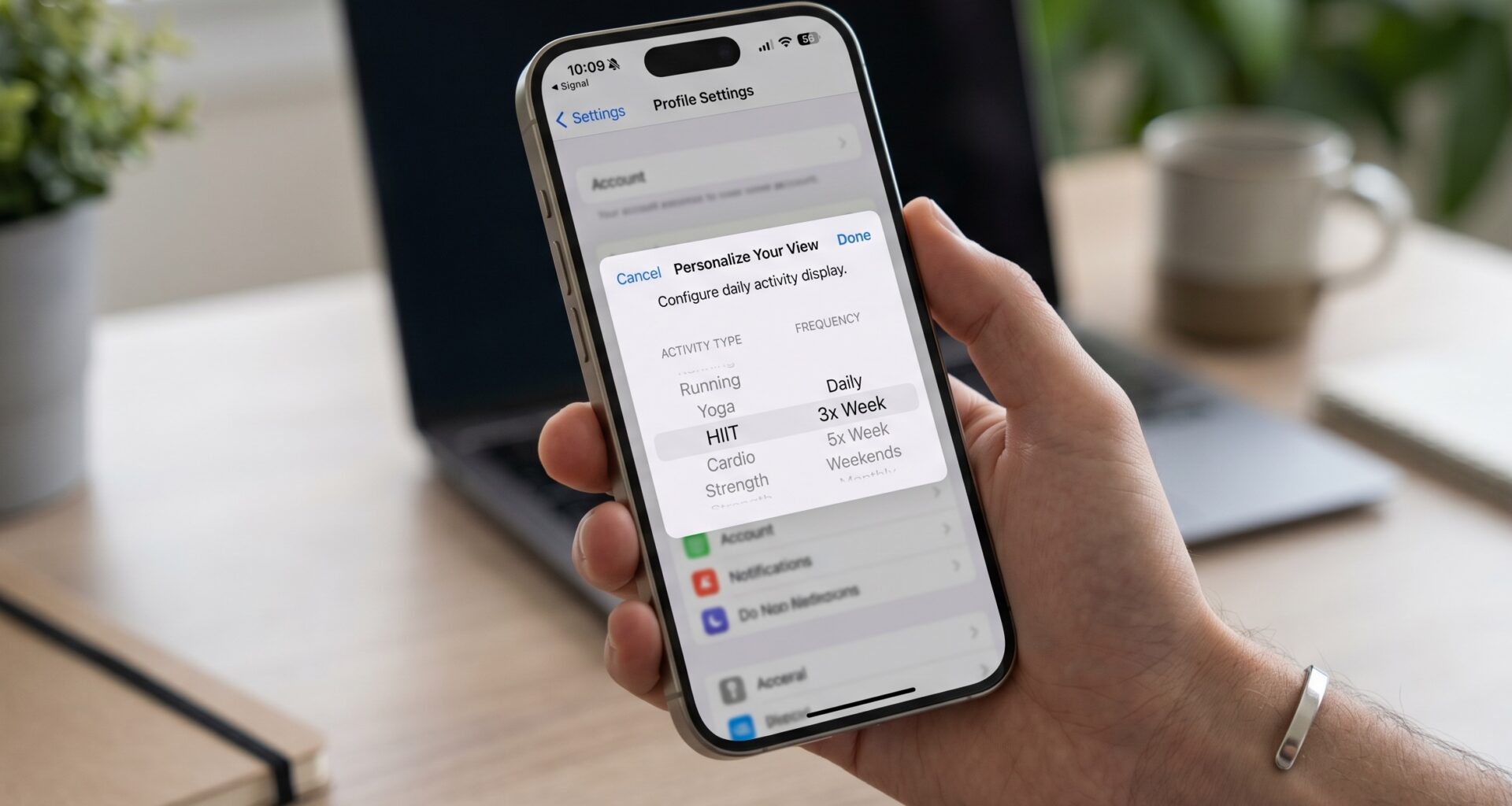

As an iOS Developer, you know that Apple provides us with an incredible set of default tools and user interface components. The standard Picker in SwiftUI is fantastic for most basic use cases. However, when working on a project with a strict design system, or when you simply want your app to stand out from the crowd with fluid animations and a unique aesthetic, the standard component can fall short.
This is where modern Swift programming shines. In this tutorial, I will guide you step by step on how to build a custom picker in SwiftUI from scratch. We will make it highly reusable, animated, accessible, and, most importantly, compatible with multiple platforms: iOS, macOS, and watchOS, all from a single project in Xcode.
1. Why We Need a Custom Picker
Before diving into Xcode and writing code, it is crucial to understand why and when we should move away from native components.
The native Picker in SwiftUI adapts its style depending on the platform and the .pickerStyle() modifier. It can be a drop-down menu, a segmented control (SegmentedPickerStyle), or a wheel (WheelPickerStyle). Although this is great for operating system consistency, it presents limitations:
- Lack of control over height and padding: The native segmented control has a fixed size that is hard to modify.
- Color limitations: Changing the background color of the selected item or the native text color does not always respond well to our branding needs.
- Restricted animations: We cannot modify how the indicator transitions from one element to another.
By creating our own custom picker in SwiftUI, we gain total control over every pixel, every millisecond of animation, and every accessibility state.
2. Setting up the Environment in Xcode
To get started, open Xcode and create a new Multiplatform App project or simply an iOS app if you prefer to focus on that platform first.
Make sure to select SwiftUI as the interface and Swift as the language.
Prerequisites:
- Intermediate knowledge of Swift programming.
- Familiarity with SwiftUI modifiers and state management (
@State,@Binding). - Xcode 14 or higher (Xcode 15+ recommended to take advantage of the latest Swift optimizations).
3. Defining the Data Model
For our picker to be truly professional and reusable, we should not hardcode Strings directly. Instead, we will use Generics and the Hashable protocol. For this example, we will create a simple enum, but our final component will accept any data type.
Create a new file named TimePeriodOptions.swift:
import Foundation

// We define an enum that will represent the options for our example picker
enum TimePeriod: String, CaseIterable, Identifiable {
    case day = "Day"
    case week = "Week"
    case month = "Month"
    case year = "Year"

    var id: String { self.rawValue }
}
By conforming to CaseIterable and Identifiable, we make it easier to iterate over these options within SwiftUI views.
4. Building the Custom Picker View in SwiftUI
Now let’s create the core of our component. We want a “Segmented Control” style design, but with more rounded corners, custom colors, and a smooth animation when the user changes options.
Create a new SwiftUI view file named CustomSegmentedPicker.swift.
4.1 Basic Structure and Generics
To make this a tool worthy of a Senior iOS Developer, we will use generics so the picker can accept any type of option.
import SwiftUI

struct CustomSegmentedPicker<T: Hashable & Identifiable & RawRepresentable>: View where T.RawValue == String {

    // The selected state that is shared with the parent view
    @Binding var selection: T

    // The available options
    let options: [T]

    // Namespace for the background animation (Matched Geometry Effect)
    @Namespace private var animationNamespace

    // Customizable colors
    var activeBgColor: Color = .blue
    var inactiveBgColor: Color = Color.gray.opacity(0.2)
    var activeTextColor: Color = .white
    var inactiveTextColor: Color = .primary

    var body: some View {
        HStack(spacing: 0) {
            ForEach(options) { option in
                pickerItem(for: option)
            }
        }
        .padding(4)
        .background(inactiveBgColor)
        .clipShape(Capsule())
    }
}
4.2 Detailing the Individual Element (Picker Item)
Inside the same CustomSegmentedPicker structure, let’s add the method that builds each individual button. This is where the animation magic in Swift happens.
extension CustomSegmentedPicker {

    @ViewBuilder
    private func pickerItem(for option: T) -> some View {
        let isSelected = selection == option

        ZStack {
            if isSelected {
                Capsule()
                    .fill(activeBgColor)
                    // The secret to a fluid Apple-style animation
                    .matchedGeometryEffect(id: "activeBackground", in: animationNamespace)
            }

            Text(option.rawValue)
                .font(.system(size: 14, weight: isSelected ? .bold : .medium, design: .rounded))
                .foregroundColor(isSelected ? activeTextColor : inactiveTextColor)
                .padding(.vertical, 10)
                .padding(.horizontal, 16)
                .lineLimit(1)
                .minimumScaleFactor(0.8)
        }
        .contentShape(Capsule())
        .onTapGesture {
            withAnimation(.interactiveSpring(response: 0.3, dampingFraction: 0.7, blendDuration: 0.2)) {
                selection = option
            }
        }
        // Accessibility: Extremely important for any iOS Developer
        .accessibilityElement(children: .ignore)
        .accessibilityLabel(Text(option.rawValue))
        .accessibilityAddTraits(isSelected ? [.isSelected, .isButton] : [.isButton])
    }
}
Technical Explanation of the Implementation:
- Matched Geometry Effect: The
.matchedGeometryEffectmodifier is one of the most powerful tools in Swift programming for UI. It tells SwiftUI to track the geometry of the backgroundCapsule(). When theselectionvariable changes, SwiftUI does not destroy and recreate the background in a new position instantly; instead, it interpolates (animates) the size and position from the previous button to the new one. - Spring Animation: Instead of a simple
.easeInOut, we use.interactiveSpring. This mimics real physics and is what gives Apple apps that “premium” feel. - Accessibility: A true professional does not forget VoiceOver. We’ve added
accessibilityAddTraitsso that visually impaired users know which element is selected and that it acts as a button.
5. Implementation in the Main View (iOS and macOS)
Now that we have our custom picker in SwiftUI, let’s use it in our ContentView.
import SwiftUI

struct ContentView: View {
    @State private var selectedPeriod: TimePeriod = .week

    var body: some View {
        NavigationView {
            VStack(spacing: 40) {

                // Our Custom Picker
                CustomSegmentedPicker(
                    selection: $selectedPeriod,
                    options: TimePeriod.allCases,
                    activeBgColor: .indigo,
                    inactiveBgColor: .gray.opacity(0.15)
                )
                .padding(.horizontal)

                // Content that reacts to the picker
                VStack(spacing: 20) {
                    Image(systemName: iconFor(period: selectedPeriod))
                        .font(.system(size: 80))
                        .foregroundColor(.indigo)
                        // We add a transition for the content change
                        .transition(.scale.combined(with: .opacity))
                        .id(selectedPeriod) // Forces SwiftUI to recreate the view for animation

                    Text("You are viewing data for the \(selectedPeriod.rawValue.lowercased())")
                        .font(.headline)
                        .foregroundColor(.secondary)
                }

                Spacer()
            }
            .padding(.top, 40)
            .navigationTitle("Statistics")
            // We use global animation for the content change
            .animation(.easeInOut, value: selectedPeriod)
        }
    }

    // Helper function to change the icon
    private func iconFor(period: TimePeriod) -> String {
        switch period {
        case .day: return "sun.max.fill"
        case .week: return "calendar"
        case .month: return "chart.bar.doc.horizontal"
        case .year: return "globe.americas.fill"
        }
    }
}
If you run this in your Xcode simulator for iOS or macOS, you will see an elegant control, with a smooth transition of the indigo background and a dynamic change in the bottom content.
6. Adapting the Picker for watchOS
One of the great advantages of SwiftUI is being able to share code across platforms. However, an Apple Watch screen is radically smaller than an iPhone or Mac. An HStack with 4 options will overflow the screen on watchOS, breaking the interface.
As an experienced iOS Developer, you must use compiler directives and adapt the design.
We are going to slightly modify our main component CustomSegmentedPicker so that, when compiling on watchOS, it is laid out in a vertical list format (VStack) or a horizontal ScrollView.
Let’s go back to CustomSegmentedPicker.swift and modify the body variable:
    var body: some View {
        #if os(watchOS)
        // On watchOS we use a horizontal ScrollView if there are many options, or a VStack
        ScrollView(.horizontal, showsIndicators: false) {
            HStack(spacing: 8) {
                ForEach(options) { option in
                    pickerItem(for: option)
                }
            }
            .padding(4)
        }
        #else
        // On iOS and macOS we keep the adaptive HStack
        HStack(spacing: 0) {
            ForEach(options) { option in
                pickerItem(for: option)
            }
        }
        .padding(4)
        .background(inactiveBgColor)
        .clipShape(Capsule())
        #endif
    }
For the pickerItem on watchOS, we can also dynamically adjust the text size and padding:
    @ViewBuilder
    private func pickerItem(for option: T) -> some View {
        let isSelected = selection == option

        ZStack {
            if isSelected {
                Capsule()
                    .fill(activeBgColor)
                    .matchedGeometryEffect(id: "activeBackground", in: animationNamespace)
            } else {
                #if os(watchOS)
                // On watchOS we give a visible background to inactive items as well
                Capsule()
                    .fill(Color.gray.opacity(0.3))
                #endif
            }

            Text(option.rawValue)
                // We adjust the font according to the OS
                #if os(watchOS)
                .font(.system(size: 12, weight: isSelected ? .bold : .regular))
                .padding(.vertical, 8)
                .padding(.horizontal, 12)
                #else
                .font(.system(size: 14, weight: isSelected ? .bold : .medium, design: .rounded))
                .padding(.vertical, 10)
                .padding(.horizontal, 16)
                #endif
                .foregroundColor(isSelected ? activeTextColor : inactiveTextColor)
                .lineLimit(1)
        }
        .contentShape(Capsule())
        // ... (the rest of the gestures and accessibility code remains the same)
Thanks to these simple #if os(watchOS) directives, Xcode will compile the appropriate component for the target device. The Apple Watch will display a swipeable carousel of pills from left to right, while iOS will show the classic unified segmented control.
7. Advanced Topics: Environment and Preferences Management
For this component to feel like a native Apple API, instead of passing the colors in the initializer every time, we can use SwiftUI‘s @Environment values. This is next-level Swift programming.
We can define our own Environment Keys for the accent color of our picker.
// We define the environment key
private struct PickerAccentColorKey: EnvironmentKey {
    static let defaultValue: Color = .blue
}

// We extend EnvironmentValues
extension EnvironmentValues {
    var customPickerAccentColor: Color {
        get { self[PickerAccentColorKey.self] }
        set { self[PickerAccentColorKey.self] = newValue }
    }
}

// We create a modifier to make it easier to use
extension View {
    func customPickerAccentColor(_ color: Color) -> some View {
        environment(\.customPickerAccentColor, color)
    }
}
Now, in our CustomSegmentedPicker, we can replace the activeBgColor property by reading from the environment:
@Environment(\.customPickerAccentColor) var activeBgColor
This allows the iOS Developer to set the picker’s color from a higher-level view, applying it to all pickers within that hierarchy, just like how the native .accentColor() works.
// Example of use with Environment
VStack {
    CustomSegmentedPicker(selection: $status, options: Options.allCases)
    CustomSegmentedPicker(selection: $filter, options: Filters.allCases)
}
.customPickerAccentColor(.orange) // Applies orange to BOTH pickers at the same time
8. Optimizing Performance
When developing a custom picker in SwiftUI, it is easy to introduce performance issues if you are not careful, especially when using MatchedGeometryEffect in large lists or complex components.
Here are three vital performance tips you must implement in Xcode:
- Avoid using heavy views inside the Item: Keep the
pickerItemas lightweight as possible. Use primitives likeTextandCapsule. Do not embed large images or perform complex calculations within this method, as it renders multiple times (once for each option). - The
.id()modifier: As we saw in theContentViewexample, we used.id(selectedPeriod)in the view that reacts to the picker. This is crucial. It explicitly tells SwiftUI: “When the ID changes, treat this as a completely new view.” This ensures that transitions (.transition) execute effortlessly and prevents unnecessary state overhead. - Explicit vs implicit animations: In our code we used
withAnimation { selection = option }in theonTapGestureevent. This is an explicit animation. It only animates the state changes resulting from that specific tap. Avoid using.animation(.default)at the end of the entireHStack, as this could cause other unrelated redraws to animate accidentally (a very common visual bug in Swift programming).
9. Testing and Debugging in Xcode
A good development workflow in Swift involves constant testing. Xcode offers Previews that are invaluable for iterating the design of our picker.
At the end of your CustomSegmentedPicker.swift file, make sure to configure a comprehensive Preview that tests the different states:
struct CustomSegmentedPicker_Previews: PreviewProvider {
    static var previews: some View {
        VStack(spacing: 30) {
            // Light Mode Preview
            StatefulPreviewWrapper(.week) { binding in
                CustomSegmentedPicker(selection: binding, options: TimePeriod.allCases)
            }

            // Dark Mode and Custom Color Preview
            StatefulPreviewWrapper(.year) { binding in
                CustomSegmentedPicker(
                    selection: binding,
                    options: TimePeriod.allCases,
                    activeBgColor: .green,
                    inactiveBgColor: .gray.opacity(0.3)
                )
            }
            .preferredColorScheme(.dark)
        }
        .padding()
        .previewLayout(.sizeThatFits)
    }
}

// A necessary wrapper in SwiftUI to make Previews of bindings work when clicked
struct StatefulPreviewWrapper<Value, Content: View>: View {
    @State var value: Value
    var content: (Binding<Value>) -> Content

    init(_ value: Value, content: @escaping (Binding<Value>) -> Content) {
        self._value = State(wrappedValue: value)
        self.content = content
    }

    var body: some View {
        content($value)
    }
}
Thanks to this StatefulPreviewWrapper, you can interact with the picker directly in the Xcode Canvas without having to compile the entire app in a simulator. You will see the MatchedGeometryEffect animations in real-time.
10. Conclusion and Next Steps
We went from relying on restrictive standard components to building a modular, animated, and accessible UI system.
Creating a custom picker in SwiftUI teaches you fundamental and advanced framework concepts: handling generics, interactive spatial geometry-based animations (MatchedGeometryEffect), manual accessibility, and cross-platform adaptability (iOS, macOS, watchOS).
As an iOS Developer, your main goal is not just to make the code work, but to create user interfaces that delight users, feel alive, and reinforce the identity of the product you are working on. The Xcode environment and the power of SwiftUI make this task more declarative and less prone to errors than ever before.