
If you are an iOS Developer looking to elevate the quality of your applications, geolocation and maps are almost mandatory components in today’s ecosystem. From delivery apps to social networks and fitness tools, knowing how to integrate maps is a critical skill.
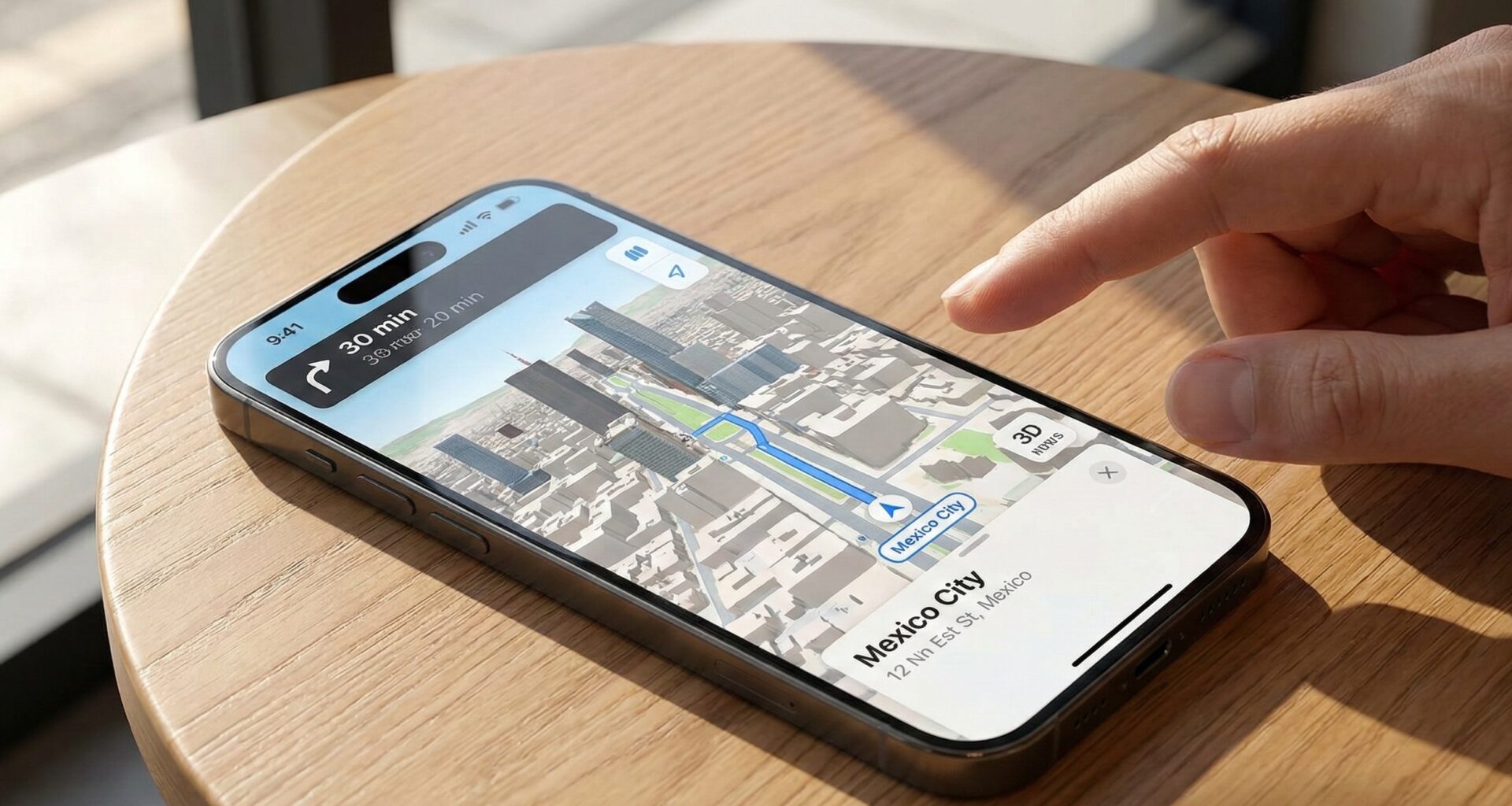
With the evolution of Swift programming, Apple has radically transformed how we interact with maps. Gone are the days of MKMapView and complex UIKit delegates. Today, integrating MapKit in SwiftUI is a declarative, powerful, and surprisingly fluid experience.
In this long-form tutorial, we will explore how to use modern MapKit APIs (introduced in iOS 17 and Xcode 15) to create native map experiences, not just for iPhone, but adapted for macOS and watchOS, leveraging the power of Swift and Xcode.
Prerequisites and Setup
To follow this tutorial, you will need:
- Xcode 15 or higher.
- iOS 17, macOS Sonoma, and watchOS 10 as minimum deployment targets (to use the latest SwiftUI Map APIs).
- Intermediate knowledge of SwiftUI.
Step 1: Project Setup in Xcode
Open Xcode and create a new “Multiplatform App” project (or start an iOS one and add the other targets). Make sure to select SwiftUI as the interface and Swift as the language.
We will need to import the framework in all files where we use maps:
import SwiftUI
import MapKit
The Heart of the Map: Data Structures
Before drawing pixels, a good iOS Developer defines their data. MapKit in SwiftUI works excellently with the Identifiable protocol. Let’s create a model to represent points of interest (POIs).
import Foundation
import CoreLocation

struct FavoritePlace: Identifiable {
    let id = UUID()
    let name: String
    let coordinate: CLLocationCoordinate2D
    let icon: String // SF Symbol name
}

// Sample data for our tests
extension FavoritePlace {
    static let examples = [
        FavoritePlace(name: "Apple Park", coordinate: CLLocationCoordinate2D(latitude: 37.3346, longitude: -122.0090), icon: "apple.logo"),
        FavoritePlace(name: "Golden Gate Bridge", coordinate: CLLocationCoordinate2D(latitude: 37.8199, longitude: -122.4783), icon: "bridge"),
        FavoritePlace(name: "Ferry Building", coordinate: CLLocationCoordinate2D(latitude: 37.7955, longitude: -122.3937), icon: "ferry.fill")
    ]
}
Chapter 1: iOS Implementation
Modern Swift programming allows us to instantiate a map with a single line of code, but for a professional app, we need to control the camera and annotations.
The Basic View and Camera Control
In older versions of SwiftUI, we used MKCoordinateRegion. Now, we use MapCameraPosition. This gives us much finer control over whether the map follows the user, focuses on a region, or on a specific item.
struct iOSMapView: View {
    // State to control camera position
    @State private var cameraPosition: MapCameraPosition = .automatic

    // Our data
    let places = FavoritePlace.examples

    var body: some View {
        Map(position: $cameraPosition) {
            // Here we add the map content
            ForEach(places) { place in
                Marker(place.name, systemImage: place.icon, coordinate: place.coordinate)
                    .tint(.blue)
            }
        }
        .mapStyle(.standard(elevation: .realistic)) // 3D Style
        .safeAreaInset(edge: .bottom) {
            HStack {
                Button("Go to Golden Gate") {
                    withAnimation {
                        cameraPosition = .region(MKCoordinateRegion(
                            center: CLLocationCoordinate2D(latitude: 37.8199, longitude: -122.4783),
                            span: MKCoordinateSpan(latitudeDelta: 0.05, longitudeDelta: 0.05)
                        ))
                    }
                }
                .buttonStyle(.borderedProminent)
            }
            .padding()
        }
    }
}
Markers vs. Annotations
MapKit in SwiftUI offers two main ways to mark points:
- Marker: This is the standard system “balloon”. It is performant and looks native. It automatically adapts to the theme.
- Annotation: This allows us to use any SwiftUI
Viewas a marker. This is ideal for fully custom designs.
Let’s see how to implement a custom Annotation for an iOS Developer who wants to stand out visually:
Annotation(place.name, coordinate: place.coordinate) {
    VStack {
        Image(systemName: place.icon)
            .resizable()
            .scaledToFit()
            .frame(width: 30, height: 30)
            .padding(8)
            .background(.ultraThinMaterial)
            .clipShape(Circle())
            .overlay(Circle().stroke(.white, lineWidth: 2))
            .shadow(radius: 4)

        Text(place.name)
            .font(.caption)
            .fontWeight(.bold)
            .foregroundStyle(.black)
            .padding(4)
            .background(.white)
            .cornerRadius(4)
    }
}
Chapter 2: Managing User Location
No article on maps in Swift and Xcode is complete without handling user location. This requires touching both the code and the project configuration.
1. Permissions in Info.plist
In your Xcode project, go to the “Info” tab of the target and add the following keys:
Privacy - Location When In Use Usage Description: “We need your location to show you on the map.”
2. The Location Manager
We are going to create a manager class using the ObservableObject pattern (or @Observable if using pure Swift 5.9).
class LocationManager: NSObject, ObservableObject, CLLocationManagerDelegate {
    private let manager = CLLocationManager()
    @Published var userLocation: CLLocation?

    override init() {
        super.init()
        manager.delegate = self
        manager.desiredAccuracy = kCLLocationAccuracyBest
        manager.requestWhenInUseAuthorization()
        manager.startUpdatingLocation()
    }

    func locationManager(_ manager: CLLocationManager, didUpdateLocations locations: [CLLocation]) {
        userLocation = locations.last
    }

    func requestLocation() {
        manager.requestLocation()
    }

    func locationManager(_ manager: CLLocationManager, didFailWithError error: Error) {
        print("Location error: \(error.localizedDescription)")
    }
}
3. Integration into the Map View
Now, we integrate the native user controls of MapKit in SwiftUI:
struct MapWithUserView: View {
    @StateObject private var locationManager = LocationManager()
    @State private var position: MapCameraPosition = .userLocation(fallback: .automatic)

    var body: some View {
        Map(position: $position) {
            UserAnnotation() // Shows native blue dot
        }
        .mapControls {
            MapUserLocationButton() // Re-center button
            MapCompass()            // Compass
            MapScaleView()          // Distance scale
        }
        .onAppear {
            // Ensures permissions are requested on load
            if locationManager.userLocation == nil {
                // Additional logic if needed
            }
        }
    }
}
Chapter 3: Adapting to macOS
As an iOS Developer, sometimes we forget the power of the Mac. Thanks to SwiftUI, 90% of the code is reusable, but the user experience (UX) must change. On macOS, we don’t have a touch screen; we have a mouse and resizable windows.
Key Differences
On macOS, map controls (MapControls) are usually placed differently, and mouse interaction requires support for tooltips or secondary clicks.
#if os(macOS)
struct MacMapView: View {
    @State private var selection: FavoritePlace.ID?
    let places = FavoritePlace.examples

    var body: some View {
        Map(selection: $selection) {
            ForEach(places) { place in
                Marker(place.name, systemImage: place.icon, coordinate: place.coordinate)
                    .tint(.purple) // Distinctive color for macOS
            }
        }
        .mapStyle(.hybrid) // Satellite + Labels, looks great on big screens
        .onChange(of: selection) { oldValue, newValue in
            if let id = newValue, let place = places.first(where: { $0.id == id }) {
                print("User clicked on: \(place.name)")
                // Here you could open a side inspector
            }
        }
    }
}
#endif
Pro Tip: On macOS, take advantage of the extra space to show a List next to the map. You can programmatically link the list selection to the map camera position.
Chapter 4: Adapting to watchOS
The challenge in watchOS is the economy of space. An iOS Developer programming for the watch must simplify.
- Less is more: Eliminate complex annotations.
- Limited interaction: Sometimes a static map or just showing the current location is better.
#if os(watchOS)
struct WatchMapView: View {
    let places = FavoritePlace.examples

    var body: some View {
        Map(interactionModes: [.pan, .zoom]) { // Limit rotation
            ForEach(places) { place in
                Annotation(place.name, coordinate: place.coordinate) {
                    Image(systemName: place.icon)
                        .foregroundColor(.yellow)
                        .scaleEffect(1.5) // Larger icons for wrist visibility
                }
            }
        }
        .mapStyle(.standard) // Keep style clean on small screen
    }
}
#endif
In Xcode, you can preview this by selecting the watchOS scheme in the simulator. You will see that SwiftUI automatically adapts zoom controls to use the “Digital Crown”.
Advanced Techniques: Look Around (Street View)
To really impress in your Swift programming portfolio, add “Look Around” functionality (Apple’s version of Street View). This used to be very complex, but in recent versions of SwiftUI, it is accessible.
struct LookAroundPreviewView: View {
    @State private var lookAroundScene: MKLookAroundScene?
    @State private var selection: FavoritePlace?

    var body: some View {
        VStack {
            Map(selection: $selection) {
                // ... your markers
            }
            .frame(height: 300)

            // Street level preview view
            if let scene = lookAroundScene {
                LookAroundPreview(initialScene: scene)
                    .frame(height: 200)
                    .cornerRadius(12)
                    .padding()
            } else {
                ContentUnavailableView("Select a place", systemImage: "map")
            }
        }
        .onChange(of: selection) { _, newPlace in
            guard let place = newPlace else { return }
            getLookAroundScene(for: place.coordinate)
        }
    }

    func getLookAroundScene(for coordinate: CLLocationCoordinate2D) {
        let request = MKLookAroundSceneRequest(coordinate: coordinate)
        Task {
            do {
                lookAroundScene = try await request.scene
            } catch {
                print("No view available for this area")
            }
        }
    }
}
This asynchronous code demonstrates advanced mastery of Swift, using Task and await to avoid blocking the user interface while loading heavy 3D image data.
Optimization and Performance
When working with MapKit in SwiftUI, performance can degrade if you try to render thousands of annotations at once.
- Clustering: Unfortunately, native clustering support in pure SwiftUI is still limited compared to UIKit. If you have 5000 points, consider filtering the data before passing it to the
Mapview based on the current zoom level (onMapCameraChange). - MapStyle: The
.imagery(satellite) style consumes more data and battery. Use it only if necessary for the app context. - Memory Management: Ensure you cancel LookAround async
Tasksif the view disappears (onDisappear).
Conclusion
Integrating MapKit in SwiftUI has gone from being a tedious task to a creative and efficient experience. As you have seen, with just a few lines of code in Xcode, we can deploy interactive 3D maps, manage geolocation, and offer rich experiences like Look Around.
The key for a senior iOS Developer is understanding how to adapt this same code base to the peculiarities of each platform: the tactility of iOS, the cursor precision on macOS, and the immediacy of watchOS.
Swift programming continues to evolve, and mastering core frameworks like MapKit positions you advantageously in the market. Don’t just copy the code; experiment with MapPolyline for routes, MapCircle for visual geofencing, and customize your map styles.
If you have any questions about this article, please contact me and I will be happy to help you 🙂. You can contact me on my X profile or on my Instagram profile.