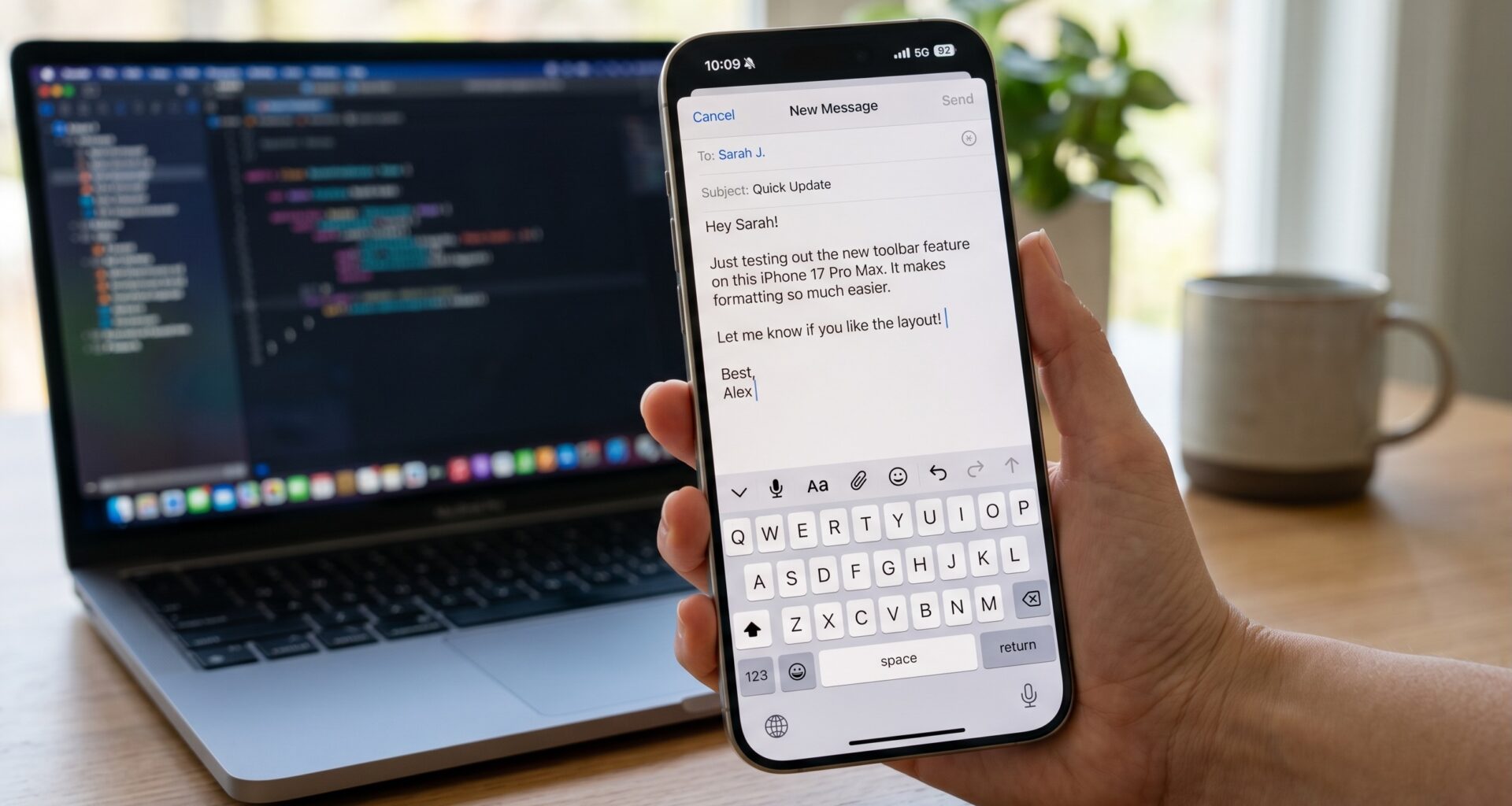

In the competitive world of app development, user experience (UX) is the factor that separates mediocre apps from truly exceptional ones. As an iOS Developer, you’ve probably faced a classic and frustrating problem: when a user opens the number pad (.numberPad) or the phone pad (.phonePad), there is no native “Done” or “Enter” button to close it. The keyboard gets stuck on the screen, ruining the navigation.
Fortunately, Swift programming has evolved enormously. In this tutorial, we will dive into how to add a toolbar to a keyboard with SwiftUI, a fundamental technique that every developer must master. Furthermore, we won’t just limit ourselves to the iPhone; we will explore how this Swift code behaves inside Xcode when compiling for macOS and watchOS, demonstrating the true power of SwiftUI.
1. The historical problem: From UIKit to SwiftUI
In the golden age of UIKit, adding buttons above the keyboard required creating a UIToolbar, initializing buttons (UIBarButtonItem), handling selectors with @objc, and assigning that bar to the inputAccessoryView property of the UITextField. It was a tedious process prone to memory leaks if references weren’t managed well.
With the arrival of SwiftUI, Apple introduced a declarative paradigm. However, in early versions (iOS 13 and 14), replicating the behavior of inputAccessoryView required wrapping UIKit components using UIViewRepresentable.
This all changed starting with iOS 15. Apple introduced the .toolbar modifier with the .keyboard placement, allowing any iOS Developer to create keyboard toolbars with just three lines of code.
2. Basic Implementation in Xcode
Let’s open Xcode and create a new project using SwiftUI. Our initial goal is to create a simple form where the user can enter their age (requiring a numeric keyboard) and provide a button to hide the keyboard.
The Core Code
import SwiftUI

struct SimpleKeyboardView: View {
    @State private var userAge: String = ""
    @FocusState private var isInputActive: Bool

    var body: some View {
        NavigationStack {
            Form {
                Section(header: Text("Personal Data")) {
                    TextField("Enter your age", text: $userAge)
                        .keyboardType(.numberPad)
                        // We bind the keyboard focus state
                        .focused($isInputActive)
                }
            }
            .navigationTitle("Profile")
            // Here is where the magic happens
            .toolbar {
                ToolbarItemGroup(placement: .keyboard) {
                    Spacer() // Pushes the button to the right

                    Button("Done") {
                        isInputActive = false // Hides the keyboard
                    }
                }
            }
        }
    }
}
Breaking down the Swift Programming
@FocusState: This is one of the most powerful additions to modern Swift programming. It allows us to track and programmatically modify which text field has the system focus..keyboardType(.numberPad): Invokes the numeric keyboard, which lacks a native return button..toolbarandToolbarItemGroup(placement: .keyboard): Tells SwiftUI that the elements within this group should not go in the top navigation bar, but rather anchored to the top of the virtual keyboard.Spacer(): In SwiftUI, theSpacerpushes content. By placing it before the button, we ensure that the “Done” button aligns to the right, following Apple’s Human Interface Guidelines.
3. Handling Multiple Text Fields (Advanced Forms)
Knowing how to add a toolbar to a keyboard with SwiftUI is just the beginning. In the real world, an iOS Developer rarely works with a single text field. Registration or checkout forms have multiple inputs, and users expect to be able to jump from one field to another using arrows on the keyboard.
Let’s level up our Swift by creating smooth navigation between fields.
Defining the Fields with an Enum
To handle multiple focuses, the best practice in SwiftUI is to use an enumeration (enum) that conforms to Hashable.
import SwiftUI

struct AdvancedFormView: View {

    enum FormField: Hashable {
        case firstName
        case lastName
        case phoneNumber
    }

    @State private var firstName: String = ""
    @State private var lastName: String = ""
    @State private var phoneNumber: String = ""

    // Our FocusState now tracks the enum
    @FocusState private var focusedField: FormField?

    var body: some View {
        NavigationStack {
            Form {
                TextField("First Name", text: $firstName)
                    .focused($focusedField, equals: .firstName)
                    .textContentType(.givenName)
                    .submitLabel(.next)

                TextField("Last Name", text: $lastName)
                    .focused($focusedField, equals: .lastName)
                    .textContentType(.familyName)
                    .submitLabel(.next)

                TextField("Phone", text: $phoneNumber)
                    .focused($focusedField, equals: .phoneNumber)
                    .keyboardType(.phonePad)
            }
            .navigationTitle("Registration")
            .onSubmit {
                // Handles the "Enter" button of the standard keyboard
                switch focusedField {
                case .firstName:
                    focusedField = .lastName
                case .lastName:
                    focusedField = .phoneNumber
                default:
                    focusedField = nil
                }
            }
            .toolbar {
                ToolbarItemGroup(placement: .keyboard) {
                    // Navigation buttons (Previous / Next)
                    Button(action: previousField) {
                        Image(systemName: "chevron.up")
                    }
                    .disabled(focusedField == .firstName)

                    Button(action: nextField) {
                        Image(systemName: "chevron.down")
                    }
                    .disabled(focusedField == .phoneNumber)

                    Spacer()

                    // Confirmation button
                    Button("Done") {
                        focusedField = nil
                    }
                    .bold()
                }
            }
        }
    }

    // Navigation helper methods
    private func nextField() {
        switch focusedField {
        case .firstName: focusedField = .lastName
        case .lastName: focusedField = .phoneNumber
        default: break
        }
    }

    private func previousField() {
        switch focusedField {
        case .phoneNumber: focusedField = .lastName
        case .lastName: focusedField = .firstName
        default: break
        }
    }
}
Architecture Analysis
With this code, we have created a premium experience. We used Image(systemName:) to integrate native SF Symbols icons, creating the classic “Up/Down” buttons that iOS users expect when filling out forms. Furthermore, using the .disabled() property, we prevent the user from trying to navigate “up” if they are already on the first field, preventing logical errors in Swift programming.
4. Cross-Platform Behavior: macOS and watchOS
The promise of SwiftUI is “Learn once, apply anywhere”. However, a senior iOS Developer knows that context matters. What happens to our code when we open this same project in Xcode and change the target to macOS or watchOS?
macOS
On Mac computers, users have a physical keyboard. The concept of an “on-screen virtual keyboard” that slides up from the bottom doesn’t exist (except in very specific accessibility cases).
- What happens with the
.keyboardplacement? On macOS, SwiftUI is smart enough to ignoreToolbarItemGroup(placement: .keyboard). Your app will compile perfectly, but those “Done” buttons or arrows simply won’t render, since the user can use theTaborEnterkey on their physical keyboard. This demonstrates the elegance of SwiftUI: you don’t need to clutter your code with#if os(iOS)compiler directives just to prevent the interface from breaking.
watchOS
The Apple Watch is a device with an extremely limited screen. Text input in watchOS isn’t done via a pop-up numeric keyboard in the same way as on the iPhone, but rather through dedicated screens (Scribble, Dictation, or the full QWERTY keyboard on Ultra/Series 7+ models).
- Behavior: Just like on Mac, the
.keyboardplacement is not applicable on watchOS. If you want to offer “Done” buttons on watchOS, you must integrate them directly into the main view or use a standard button below the text field. To keep your code clean if you share views, here it is advisable to use cross-platform encapsulation:
#if os(iOS)
.toolbar {
    ToolbarItemGroup(placement: .keyboard) {
        Spacer()
        Button("Done") { focusedField = nil }
    }
}
#endif
5. Best Practices and Performance in Xcode
When learning how to add a toolbar to a keyboard with SwiftUI, it is crucial to follow performance and accessibility guidelines.
1. Extracting the Toolbar
If you have many forms in your app, don’t copy and paste the ToolbarItemGroup code. In Swift, you can create a custom view modifier (ViewModifier) or simply an extension function to reuse this toolbar, keeping your code DRY (Don’t Repeat Yourself).
2. Accessibility (VoiceOver)
Ensure that the buttons in your toolbar are accessible. Although texts like “Done” are automatically read by VoiceOver, if you use icons (like the arrows), you should add explicit accessibility labels:
Button(action: nextField) {
    Image(systemName: "chevron.down")
}
.accessibilityLabel("Next text field")
3. Avoiding State Conflicts
Make sure your @FocusState variable has private access. Modifying the focus state from multiple unexpected places in your app’s architecture can cause erratic behavior in the keyboard, where it quickly hides and reappears (a common visual bug in early versions of iOS 15).
6. Conclusion
The Apple ecosystem evolves rapidly, but mastering the fundamentals of user interaction is what solidifies your career as an iOS Developer. Knowing exactly how to add a toolbar to a keyboard with SwiftUI is an essential skill that transforms a clunky form into a smooth, professional experience.
Through Swift programming, we have overcome the limitations of older APIs, using modern tools in Xcode such as @FocusState and the .toolbar modifier. Moreover, by understanding the context of macOS and watchOS, you are thinking not just as a mobile programmer, but as a software architect for the entire Apple ecosystem.