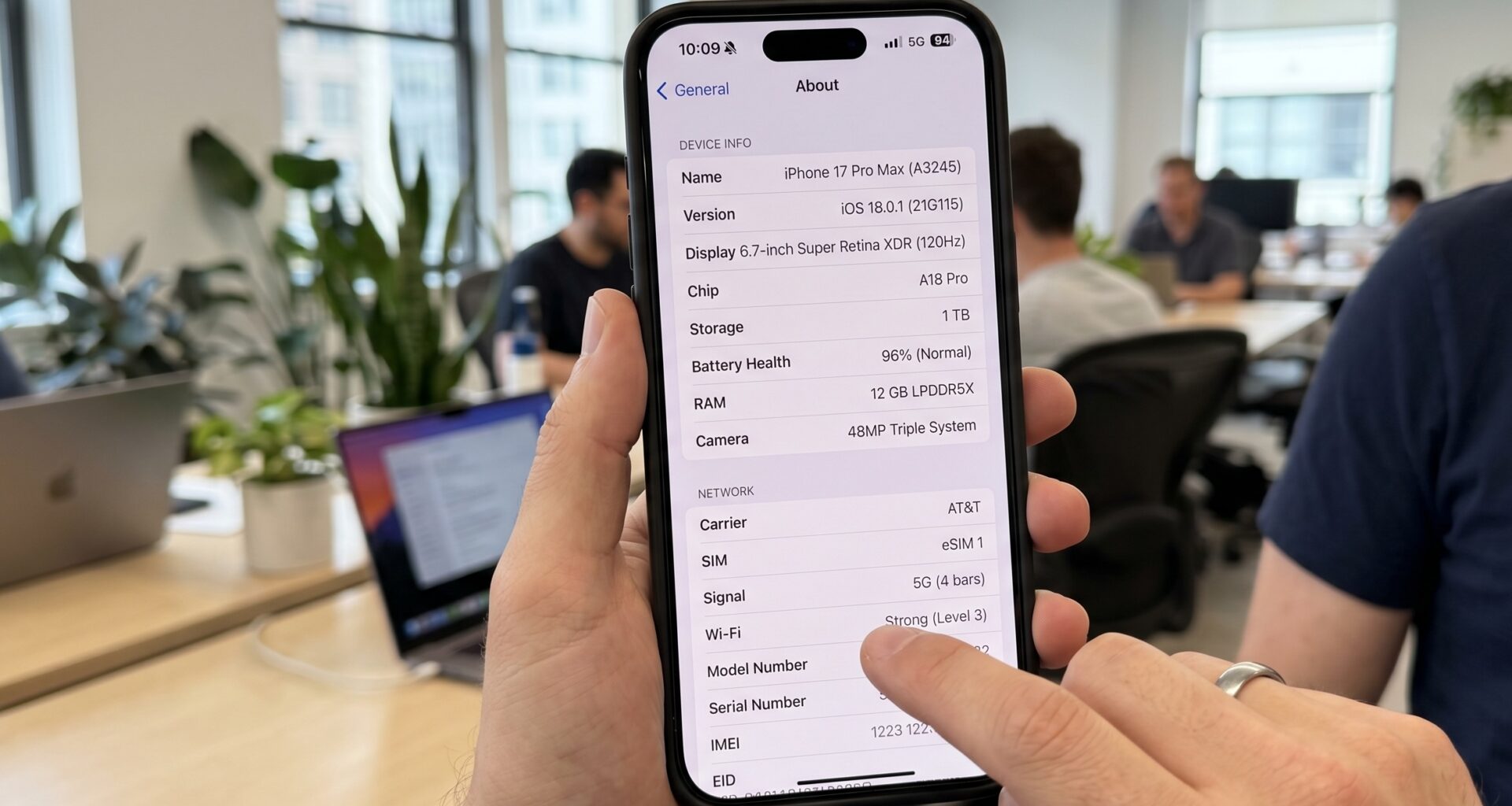

If you are an iOS Developer looking to create cleaner, more accessible, and adaptable interfaces, you are in the right place. In the world of Swift programming, the evolution of user interface components is constant, and Apple is always looking for ways to make our lives easier. One of those great leaps in semantics and simplicity arrived with iOS 16 and macOS 13: the LabeledContent component.
In this extensive tutorial, we are going to dive deep into what LabeledContent in SwiftUI is, why you should stop using HStack for all types of forms, and how you can masterfully implement this component in Xcode to create universal applications using SwiftUI and Swift.
Brew yourself a coffee, open Xcode, and let’s code.
1. The Problem: The Past of Forms in SwiftUI
Before understanding the solution, we must remember the problem. As an iOS Developer, you have surely had to design settings screens, user profiles, or product details. The classic structure for displaying “Label – Value” used to look like this:
HStack {
    Text("App Version")
    Spacer()
    Text("2.0.1")
        .foregroundColor(.secondary)
}
Although this code works and looks good on an iPhone, it presents several hidden problems:
- Accessibility: VoiceOver reads these elements as two separate and disconnected texts, unless you manually add accessibility modifiers.
- Cross-platform adaptability: On macOS, forms usually have labels right-aligned and values left-aligned along an invisible dividing line. A simple
HStackdoes not automatically adapt to this Mac design paradigm. - Boilerplate: Writing
Spacer()and constantly changing colors breaks the DRY (Don’t Repeat Yourself) principle.
To solve this, Apple introduced LabeledContent in SwiftUI.
2. What is LabeledContent in SwiftUI?
LabeledContent is a semantic view built into SwiftUI specifically designed to represent a piece of data alongside its descriptive label. Its purpose is to communicate the intent of the interface to the operating system, allowing SwiftUI to decide the best way to render it depending on the context (whether you are in a list, a form, on iOS, or on an Apple Watch).
Basic Syntax
The simplest implementation in Swift requires only two elements: the title (the label) and the value we want to display.
import SwiftUI

struct UserProfileView: View {
    var body: some View {
        Form {
            Section(header: Text("Basic Information")) {
                LabeledContent("Name", value: "Ana García")
                LabeledContent("Occupation", value: "iOS Developer")
                LabeledContent("Location", value: "Madrid, Spain")
            }
        }
    }
}
Upon compiling this in Xcode, you will immediately notice that the system applies a default style: the title on the left in primary color, and the value on the right in secondary color (grayish). All without a single Spacer!
3. The Power of Built-in Formatting
One of the jewels of modern Swift programming is its powerful data formatting API. LabeledContent is designed to integrate seamlessly with it. If you are handling dates, currencies, or measurements, you don’t need to convert your data to String beforehand.
Let’s see how SwiftUI handles different data types directly:
struct StatsView: View {
    let joinDate = Date()
    let balance = 1450.75
    let distance = Measurement(value: 5.2, unit: UnitLength.kilometers)

    var body: some View {
        List {
            // Date Formatting
            LabeledContent("Member since", value: joinDate, format: .dateTime.year().month().day())

            // Currency Formatting
            LabeledContent("Current balance", value: balance, format: .currency(code: "EUR"))

            // Measurement Formatting
            LabeledContent("Distance covered", value: distance, format: .measurement(width: .abbreviated))
        }
    }
}
This approach not only reduces code but also ensures that data is displayed in the correct format according to the user’s device regional settings (Locale).
4. Advanced View Customization
Sometimes, simple text is not enough. What if you need the label to include an icon or the content to be a custom view, like a progress indicator or a button? LabeledContent is extremely flexible.
Like many views in SwiftUI, it provides an initializer based on ViewBuilders, allowing you to inject any view into both the content and the label.
struct DeviceSettingsView: View {
    @State private var isWifiEnabled = true

    var body: some View {
        Form {
            // Customizing the label with an icon
            LabeledContent {
                Text("Connected")
                    .foregroundColor(.green)
                    .bold()
            } label: {
                Label("Server Status", systemImage: "network")
            }

            // Integrating interactive controls
            LabeledContent {
                Toggle("", isOn: $isWifiEnabled)
                    .labelsHidden() // Hide the toggle's label to avoid duplication
            } label: {
                Label("Wi-Fi", systemImage: "wifi")
            }

            // Complex content (Multiple views)
            LabeledContent {
                HStack {
                    Image(systemName: "battery.75")
                        .foregroundColor(.green)
                    Text("75%")
                }
            } label: {
                Text("Battery")
            }
        }
    }
}
As you can see, this component does not limit you to showing static strings; it acts as a highly semantic layout container.
5. Cross-Platform Magic: iOS, macOS, and watchOS
The real reason every iOS Developer should fall in love with this component is its cross-platform behavior. When developing apps in Xcode targeting multiple Apple ecosystems, the design must feel native in each of them.
Behavior on iOS and iPadOS
On iOS, within a Form or List, LabeledContent pushes the label to the left and the content to the right. If space is very tight (like when using multitasking on an iPad) and the texts are very long, the component will handle truncation intelligently, prioritizing the readability of the label.
Behavior on macOS
This is where the real magic happens. On macOS, forms follow a strict Human Interface Guidelines (HIG) pattern: labels are right-aligned and content is left-aligned, forming a clean central column.
If you use an HStack on macOS, you won’t get this alignment. But if you use LabeledContent inside a Form on macOS, SwiftUI magically restructures your views to fit the Mac standard. One single source code, two completely native designs!
Behavior on watchOS
The Apple Watch screen is tiny. Trying to force a “left-right” layout often results in truncated and illegible texts. On watchOS, LabeledContent intelligently changes its structure (depending on the context) to stack elements vertically: the label on top (smaller and dimmed) and the value on the bottom (larger and prominent).
This demonstrates the SwiftUI paradigm: “Learn once, apply anywhere”. You define the intent (this is labeled data), and the operating system defines the presentation.
6. Creating your own LabeledContentStyle
Just as buttons have ButtonStyle and toggles have ToggleStyle, Apple introduced LabeledContentStyle. This allows you to define a uniform appearance for your labeled data throughout your entire application, keeping your code clean.
Suppose we are creating a financial Dashboard and we want all our labeled data to look like cards with the label on top and the large value on the bottom, regardless of the platform.
Step 1: Define the Style
First, we create a struct that conforms to the LabeledContentStyle protocol:
struct CardLabeledContentStyle: LabeledContentStyle {
    func makeBody(configuration: Configuration) -> some View {
        VStack(alignment: .leading, spacing: 8) {
            // The configuration gives us access to the original label
            configuration.label
                .font(.subheadline)
                .foregroundColor(.secondary)
                .textCase(.uppercase)

            // And to the original content
            configuration.content
                .font(.title2)
                .fontWeight(.bold)
                .foregroundColor(.primary)
        }
        .padding()
        .frame(maxWidth: .infinity, alignment: .leading)
        .background(Color(UIColor.secondarySystemBackground))
        .cornerRadius(12)
        .shadow(color: Color.black.opacity(0.05), radius: 5, x: 0, y: 2)
    }
}
Step 2: Create a convenience extension (Optional but recommended)
To follow SwiftUI conventions, we create a static extension that allows us to call our style using dot syntax:
extension LabeledContentStyle where Self == CardLabeledContentStyle {
    static var card: CardLabeledContentStyle {
        CardLabeledContentStyle()
    }
}
Step 3: Apply the style in our App
Now we can apply this style to an individual component or to an entire view container:
struct DashboardView: View {
    var body: some View {
        VStack(spacing: 16) {
            Text("Monthly Summary")
                .font(.largeTitle)
                .bold()
                .frame(maxWidth: .infinity, alignment: .leading)
                .padding(.horizontal)

            LabeledContent("Total Income", value: "$4,500.00")
            LabeledContent("Expenses", value: "$1,230.50")
            LabeledContent("Net Profit", value: "$3,269.50")
        }
        .padding()
        // We apply the style to the entire hierarchy at once!
        .labeledContentStyle(.card)
    }
}
Thanks to modular Swift programming, with just one line of code (.labeledContentStyle(.card)), we have completely transformed the appearance of all semantic elements in our view, facilitating global app redesign and ensuring visual consistency throughout the Xcode project.
7. The Hidden Advantage: First-Class Accessibility
As a professional iOS Developer, accessibility should never be an afterthought. If you use the old HStack method, a visually impaired user using VoiceOver will swipe and hear: “App version”… swipe again… “2.0.1”. The user has to mentally retain the context of what the value “2.0.1” refers to.
By using LabeledContent in SwiftUI, the system semantically links both parts. VoiceOver will intelligently read both parts as a single cohesive entity: “App version, 2.0.1”.
Furthermore, if the content is interactive (like a button or a slider), the system automatically knows that the text provided in the “Label” is the accessibility title for that control. This saves lines of code that you previously had to invest in accessibilityLabel() and accessibilityValue().
8. LabeledContent vs. HStack: When to use which?
At this point, you might think that the HStack is obsolete. That’s not the case! Every tool in Swift has its purpose. Here is a golden rule to know when to choose each one:
Use LabeledContent when:
- You are displaying a key-value pair (Name: John, Age: 30, Status: Active).
- You are building a form, a list of user details, or settings screens.
- You need the layout to adapt perfectly to iOS, macOS, and watchOS standards with a single codebase.
- You want automatic accessibility support for data associations.
Use HStack when:
- You are aligning elements that do not have a semantic “Label-Value” relationship. For example: aligning an avatar next to a “Follow” button.
- You are building custom interface components like a custom toolbar or a tab bar (TabBar).
- You need absolute, millimeter-precise control over the spacing and distribution of elements that must not change under any system circumstances.
Summary and Conclusion
The evolution of Swift programming has taken us to a point where writing user interfaces feels less like spatial mathematics and more like declaring our intentions in natural language.
The LabeledContent in SwiftUI component is a perfect testament to Apple’s philosophy for the future of development: creating semantic, intelligent, inherently accessible components that are ready to work flawlessly regardless of the device they are running on.
As an iOS Developer, adopting these modern APIs not only reduces the amount of code you write and maintain in Xcode, but it elevates the quality of your applications to the level of native Apple apps, ensuring that all users, regardless of the platform or their visual capabilities, enjoy the best possible experience.