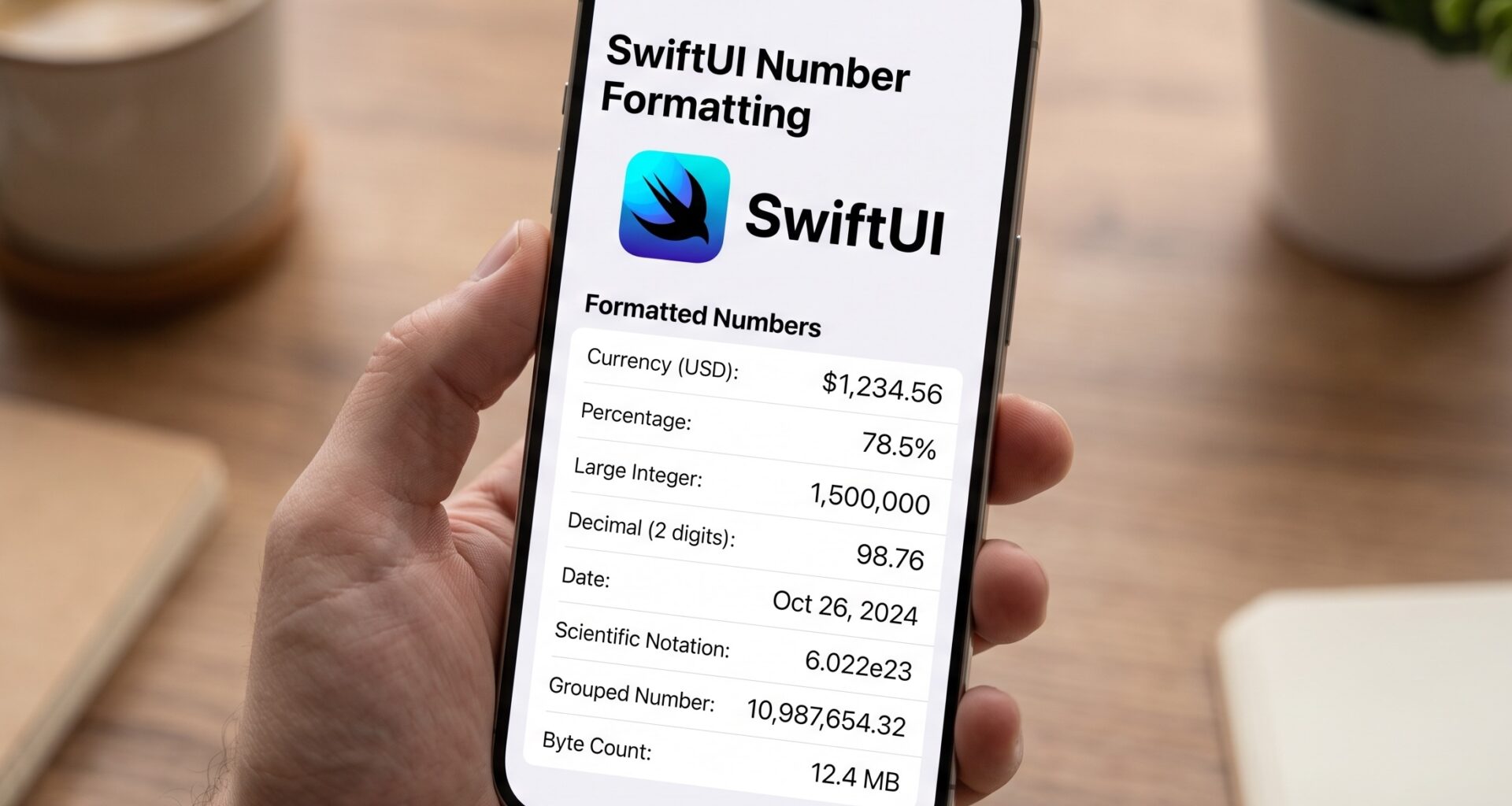

Any iOS Developer who has worked on real-world applications knows that presenting data clearly and understandably is just as important as the logic behind it. Whether you are displaying a bank account balance, the download progress of a file, or the distance covered in a workout, the way numbers are presented to the end user can define the quality of the user experience (UX).
In the modern Apple development ecosystem, formatting numbers in SwiftUI has become a surprisingly elegant task. Gone are the days when we relied exclusively on complex configurations with NumberFormatter. Thanks to recent updates in Swift programming, Apple has introduced a declarative, safe, and highly optimized API to handle formats directly in your views.
In this extensive and detailed tutorial, we will explore in depth how to work with numbers in Swift, using Xcode and SwiftUI to create flawless experiences in iOS, macOS, and watchOS.
1. The Evolution of Formatting in Swift Programming
Before the arrival of iOS 15 and macOS 12, the standard way to convert a Double or an Int into a readable string of text was using Foundation’s NumberFormatter class. Although powerful and highly customizable, it required a lot of repetitive code (boilerplate). Often, you had to create static instances of formatters so as not to penalize the application’s performance.
With the maturation of SwiftUI, Apple introduced the FormatStyle API. This API is a paradigm shift: it is declarative, integrates directly with Swift‘s native data types, and is strongly typed. This means that the Xcode compiler will help you avoid runtime errors when formatting your data.
2. The Power of the FormatStyle API and the .formatted() Method
The most direct way to apply formatting to a number today is by using the .formatted() method, which is available on most standard numeric types (Int, Double, Float, etc.).
Basic Example
let screenViews = 14500
let formattedViews = screenViews.formatted()
// Result in an English-speaking region: "14,500"
// Result in Spain: "14.500"
The true power of this approach is automatic localization. As an iOS Developer, you don’t have to worry about whether the user prefers commas or periods to separate thousands; the operating system, whether on iOS, macOS, or watchOS, determines it automatically based on the user’s device regional settings (Locale).
3. Formatting Numbers in SwiftUI Directly in Views
SwiftUI takes the FormatStyle API a step further by integrating it directly into its views, especially the Text view. Instead of formatting the number before passing it to the view, you can inject the numeric value and the format style directly into the Text initializer.
Standard Numeric Format
To display a number with standard formatting, we use the format parameter within the Text view:
import SwiftUI

struct StatisticsView: View {
    let score: Double = 12345.678

    var body: some View {
        VStack(spacing: 20) {
            Text("Player Score")
                .font(.headline)

            // Formatting numbers in SwiftUI is as simple as this:
            Text(score, format: .number)
                .font(.largeTitle)
                .bold()
        }
        .padding()
    }
}
When compiling this in Xcode, the system will render “12,345.678” or “12.345,678” depending on the region, applying thousands and decimal separators natively.
4. Controlling Precision and Decimals
One of the most common requirements in Swift programming is limiting the number of decimals shown on screen. The API allows us to chain modifiers to the base .number format.
The .precision Modifier
You can use .precision(.fractionLength(x...y)) to define the minimum and maximum number of allowed decimals.
import SwiftUI

struct FinancialDetailsView: View {
    let interestRate: Double = 4.123456

    var body: some View {
        VStack {
            // Shows exactly 2 decimals: 4.12
            Text(interestRate, format: .number.precision(.fractionLength(2)))

            // Shows between 1 and 3 decimals depending on the value: 4.123
            Text(interestRate, format: .number.precision(.fractionLength(1...3)))
        }
    }
}
Grouping and Signs
If you need to hide thousand separators (for example, when showing an ID number or a year), you can disable grouping. You can also force the display of the positive sign to indicate growth.
let year = 2026
let growth = 15.5

// Without thousand separator (e.g., 2026 instead of 2,026)
Text(year, format: .number.grouping(.never))

// Force sign display (e.g., +15.5)
Text(growth, format: .number.sign(strategy: .always()))
5. The World of Money: Currency Formatting
Handling currencies is a critical task. A common mistake is trying to manually add the currency symbol (e.g., Text("$\(amount)")). This breaks localization and is a bad accessibility practice. To format numbers in SwiftUI as currency, we use .currency.
import SwiftUI

struct ShoppingCartView: View {
    let total: Double = 1499.99

    var body: some View {
        HStack {
            Text("Total to pay:")
            Spacer()
            // Currency format using the ISO 4217 code
            Text(total, format: .currency(code: "USD"))
                .font(.title2)
                .foregroundColor(.green)
        }
        .padding()
    }
}
The .currency format is extremely smart. If the device’s regional setting is Spain and the code is “EUR”, it will show 1.499,99 €. If the region is the United States and the code is “EUR”, it will show €1,499.99. This guarantees your apps feel native and professional in any market.
6. Percentages Made Easy
Just as with currencies, you shouldn’t multiply by 100 and add a “%” by hand. SwiftUI handles percentages elegantly. Note that the API assumes the base value is the fraction (where 1.0 = 100%).
import SwiftUI

struct ProgressView: View {
    let chargeLevel: Double = 0.854 // 85.4%

    var body: some View {
        // Shows 85%
        Text(chargeLevel, format: .percent.rounded())

        // Shows 85.4%
        Text(chargeLevel, format: .percent.precision(.fractionLength(1)))
    }
}
7. Working with Measurement Units and Data
If you are developing for watchOS, you will likely work with health data (distance, calories, heart rate). If you develop utility apps for macOS or iOS, you might need to display file sizes. Swift offers native tools for this.
Formatting Bytes (File Sizes)
The ByteCountFormatStyle structure saves you the task of calculating whether a file is in KB, MB, GB, or TB.
import SwiftUI

struct StorageView: View {
    let fileSizeInBytes: Int64 = 10_500_000_000 // Approx 10.5 GB

    var body: some View {
        // Xcode will compile this to show "10.5 GB" (or regional equivalent)
        Text(fileSizeInBytes, format: .byteCount(style: .file))
    }
}
Measurement Units
For distances, weights, and temperatures, we use the Measurement type.
import SwiftUI

struct WeatherView: View {
    let temperature = Measurement(value: 38, unit: UnitTemperature.celsius)
    let distance = Measurement(value: 5.2, unit: UnitLength.kilometers)

    var body: some View {
        VStack {
            // The system automatically converts it to Fahrenheit if the user is in the US.
            Text(temperature, format: .measurement(width: .abbreviated))

            // Can show "5.2 km" or "3.2 mi" depending on the region
            Text(distance, format: .measurement(width: .wide))
        }
    }
}
8. User Input: Formatted TextFields in SwiftUI
Displaying numbers is only half the job of an iOS Developer. Often, we need users to input numbers (for example, in a finance app). This is where TextField in SwiftUI shines alongside the format API, parsing user input and automatically converting it into a numeric data type.
import SwiftUI

struct PaymentView: View {
    @State private var enteredAmount: Double? = nil

    var body: some View {
        Form {
            Section(header: Text("Enter the amount to transfer")) {
                TextField("Amount", value: $enteredAmount, format: .currency(code: "EUR"))
                    #if os(iOS)
                    .keyboardType(.decimalPad)
                    #endif
            }

            if let amount = enteredAmount {
                Text("You are going to transfer: \(amount, format: .currency(code: "EUR"))")
                    .foregroundColor(.blue)
            }
        }
    }
}
Cross-Platform Considerations (iOS, macOS, watchOS)
In the previous example, you will notice the #if os(iOS) compiler directive. This is crucial when sharing code across platforms in Xcode.
- On iOS, we want to invoke the numeric keypad (
.decimalPad) to improve UX. - On macOS, users have a physical keyboard, so
.keyboardTypeis neither necessary nor has the same impact. - On watchOS, text input is very different (Scribble, dictation, or system numpad), and is usually handled with specialized views or increment/decrement controls (
Stepper) instead of free typing.
9. Advanced Customization and Creating Custom Formats
Although default formats cover 95% of use cases in Swift programming, there will be times when you need something specific (for example, formatting a phone number or a credit card number).
In SwiftUI, you can create your own FormatStyle by adopting the corresponding protocol.
import Foundation

struct CreditCardFormatStyle: ParseableFormatStyle {
    var parseStrategy: CreditCardParseStrategy = .init()

    func format(_ value: String) -> String {
        // Simple logic: insert a space every 4 characters
        let cleanNumber = value.replacingOccurrences(of: " ", with: "")
        var formatted = ""
        for (index, character) in cleanNumber.enumerated() {
            if index != 0 && index % 4 == 0 {
                formatted.append(" ")
            }
            formatted.append(character)
        }
        return formatted
    }
}

struct CreditCardParseStrategy: ParseStrategy {
    func parse(_ value: String) throws -> String {
        return value.replacingOccurrences(of: " ", with: "")
    }
}

extension FormatStyle where Self == CreditCardFormatStyle {
    static var creditCard: CreditCardFormatStyle { .init() }
}
Usage in SwiftUI:
TextField("Card Number", value: $cardNumber, format: .creditCard)
This approach allows you to encapsulate complex formatting logic, keeping your SwiftUI views clean and declarative.
10. Compatibility and Handling Older Versions (iOS 14 and earlier)
As an iOS Developer, commercial reality often dictates that we must support older versions of the operating system. The FormatStyle API introduced in Swift requires iOS 15, macOS 12, or watchOS 8 at a minimum.
If your project in Xcode has a “Minimum Deployment Target” lower than these versions, you must use the traditional NumberFormatter class.
How to integrate NumberFormatter in SwiftUI?
The most efficient way is to create a static formatter and pass it to the Text or TextField initializer.
import SwiftUI

struct LegacyFormatView: View {
    let balance: Double = 10500.50

    // Creating the formatter only once is vital for performance
    static let currencyFormatter: NumberFormatter = {
        let formatter = NumberFormatter()
        formatter.numberStyle = .currency
        formatter.currencyCode = "USD"
        return formatter
    }()

    var body: some View {
        // Usage on iOS 14 and lower
        Text(NSNumber(value: balance), formatter: Self.currencyFormatter)
    }
}
While it is more verbose than the new API, it is a completely valid and necessary Swift programming technique for “legacy” projects. If you are developing a greenfield project (from scratch) today, you can and should opt exclusively for the FormatStyle API.
11. Performance and Best Practices in Xcode
When formatting numbers in SwiftUI, it’s essential to keep the view lifecycle in mind. SwiftUI redraws views very aggressively when state changes.
- Avoid heavy processing in the
body: The.formatted()API is highly optimized in Swift, but if you are performing complex numerical calculations before formatting, do it in aViewModelor use.taskor.onAppearto prepare the data. - Leverage type inference: Do not specify the data type if Xcode can infer it. It keeps the code clean.
- Localization first: Never assume your users read numbers the same way you do. Always lean on
.currency,.number, and.measurementinstead of concatenating strings manually. - Unit Testing: When writing custom format logic (like the credit card example), make sure to write tests in Xcode checking different “Locales” to ensure your code doesn’t break if the device is set to German or Japanese.
Conclusion
Mastering how we present numerical data is a hallmark of an experienced iOS Developer. The evolution of Swift programming has brought incredible tools to our Xcode environment. Formatting numbers in SwiftUI has gone from being a tedious and error-prone task to an elegant, safe, and fully declarative process.
Whether you are building a financial app for macOS, a fitness tracker for watchOS, or an e-commerce store for iOS, leveraging the native capabilities of FormatStyle, .currency, .percent, and Measurement will ensure your app delivers a premium, localized experience for every user around the world.