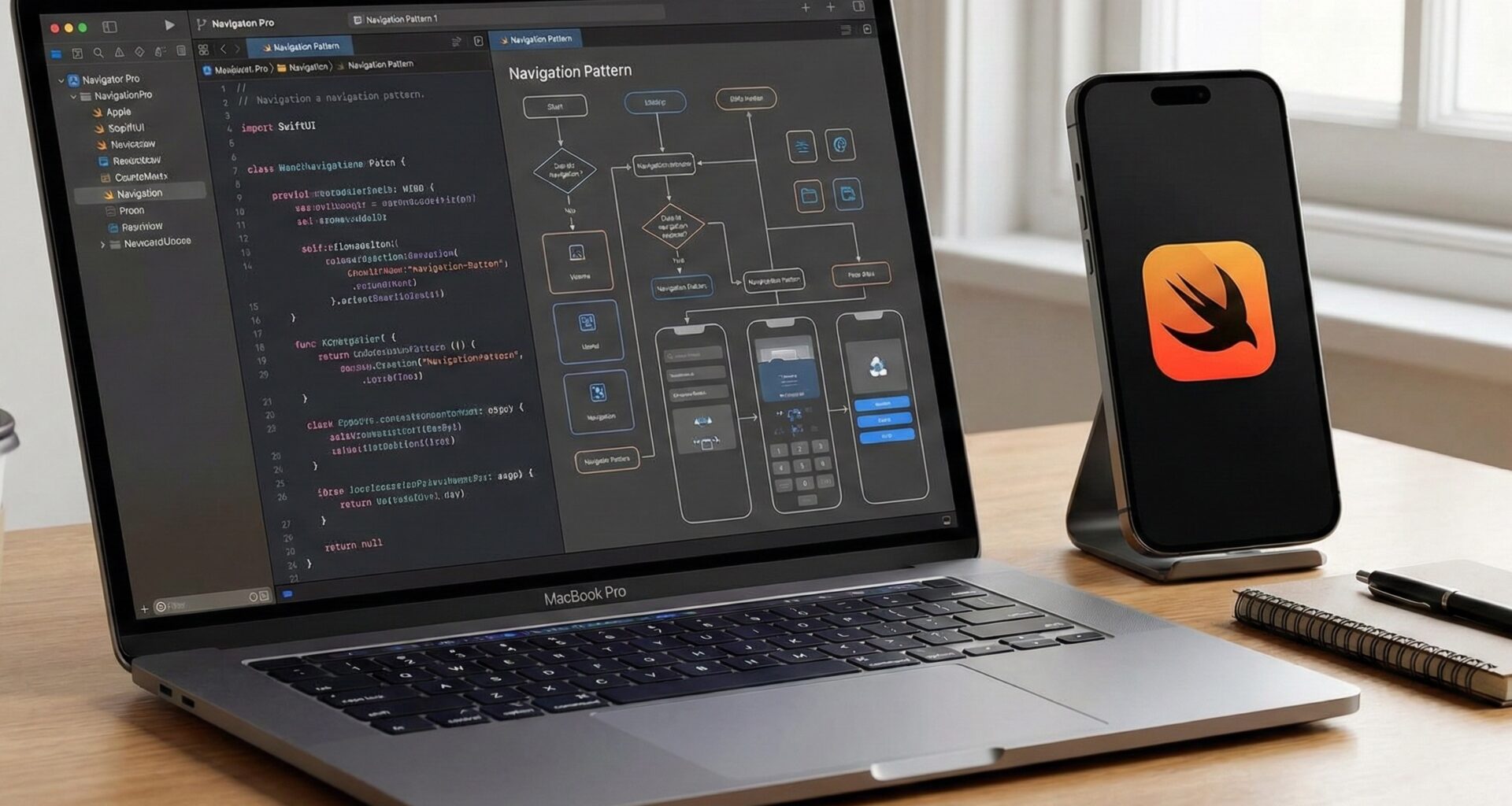

If you have been immersed in the Apple ecosystem for a while, you know that Swift programming has evolved at a breakneck speed. However, historically, there has been a constant pain point for any iOS Developer: navigation in SwiftUI. From the early days of NavigationView to the initial confusion with complex bindings, developers have tirelessly sought a pattern that is scalable, testable, and clean.
Your goal is not simply to make one screen lead to another. As a professional who uses Xcode daily, your goal is to build a robust architecture that supports changing requirements, Deep Links, and works on iOS, macOS, and watchOS alike. With the arrival of iOS 16, Apple gave us the ultimate tool: NavigationStack.
In this tutorial, we will break down the “State-Driven Navigation” pattern step-by-step, considered today to be the best SwiftUI navigation for production applications.
1. The Evolution: From NavigationView to NavigationStack
To understand where we are going, we must analyze the problem of the past. In early versions of SwiftUI, navigation was tightly coupled to the View. We used NavigationLink defining the destination explicitly inside the body of the view.
// The old style (Not recommended for complex apps nowadays)
struct OldWayView: View {
    var body: some View {
        NavigationView {
            NavigationLink(destination: Text("I am the detail")) {
                Text("Go to detail")
            }
        }
    }
}
This generated the dreaded “Spaghetti Navigation”. View A had to know how to build View B. If you wanted to navigate programmatically (e.g., from a push notification), you had to deal with a nightmare of isActive booleans. Furthermore, SwiftUI tended to instantiate destination views prematurely, affecting performance.
2. The Chosen Pattern: The Type-Safe Router
The modern solution separates the user interface from the navigation logic. We will use an observable Router pattern. Why is this the best SwiftUI navigation?
- Type-Safety: We will use
enumsto define routes. If the route doesn’t exist, Xcode won’t compile. - Decoupling: Views don’t know where they are going; they only ask the Router to navigate.
- Multiplatform: The same logic object works on iPhone, iPad, and Apple Watch.
3. Step-by-Step Tutorial in Xcode
Open your project and get ready to refactor. We are going to implement clean, programmatic navigation.
Step 1: Define Routes (Destination Enum)
In good Swift programming, we start with the data. We need an enum that represents all possible screens. It must conform to the Hashable protocol so that the NavigationStack can uniquely identify each view.
import Foundation

// Define the possible destinations of our app
enum AppRoute: Hashable {
    case home
    case productDetail(id: Int) // We can pass simple arguments
    case userProfile(username: String)
    case settings
    case checkout

    // It's good practice to implement Hashable manually if you have complex types,
    // but for basic types, Swift synthesizes it automatically.
}
Step 2: The Navigation Brain (Router)
We will create an ObservableObject class that will hold the state of our navigation. This is the heart of the pattern.
import SwiftUI

final class NavigationRouter: ObservableObject {
    // This published property handles the navigation stack.
    // By modifying this array, the UI changes automatically.
    @Published var path = NavigationPath()

    // Method to navigate forward (Push)
    func navigate(to route: AppRoute) {
        path.append(route)
    }

    // Method to go back (Pop)
    func goBack() {
        if !path.isEmpty {
            path.removeLast()
        }
    }

    // Method to go back to start (Pop to Root)
    func reset() {
        path = NavigationPath()
    }

    // Method to handle Deep Links (simulated)
    func handleDeepLink(url: URL) {
        // Here you would parse the URL and append routes to the path
        // Example: path.append(AppRoute.productDetail(id: 100))
    }
}
Step 3: The View Factory (ViewBuilder)
To avoid cluttering the main view with a giant switch statement, we extend our enum. This keeps the code organized and easy to read for any iOS Developer.
import SwiftUI

extension AppRoute {
    @ViewBuilder
    func view(router: NavigationRouter) -> some View {
        switch self {
        case .home:
            // Assuming you have these views created
            Text("Home View")
        case .productDetail(let id):
            Text("Product Detail \(id)")
        case .userProfile(let username):
            Text("Profile of \(username)")
        case .settings:
            Text("Settings")
        case .checkout:
            Text("Checkout Screen")
        }
    }
}
Step 4: Configure the Entry Point
Now we inject the Router into the view hierarchy using .environmentObject. This is crucial so that any child view can access navigation without having to pass the router from initializer to initializer.
struct MainAppView: View {
    @StateObject private var router = NavigationRouter()

    var body: some View {
        NavigationStack(path: $router.path) {
            VStack {
                Text("Main Screen")
                Button("Go to Profile") {
                    router.navigate(to: .userProfile(username: "DevSwift"))
                }
            }
            // Here is the magic of the association
            .navigationDestination(for: AppRoute.self) { route in
                route.view(router: router)
            }
        }
        .environmentObject(router) // Dependency injection
    }
}
Step 5: Navigating from Child Views
Finally, let’s see how a child view uses this system. Thanks to modern Swift programming and Property Wrappers, it is extremely clean.
struct DetailView: View {
    @EnvironmentObject var router: NavigationRouter
    let productId: Int

    var body: some View {
        VStack(spacing: 20) {
            Text("Viewing product \(productId)")

            Button("Buy now") {
                // Type-safe navigation
                router.navigate(to: .checkout)
            }

            Button("Back to Home") {
                // Return to root with a single line of code
                router.reset()
            }
        }
        .navigationTitle("Detail")
    }
}
4. Multiplatform Adaptation: macOS and watchOS
One of the great advantages of SwiftUI is its multiplatform capability. However, on macOS and iPadOS, navigation usually requires a Sidebar. The Router pattern adapts perfectly using NavigationSplitView.
struct MacContentView: View {
    @State private var selectedRoute: AppRoute? // Sidebar selection
    @StateObject private var router = NavigationRouter() // Navigation inside the detail

    var body: some View {
        NavigationSplitView {
            List(AppRoute.allCases, selection: $selectedRoute) { route in
                Text(String(describing: route))
            }
        } detail: {
            NavigationStack(path: $router.path) {
                if let selected = selectedRoute {
                    selected.view(router: router)
                } else {
                    Text("Select an item")
                }
            }
        }
    }
}

// Note: For this to work in the list, AppRoute must conform to CaseIterable and Identifiable.
5. Handling Modals (Sheets) and Deep Links
A complete navigation system doesn’t just handle “Pushes”, it also handles Modals. We can extend our NavigationRouter to control which sheet is presented.
// Router extension for Modals
extension NavigationRouter {
    // We need a separate published property for the sheet
    // Note: AppRoute must be Identifiable to be used in .sheet(item:)
    // @Published var presentedSheet: AppRoute? = nil

    // func present(_ route: AppRoute) {
    //     presentedSheet = route
    // }
}

// Usage in the view:
// .sheet(item: $router.presentedSheet) { route in
//     route.view(router: router)
// }
Imagine receiving a push notification: “Your order has shipped”. With this system, handling the Deep Link is as simple as manipulating the path array. You simply reset the path and append the necessary routes to reconstruct the application state instantly.
Conclusion
The best SwiftUI navigation is the one that lets you work knowing your architecture is solid. By centralizing logic in a Router and leveraging NavigationStack, you eliminate technical debt and improve the maintainability of your projects in Xcode.
As an iOS Developer, adopting this pattern puts you ahead: cleaner code, fewer navigation bugs, and incredible ease in implementing complex features like Deep Links. It’s time to leave old habits behind and embrace the future of Swift programming.
If you have any questions about this article, please contact me and I will be happy to help you 🙂. You can contact me on my X profile or on my Instagram profile.