
The role of a modern iOS Developer extends far beyond simply typing instructions into a machine. Today, building exceptional applications for Apple’s ecosystem—whether it is the iPhone, iPad, Apple Watch, or Mac—requires a deep understanding of user interface design and user experience. Before a single view is constructed in Xcode, the vision of the application must be defined, prototyped, and refined.
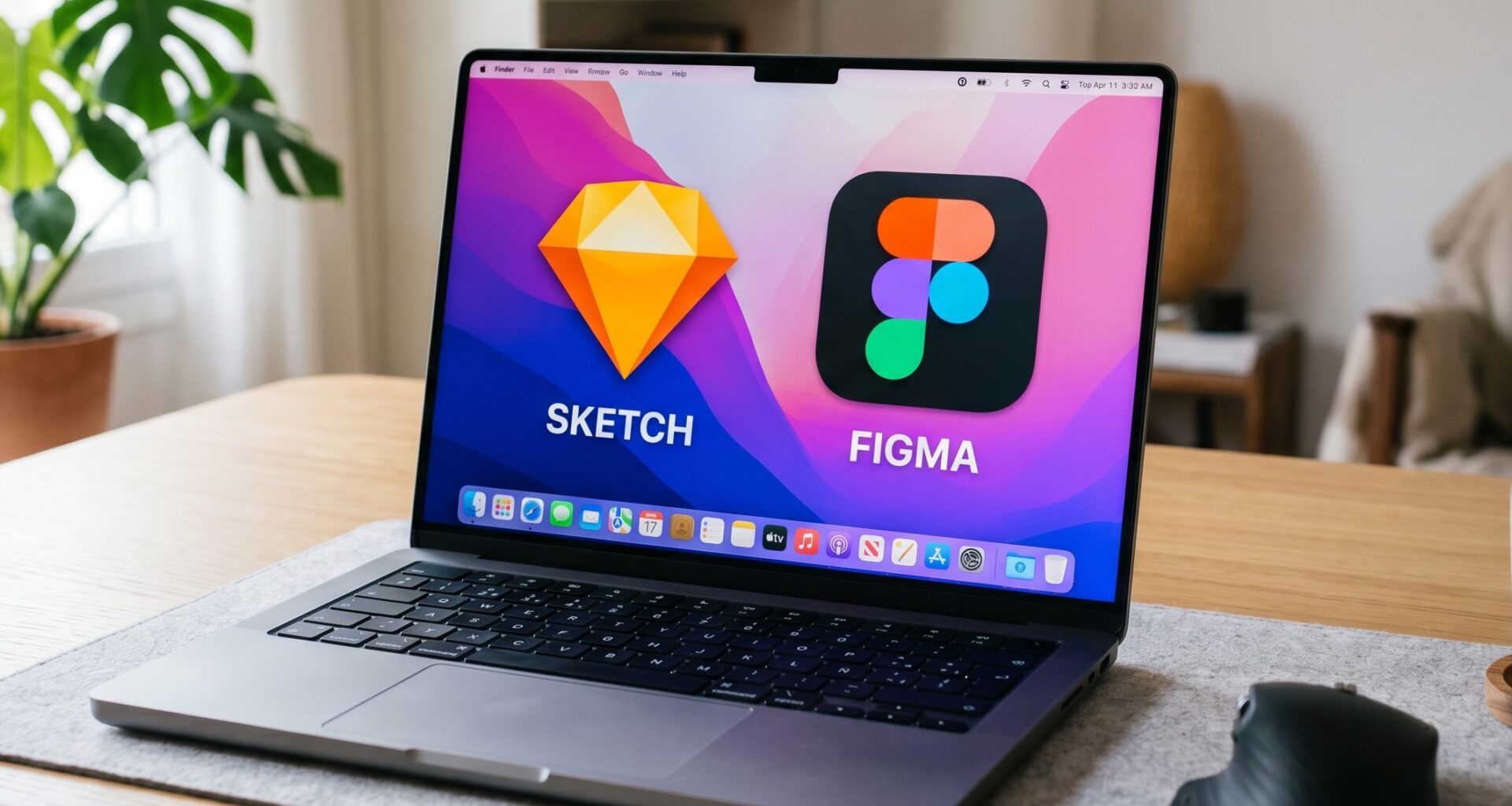
For years, the industry standard has been locked in a fierce debate regarding the best design tool to precede the development phase. If you are deeply immersed in Swift programming, you have likely received design handoffs from various software platforms. The two titans of this industry remain Figma and Sketch.
This comprehensive guide will explore the ultimate showdown: Figma vs Sketch for iOS development. We will dissect how these tools integrate with your workflow, how they translate into SwiftUI concepts, and how they handle the complexities of designing across iOS, macOS, and watchOS.
1. The Apple Ecosystem Context
Building apps for Apple platforms is a unique endeavor. Apple’s Human Interface Guidelines (HIG) dictate a highly specific set of rules, behaviors, and visual aesthetics that users expect. Whether you are building a complex productivity tool for macOS, a health tracker for watchOS, or a flagship consumer app for iOS, consistency is paramount.
As an iOS Developer, your primary environment is Xcode, and your primary languages are Swift and the declarative framework, SwiftUI. Your design tool must bridge the gap between static pixels and dynamic, state-driven interfaces. It must support Apple’s SF Symbols, handle P3 wide color gamuts natively, and allow designers to think in the same structural paradigms that developers use.
Both Figma and Sketch offer robust toolsets, but their philosophies, architectures, and approaches to UI design differ significantly.
2. Sketch: The Native Veteran
For a long time, Sketch was the undisputed king of UI design, effectively dethroning Adobe Photoshop in the early 2010s. Its massive advantage was, and still is, its deep integration with the macOS environment.
A True Mac Experience
Sketch is a native Mac application. It is built using Apple’s proprietary frameworks, which means it feels incredibly familiar to anyone in the Apple ecosystem. It supports macOS native text rendering, native window management, and hardware acceleration optimized for Apple Silicon.
Apple Design Resources
Apple treats Sketch with a high degree of respect. When Apple releases new UI kits for iOS, macOS, or watchOS, they frequently release the Sketch libraries simultaneously alongside Figma. Sketch’s integration with Apple’s official design libraries means that dragging and dropping native iOS components feels incredibly seamless.
Color Management
One of the most critical aspects of iOS development is accurate color representation. Apple devices feature spectacular displays capable of displaying the Display P3 wide color gamut. Because Sketch is a native Mac app, it handles P3 color profiles effortlessly. When a designer specifies a specific vibrant red in Sketch, an iOS Developer can trust that extracting that exact hex code or color asset into Xcode will yield the exact same visual result on a physical iPhone.
Smart Layout
Sketch’s “Smart Layout” feature was an early pioneer in responsive design within design tools. It allows designers to create buttons that grow when the text changes or lists that adapt to new items. Conceptually, this maps well to the dynamic sizing behaviors we see when utilizing the Swift language to build native views.
3. Figma: The Collaborative Powerhouse
Figma completely revolutionized the design industry by moving the entire process to the browser. While it initially faced skepticism from platform purists, its unmatched collaborative features quickly made it the industry standard for modern product teams.
Real-Time Collaboration
Figma’s biggest selling point is its multiplayer nature. Multiple designers, product managers, and developers can inhabit the same file simultaneously. For an iOS Developer, this means you can jump into a Figma file, inspect elements, measure distances, and export assets while the designer is still making tweaks in another artboard. There is no more waiting for “Final_v3_ActualFinal.sketch” files to be shared via cloud storage.
Auto Layout: The Precursor to SwiftUI
Perhaps the most significant advantage Figma holds for developers is its “Auto Layout” system. Auto Layout in Figma operates almost identically to the stack-based layout system in SwiftUI.
In Figma, designers nest horizontal and vertical auto-layout frames, defining padding, spacing, and alignment. As a developer, when you look at a Figma Auto Layout structure, you are essentially looking at a visual representation of your SwiftUI architecture. A horizontal frame maps to a horizontal stack, a vertical frame maps to a vertical stack, and the padding values translate perfectly to system padding modifiers. This conceptual alignment drastically reduces friction during the handoff process.
Platform Agnosticism
Because Figma is web-based (with Electron wrappers for desktop apps), it runs anywhere. This is a massive boon for cross-functional teams where some members might be on Windows or Linux machines. While the core iOS engineering team will be on Macs running Xcode, the broader product team isn’t restricted by their hardware.
4. Figma vs Sketch: The Comparative Table
To help clarify the differences, here is a detailed breakdown of how these tools stack up against each other across critical categories for an iOS Developer.
| Feature / Aspect | Sketch | Figma |
|---|---|---|
| Platform | Native macOS exclusively. | Web-based (runs on Mac, Windows, Linux). |
| Performance | Highly optimized for Apple Silicon; native text rendering. | Excellent web performance; heavily reliant on RAM for large files. |
| Collaboration | Asynchronous by default; requires Workspace subscription for real-time. | Native real-time multiplayer editing; seamless team presence. |
| Layout System | Smart Layout (symbol-based responsiveness). | Auto Layout (highly analogous to SwiftUIstacks). |
| Color Accuracy | Native Display P3 support; flawless translation to Apple hardware. | Color management exists but requires manual profile configuration. |
| Developer Handoff | Requires web workspace or third-party tools (Zeplin). | Built-in Dev Mode; CSS/iOS inspection directly in the canvas. |
| Apple UI Kits | Official Apple templates available day-one. | Official Apple templates available; massive community library. |
| Asset Exporting | Excellent PDF and SVG export for Xcode asset catalogs. | Powerful multi-format exporting; highly scriptable via plugins. |
| WatchOS / macOS Design | Feels natural due to Mac interface; precise pixel control. | Great template support; easily scalable across infinite canvases. |
5. Translating Design to SwiftUI and Swift
The ultimate goal of using either of these tools is to streamline the transition into Xcode. The era of slicing individual PNG files and manually positioning them on a storyboard is largely over. Modern Swift programming relies on programmatic layouts and vector assets.
Working with Asset Catalogs
Both Figma and Sketch excel at exporting vector assets. For modern iOS development, exporting icons and complex shapes as vector PDFs or SVGs is the standard practice. These files are then dropped directly into the Xcode Asset Catalog. Both tools allow designers to mark layers as exportable, meaning an iOS Developer can quickly download exactly what they need without disrupting the design file.
Typography and SF Symbols
Apple’s SF Symbols have revolutionized app design. Instead of creating custom icons for standard actions (like a share button or a settings gear), designers use Apple’s built-in symbol library. Both Sketch and Figma support SF Symbols, but because Sketch is a native Mac app, it often handles the typographic features and weight variations of the San Francisco font family with a bit more native grace. However, Figma’s community has created exhaustive SF Symbol libraries that make dragging and dropping these icons incredibly easy.
The Layout Paradigm Shift
As mentioned earlier, the mental model of SwiftUI is fundamentally different from the older constraints-based systems. Interfaces are built by composing smaller, reusable views.
When a designer uses Figma’s Auto Layout to build a complex card component—setting the corner radius, defining the shadow, and stacking the title text above a description text—the developer can inspect that exact component in Figma’s Dev Mode. The inspector will provide the exact corner radius values, the hex codes for the colors, and the spacing constraints. The developer then translates this directly into the declarative syntax of SwiftUI, building the identical hierarchy. Sketch’s inspector offers similar data, but many developers find Figma’s nested frame structure inherently closer to modern declarative code structures.
6. Designing for the Multi-Device Apple Ecosystem
A modern Apple ecosystem app rarely exists solely on the iPhone. Companies expect their applications to have a presence on the iPad, perhaps a companion app on watchOS, and a desktop counterpart on macOS.
iOS and iPadOS
Designing for iOS and iPadOS requires responsive thinking. An iPhone SE has drastically different screen real estate compared to an iPad Pro.
- In Sketch: Designers utilize Artboard templates tailored to every Apple device. By using Resizing constraints, a designer can ensure that a navigation bar stays pinned to the top while a central content area expands.
- In Figma: The combination of Constraints and Auto Layout means a designer can create a single screen that seamlessly stretches and rearranges itself as the frame is dragged wider, perfectly mimicking how a native iPad app adapts to split-view multitasking.
watchOS
The Apple Watch is all about glanceable, high-contrast information. Dark backgrounds are virtually mandatory to blend seamlessly with the OLED bezels. When designing for watchOS, typography and hierarchy are critical. In Sketch, the native text rendering ensures that the tiny point sizes used on the Apple Watch are represented accurately on the designer’s monitor. Figma provides excellent community-driven watchOS UI kits that allow teams to rapidly prototype navigation flows, which is crucial since watchOS relies heavily on hierarchical pushing and modal sheets.
macOS
Mac apps require a different interaction model—pointers instead of touch, hover states, and complex window management. Because Sketch is a Mac app, designing Mac apps inside it feels incredibly intuitive. The designer is naturally surrounded by macOS UI elements.
However, Figma’s component variant system is a massive advantage here. A designer can create a single button component with variants for “Default,” “Hover,” “Pressed,” and “Disabled.” An iOS Developer looking at this file instantly understands the required states they need to implement in their Swift programming logic to ensure the Mac app feels alive and responsive to mouse movements.
7. The Developer Handoff Experience
The bridge between design and development is where projects either succeed or suffer endless delays. The modern iOS Developer needs tools that reduce friction.
Figma’s Dev Mode
Figma recently heavily invested in “Dev Mode,” a dedicated workspace within the tool built specifically for developers. When you toggle this mode on, the interface changes. It stops being a drawing tool and becomes an inspection tool. It highlights padding, generates layout specifications, and even attempts to translate structural layouts into platform-specific conceptual code. For teams heavily invested in programación Swift and modern declarative UI, this immediate, real-time inspection is invaluable. You can see the design tokens (like primary colors or specific font styles) exactly as they should be named in your Xcode project.
Sketch’s Workspace
Sketch handles handoff via its web Workspace. Designers upload their local documents to the cloud, and developers can log into a web interface to inspect the files, download assets, and copy color codes. While highly effective and beautifully designed, it operates as a separate step. The designer works locally, saves, syncs, and then the developer views the synced version. For teams that prefer structured, clear-cut handoff phases rather than chaotic real-time changes, this asynchronous model is often preferred.
8. Making the Choice: Which is Better for iOS Development?
Ultimately, the choice in the Figma vs Sketch for iOS development debate often comes down to team structure and organizational philosophy rather than pure feature sets. Both tools are fully capable of producing world-class, award-winning applications for iOS, macOS, and watchOS.
You should champion Sketch if:
- You are a solo designer/developer or part of a small, hyper-focused, Mac-only team.
- Absolute color accuracy (Display P3) from design to device is your top priority.
- You prefer native macOS software performance over browser-based applications.
- You heavily rely on Apple’s day-one official design kit releases.
- You prefer a structured, asynchronous handoff process.
You should champion Figma if:
- You work in a cross-functional team with product managers, copywriters, and developers who need constant, real-time access to design files.
- Your team uses mixed operating systems (Windows/Mac).
- You want your design architecture to closely mirror the mental model of SwiftUI via Auto Layout.
- You want a unified tool for design, prototyping, and developer inspection without needing third-party plugins like Zeplin.
- You rely heavily on robust component library systems and design tokens.
Conclusion
Mastering the Apple ecosystem requires mastery of the tools that build it. Whether you are deep into complex Swift programming for a macOS utility or crafting fluid animations for an iOS consumer app, the design phase sets the foundation.
Both Figma and Sketch offer extraordinary capabilities. Sketch remains the elegant, native purist’s choice, offering unparalleled integration with the very operating system you are building for. Figma, on the other hand, provides a collaborative, layout-driven environment that speaks the same structural language as modern declarative frameworks.
As an iOS Developer, becoming proficient in navigating, inspecting, and extracting value from both platforms will make you an invaluable asset to any engineering team. By understanding how design intent translates into Xcode, you ensure that the final product doesn’t just work flawlessly—it looks exactly as it was meant to.