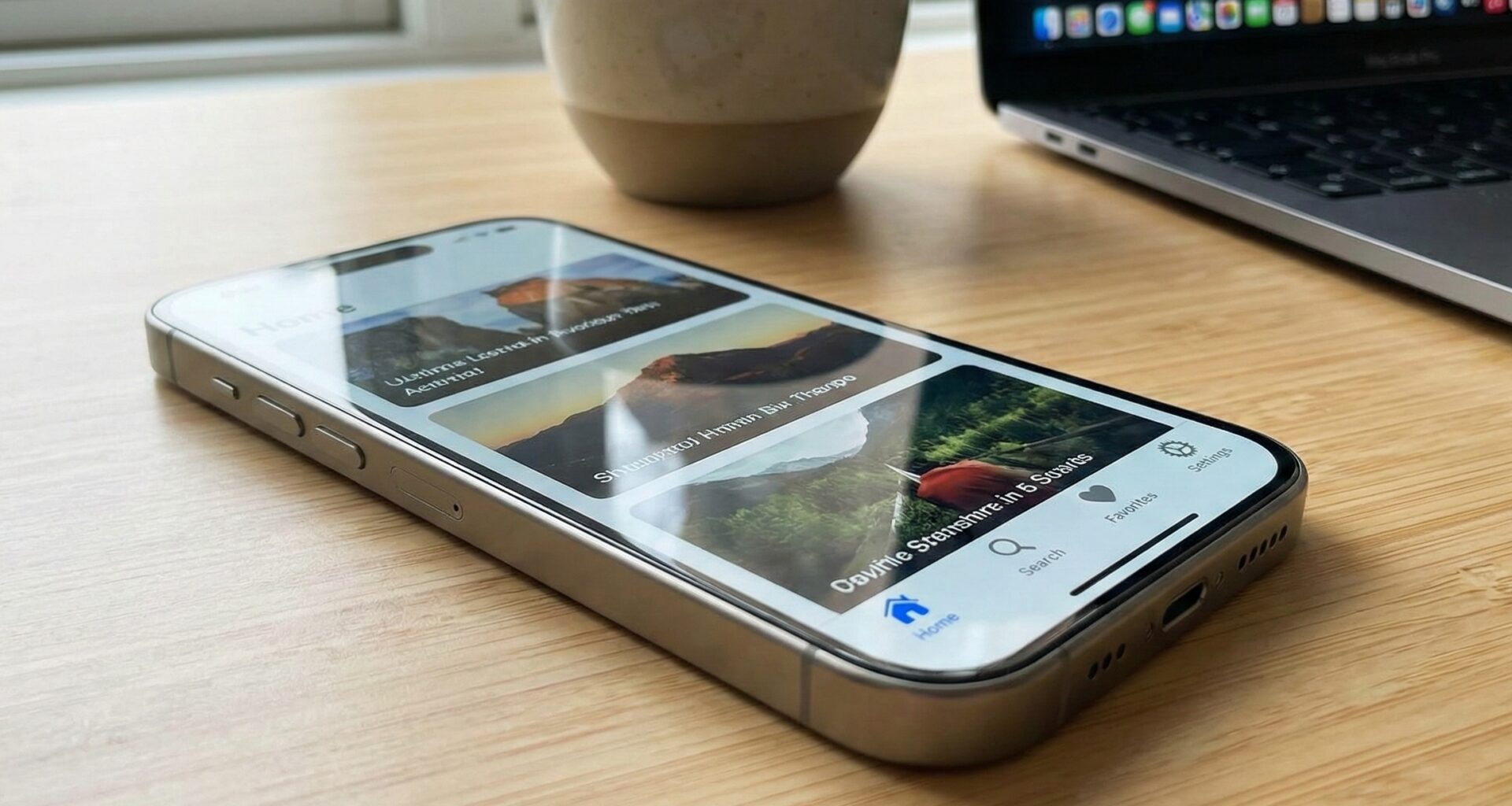

In the vast universe of Swift programming, navigation is the backbone of any successful application. For an iOS Developer, choosing the right navigation pattern is not just an aesthetic question, but one of fundamental usability. For years, UIKit’s UITabBarController was the undisputed king. With the arrival of SwiftUI, this concept evolved into the TabView component.
However, SwiftUI is a polymorphic and adaptable framework. A TabView doesn’t always have to be a tab bar at the bottom of the screen. This is where the protagonist of this tutorial comes in: the .tabViewStyle() modifier.
In this in-depth technical article, we will break down what this modifier is, how it radically transforms your interfaces in Xcode, and how to implement it correctly in iOS, macOS, and watchOS to create modern user experiences, such as image carousels or onboarding screens.
What is the TabViewStyle modifier in SwiftUI?
The .tabViewStyle() modifier is a method applied to a TabView view to alter its behavior and rendering appearance. In the SwiftUI philosophy, we define the data structure once (the tabs and their content) and then apply a style to dictate how that structure is presented to the user.
By default, if you don’t apply any style, SwiftUI infers the platform’s “standard” style:
- iOS: A Bottom Tab Bar.
- macOS: A top or segmented tab view.
- watchOS: A vertical pagination (in modern versions).
The power of TabViewStyle lies in its ability to break these defaults. It allows transforming a hierarchical navigation structure into a flat pagination system (carousel type) with a single line of code.
Basic Implementation: The Standard TabView
Before styling, we need a base. An iOS Developer must know how to build the basic structure. Here is a classic example in Xcode:
struct HomeView: View {
    var body: some View {
        TabView {
            Text("Home")
                .tabItem {
                    Label("Home", systemImage: "house")
                }

            Text("Search")
                .tabItem {
                    Label("Search", systemImage: "magnifyingglass")
                }

            Text("Profile")
                .tabItem {
                    Label("Profile", systemImage: "person")
                }
        }
    }
}
This code generates the interface we all know. But what if we want to create a welcome tutorial (Onboarding) or a swipeable photo gallery? This is where Swift programming shines with styles.
Transformation in iOS: PageTabViewStyle
In iOS, the most powerful alternative style is PageTabViewStyle. This style eliminates the bottom bar and converts the views into pages that can be swiped horizontally, similar to how UIKit’s UIPageViewController works.
How to implement it
To activate this mode, we simply apply the modifier at the end of our TabView.
struct OnboardingView: View {
    var body: some View {
        TabView {
            Color.blue
                .overlay(Text("Welcome to the App").foregroundColor(.white))

            Color.green
                .overlay(Text("Discover amazing features").foregroundColor(.white))

            Color.orange
                .overlay(Text("Start now").foregroundColor(.white))
        }
        .tabViewStyle(.page) // Here the magic happens
        .ignoresSafeArea()
    }
}
Customizing PageTabViewStyle
The PageTabViewStyle initializer accepts a crucial parameter: indexDisplayMode. This controls the visibility of the “dots” (page indicators) at the bottom.
.automatic: Shows indicators only if there is more than one page..always: Always shows indicators (needs a contrasting background)..never: Hides indicators (useful if you design your own controls).
.tabViewStyle(PageTabViewStyle(indexDisplayMode: .always))
.indexViewStyle(PageIndexViewStyle(backgroundDisplayMode: .always))
Pro Note: The .indexViewStyle() modifier is a frequent companion to .tabViewStyle() in iOS, allowing you to add a translucent background behind the dots to improve contrast over complex images.
TabViewStyle in watchOS: Vertical Navigation
Developing for Apple Watch requires thinking about quick interactions. In watchOS, the TabView is fundamental. Historically, we had horizontal pagination styles, but modern versions of watchOS have standardized vertical navigation.
VerticalPageTabViewStyle
To create a native watch experience where the user swipes up or down (or uses the Digital Crown) to switch views:
struct WatchDashboard: View {
    var body: some View {
        TabView {
            Text("Activity Rings")
            Text("Heart Rate")
            Text("Sleep Summary")
        }
        .tabViewStyle(.verticalPage) // Specific to modern watchOS
    }
}
This style is highly optimized by Apple to ensure 60 FPS on the wrist, something vital for any iOS Developer who also works on watchOS.
TabViewStyle in macOS: Desktop Adaptability
In macOS, the “tabs” metaphor is different. A bottom bar like on the iPhone is not expected. By default, TabView in macOS can behave like a SegmentedControl or native top tabs.
Generally, in macOS, we don’t force exotic styles like `.page` (since the swipe gesture isn’t as natural with a mouse), but rather trust `.automatic` or use alternative structures like `NavigationSplitView` for sidebars.
Practical Tutorial: Creating an Infinite Image Carousel
Let’s combine what we’ve learned to create a reusable component: an image carousel with page style. This is a very common requirement in technical tests for Swift positions.
struct ImageCarousel: View {
    let images = ["landscape1", "landscape2", "landscape3"]

    var body: some View {
        TabView {
            ForEach(images, id: \.self) { image in
                Image(image)
                    .resizable()
                    .scaledToFill()
                    .tag(image)
            }
        }
        .tabViewStyle(.page(indexDisplayMode: .always))
        .frame(height: 300)
        .cornerRadius(20)
        .padding()
    }
}
Code Explanation
- TabView Container: Acts as the paginated scroll view.
- ForEach: Iterates over our data.
- .page Style: Converts the list into a horizontal carousel.
- Design modifiers: We limit height and add rounded corners to look like a modern card.
Common Mistakes and Best Practices
As a SwiftUI expert, I have seen many mistakes when using TabViewStyle. Here are the most critical ones for you to avoid in your career as an iOS Developer.
1. Gesture Confusion
If you place a TabView with .page style inside a List or a ScrollView, you can create gesture conflicts. The user will try to scroll vertically and accidentally switch pages horizontally.
Solution: Avoid nesting scrolling components in opposite directions without a clear design.
2. Forgetting the Tag
If you need to programmatically control which tab is shown (for example, with a “Next” button), you need to bind a state variable (@State) to the TabView selection and ensure each child view has a unique .tag() modifier.
struct ProgrammaticNavigation: View {
    @State private var selection = 0

    var body: some View {
        VStack {
            TabView(selection: $selection) {
                Color.red.tag(0)
                Color.blue.tag(1)
            }
            .tabViewStyle(.page)

            Button("Go to Blue") {
                withAnimation {
                    selection = 1
                }
            }
        }
    }
}
Conclusion
The TabViewStyle in SwiftUI modifier is a small but powerful tool. It allows any iOS Developer to escape the rigidity of the standard tab bar and create rich, modern interfaces like carousels, tutorials, and galleries with minimal effort in Xcode.
Mastering this modifier demonstrates a deep understanding of the declarative nature of Swift: content is king, and style is simply a suit we can change at will. Now, open your project and start experimenting with .page and .verticalPage to bring your views to life.
If you have any questions about this article, please contact me and I will be happy to help you 🙂. You can contact me on my X profile or on my Instagram profile.