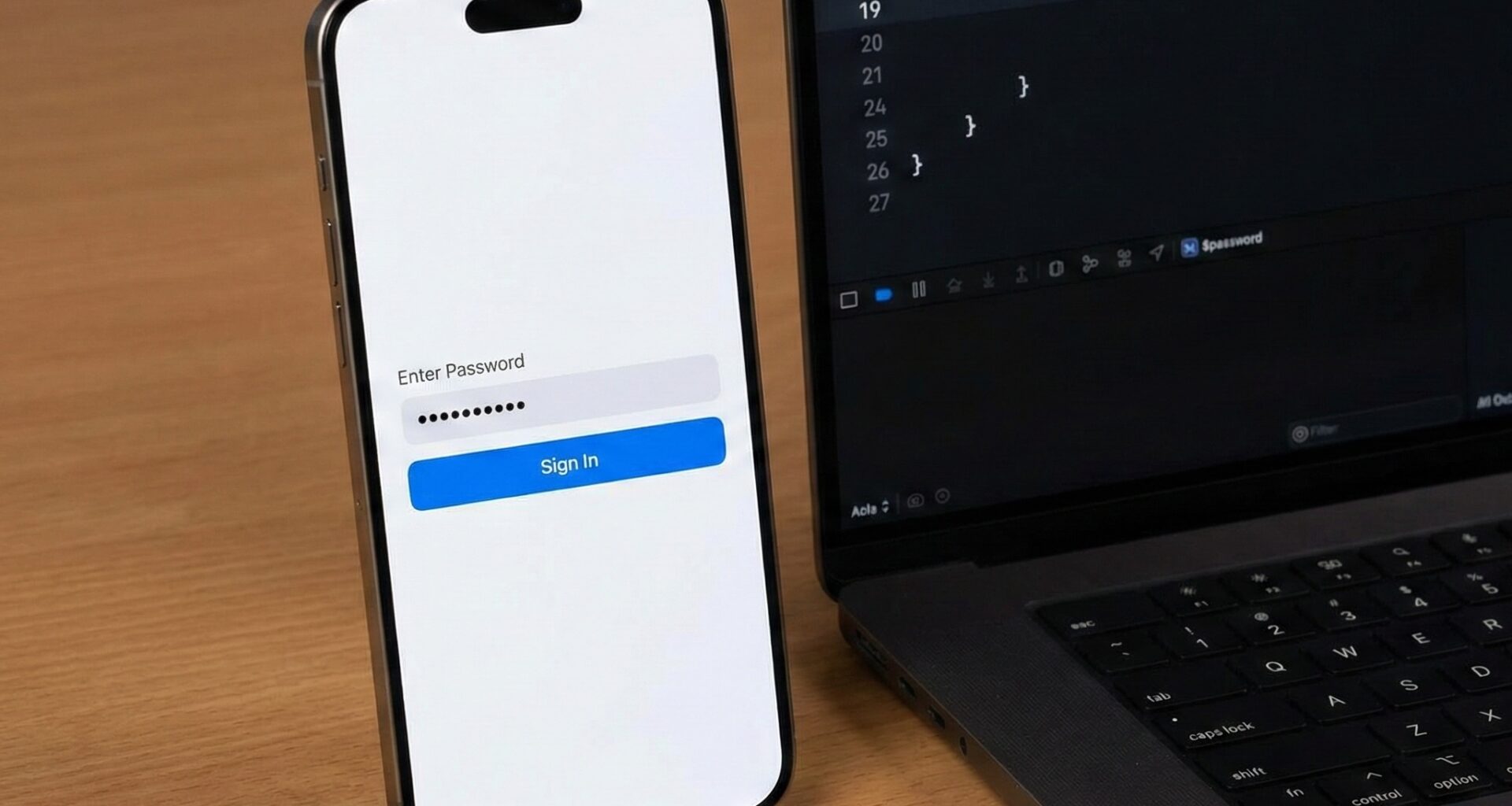

Security is one of the fundamental pillars in modern application development. As an iOS Developer, you have the responsibility not only to create attractive interfaces but also to ensure that your users’ sensitive data is protected from the moment it is entered on the screen. This is where one of the most important tools in your SwiftUI arsenal comes into play: the SecureField.
In this comprehensive Swift programming tutorial, we will dive deep into what a SecureField in SwiftUI is, how to implement it from scratch, and how to take it to the next level by creating custom components, password validators, and adapting it to work seamlessly on iOS, macOS, and watchOS using Xcode.
1. What is SecureField in SwiftUI?
In the declarative paradigm of SwiftUI, interfaces are built by describing their state. If you have ever needed a user to input text, you have likely used TextField. However, when it comes to passwords, PINs, access tokens, or any other confidential information, showing the text in plain text is a critical security risk and a terrible user experience.
SecureField is the sister view of TextField. Its sole purpose is to hide the characters the user types, typically replacing them with dots (or asterisks), to prevent prying eyes from reading the information over the user’s shoulder (known in cybersecurity as shoulder surfing).
2. Prerequisites and Development Environment
Before you start writing code, make sure your environment is set up:
- Xcode: It is recommended to have the latest version of Xcode installed (15 or higher) to take advantage of the latest SwiftUI improvements.
- Swift: Basic knowledge of Swift programming (state variables, view modifiers).
- Operating Systems: This tutorial requires you to configure simulators for iOS, macOS, and watchOS if you want to test cross-platform functionality.
3. Basic Implementation of SecureField in iOS
Let’s open Xcode, create a new SwiftUI project, and start with the basics. To capture the text the user types, we need a state property (@State) that stores the text string dynamically.
import SwiftUI

struct BasicLoginView: View {
    // 1. Define the state variable to store the password
    @State private var password = ""

    var body: some View {
        VStack(spacing: 20) {
            Text("Log In")
                .font(.largeTitle)
                .fontWeight(.bold)

            // 2. Implement the SecureField
            SecureField("Enter your password", text: $password)
                .textFieldStyle(.roundedBorder) // Native style modifier
                .padding(.horizontal)

            Button(action: {
                // Login action
                print("Attempting to log in...")
            }) {
                Text("Enter")
                    .foregroundColor(.white)
                    .frame(maxWidth: .infinity)
                    .padding()
                    .background(Color.blue)
                    .cornerRadius(10)
            }
            .padding(.horizontal)
        }
        .padding()
    }
}
Swift Code Analysis:
@State private var password = "": This variable holds the password value. It is private because it should only be managed by this view.SecureField("Enter your password", text: $password): The first parameter is the placeholder (the gray text that appears when it’s empty). The second parameter is a Binding ($) to our state variable..textFieldStyle(.roundedBorder): A modifier that gives the text field the classic rounded border appearance typical of iOS.
4. The Real-World Problem: Creating a “Show/Hide” Password Button
As an iOS Developer, you will quickly realize that the basic implementation is not enough. Modern users expect to be able to see the password they are typing to ensure they haven’t made any typographical errors.
By default, SecureField in SwiftUI does not come with a “little eye” button to reveal the text. We have to build it ourselves in Swift by dynamically toggling between a SecureField and a regular TextField.
Creating a Reusable Component (CustomSecureField)
Let’s create a custom view that you can reuse in all your Xcode projects.
import SwiftUI

struct PasswordField: View {
    var placeholder: String
    @Binding var text: String

    // Internal state to control visibility
    @State private var isPasswordVisible: Bool = false

    var body: some View {
        HStack {
            // Toggle between TextField and SecureField based on state
            Group {
                if isPasswordVisible {
                    TextField(placeholder, text: $text)
                        .autocapitalization(.none) // Important for passwords
                        .disableAutocorrection(true)
                } else {
                    SecureField(placeholder, text: $text)
                        .autocapitalization(.none)
                }
            }
            .padding(.vertical, 12)
            .padding(.horizontal, 16)

            // Button to toggle visibility
            Button(action: {
                isPasswordVisible.toggle()
            }) {
                Image(systemName: isPasswordVisible ? "eye.slash.fill" : "eye.fill")
                    .foregroundColor(.gray)
            }
            .padding(.trailing, 16)
        }
        // Container styling
        .background(Color(.systemGray6))
        .cornerRadius(10)
        .overlay(
            RoundedRectangle(cornerRadius: 10)
                .stroke(Color.gray.opacity(0.3), lineWidth: 1)
        )
    }
}
Why is this excellent Swift Programming practice?
- Modularity: We have encapsulated the visibility logic in its own component. The main view doesn’t need to know how it works internally.
autocapitalization(.none)anddisableAutocorrection(true): Critical modifiers. Often, iOS tries to capitalize the first letter or autocorrect words, which is disastrous when entering case-sensitive passwords.- Use of SF Symbols: We use Apple’s native icons (
eye.fillandeye.slash.fill) for a completely integrated appearance in the ecosystem.
5. Adding Security Validation (Password Strength Meter)
A good iOS Developer not only protects the text but also guides the user to create secure credentials. Let’s integrate a real-time security validator using the reactive advantages of SwiftUI.
We will add a bar that changes color and length depending on the complexity of the password entered into our SecureField.
import SwiftUI

struct AdvancedLoginView: View {
    @State private var password = ""

    var body: some View {
        VStack(alignment: .leading, spacing: 15) {
            Text("Create a password")
                .font(.headline)

            // We use our previously created custom component
            PasswordField(placeholder: "Secure password", text: $password)

            // Security progress bar
            PasswordStrengthView(password: password)

            Spacer()
        }
        .padding()
    }
}

struct PasswordStrengthView: View {
    var password: String

    // Calculate the strength level from 0 to 3
    var strengthLevel: Int {
        var level = 0
        if password.count >= 8 { level += 1 }
        if password.rangeOfCharacter(from: .decimalDigits) != nil { level += 1 }
        if password.rangeOfCharacter(from: CharacterSet(charactersIn: "!@#$%^&*()_-+=<>?")) != nil { level += 1 }
        return level
    }

    var strengthColor: Color {
        switch strengthLevel {
        case 0: return .clear
        case 1: return .red
        case 2: return .yellow
        case 3: return .green
        default: return .clear
        }
    }

    var strengthText: String {
        switch strengthLevel {
        case 0: return ""
        case 1: return "Weak"
        case 2: return "Medium"
        case 3: return "Strong"
        default: return ""
        }
    }

    var body: some View {
        VStack(alignment: .leading, spacing: 5) {
            HStack(spacing: 5) {
                // Draw 3 bars
                ForEach(0..<3) { index in
                    Rectangle()
                        .fill(index < strengthLevel ? strengthColor : Color(.systemGray5))
                        .frame(height: 6)
                        .cornerRadius(3)
                }
            }

            if strengthLevel > 0 {
                Text(strengthText)
                    .font(.caption)
                    .foregroundColor(strengthColor)
            }
        }
    }
}
In this block of Swift programming, we use computed properties (strengthLevel, strengthColor) that automatically react every time the state variable password changes in the SecureField. This is the declarative magic of SwiftUI.
6. Scaling to Multiple Platforms with SwiftUI
One of the great promises of SwiftUI is “Learn once, apply anywhere”. However, an experienced iOS Developer knows that each platform (macOS, watchOS) has its own interaction conventions. Let’s see how to adapt our SecureField.
Adaptation for macOS in Xcode
On macOS, text fields behave differently. Often, we want to control the “Focus Ring” (the blue border that appears around the active field) and ensure the user can use the Enter key to submit the form.
To compile this in Xcode for macOS, you don’t have to rewrite the core logic, but you can adjust the modifiers:
#if os(macOS)
SecureField("Password", text: $password)
    .textFieldStyle(.squareBorder) // More native style on Mac
    .onSubmit {
        print("User pressed Enter on macOS")
        authenticateUser()
    }
    // Hide the focus ring if we fully customize the design
    .focusRingTint(.clear)
#endif
Note: Compilation directives #if os(macOS) are essential in Swift when you want to maintain a single codebase but apply highly platform-specific details.
Adaptation for watchOS
Creating a SecureField on the Apple Watch requires spatial consideration. Screens are tiny, and typing text directly on the watch is cumbersome.
On watchOS, when invoking a SecureField, the system usually presents a full-screen interface or delegates text input to the paired iPhone (using the Continuity Keyboard feature).
#if os(watchOS)
VStack {
    Text("Security PIN")
        .font(.caption)

    // On watchOS, keep the SecureField as simple as possible
    SecureField("PIN", text: $password)
        .textContentType(.password)
        .multilineTextAlignment(.center)
}
#endif
On watchOS, you should avoid grouping multiple text fields on the same screen. Request the password only in a dedicated view.
7. Security Best Practices in Swift Programming
Implementing SecureField in SwiftUI is only the visual layer of security. To be a true expert, you must apply these rules in Xcode:
- Never print passwords to the console: Avoid
print(password)in your production environments. Use proper logging tools and obfuscate sensitive data. - Clear state from memory: If the user logs out or cancels the process, make sure to reset your state variable:
password = "". - Use Keychain, not UserDefaults: Never save the content of your
SecureFieldinUserDefaults, as it is saved in plain text on the device. Use Apple’s Keychain API to encrypt credentials. - Biometric Authentication (FaceID/TouchID): Use it in conjunction with your
SecureField. If the user has already saved their password, allow FaceID to autofill the state of yourSecureFieldor skip this step entirely.
Conclusion
The SecureField in SwiftUI is much more than a simple text field that hides characters; it is the main bridge between your application and user trust. Throughout this tutorial, we have seen everything from its most basic implementation in Xcode, to creating reusable components with visibility toggles, real-time validators with Swift, and its proper application across the Apple ecosystem (iOS, macOS, and watchOS).
Mastering these technical and user experience details is what separates a good programmer from an excellent iOS Developer. Start integrating these custom components into your projects today and raise the level of security and professionalism of your applications.
If you have any questions about this article, please contact me and I will be happy to help you 🙂. You can contact me on my X profile or on my Instagram profile.