
If you are an iOS Developer who has spent years creating amazing applications for the iPhone and iPad, making the leap to the Mac can seem both exciting and intimidating. The screens are larger, users interact with a mouse and keyboard, and window management changes completely. However, thanks to modern Swift programming, the barrier to entry has never been lower.
One of the most important paradigm shifts when adapting or creating a Mac app is navigation. Gone are the days of forcing a NavigationView or a UITabBarController onto a 14-inch screen. Today, the gold standard is the NavigationSplitView in macOS and in SwiftUI.
In this comprehensive tutorial, we are going to explore what it is, why you should use it, and how to implement a NavigationSplitView in macOS and in SwiftUI step-by-step using Xcode, leveraging the full power of Swift.
What is NavigationSplitView in macOS and in SwiftUI?
Introduced in macOS 13 (Ventura) and iOS 16, NavigationSplitView is the fundamental architectural component for building multi-column interfaces. It permanently replaces the old nested lists inside NavigationView.
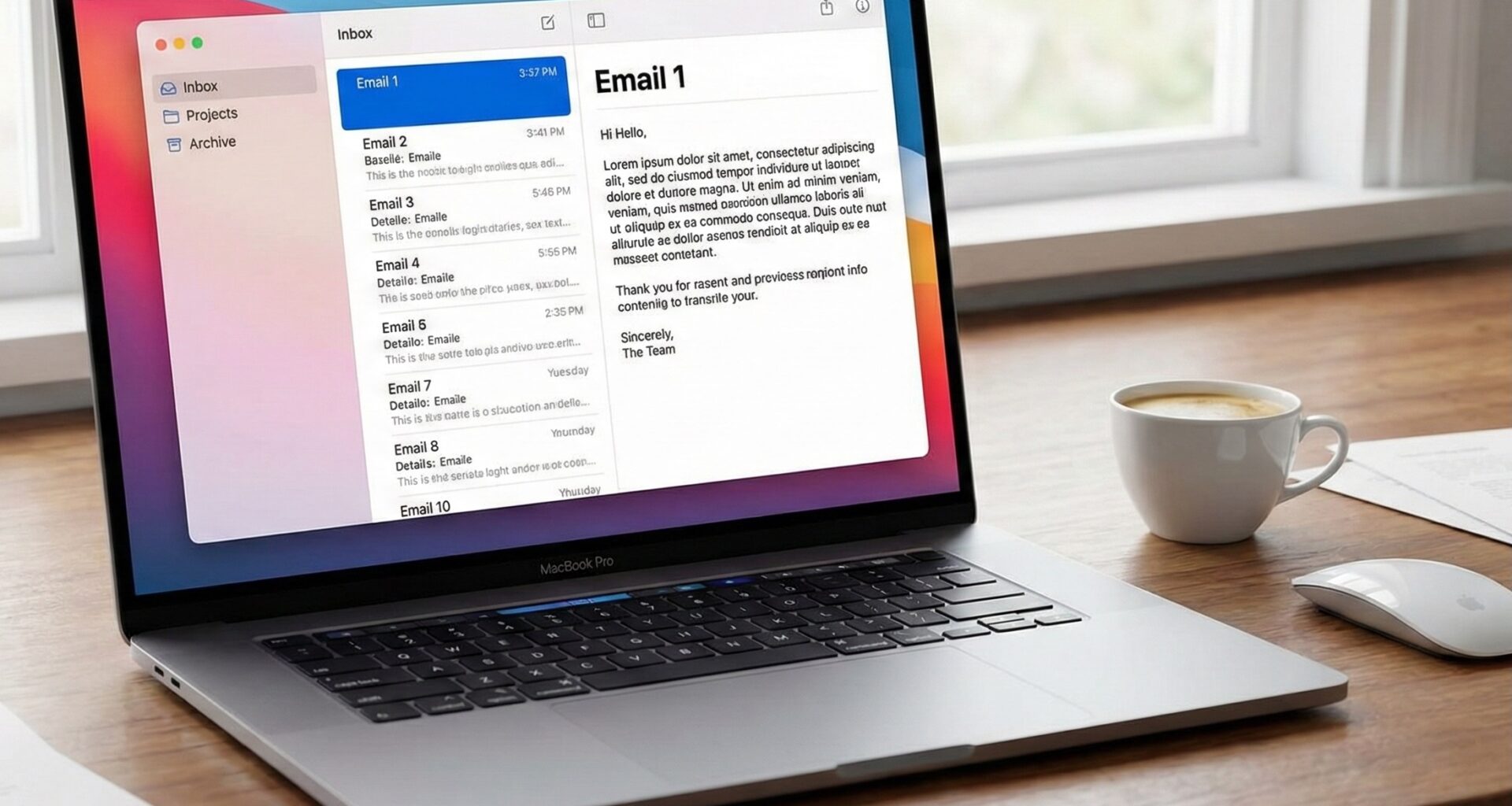
For an iOS Developer, the best way to understand it is to think of the native Mail or Notes app on the iPad or Mac. You have a Sidebar on the left, a list of messages in the center (Content), and the message details on the right (Detail). NavigationSplitView manages this layout, the collapsing of columns, and animations automatically based on the window size.
Key advantages of using NavigationSplitView
- Native by default: Provides exactly the same look, feel, and performance as Apple’s native applications.
- Automatic state management: SwiftUI automatically handles which column should be displayed if the user resizes the window on macOS.
- Unified code: The same code can be compiled for the iPad (showing columns) and the iPhone (stacking views in a traditional
NavigationStackstyle).
Preparing your environment in Xcode
Before you start coding, make sure you meet the minimum requirements to take full advantage of this API:
- IDE: Xcode 14.0 or higher (Xcode 15+ recommended).
- Language: Swift 5.7+.
- Target: macOS 13.0 or higher.
Step 1: The 2-Column Architecture (Sidebar and Detail)
The simplest implementation of a NavigationSplitView in macOS and in SwiftUI consists of two areas: a sidebar for main navigation and a detail area. This pattern is ideal for settings panels or simple management apps.
Let’s create an application that displays a list of programming languages and, when one is selected, shows its description.
import SwiftUI

// Our basic data model
struct Language: Identifiable, Hashable {
    let id = UUID()
    let name: String
    let description: String
}

struct ContentView: View {
    // Sample data
    let languages: [Language] = [
        Language(name: "Swift", description: "Apple's powerful and intuitive language."),
        Language(name: "Objective-C", description: "Swift's predecessor, still alive in legacy code."),
        Language(name: "Python", description: "Excellent for scripting and machine learning.")
    ]

    // The state that holds the current selection
    @State private var selectedLanguage: Language?

    var body: some View {
        // We initialize the 2-column NavigationSplitView
        NavigationSplitView {
            // COLUMN 1: SIDEBAR
            List(languages, selection: $selectedLanguage) { language in
                NavigationLink(value: language) {
                    Text(language.name)
                }
            }
            .navigationTitle("Languages")

        } detail: {
            // COLUMN 2: DETAIL
            if let selected = selectedLanguage {
                VStack(spacing: 20) {
                    Text(selected.name)
                        .font(.largeTitle)
                        .bold()
                    Text(selected.description)
                        .font(.title3)
                        .foregroundColor(.secondary)
                }
                .padding()
            } else {
                // Default view when nothing is selected
                Text("Select a language from the sidebar")
                    .foregroundColor(.secondary)
            }
        }
    }
}
Code Analysis for the iOS Developer
Notice how we use a List with the selection: $selectedLanguage parameter. On macOS, this is crucial. Unlike iOS, where you tap a cell and “push” to another screen, on macOS the user clicks a list item, it stays highlighted (selected), and automatically updates the detail view on the right.
Step 2: The Advanced 3-Column Architecture
More complex desktop applications, like Finder or Mail, use three columns. The NavigationSplitView in macOS and in SwiftUI supports this natively by adding an intermediate content block.
Let’s build an example of a simulated email client:
import SwiftUI

struct Mailbox: Identifiable, Hashable {
    let id = UUID()
    let name: String
    let icon: String
    let emails: [Email]
}

struct Email: Identifiable, Hashable {
    let id = UUID()
    let subject: String
    let sender: String
    let body: String
}

struct MailAppView: View {
    // State for column 1 (Sidebar)
    @State private var selectedMailbox: Mailbox?
    // State for column 2 (Content)
    @State private var selectedEmail: Email?

    // Simulated data
    let mailboxes = [
        Mailbox(name: "Inbox", icon: "tray", emails: [
            Email(subject: "Xcode Meeting", sender: "boss@company.com", body: "Tomorrow at 10 AM."),
            Email(subject: "Swift News", sender: "apple@apple.com", body: "Discover the new APIs.")
        ]),
        Mailbox(name: "Drafts", icon: "doc", emails: [])
    ]

    var body: some View {
        NavigationSplitView {
            // 1. SIDEBAR
            List(mailboxes, selection: $selectedMailbox) { mailbox in
                NavigationLink(value: mailbox) {
                    Label(mailbox.name, systemImage: mailbox.icon)
                }
            }
            .navigationTitle("Mailboxes")

        } content: {
            // 2. CONTENT (Intermediate list)
            if let mailbox = selectedMailbox {
                List(mailbox.emails, selection: $selectedEmail) { email in
                    NavigationLink(value: email) {
                        VStack(alignment: .leading) {
                            Text(email.sender).bold()
                            Text(email.subject).foregroundColor(.secondary)
                        }
                    }
                }
                .navigationTitle(mailbox.name)
            } else {
                Text("Select a mailbox")
                    .foregroundColor(.secondary)
            }

        } detail: {
            // 3. DETAIL
            if let email = selectedEmail {
                ScrollView {
                    VStack(alignment: .leading, spacing: 10) {
                        Text(email.subject).font(.title).bold()
                        Text("From: \(email.sender)").foregroundColor(.secondary)
                        Divider()
                        Text(email.body)
                    }
                    .padding()
                }
                .navigationTitle("Message")
            } else {
                Text("Select an email to read it")
                    .foregroundColor(.secondary)
            }
        }
    }
}
macOS Specific Customization
As an iOS Developer, you are used to the system making a lot of decisions for you. On macOS, users expect to have control over their windows. SwiftUI provides us with specific modifiers to adapt our interface.
1. Controlling Column Visibility
You can programmatically control whether the sidebar is hidden or visible using NavigationSplitViewVisibility.
@State private var visibility = NavigationSplitViewVisibility.all

var body: some View {
    NavigationSplitView(columnVisibility: $visibility) {
        // ... sidebar ...
    } detail: {
        // ... detail ...
    }
}
2. NavigationSplitView Styles
You can change how the columns behave when resizing the app window on your Mac. Add the .navigationSplitViewStyle() modifier to your main view.
.prominentDetail: Keeps the detail area as large as possible, reducing the content or sidebar if the window gets small..balanced: Tries to maintain a proportional width between the columns (the default behavior).
3. Mac Toolbar Integration
On macOS, the Toolbar at the top of the window is fundamental. Your application’s main actions should reside there, not in floating buttons or bottom tabs.
detail: {
    if let selected = selectedItem {
        DetailView(item: selected)
            .toolbar {
                ToolbarItem(placement: .primaryAction) {
                    Button(action: {
                        print("Share item")
                    }) {
                        Label("Share", systemImage: "square.and.arrow.up")
                    }
                }
            }
    }
}
Common Mistakes and Tips for Swift Programming on Mac
When making the transition and starting to use NavigationSplitView in macOS and in SwiftUI, it’s easy to fall into some traps if you come with a strictly mobile mindset:
- Forgetting the empty selection state: On an iPhone, the user almost always sees a list first. On a Mac, the application opens showing all columns at once. You must always provide an attractive placeholder view in your
detailblock for whenselectionisnil. - Forcing a NavigationStack: Do not wrap a
NavigationSplitViewinside aNavigationStack. They are mutually exclusive at the root level. If you need to do a traditional “push” inside the detail area, you can place theNavigationStackinside thedetailblock. - Ignoring the keyboard: Mac users use up/down arrows. If you correctly use the
selectionbinding in aList, SwiftUI will enable keyboard navigation for free.
Conclusion
Mastering the NavigationSplitView in macOS and in SwiftUI is the modern rite of passage for any iOS Developer who wishes to expand their horizons to the desktop. The elegance with which Swift programming handles the complexity of window resizing, selection states, and toolbars makes developing for Mac in Xcode an incredibly productive experience.
If you have any questions about this article, please contact me and I will be happy to help you  . You can contact me on my X profile or on my Instagram profile.