
The ability of an application to flow and adapt to physical changes in its environment is what distinguishes amateur software from professional software. For an iOS developer, the transition from UIKit to SwiftUI has completely redefined how we approach screen rotation. In modern Swift programming, we no longer “respond to rotation events,” but rather “react to state changes in the environment.”
In this extensive tutorial, we will explore the definitive strategies to detect orientation and manage adaptive layouts. We will not only cover iOS but also expand our knowledge to macOS and watchOS, ensuring you master the complete ecosystem.
The Paradigm Shift: From Hardware to Context
Before opening Xcode, we must adjust our mindset. In the days of Objective-C, the priority was knowing if the accelerometer indicated “Landscape” or “Portrait.”
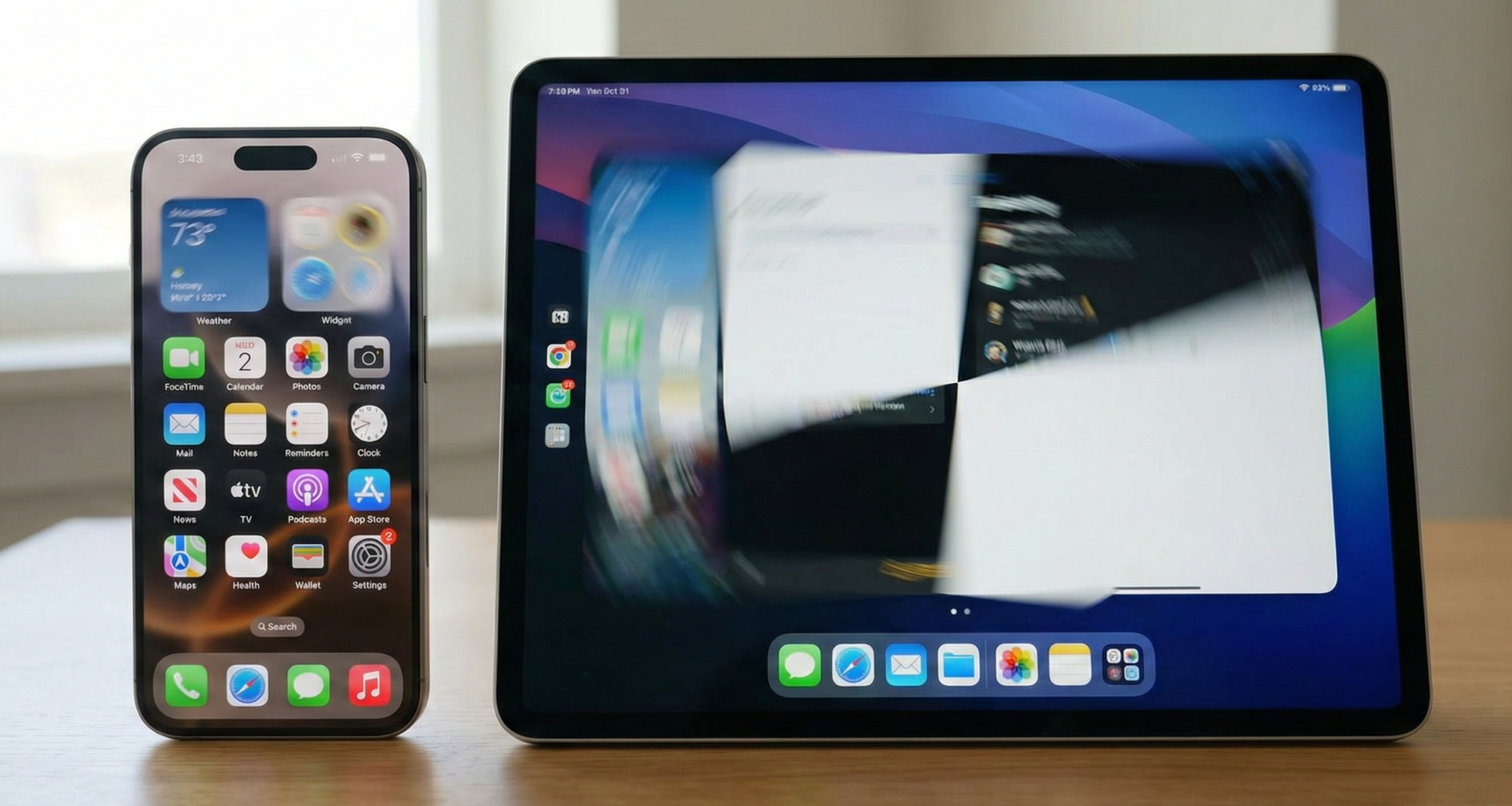
Today, that metric is insufficient and often misleading. With features like Split View, Slide Over, and Stage Manager on iPad, your application might be running in a narrow vertical strip even if the iPad is physically held horizontally.
Therefore, the golden rule in SwiftUI is: Don’t ask how the device is positioned; ask how much space you have.
However, there are exceptions (such as custom cameras or video games) where physics matters. That’s why we will divide this guide into two strategies:
- Logical Detection (Adaptive Layout): Apple’s standard way.
- Physical Detection (Device Sensors): For specialized use cases.
1. The Native Strategy: Size Classes and Environment
Most of the time, when a developer searches for “how to detect rotation,” what they really want is to change the position of a button when the screen widens. For this, SwiftUI offers us Size Classes.
Reading the Environment with @Environment
Instead of writing imperative code, we declare our intention to observe the screen’s characteristics. The verticalSizeClassand horizontalSizeClass variables are our beacons.
import SwiftUI

struct SmartLayoutView: View {
    // Inject environment keys to read current configuration
    @Environment(\.horizontalSizeClass) var hSizeClass
    @Environment(\.verticalSizeClass) var vSizeClass

    var body: some View {
        // The UI automatically rebuilds if these variables change
        Group {
            if hSizeClass == .compact && vSizeClass == .regular {
                // SCENARIO A: iPhone in Vertical (Portrait)
                PortraitDesign()
            } else if hSizeClass == .regular && vSizeClass == .compact {
                // SCENARIO B: iPhone 'Max' in Horizontal (Landscape)
                LandscapeDesign()
            } else {
                // SCENARIO C: iPad or complex cases
                // Here Size Classes alone might not be enough
                AdaptiveDesign()
            }
        }
    }
}

// Subviews to keep code clean
struct PortraitDesign: View {
    var body: some View {
        VStack {
            Image(systemName: "arrow.up.arrow.down")
            Text("Portrait Mode")
        }
    }
}

struct LandscapeDesign: View {
    var body: some View {
        HStack {
            Image(systemName: "arrow.left.arrow.right")
            Text("Landscape Mode")
        }
    }
}
Geometric Precision with GeometryReader
Size Classes are broad categories. What happens on an iPad where the class is .regular in both vertical and horizontal modes? This is where GeometryReader becomes indispensable in Swift programming.
GeometryReader provides us with a GeometryProxy, which acts as a real-time tape measure.
struct AdaptiveDesign: View {
    var body: some View {
        GeometryReader { proxy in
            // Simple boolean logic based on real dimensions
            let isWide = proxy.size.width > proxy.size.height

            if isWide {
                // Layout for wide screens (iPad Landscape / Mac)
                HStack {
                    SidebarListView()
                        .frame(width: proxy.size.width * 0.3)
                    MainDetailView()
                }
            } else {
                // Layout for tall screens (iPad Portrait)
                VStack {
                    MainDetailView()
                    BottomMenuView()
                }
            }
        }
    }
}
This method ensures your app looks perfect even if the user resizes the window on a Mac or uses multitasking on an iPad—situations where “device orientation” is irrelevant.
2. The Physical Strategy: Listening to Hardware
Suppose you are developing a photography app. You want the interface to remain fixed, but the tool icons to rotate 90 degrees when the phone rotates. Here, the available space doesn’t change, but gravity does. We need to talk to UIDevice.
The Bridge with UIKit
Although we love SwiftUI, sometimes we need classic tools. We will use the Notification Center to detect changes in the accelerometer.
To avoid cluttering our views with repetitive logic, we will create a ViewModifier. This is an essential practice for any iOS developer looking for clean code.
import SwiftUI
import Combine

// Define a simplified enum for our internal use
enum PhysicalRotation {
    case portrait
    case landscape
    case flat // When the device rests on a table
}

struct RotationDetectorModifier: ViewModifier {
    let onRotate: (PhysicalRotation) -> Void

    func body(content: Content) -> some View {
        content
            .onAppear()
            .onReceive(NotificationCenter.default.publisher(for: UIDevice.orientationDidChangeNotification)) { _ in
                // Capture raw hardware orientation
                let orientation = UIDevice.current.orientation

                // Translate to our clean enum
                switch orientation {
                case .portrait, .portraitUpsideDown:
                    onRotate(.portrait)
                case .landscapeLeft, .landscapeRight:
                    onRotate(.landscape)
                case .faceUp, .faceDown:
                    onRotate(.flat)
                default:
                    break // Ignore unknown states
                }
            }
    }
}

// Extension for elegant usage in SwiftUI
extension View {
    func onRotateDetection(perform action: @escaping (PhysicalRotation) -> Void) -> some View {
        self.modifier(RotationDetectorModifier(onRotate: action))
    }
}
UI Implementation
Now we can apply this “superpower” to any view:
struct CameraView: View {
    @State private var iconRotation: Double = 0

    var body: some View {
        ZStack {
            Color.black.ignoresSafeArea()

            VStack {
                Text("Pro Camera")
                    .foregroundColor(.white)

                Image(systemName: "camera.aperture")
                    .resizable()
                    .frame(width: 100, height: 100)
                    .foregroundColor(.yellow)
                    // We rotate the UI element, not the whole screen
                    .rotationEffect(.degrees(iconRotation))
                    .animation(.easeInOut, value: iconRotation)
            }
        }
        .onRotateDetection { type in
            switch type {
            case .landscape:
                iconRotation = 90
            case .portrait:
                iconRotation = 0
            case .flat:
                break // Do nothing
            }
        }
    }
}
3. The Extended Ecosystem: macOS and watchOS
An expert in Swift programming is not limited to the iPhone. Let’s see how detecting orientation translates to other platforms.
macOS: The Freedom of the Window
On macOS, the concept of “rotation” does not exist. What exists is arbitrary resizing. The user can turn your app into a narrow column or a panoramic screen.
Here, reliance on GeometryReader is total. Do not try to look for UIDevice. You must design thinking in “Breakpoints,” similar to responsive web development.
// Conceptual example for macOS
if geometry.size.width < 500 {
    // Compact mode / sidebar hidden
} else {
    // Full mode
}
watchOS: Ergonomics and Wrist
The Apple Watch presents a unique challenge. The screen is almost always “vertical” relative to the user. However, ergonomic orientation is critical.
Is the user left-handed or right-handed? Where is the Digital Crown? These questions affect the usability of your app.
import WatchKit

func configureWatchInterface() {
    let device = WKInterfaceDevice.current()

    // Adjust controls to avoid covering the screen with the hand
    let rightCrown = device.crownOrientation == .right

    if rightCrown {
        print("Standard configuration (Crown on right)")
    } else {
        print("Inverted/Left-handed configuration (Crown on left)")
    }
}
In watchOS, we adapt the interface so that the user’s hand does not obstruct the view when interacting with the Digital Crown, rather than rotating the content visually.
4. Robust Architecture: Centralizing with MVVM
Finally, let’s level up. Detecting rotation inside each View can lead to duplicated code that is hard to test. The best practice in SwiftUI is to move this responsibility to a ViewModel or environment object.
We will create an OrientationManager that serves as a single source of truth.
import SwiftUI
import Combine

class OrientationManager: ObservableObject {
    // Publish the INTERFACE orientation (more reliable than physical device for layouts)
    @Published var currentOrientation: UIInterfaceOrientation = .unknown

    private var observers = Set<AnyCancellable>()

    init() {
        // Get initial state of the scene
        if let scene = UIApplication.shared.connectedScenes.first as? UIWindowScene {
            self.currentOrientation = scene.interfaceOrientation
        }

        // Observe changes in status bar/window orientation
        NotificationCenter.default.publisher(for: UIApplication.didChangeStatusBarOrientationNotification)
            .sink { [weak self] _ in
                // Update on Main Thread
                DispatchQueue.main.async {
                    if let scene = UIApplication.shared.connectedScenes.first as? UIWindowScene {
                        self?.currentOrientation = scene.interfaceOrientation
                    }
                }
            }
            .store(in: &observers)
    }

    // Computed properties for easy reading in the View
    var isLandscape: Bool { currentOrientation.isLandscape }
    var isPortrait: Bool { currentOrientation.isPortrait }
}
Dependency Injection
By injecting this object into the App struct, your entire application becomes aware of orientation without boilerplate code.
@main
struct YourApp: App {
    @StateObject var manager = OrientationManager()

    var body: some Scene {
        WindowGroup {
            ContentView()
                .environmentObject(manager)
        }
    }
}
Now, any child view can simply declare @EnvironmentObject var manager: OrientationManager and instantly react to changes.
Conclusion
Modern Swift programming invites us to stop thinking in fixed pixels and start thinking in fluid behaviors.
To summarize your arsenal as an iOS developer:
- Rule of Thumb: Use Size Classes and
GeometryReader. It is the native way of SwiftUI and covers iOS (iPhone/iPad) and macOS. - Physical Exceptions: Use
UIDeviceand notifications only if you need accelerometer data (e.g., spirit level, games). - Architecture: Do not clutter your Views. Extract detection logic to an
ObservableObjectto keep your project clean and professional.
Mastering orientation detection is not just about the app not breaking when turning the phone; it’s about offering a user experience that feels natural and magical in any context.
If you have any questions about this article, please contact me and I will be happy to help you 🙂. You can contact me on my X profile or on my Instagram profile.