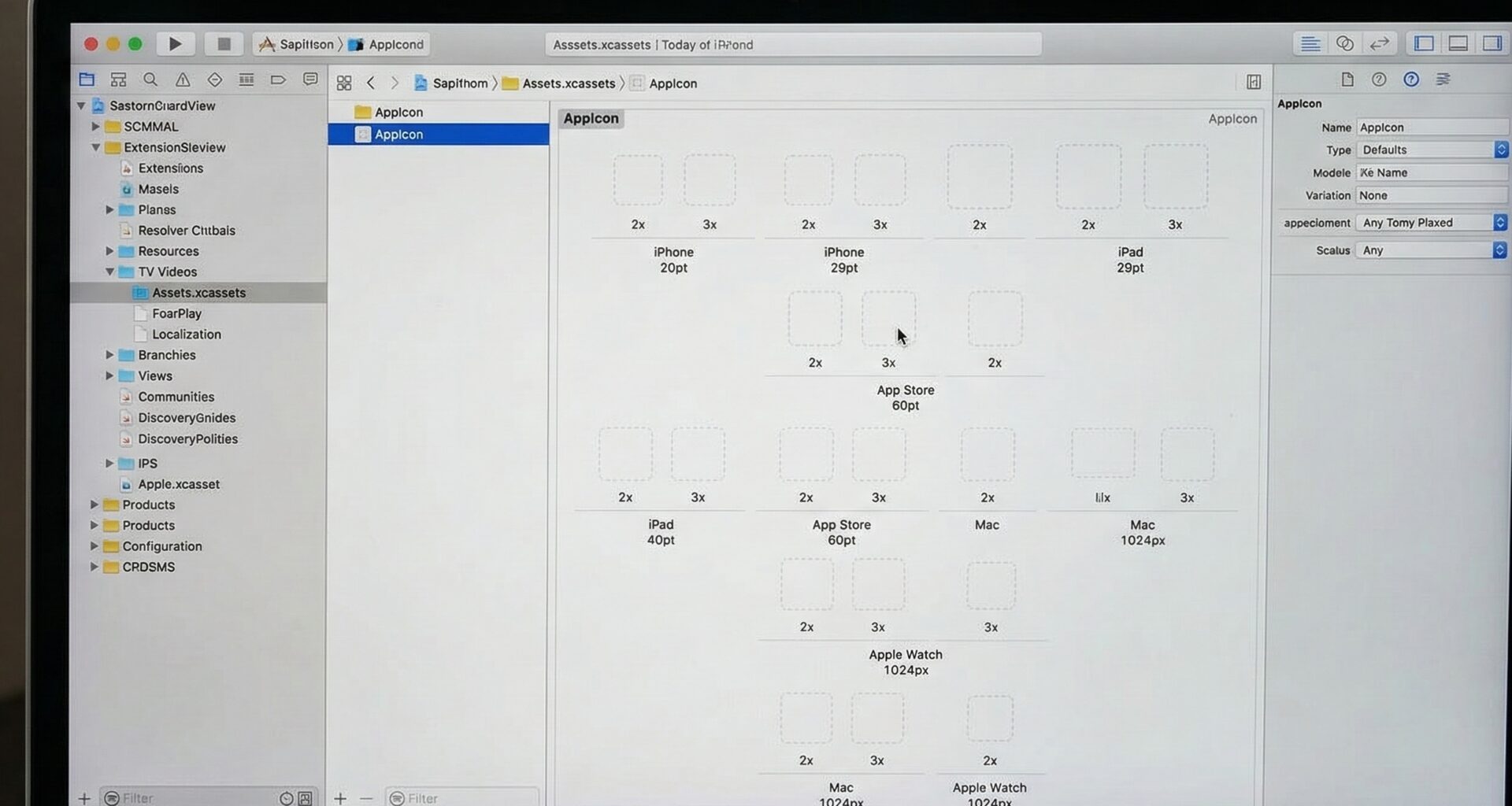

Any iOS Developer knows you can write the cleanest architecture in Swift programming and design the smoothest animations with SwiftUI, but if your app installs on the user’s device with Apple’s default white grid icon, the first impression will be of an unfinished product. The icon is the gateway to your software; it’s the visual identity that will live on your users’ home screens.
At first glance, how to add the app icon in Xcode might seem like a trivial “drag and drop” task. However, when you start developing for a multiplatform ecosystem that includes iOS, macOS, and watchOS, the rules change. Each operating system has its own design guidelines, resolution requirements, and rules regarding transparencies (alpha channels).
In this extensive tutorial, we will break down step by step everything you need to know to configure your icons in Xcode, from the basic setup with the Single Size feature to the advanced implementation of dynamic alternate icons using Swift and SwiftUI.
1. Understanding the Asset Catalog in Xcode
At the heart of resource management in Xcode is the Asset Catalog, a file typically named Assets.xcassets. This file is where you will organize all the images, colors, and, of course, the icons for your application.
When you create a new project in Xcode (whether using UIKit or SwiftUI), the system automatically generates an image set inside your Assets called AppIcon. This is the special container the Apple build system will look for when packaging your application.
1.1. The “Single Size” Revolution
In the past, an iOS Developer had to manually generate and drag dozens of variations of the same image (1x, 2x, 3x, iPad sizes, Spotlight sizes, Notification sizes, etc.). This required using third-party tools or complicated scripts.
Fortunately, Apple modernized this process. Now, by default, Xcode uses the Single Size configuration.
Note: To take advantage of Single Size, you only need a master square image of 1024 x 1024 pixels in PNG format. Xcode will handle resizing it and generating all the necessary variants for the operating system during compilation.
2. How to Add the App Icon in Xcode for iOS
Let’s start with the most common platform: the iPhone and iPad.
Design Rules for iOS:
- Resolution: 1024 x 1024 pixels.
- Format: PNG.
- Transparency: STRICTLY NO. The image must not have an alpha channel (transparency). If you upload an icon with a transparent background, Xcode will fill it with black, and App Store Connect might reject your binary.
- Shape: It must be a perfect square. Do not round the corners of your image; the iOS operating system itself (SpringBoard) automatically applies the iconic “rounded rectangle” (squircle) mask.
Implementation Steps:
- Open your project in Xcode.
- In the left navigation panel (Project Navigator), click on
Assets.xcassets. - Select the item named
AppIconin the middle list. - Open the Inspector panel on the right (Attributes Inspector).
- Ensure that, in the “iOS” section, the “Global” or “All Sizes” option is set to Single Size.
- Open a Finder window on your Mac where you have your 1024×1024 px design.
- Drag and drop the PNG file directly onto the empty slot that says
1024x1024in the main area of Xcode.
And that’s it! Build and run your app on the simulator or a real device, and you’ll see your new icon shining on the home screen.
3. Adding Icons for macOS
When you take your Swift programming to the Mac, the aesthetic rules change dramatically. Unlike iOS, macOS is a free-form desktop window environment, and icons reflect that.
Design Rules for macOS:
- Resolution: 1024 x 1024 pixels.
- Format: PNG.
- Transparency: YES, IT IS MANDATORY. In macOS (especially since macOS Big Sur), icons still have a rounded rectangle shape, but unlike iOS, the system does not crop the image for you or add the standard drop shadow in the same way. The actual icon usually takes up about 80% of the 1024×1024 canvas, leaving transparent space around it for the drop shadow.
- Shape: Pre-rendered rounded rectangle with a 3D drop shadow.
Implementation Steps for Mac:
- In your
Assets.xcassets, select yourAppIcon. - In the Attributes Inspector on the right, locate the “Mac” section.
- Change the option to Single Size or All Sizes as you prefer (Single Size is still optimal).
- Drag your macOS-specific PNG (the one with transparency and shadows) into the corresponding slot.
Expert Tip: If you have a multiplatform project (iOS and macOS), your
AppIconwill have two separate 1024×1024 slots: one labeled for iOS (no transparency) and another for Mac (with transparency).
4. Adding Icons for watchOS
The Apple Watch is the smallest and most intimate environment. Here, your SwiftUI shines in microsecond interactions, and the icon must be immediately recognizable.
Design Rules for watchOS:
- Resolution: 1024 x 1024 pixels.
- Format: PNG.
- Transparency: NO. Just like iOS, the alpha channel is not allowed.
- Background: The golden rule in watchOS is that icons should have a solid black background if possible, so the icon blends perfectly with the OLED screen and the operating system’s circular mask.
- Shape: The system will apply a perfectly circular mask. Keep key elements (like your logo) well-centered and away from the corners of the original square.
To configure it, simply repeat the process in the Asset Catalog, ensuring the “watchOS” checkbox is checked in the Attributes Inspector and dragging your centered design for the watch.
5. Pro Level: Changing the Icon Dynamically with SwiftUI
One of the favorite features of users in modern apps is the ability to choose an “Alternate App Icon”. From choosing a dark/light theme to unlocking “retro” or “premium” icons. As an iOS Developer, knowing how to do this in Swift programming will add immense value to your product.
Step 5.1: Prepare the Alternate Icons
Unlike the main icon, alternate icons are not managed in the Assets.xcassets. You must add them as regular files to your project.
- Create your alternate icons (1024×1024, no transparency). Name them, for example,
DarkIcon.pngandRetroIcon.png. - Drag them directly to the Project Navigator in Xcode (not to the Assets). Make sure to check the “Copy items if needed” box and that your Target is selected.
Step 5.2: Configure the Info.plist
Apple requires you to explicitly declare alternate icons in your application’s configuration file.
- Go to your Target settings in Xcode, select the Info tab.
- Add a new row and search for
Icon files (iOS, tvOS). - Expand this entry. You will see
Primary Icon. Do not touch it. - Add a new key under
Icon files (iOS, tvOS)namedCFBundleAlternateIcons(Type: Dictionary). - Inside this dictionary, create a key for each icon (e.g.,
Dark). - The value for that key must be an array. The first element of that array must be your image’s file name without the extension (e.g.,
DarkIcon).
Step 5.3: The Logic in Swift
Now, we will write the code in Swift to request the operating system to change the icon. iOS provides the UIApplication.shared.setAlternateIconName API.
import Foundation
import UIKit // Required for UIApplication

class IconManager: ObservableObject {
    @Published var currentIconName: String?

    init() {
        self.currentIconName = UIApplication.shared.alternateIconName
    }

    func changeIcon(to iconName: String?) {
        // Ensure the device supports alternate icons
        guard UIApplication.shared.supportsAlternateIcons else {
            print("This device does not support alternate icons.")
            return
        }

        // Execute the change
        UIApplication.shared.setAlternateIconName(iconName) { error in
            if let error = error {
                print("Error changing icon: \(error.localizedDescription)")
            } else {
                print("Icon successfully changed to: \(iconName ?? "Default")")
                DispatchQueue.main.async {
                    self.currentIconName = iconName
                }
            }
        }
    }
}
Step 5.4: The Interface in SwiftUI
Finally, let’s create a simple SwiftUI view so the user can interact and choose their preferred icon.
import SwiftUI

struct SettingsView: View {
    @StateObject private var iconManager = IconManager()

    var body: some View {
        NavigationView {
            Form {
                Section(header: Text("App Appearance")) {

                    // Button to revert to default icon
                    Button(action: {
                        iconManager.changeIcon(to: nil)
                    }) {
                        HStack {
                            Text("Classic Icon")
                                .foregroundColor(.primary)
                            Spacer()
                            if iconManager.currentIconName == nil {
                                Image(systemName: "checkmark.circle.fill")
                                    .foregroundColor(.blue)
                            }
                        }
                    }

                    // Button for the dark icon
                    Button(action: {
                        iconManager.changeIcon(to: "Dark")
                    }) {
                        HStack {
                            Text("Dark Icon")
                                .foregroundColor(.primary)
                            Spacer()
                            if iconManager.currentIconName == "Dark" {
                                Image(systemName: "checkmark.circle.fill")
                                    .foregroundColor(.blue)
                            }
                        }
                    }

                }
            }
            .navigationTitle("Settings")
        }
    }
}
When you run this, when the user presses the button, iOS will show a system dialog confirming that the app’s icon has changed.
6. Common Troubleshooting
Even experienced developers stumble with icon configurations. Here are the most common issues and how to fix them:
- Error uploading to App Store Connect (“Invalid Image / Missing Alpha”): This is the number one error. It means your iOS icon has transparency. Open your image in the Preview app on your Mac, go to “File > Export”, uncheck the “Alpha” checkbox, and save it again as PNG. Replace the file in Xcode.
- The icon doesn’t update in the Simulator: iOS simulators are known for aggressively caching icons. If you change the icon in Xcode and it doesn’t reflect, delete the app from the simulator, clean your build folder in Xcode (Cmd + Shift + K), and rebuild.
- “Result of call to function returning ‘Type’ is unused”: If you see this warning when working with older icon-related code, remember that modern Swift programming requires you to handle results or mark them with
@discardableResult. However, thesetAlternateIconNameAPI handles errors through its completion handler (closure), as shown in our example.
Conclusion
Knowing how to add the app icon in Xcode is a rite of passage for every iOS Developer. We have moved from having to manually manage dozens of resolutions to the elegance of Single Size in the Asset Catalog.
We have explored the nuances of each platform: the lack of transparency in iOS, the mandatory shadows in macOS, and the dark backgrounds for watchOS OLED screens. And to top it off, we integrated SwiftUI to give users control over what our app looks like on their home screens through dynamic icons.
If you have any questions about this article, please contact me and I will be happy to help you  . You can contact me on my X profile or on my Instagram profile.