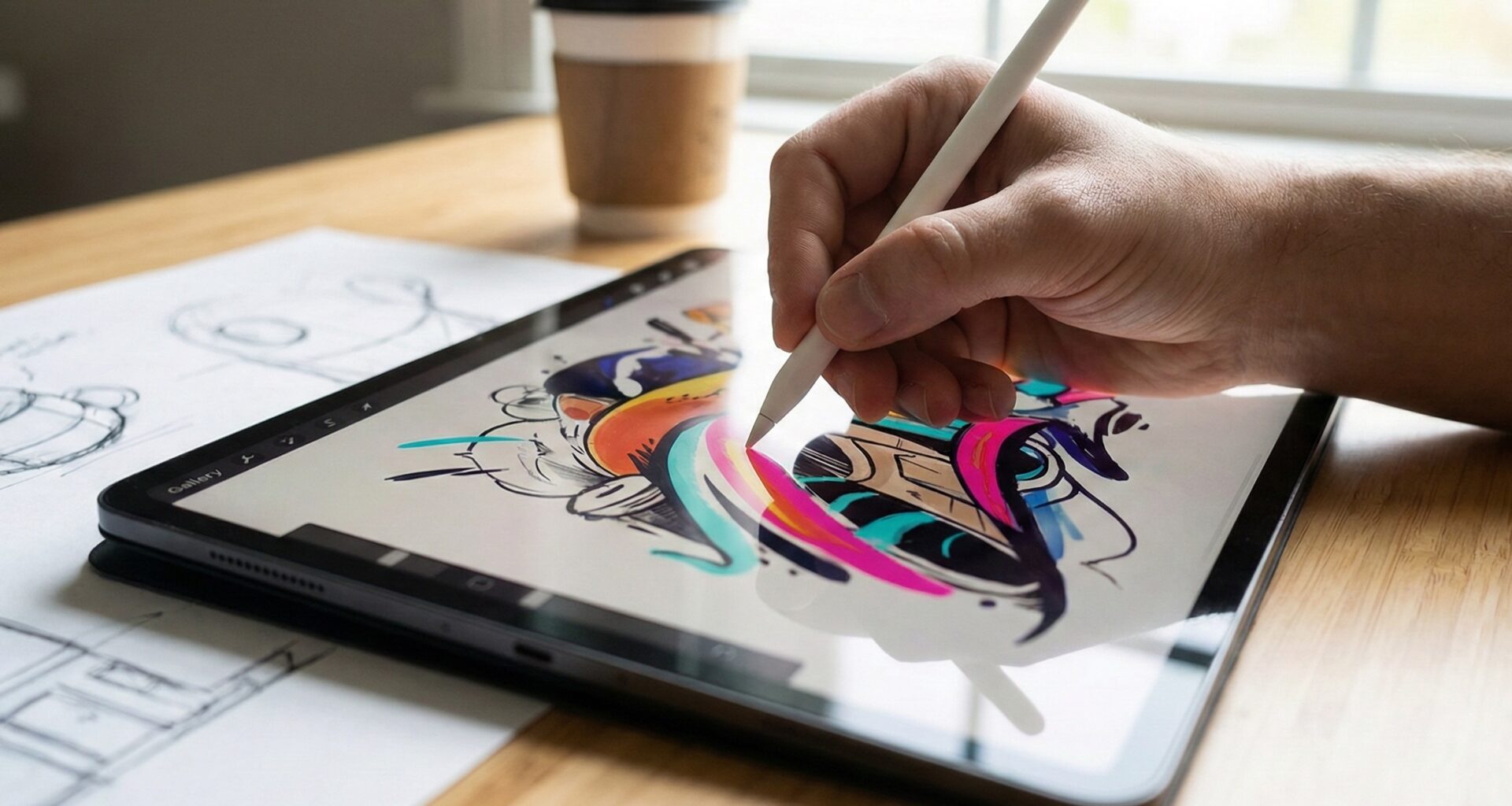

As an iOS Developer, creating rich, tactile experiences is one of the most rewarding goals. Since the introduction of the Apple Pencil, iPad users (and increasingly, iPhone users via touch gestures) expect to interact with their apps seamlessly, taking notes, drawing, or annotating documents. This is where one of the most powerful tools in Swift programming comes into play: the PencilKit framework.
If you are developing in Xcode and have adopted the declarative paradigm, you may have noticed that integrating UIKit-based frameworks into SwiftUI can seem like an initial challenge. However, the interoperability offered by Swift makes it not only possible but highly efficient.
In this detailed tutorial, we will deeply explore how to implement PencilKit in SwiftUI and iOS, creating a functional drawing canvas, managing the tool palette, and saving user strokes, all optimized for iOS and iPadOS.
1. What is PencilKit and why should you use it?
PencilKit is a native Apple framework designed to make it easy for any iOS Developer to incorporate a low-latency drawing environment into their applications. Before PencilKit, creating a drawing app required complex mathematical calculations with Core Graphics, OpenGL, or Metal to interpret touches, calculate Apple Pencil pressure, and render strokes without lag.
PencilKit solves all this by offering:
- PKCanvasView: The main view where drawing takes place.
- PKToolPicker: The floating (or docked) user interface that provides pens, markers, erasers, and color pickers.
- PKDrawing: The underlying data model that stores the stroke vectors, allowing you to save, load, and even inspect the drawing.
2. The Challenge: Integrating PencilKit into SwiftUI
Currently, Apple does not provide a purely SwiftUI native view for PencilKit. PKCanvasView is a subclass of UIScrollView (which in turn inherits from UIView).
Therefore, in modern Swift programming, we need to build a “bridge” using the UIViewRepresentable protocol. This protocol allows us to wrap UIKit views so that SwiftUI treats them as first-class citizens within its view tree.
3. Setting up the Project in Xcode
- Open Xcode and create a new project by selecting “App” under the iOS tab.
- Name your project (e.g., “PencilKitSwiftUITutorial”).
- Ensure the interface is set to SwiftUI and the language is Swift.
- It is recommended that in the project settings (General tab), under “Supported Destinations”, you make sure both iPhone and iPad are checked, as PencilKit shines especially on iPadOS.
4. Creating the Canvas: Implementing UIViewRepresentable
Let’s create our bridge component. Create a new Swift file named PencilKitCanvas.swift. Here we will define the structure that will wrap our PKCanvasView.
import SwiftUI
import PencilKit

struct PencilKitCanvas: UIViewRepresentable {
    // We bind the drawing to a SwiftUI state so we can save/load it
    @Binding var canvasView: PKCanvasView

    // makeUIView is called only once when SwiftUI creates the view
    func makeUIView(context: Context) -> PKCanvasView {
        // Configure the canvas to accept both Apple Pencil and finger touch
        canvasView.drawingPolicy = .anyInput

        // Assign the delegate to respond to changes in the canvas
        canvasView.delegate = context.coordinator

        // A transparent background allows composing the canvas over other views
        canvasView.backgroundColor = .clear
        canvasView.isOpaque = false

        return canvasView
    }

    // updateUIView is called every time the SwiftUI state changes
    func updateUIView(_ uiView: PKCanvasView, context: Context) {
        // Here we could update canvas properties if the external state changes
    }

    // The Coordinator acts as a bridge for UIKit delegates (PKCanvasViewDelegate)
    func makeCoordinator() -> Coordinator {
        Coordinator(self)
    }

    class Coordinator: NSObject, PKCanvasViewDelegate {
        var parent: PencilKitCanvas

        init(_ parent: PencilKitCanvas) {
            self.parent = parent
        }

        // Delegate method: called every time the user draws something
        func canvasViewDrawingDidChange(_ canvasView: PKCanvasView) {
            // Useful if you need to notify SwiftUI that the drawing changed (e.g., for auto-save)
        }
    }
}
Code Analysis for the iOS Developer:
@Binding var canvasView: We pass thePKCanvasViewfrom the parent view in SwiftUI. This gives us control to extract thePKDrawing(the drawing) and show thePKToolPickerfrom the main view.drawingPolicy = .anyInput: By default, on iPadOS, PencilKit assumes the user will draw with the Apple Pencil and scroll with their finger. By changing it to.anyInput, we allow drawing with the finger on iOS (iPhone).- Coordinator: It is fundamental in Swift programming when using
UIViewRepresentable. It allows us to conform to thePKCanvasViewDelegateprotocol to react to user events.
5. Adding the PKToolPicker (Tool Palette)
The canvas by itself only draws with the default brush. To offer a complete experience, we need to show Apple’s tool palette.
Create a new file named DrawingView.swift. This will be the SwiftUI view that the user sees and that will orchestrate our canvas and tools.
import SwiftUI
import PencilKit

struct DrawingView: View {
    // We hold the canvas instance and the tool picker as view state
    @State private var canvasView = PKCanvasView()
    @State private var toolPicker = PKToolPicker()

    var body: some View {
        ZStack {
            // App background
            Color.white.ignoresSafeArea()

            // Our wrapped canvas
            PencilKitCanvas(canvasView: $canvasView)
                .ignoresSafeArea()
        }
        // We use onAppear to present the Tool Picker once the view is ready
        .onAppear {
            setupToolPicker()
        }
    }

    private func setupToolPicker() {
        // Link the Tool Picker to our canvas
        toolPicker.setVisible(true, forFirstResponder: canvasView)
        toolPicker.addObserver(canvasView)

        // Make the canvas the "First Responder" so the Tool Picker appears
        canvasView.becomeFirstResponder()
    }
}
With just this, if you run the app in your simulator or physical device via Xcode, you already have a fully functional drawing app! The palette will float on the iPad and adjust perfectly to the keyboard or bottom space on the iPhone.
6. Saving and Loading the Drawing (Persistence)
An app that doesn’t save the user’s work isn’t very useful. The power of using PencilKit in SwiftUI and iOS lies in how easily we can serialize the PKDrawing object.
Let’s modify our DrawingView to include buttons in a navigationBar that allow clearing the canvas, saving the drawing in Data format (ideal for UserDefaults, CoreData, or SwiftData), and restoring it.
import SwiftUI
import PencilKit

struct DrawingAppView: View {
    @State private var canvasView = PKCanvasView()
    @State private var toolPicker = PKToolPicker()

    // Variable to temporarily store the drawing data in UserDefaults
    @AppStorage("savedDrawing") private var savedDrawingData: Data = Data()

    var body: some View {
        NavigationView {
            PencilKitCanvas(canvasView: $canvasView)
                .ignoresSafeArea()
                .onAppear {
                    setupToolPicker()
                    loadDrawing() // Load drawing on launch
                }
                .navigationTitle("PencilKit + SwiftUI")
                .navigationBarTitleDisplayMode(.inline)
                .toolbar {
                    ToolbarItem(placement: .navigationBarLeading) {
                        Button(action: clearCanvas) {
                            Image(systemName: "trash")
                        }
                    }
                    ToolbarItem(placement: .navigationBarTrailing) {
                        Button("Save", action: saveDrawing)
                    }
                }
        }
    }

    private func setupToolPicker() {
        toolPicker.setVisible(true, forFirstResponder: canvasView)
        toolPicker.addObserver(canvasView)
        canvasView.becomeFirstResponder()
    }

    private func saveDrawing() {
        // PKCanvasView has a .drawing property we can serialize to DataRepresentation
        savedDrawingData = canvasView.drawing.dataRepresentation()
        print("Drawing saved successfully.")
    }

    private func loadDrawing() {
        // Attempt to recreate the PKDrawing from the stored data
        if !savedDrawingData.isEmpty {
            do {
                let drawing = try PKDrawing(data: savedDrawingData)
                canvasView.drawing = drawing
            } catch {
                print("Error loading drawing: \(error.localizedDescription)")
            }
        }
    }

    private func clearCanvas() {
        // To clear, we simply assign a new empty drawing
        canvasView.drawing = PKDrawing()
    }
}
Here we’ve used the @AppStorage property wrapper, an excellent addition to SwiftUI, which saves the serialized data directly into UserDefaults. While this is perfect for a tutorial or lightweight prototype, as a professional iOS Developer, for production apps you should consider saving these files to the file system (File Manager) if the drawing is very complex or heavy.
7. Advanced Use: Analyzing Strokes and Customizing Tools
Swift programming applied to PencilKit doesn’t stop at simply showing a canvas. Since iOS 14, Apple has allowed developers to inspect individual strokes.
The PKDrawing object contains an array of PKStroke. Each stroke contains information about the path, the ink, and the transformation.
Reading User Strokes
If you want to know how many strokes the user has drawn or analyze their behavior (for example, for handwriting recognition apps in Swift), you can iterate over them:
func analyzeStrokes() {
    let strokes = canvasView.drawing.strokes
    print("The user has made \(strokes.count) strokes.")

    for stroke in strokes {
        let path = stroke.path
        let ink = stroke.ink
        print("Stroke with color: \(ink.color) and tool type: \(ink.inkType)")
    }
}
Changing Tools Programmatically
Sometimes you don’t want to use the PKToolPicker. Imagine you are creating a kids’ game in SwiftUI and want to provide your own colorful buttons. You can modify the canvas tool directly:
// Change to a red pen programmatically
func useRedPen() {
    canvasView.tool = PKInkingTool(.pen, color: .red, width: 5)
}

// Change to the eraser
func useEraser() {
    canvasView.tool = PKEraserTool(.vector) // Erases whole stroke
    // canvasView.tool = PKEraserTool(.bitmap) // Erases by pixels
}
8. Best Practices: iOS vs iPadOS
When developing apps with PencilKit in SwiftUI and iOS, a good iOS Developer should keep the running device’s hardware in mind, utilizing the conditional capabilities that Xcode and Swift offer.
- On iPadOS: The user expects their Apple Pencil to draw and their finger to scroll the page (think of Apple’s Notes app). To achieve this, configure
canvasView.drawingPolicy = .pencilOnly. If you use aScrollViewwrapping the canvas, this will allow natural navigation. - On iOS (iPhone): Since there is no Apple Pencil, you must use
canvasView.drawingPolicy = .anyInput. If you don’t, the user will touch the screen and absolutely nothing will happen, creating a terrible user experience (UX).
You can detect the device (idiom) in Swift like this:
if UIDevice.current.userInterfaceIdiom == .pad {
    canvasView.drawingPolicy = .pencilOnly // Optional, depending on your design
} else {
    canvasView.drawingPolicy = .anyInput
}
Also, make sure to manage Dark Mode. PencilKit is smart: if a user draws with black ink in light mode, and the device switches to dark mode, PencilKit automatically inverts that black to white so it remains visible against the dark background. If you need an “absolute” color that doesn’t change (like a legal signature), you’ll need to force the canvas’s trait collection or use custom colors defined as fixed.
Conclusion
Integrating PencilKit in SwiftUI and iOS opens up a world of interactive possibilities for any iOS Developer. Although it requires a small leap to UIKit using UIViewRepresentable, the Xcode API is so polished that the process is extremely clean.
Modern Swift programming allows us to combine the best of both worlds: the speed and declarative design of SwiftUI to build our user interface (buttons, navigation, menus), and the low-level graphical power of UIKit to handle near-zero latency drawing.
If you have any questions about this article, please contact me and I will be happy to help you  . You can contact me on my X profile or on my Instagram profile.