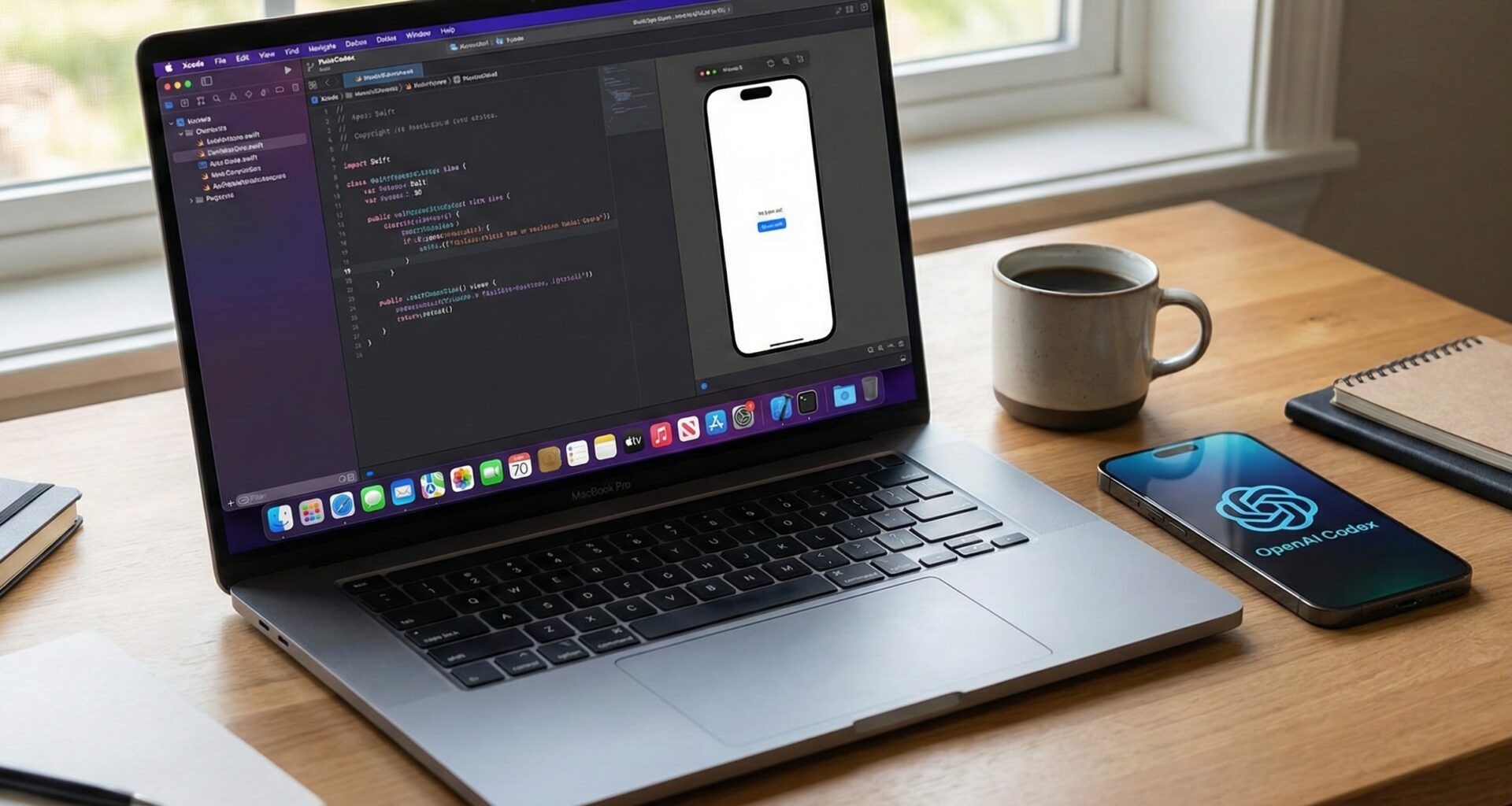

The artificial intelligence revolution has forever changed the software development landscape. For an iOS Developer, the default tool has always been Xcode, a robust IDE but one that, historically, lacked advanced predictive intelligence. Until now.
Although Apple has introduced its own improvements, many developers seek the raw power of OpenAI Codex (the engine that originally powered GitHub Copilot) directly within their workspace. Integrating the reasoning capability of advanced models into Swift programming is not just a convenience; it’s a competitive advantage.
In this how to integrate the OpenAI API (the evolution of Codex), configure editing extensions, and generate complex SwiftUI code for iOS, macOS, and watchOS in a matter of seconds.
Understanding Codex and its Evolution in Xcode
First, a vital technical clarification for every iOS Developer. “Codex” was the name of the OpenAI model specifically trained on code. Today, Codex’s capabilities have been merged into and surpassed by the GPT-3.5 Turbo and GPT-4o models. When we talk about “using Codex in Xcode” today, we refer to connecting Xcode to the OpenAI API to get superior-level code assistance.
Since Xcode does not have an official native OpenAI plugin, we will utilize the Xcode Source Editor Extensions architecture. This will allow us to send our code or comments to the AI and receive compilable Swift back.
Phase 1: Preparing the Environment (The Bridge)
To achieve this, we need a “bridge”. We won’t write the raw HTTP call in every session. We will use an Open Source tool that acts as an intermediary. The industry standard recommendation is “Copilot for Xcode” (an external application maintained by the community) or creating a custom Python/Shell script.
Step 1: Get your API Key
To use Codex in Xcode, you need access to the brain:
- Go to the OpenAI developer platform.
- Generate a new Secret Key.
- Important: Make sure you have credits available. The API is not free, although it is extremely cheap for individual code generation use.
Step 2: Configuring the Intermediary
Install an Xcode extension application that accepts custom API Keys. Once installed:
- Open
System Settings->Privacy & Security->Extensions->Xcode Source Editor. - Enable the extension.
- In the app settings, paste your OpenAI API Key and select the model (recommended:
gpt-4oorgpt-3.5-turbo-instructfor speed).
Phase 2: Assisted Swift Programming on iOS
Now that we have the brain connected, let’s create a real app. We will call this project “CryptoTracker”. The goal is to see how the AI handles platform differences using SwiftUI.
Prompt Engineering
In your ContentView.swift file, instead of writing code, you will write a detailed comment. This is what we call “Prompt Driven Development” in Swift.
Write this in your editor and activate the Codex extension:
// Create a SwiftUI view for iOS showing a list of cryptocurrencies.
// Use a mocked ViewModel with sample data (Bitcoin, Ethereum, Cardano).
// The list should have a modern style, show the price on the right, and the percentage change in green or red.
// Use SF Symbols for icons.
The AI will generate the following optimized code:
import SwiftUI

// Simple data model
struct CryptoCoin: Identifiable {
    let id = UUID()
    let name: String
    let symbol: String
    let price: Double
    let change: Double
    let icon: String
}

// Mocked ViewModel for the view
class CryptoViewModel: ObservableObject {
    @Published var coins: [CryptoCoin] = [
        CryptoCoin(name: "Bitcoin", symbol: "BTC", price: 45000.0, change: 2.5, icon: "bitcoinsign.circle.fill"),
        CryptoCoin(name: "Ethereum", symbol: "ETH", price: 3200.0, change: -1.2, icon: "circle.hexagongrid.fill"),
        CryptoCoin(name: "Cardano", symbol: "ADA", price: 1.20, change: 0.8, icon: "star.circle.fill")
    ]
}

struct iOSCryptoListView: View {
    @StateObject private var viewModel = CryptoViewModel()

    var body: some View {
        NavigationView {
            List(viewModel.coins) { coin in
                HStack {
                    Image(systemName: coin.icon)
                        .font(.title)
                        .foregroundStyle(.indigo)

                    VStack(alignment: .leading) {
                        Text(coin.name)
                            .font(.headline)
                        Text(coin.symbol)
                            .font(.caption)
                            .foregroundStyle(.secondary)
                    }

                    Spacer()

                    VStack(alignment: .trailing) {
                        Text("$\(coin.price, specifier: "%.2f")")
                            .fontWeight(.bold)

                        Text("\(coin.change > 0 ? "+" : "")\(coin.change, specifier: "%.2f")%")
                            .foregroundStyle(coin.change >= 0 ? .green : .red)
                            .font(.caption)
                    }
                }
                .padding(.vertical, 4)
            }
            .navigationTitle("Crypto Market")
            .listStyle(.insetGrouped)
        }
    }
}

#Preview {
    iOSCryptoListView()
}
Phase 3: Adaptation to macOS with Codex
A good iOS Developer knows that macOS is not simply a large iPad. Interaction is different. Here is where using Codex in Xcode shines: context translation.
Select the code from the iOS view and ask the AI (via your extension): “Convert this view for macOS. Use a Table instead of List to leverage the width, and add row selection support.”
The AI will understand that in SwiftUI for macOS, Table is superior to List for tabular data:
import SwiftUI

struct MacCryptoTableView: View {
    @StateObject private var viewModel = CryptoViewModel()
    @State private var selectedCoinID: UUID?

    var body: some View {
        Table(viewModel.coins, selection: $selectedCoinID) {
            TableColumn("Coin") { coin in
                HStack {
                    Image(systemName: coin.icon)
                    Text(coin.name)
                }
            }

            TableColumn("Symbol", value: \.symbol)

            TableColumn("Price") { coin in
                Text("$\(coin.price, specifier: "%.2f")")
                    .monospacedDigit() // Fine detail for macOS
            }

            TableColumn("Change (24h)") { coin in
                Text("\(coin.change, specifier: "%.2f")%")
                    .foregroundStyle(coin.change >= 0 ? .green : .red)
                    .padding(4)
                    .background(
                        RoundedRectangle(cornerRadius: 4)
                            .fill(coin.change >= 0 ? Color.green.opacity(0.1) : Color.red.opacity(0.1))
                    )
            }
        }
        .navigationTitle("Portfolio Manager")
        .frame(minWidth: 600, minHeight: 400)
    }
}

#Preview {
    MacCryptoTableView()
}
Phase 4: Minimalism on watchOS
Finally, we will take the logic to the wrist. Swift programming for watchOS requires synthesis. We cannot show tables. We need fast, “glanceable” views.
Prompt for Codex: “Create a view for Apple Watch based on the CryptoCoin model. Use a vertical TabView to page between coins. Use high-contrast colors and large fonts.”
import SwiftUI

struct WatchCryptoView: View {
    @StateObject private var viewModel = CryptoViewModel()

    var body: some View {
        TabView {
            ForEach(viewModel.coins) { coin in
                VStack {
                    Image(systemName: coin.icon)
                        .font(.system(size: 30))
                        .foregroundStyle(.indigo)
                        .padding(.bottom, 5)

                    Text(coin.symbol)
                        .font(.headline)
                        .foregroundStyle(.secondary)

                    Text("$\(coin.price, specifier: "%.2f")")
                        .font(.title2)
                        .fontWeight(.bold)
                        .minimumScaleFactor(0.8)

                    Text("\(coin.change > 0 ? "▲" : "▼") \(abs(coin.change), specifier: "%.1f")%")
                        .font(.caption)
                        .foregroundStyle(coin.change >= 0 ? .green : .red)
                }
                .containerBackground(Color.indigo.opacity(0.2).gradient, for: .tabView)
            }
        }
        .tabViewStyle(.verticalPage)
    }
}

#Preview {
    WatchCryptoView()
}
Refactoring and Docs: The Hidden Superpower
Using Codex in Xcode isn’t just about generating views. Its greatest utility for a senior iOS Developer is refactoring and documentation.
Documentation Generation (DocC)
Select your complex function and send the command: “Generate documentation in DocC format for this function, explaining parameters and complexity.”
/// Calculates the projected portfolio performance based on compound interest.
///
/// This function takes the initial capital and applies an annual growth rate
/// to determine the future value.
///
/// - Parameters:
///   - principal: The initial investment amount in USD.
///   - rate: The annual interest rate (e.g., 0.05 for 5%).
///   - years: The number of years to project.
/// - Returns: The final value of the investment.
///
/// # Example
/// ```swift
/// let final = calculateCompoundInterest(principal: 1000, rate: 0.05, years: 10)
/// ```
func calculateCompoundInterest(principal: Double, rate: Double, years: Int) -> Double {
    return principal * pow((1 + rate), Double(years))
}
Codex vs Xcode Autocomplete
It is important to distinguish. Xcode 16+ includes improved predictive autocomplete. However, using Codex in Xcode (via OpenAI) offers:
- Architectural Reasoning: It can suggest complete MVVM patterns, not just the next line.
- Language Conversion: It can translate Objective-C code to Swift instantly.
- Error Explanation: You can send it a compilation error, and it will explain why
Sendableprotocol compliance fails in Swift 6, for example.
Conclusion: The New Standard
Integrating OpenAI intelligence into your Xcode workflow transforms the development experience. You stop being a code typist and become a solutions architect. Whether you are building complex interfaces in SwiftUI for iOS, dense tables in macOS, or quick experiences in watchOS, AI is your ultimate co-pilot.
The future of Swift programming isn’t about writing more code, but about knowing what to ask the machine. And now, you have the tools to do it.
If you have any questions about this article, please contact me and I will be happy to help you 🙂. You can contact me on my X profile or on my Instagram profile.