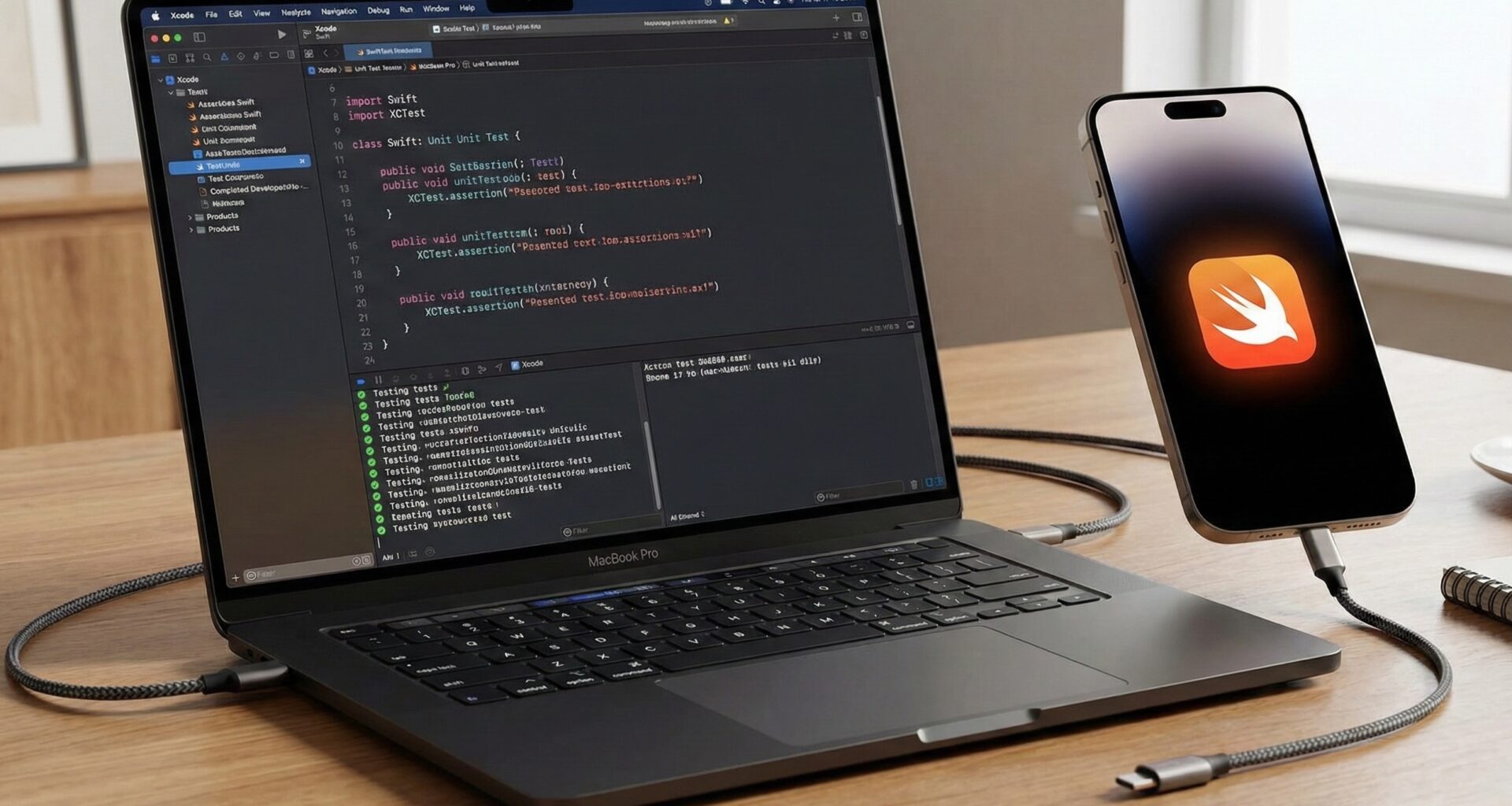

In the competitive world of mobile development, the difference between a “good” app and a “great” app often lies in its stability and reliability. For an iOS developer, mastering unit tests in Swift is not just a desirable skill—it is a fundamental requirement for scaling projects and maintaining a healthy codebase.
With the arrival of Swift and SwiftUI, application architecture has evolved, and with it, the way we approach testing. If you are looking to improve your Swift programming skills and ensure your business logic is bulletproof across iOS, macOS, and watchOS, you have come to the right place.
This tutorial about how to write unit tests in Swift, will guide you from basic concepts to advanced dependency injection techniques, using the native XCTest framework.
Why are Unit Tests Vital in the SwiftUI Era?
Before opening Xcode, we must understand the why. In the old imperative paradigm (UIKit), we often mixed logic and views. With Swift and SwiftUI, separation of concerns is more natural, especially if we use patterns like MVVM (Model-View-ViewModel).
Unit tests focus on verifying that small pieces of code (functions, methods, classes) work exactly as expected in isolation.
Key Benefits for the Developer:
- Early Bug Detection: Find bugs before they reach QA or, worse, production.
- Safe Refactoring: You can improve your code with peace of mind, knowing that if you break something, the tests will alert you.
- Living Documentation: Tests explain how your code is supposed to work better than any comment ever could.
- Modular Design: Writing testable code forces you to write better code (decoupled and clean).
Setting Up the Environment in Xcode
To start with unit tests in Swift, you need a project with a “Unit Testing Bundle”.
Step 1: Create or Modify the Project
If you are creating a new app in Xcode:
- Go to File > New > Project.
- Select App.
- In the options, make sure to check the “Include Tests” box.
If you have an existing app:
- Go to the Project Navigator (blue folder icon).
- Select your main project target.
- At the bottom left, click the
+button and search for “Unit Testing Bundle”.
This will create a new folder in your project with a YourAppTests.swift file.
The Anatomy of a Swift Test
XCTest is Apple’s native framework. A typical test class looks like this:
import XCTest
@testable import MyAwesomeApp

final class MyAwesomeAppTests: XCTestCase {

    override func setUpWithError() throws {
        // Runs BEFORE each test.
        // Ideal for resetting state or creating objects.
    }

    override func tearDownWithError() throws {
        // Runs AFTER each test.
        // Ideal for clearing memory or closing connections.
    }

    func testExample() throws {
        // 1. Arrange (Prepare)
        let valueA = 10
        let valueB = 20

        // 2. Act (Perform action)
        let result = valueA + valueB

        // 3. Assert (Verify)
        XCTAssertEqual(result, 30, "The sum should be 30")
    }
}
Important Keywords:
@testable import: Allows access tointernalclasses and methods of your main module without having to make thempublic.XCTAssert...: These are the assertions. If the condition is false, the test fails.
Testing Strategy in SwiftUI: The MVVM Pattern
This is where Swift and SwiftUI converge. You should not try to test SwiftUI Views with unit tests (UI Tests or Snapshot Tests exist for that). Your goal is to test the state logic, which should reside in your ViewModel or data services.
Let’s build a realistic scenario. Imagine a Task Management app (To-Do List).
The Model and the ViewModel
First, let’s define the logic in our app (Main Target):
import Foundation

struct TaskItem: Identifiable, Equatable {
    let id: UUID
    let title: String
    var isCompleted: Bool
}

class TaskManagerViewModel: ObservableObject {
    @Published var tasks: [TaskItem] = []

    func addTask(title: String) {
        guard !title.isEmpty else { return }
        let newTask = TaskItem(id: UUID(), title: title, isCompleted: false)
        tasks.append(newTask)
    }

    func completeTask(id: UUID) {
        if let index = tasks.firstIndex(where: { $0.id == id }) {
            tasks[index].isCompleted = true
        }
    }

    func clearAll() {
        tasks.removeAll()
    }
}
This code is pure Swift programming. It doesn’t matter if the UI is on iOS, macOS, or watchOS; the logic is shared.
Writing Your First Real Unit Test
Now, let’s go to the Test Target (YourAppTests) and write tests to validate this ViewModel.
1. Initial State Test
import XCTest
@testable import MyTaskApp

final class TaskManagerTests: XCTestCase {

    var viewModel: TaskManagerViewModel!

    override func setUpWithError() throws {
        // We initialize the SUT (System Under Test) before each test
        viewModel = TaskManagerViewModel()
    }

    override func tearDownWithError() throws {
        viewModel = nil
    }

    func test_TaskManager_StartsEmpty() {
        // Assert
        XCTAssertTrue(viewModel.tasks.isEmpty, "The manager should start without tasks")
        XCTAssertEqual(viewModel.tasks.count, 0)
    }
}
2. Business Logic Test (Add)
Here we test that the addTask function actually works and handles edge cases (like empty titles).
func test_TaskManager_AddTask_ShouldIncreaseCount() {
        // Arrange
        let title = "Learn XCTest"

        // Act
        viewModel.addTask(title: title)

        // Assert
        XCTAssertEqual(viewModel.tasks.count, 1)
        XCTAssertEqual(viewModel.tasks.first?.title, title)
        XCTAssertFalse(viewModel.tasks.first!.isCompleted)
    }

    func test_TaskManager_AddEmptyTask_ShouldNotAdd() {
        // Act
        viewModel.addTask(title: "")

        // Assert
        XCTAssertTrue(viewModel.tasks.isEmpty, "Tasks without titles should not be allowed")
    }
3. State Modification Test
func test_TaskManager_CompleteTask_ShouldChangeState() {
        // Arrange
        let title = "Test SwiftUI"
        viewModel.addTask(title: title)
        let taskId = viewModel.tasks.first!.id

        // Act
        viewModel.completeTask(id: taskId)

        // Assert
        XCTAssertTrue(viewModel.tasks.first!.isCompleted)
    }
Advanced Level: Dependency Injection and Mocking
A senior iOS developer knows that real apps don’t keep everything in memory; they connect to APIs or databases. Testing against a real API is a bad practice (it’s slow, unstable, and depends on the internet).
This is where Mocking comes in. To make this testable, we must use Protocols.
Step 1: Define the Protocol
Let’s refactor the code so the ViewModel doesn’t depend on a concrete implementation, but on an abstraction.
// In your main code

protocol DataServiceProtocol {
    func downloadItems() async throws -> [String]
}

class RealDataService: DataServiceProtocol {
    func downloadItems() async throws -> [String] {
        // Simulate network call
        try await Task.sleep(nanoseconds: 1_000_000_000)
        return ["Apples", "Pears", "Oranges"]
    }
}

class ShoppingListViewModel: ObservableObject {
    @Published var items: [String] = []
    let service: DataServiceProtocol

    // Dependency Injection
    init(service: DataServiceProtocol) {
        self.service = service
    }

    func loadData() async {
        do {
            let newItems = try await service.downloadItems()
            DispatchQueue.main.async {
                self.items = newItems
            }
        } catch {
            print("Error")
        }
    }
}
Step 2: Create the Mock for Tests
In your Test folder (not in the app), create a simulated object.
class MockDataService: DataServiceProtocol {

    var itemsToSend: [String] = []
    var shouldFail: Bool = false

    func downloadItems() async throws -> [String] {
        if shouldFail {
            throw URLError(.badServerResponse)
        }
        return itemsToSend
    }
}
Step 3: Testing with Async/Await
Since Swift 5.5, testing asynchronous code is much cleaner. We no longer rely as much on XCTestExpectation for simple tasks.
final class ShoppingListTests: XCTestCase {

    var viewModel: ShoppingListViewModel!
    var mockService: MockDataService!

    override func setUp() {
        mockService = MockDataService()
        viewModel = ShoppingListViewModel(service: mockService)
    }

    func test_LoadData_Success_ShouldPopulateArray() async {
        // Arrange
        mockService.itemsToSend = ["Test 1", "Test 2"]

        // Act
        await viewModel.loadData()

        // Assert
        // Note: Since the @Published update happens on MainActor,
        // sometimes we need to wait a cycle. In pure unit tests of
        // async logic, we validate the direct result if possible.
        // For this simple example, we assume await waits for execution.

        XCTAssertEqual(viewModel.items.count, 2)
        XCTAssertEqual(viewModel.items.first, "Test 1")
    }
}
Cross-Platform Testing: iOS, macOS, watchOS
The beauty of developing with Swift and SwiftUI is portability.
When you create a test bundle, it is usually linked to a Target (e.g., your iOS App). What happens if your logic is in a shared Framework or if you have a Multiplatform App?
- Swift Packages: The modern best practice is to move your business logic (Models and ViewModels) to a local Swift Package.
- Test Targets: Swift Packages have their own test targets that can run on any platform (Mac, iPhone, Watch) simply by selecting the destination in the top Xcode bar.
If you keep your logic decoupled from UIKit or SwiftUI (importing only Foundation or Combine where possible), your unit tests will work identically on watchOS as they do on iOS.
Quality Metrics: Code Coverage
Xcode includes a fantastic tool to see how much of your code is being tested.
- Go to Product > Scheme > Edit Scheme.
- Select “Test” in the sidebar.
- Go to the “Options” tab.
- Check the box “Gather coverage for all targets”.
Now, when you run your tests (Cmd + U), you can go to the “Report Navigator” (the last icon on the right in the left panel), select the last test run, and view the “Coverage” tab. You will see a percentage.
Pro Tip: Don’t obsess over 100%. An 80% is usually an excellent standard. Focus on testing complex and critical logic, not simple
settersandgetters.
Best Practices for the Modern iOS Developer
To wrap up this tutorial, here is a summary of the golden rules for test-oriented Swift programming:
1. Naming Conventions
The test name should tell a story. Use the format: test_Object_Action_ExpectedResult
- ❌
test1() - ✅
test_Calculator_WhenAddingTwoPlusTwo_ShouldReturnFour()
2. The FIRST Principle
- Fast: They must run in milliseconds.
- Isolated: A test should not depend on the result of another.
- Repeatable: They must always yield the same result.
- Self-validating: They pass or fail, without manual interpretation.
- Timely: Written before or during development, not months later.
3. Avoid Logic in Tests
Your tests should not have complex if or for loops. If your test needs complex logic, who tests the test? Keep them linear: Arrange, Act, Assert.
Conclusion
Implementing unit tests in Swift may seem like a slow task at first, but it is the only way to guarantee speed in the long run. By separating your logic from the view using Swift and SwiftUI with MVVM, and by using dependency injection, you create robust code that can survive major changes and refactoring.
As an iOS developer, your responsibility is not just to write code that works today, but code that can be maintained tomorrow. Unit tests are your safety net on iOS, macOS, and watchOS.
If you have any questions about this article, please contact me and I will be happy to help you 🙂. You can contact me on my X profile or on my Instagram profile.