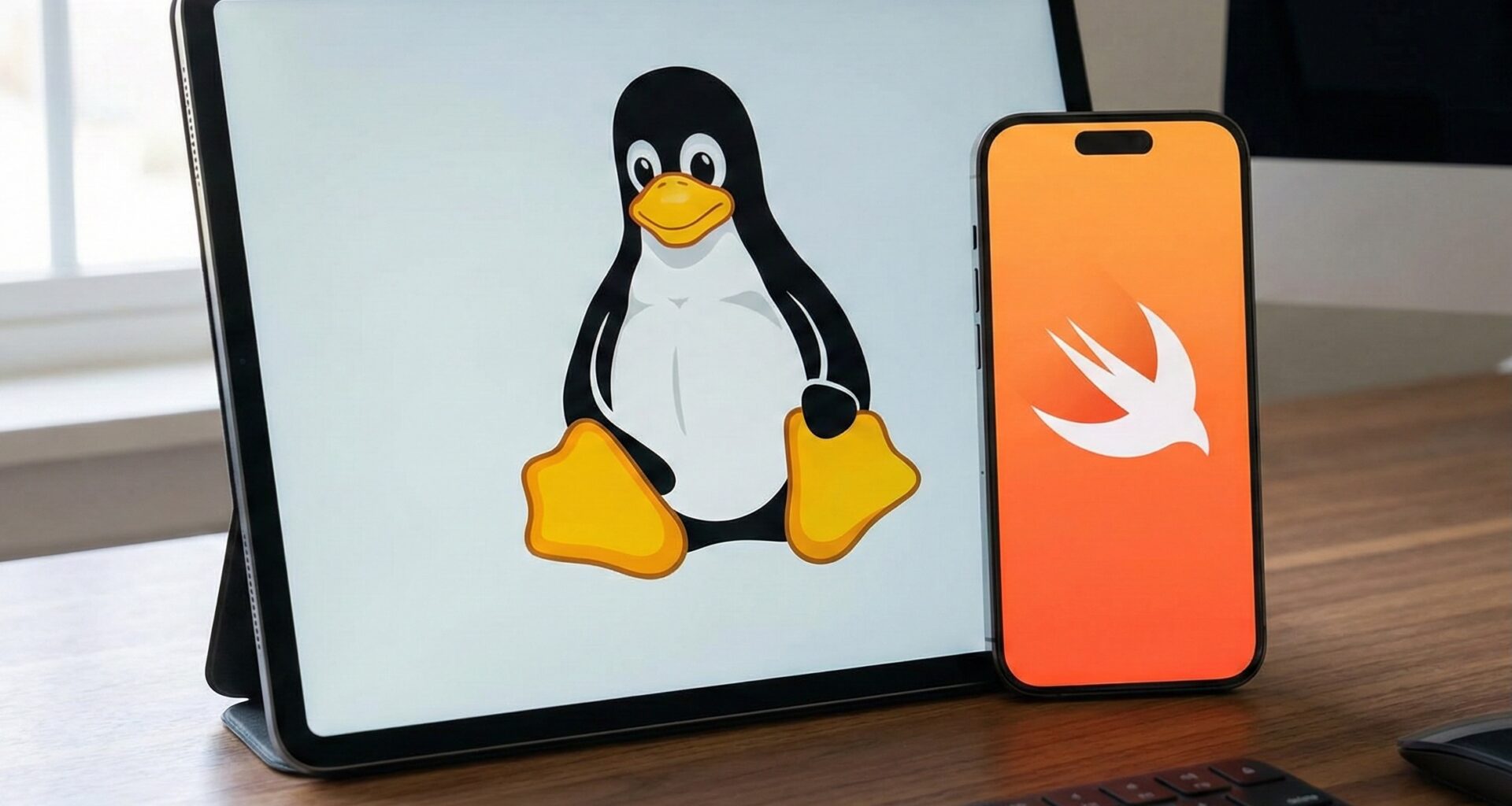

For over a decade, the image of the iOS developer has been intrinsically linked to a specific hardware ecosystem: the Mac. If you wanted to enter Apple’s walled garden, you needed the aluminum key. However, the software development landscape is dynamic, and the evolution of Swift as a language has broken many of those chains.
Today, Swift programming is no longer exclusive to Cupertino’s operating systems. Since Apple released Swift as open source in 2015, the language has matured incredibly on other platforms, with Linux being the main beneficiary outside the Apple environment.
If you are a curious developer, a lover of open-source software, or simply looking to optimize costs on Continuous Integration (CI/CD) servers, you might have wondered: Is it possible to develop for the Apple ecosystem using Linux?
The short answer is: Yes, but with a big asterisk.
This tutorial will not only guide you step-by-step on installing Swift on Linux. It will also, and most importantly, define the reality of what you can (and cannot) do in this environment, and how a hybrid workflow can turn you into a more versatile and valuable iOS developer.
The Harsh Reality: What Can We Actually Do on Linux?
Before opening the terminal, we must manage expectations. As an iOS developer accustomed to the magic of Xcode and real-time SwiftUI Previews, landing on Linux can be confusing if boundaries aren’t clarified.
What you CANNOT do on Linux (yet):
You must understand this loud and clear: You cannot compile or run native GUI applications for iOS, macOS, or watchOS on Linux.
- There is no Xcode for Linux.
- You cannot use the iOS Simulator.
- You cannot render SwiftUI views or use UIKit or AppKit. These proprietary frameworks depend on low-level libraries (like Cocoa) that only exist on macOS.
- You cannot sign applications or upload them to App Store Connect.
What you CAN do on Linux (and why it’s awesome):
If we can’t see the UI, what is it good for then? This is where pure Swift programming shines.
- Shared Business Logic (The Core): You can develop all the logic of your application (data models, algorithms, network calls, JSON parsing, unit tests) in a pure Swift package. This package is developed on Linux and then imported into Xcode on a Mac to connect it to the SwiftUI interface. This encourages a clean and separable architecture.
- Server-Side Swift (Backend): This is the crown jewel of Swift on Linux. Using frameworks like Vapor, you can write the backend of your iOS app using the same language as the frontend. This allows sharing models (
Codablestructs) between the server and the app, drastically reducing errors. - Command Line Tools (CLI): Create powerful scripts and automation tools for your team.
- Continuous Integration (CI): Linux servers are cheaper than cloud Macs. You can use Linux to run your unit tests and validate your Swift code logic on every pull request.
If your goal is to be a complete software architect in the Apple ecosystem, mastering Swift on Linux is a superpower.
System Prerequisites
For this tutorial, we will focus on Ubuntu, as it is the Linux distribution with the most official and robust support from the Swift core team. LTS (Long Term Support) versions like Ubuntu 20.04, 22.04, or the recent 24.04 are ideal.
Make sure you have basic terminal knowledge and superuser permissions (sudo).
Step 1: Installing Dependencies
Swift is not an island; it needs certain system libraries to function, especially for handling text strings (Unicode), networking, and concurrency.
Open your terminal and update your package list, then install the necessary components. The crucial package here is clang (the C/C++ compiler that Swift uses internally) and libicu-dev for international text handling.
sudo apt-get update
sudo apt-get install \
          binutils \
          git \
          gnupg2 \
          libc6-dev \
          libcurl4-openssl-dev \
          libedit2 \
          libgcc-9-dev \
          libpython3.8 \
          libsqlite3-0 \
          libstdc++-9-dev \
          libxml2 \
          libz3-dev \
          pkg-config \
          tzdata \
          unzip \
          zlib1g-dev
Note: Depending on your exact version of Ubuntu, you might need to slightly adjust the library versions (for example, libpython3 or libgcc). If the command fails, the package manager will suggest the correct versions.
Step 2: The Modern Method: Using Swiftly (Recommended)
Historically, installing Swift meant downloading a giant .tar.gz file, manually verifying GPG signatures, unzipping it, and configuring environment variables. It was an error-prone process.
Fortunately, the community has matured, and we now have Swiftly. Swiftly is a CLI installer and version manager for Swift, similar to what nvm is for Node.js or rustup for Rust. It is the easiest and most maintainable way to have Swift on Linux.
2.1. Download and Install Swiftly
Run the following command in your terminal to download the official installation script:
curl -L https://swift-server.github.io/swiftly/swiftly-install.sh | bashFollow the on-screen instructions. When finished, it will ask you to restart your terminal or run a source command to update your PATH. Do this so the swiftly command becomes available.
2.2. Install the Latest Version of Swift
Now that you have the manager, installing Swift is as simple as:
swiftly install latestThis command will search for the most recent stable version of Swift compatible with your Linux distribution, download it, and configure it.
2.3. Verification
Once the process is finished, verify that everything is in order by asking Swift for its version:
swift --versionYou should see output similar to: Swift version 5.10 (swift-5.10-RELEASE) Target: x86_64-unknown-linux-gnu.
Congratulations! You now have the Swift compiler and package manager (SwiftPM) ready on your Linux machine.
Step 3: Setting Up the Development Environment (Your ‘Xcode’ on Linux)
An iOS developer feels naked without a good IDE. On Linux, we don’t have Xcode, but we have the next best thing, and in the opinion of many for certain workflows, a superior option: Visual Studio Code (VS Code).
VS Code is lightweight, fast, and has a brutal extension ecosystem. But the key is that Apple and the Swift Server Workgroup community officially maintain the Swift extension for VS Code.
3.1. Install VS Code
If you don’t have it yet, download it from its official website or install it via Snap on Ubuntu:
sudo snap install code --classic3.2. The Official Swift Extension
Open VS Code, go to the extensions tab (the cube icon on the left sidebar), and search for “Swift”.
Install the extension created by the Swift Server Workgroup.
Why is this extension vital? This extension is not just a syntax highlighter. It integrates SourceKit-LSP (Language Server Protocol) into VS Code. SourceKit is the same engine that powers Xcode. This means you will have:
- High-quality intelligent autocomplete (IntelliSense).
- “Go to definition” and reference search.
- Real-time error and warning highlighting.
- Integration with the LLDB debugger to set breakpoints and examine variables.
Without this extension, Swift programming on Linux is like programming in Notepad. With it, it is a first-class professional experience.
Step 4: Your First Swift Project on Linux (Hello World)
Let’s prove that the whole system works by creating a small project. On Linux, we work almost exclusively with Swift Packages (SPM). There are no .xcodeproj or .xcworkspace files here.
- Create a folder for the project:
mkdir MyFirstSwiftLinux
cd MyFirstSwiftLinux2. Initialize an executable package:
We tell Swift that we want to create a command-line tool.
swift package init --type executableThis will generate a basic folder structure:
Package.swift: Your project manifest (dependencies, targets).Sources/: Where your source code lives.Tests/: Where your unit tests live.
Open in VS Code:
code .When opening the folder, the Swift extension will detect the Package.swift file and begin indexing the project. You will see a notification in the bottom right corner asking if you want to download dependencies and build the project. Say yes.
Run the code:
Open the Sources/main.swift file. You will see a simple print("Hello, world!").
Open the integrated VS Code terminal (Ctrl + ` or View -> Terminal) and run:
swift run- Swift will compile your code and display:
Hello, world!.
Step 5: The Hybrid Workflow: From Linux to iOS/SwiftUI
Now that you have Swift running on Linux, how does this connect with your work as an iOS developer and SwiftUI?
Imagine you are building a complex application that needs to validate complicated business rules, perhaps for a finance or health app.
The Ideal Scenario:
- On Linux (VS Code): You create a Swift Package called
CoreLogic. Inside, you define yourstructsthat conform toCodable. You write pure functions that receive data and return results. You write an exhaustive battery of unit tests usingXCTest(which is available on Linux).- Advantage: You force yourself to write code decoupled from the user interface. Your logic doesn’t know what a
UIViewor a SwiftUIViewis. It is pure, testable, and portable code.
- Advantage: You force yourself to write code decoupled from the user interface. Your logic doesn’t know what a
- On the Mac (Xcode): You create your iOS application project. Go to “File -> Add Packages…” and add your
CoreLogicpackage (it can be in a private git repository). - Integration with SwiftUI: In your SwiftUI ViewModels on the Mac, you import
CoreLogic. You use the structures and functions you created and tested on Linux. The SwiftUI UI is limited to displaying the data your core logic provides.
// Conceptual example on your Mac, inside a SwiftUI ViewModel
import SwiftUI
import CoreLogic // <-- Your package developed on Linux

@MainActor
class ContentViewModel: ObservableObject {
    @Published var data: MySharedModel?

    func loadData() {
        // We use platform-agnostic logic created on Linux
        let logicProcessor = BusinessLogicProcessor()
        self.data = logicProcessor.calculateComplexStuff()
    }
}
This workflow makes you a more disciplined developer and prepares you for a future where code is increasingly shared between frontend, backend, and even different mobile platforms (like Android, which can also start using Swift in certain layers).
Conclusion
Installing Swift on Linux isn’t just a technical trick to impress your colleagues. It is a step towards maturity as a software engineer in the Apple ecosystem.
While it is true that you won’t be able to design your SwiftUI views directly on Ubuntu, the ability to isolate your business logic, work on the backend with Server-Side Swift, and understand how your primary tool works under the hood will make you a much more complete iOS developer.
The future of Swift programming is cross-platform. Break the chains of single hardware, embrace the penguin, and watch your understanding of development improve exponentially.
If you have any questions about this article, please contact me and I will be happy to help you 🙂. You can contact me on my X profile or on my Instagram profile.