


For any developer immersed in Swift programming and the creation of modern applications with SwiftUI, maintaining an optimized and up-to-date development environment is paramount. However, before proceeding to download and install a new version of Xcode, there is a fundamental preliminary step: verifying the exact version of the operating system installed on your computer.
The relationship between the operating system and Apple’s development environment is extremely close. Each major version of the tool requires a specific minimum version of macOS. Attempting to perform an installation without verifying this compatibility can result in failed downloads, unexpected errors, or the inability to compile your projects. In this tutorial, we will teach you step by step how to identify the macOS version on your computer quickly and without complications.
Why is it vital to verify compatibility between macOS and Xcode?
Apple constantly updates its frameworks to introduce improvements in SwiftUI and add new capabilities to the Swiftlanguage. For all these new features to work correctly in the development environment, the tool needs to rely on the internal technologies of the most recent operating system releases.
If the macOS version running on your computer is older than the one required by the tool release you want to install, the system will prevent the installation or disable key features for the development of your applications.
Steps to identify the macOS version from the graphical interface
Finding this data on your computer does not require the use of commands or complex configurations. You can check it directly through the visual interface of your Mac by following these simple steps:
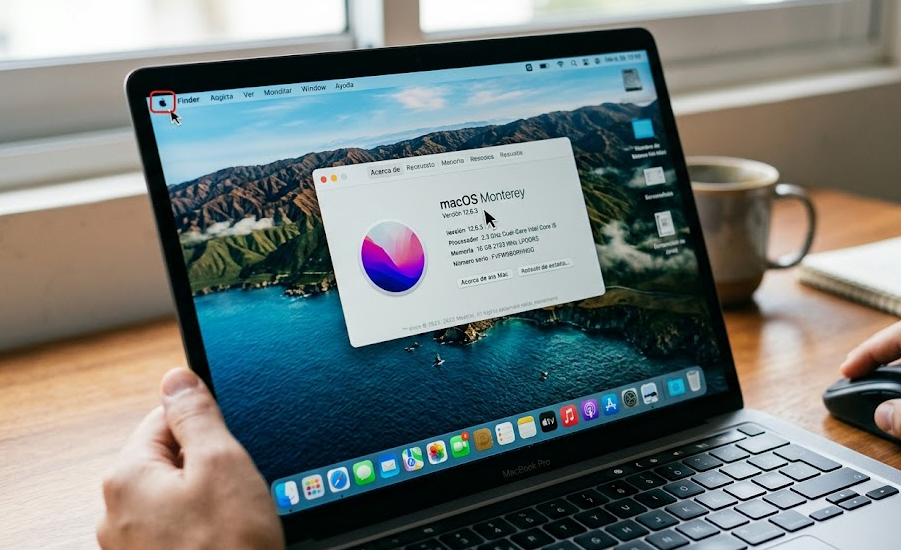
- Click on the Apple menu icon (the apple logo) located in the upper left corner of your screen.
- Select the About This Mac option from the drop-down menu.
- In the pop-up window that appears, you will immediately see the commercial name of your operating system along with the exact version number.
- If you need even more detailed information, you can click on the version number to display the internal build number. This alphanumeric code is very useful to check if you are using a stable final version or a beta edition of the system.
Xcode compatibility check
Once you have managed to identify the macOS version you have on your Mac, the next step is to compare that figure with the official list of requirements provided by Apple.
Before starting the download from the App Store or the developer portal, consult the official release notes documentation. There, the minimum operating system version required to run that specific edition of the environment is always detailed.
Common compatibility quick guide
| Xcode Version | Minimum required macOS version | Main compatibility |
|---|---|---|
| Xcode 16 | macOS Sonoma 14.5 or higher | Full support for Swift 6 and the latest SwiftUI features |
| Xcode 15 | macOS Ventura 13.5 or higher | Support for Swift 5.9 and advanced features in SwiftUI |
| Xcode 14 | macOS Monterey 12.5 or higher | Support for Swift 5.7 and older versions of SwiftUI |
Final recommendations for developers
Knowing how to identify the macOS version will save you time and prevent unnecessary downloads. Remember to always keep your computer ready by ensuring enough available storage before starting the installation. Maintaining a proper match between your macOS and Xcode version will ensure an agile, stable, and uninterrupted Swift programming experience.