
Mobile application design has transcended the visual screen. Today, user experience (UX) is defined as much by what we see as by what we feel when interacting with our devices. For a modern iOS Developer, mastering tactile responses is fundamental to creating top-tier applications. In this extensive tutorial, we will deeply explore what it is and how to implement Haptic Feedback in SwiftUI, using Swift programming and Xcode to build immersive experiences in iOS, macOS, and watchOS.
If you want your buttons to feel like physical buttons, your success notifications to convey joy, and your errors to physically alert the user, you are in the right place. Prepare your development environment, because we are going to take your Swift skills to the next tactile level.
1. What is Haptic Feedback?
Haptic Feedback is the use of tactile technology to communicate with the user. In the Apple ecosystem, this is possible thanks to the Taptic Engine, a precision linear actuator first introduced in the Apple Watch and later in the iPhone 6s. Unlike traditional vibration motors that simply “buzz”, the Taptic Engine can simulate incredibly precise physical sensations: the click of a gear, the impact of a heavy object, or the subtle beating of a heart.
For an iOS Developer, understanding the hardware behind the vibration is key. Apple has categorized these sensations into different semantics, allowing us to use Swift programming to invoke the right “feeling” based on our application’s context, without having to manually program the wave frequency (unless we use the advanced Core Haptics framework).
Why use Haptic Feedback in SwiftUI?
- Improves action confirmation: Provides a secondary channel of confirmation when a task (such as a payment or sending a message) is completed.
- Accessibility: Helps users with visual impairments navigate and understand the application’s state.
- Immersion: Makes digital interfaces feel tangible and physical.
2. The Evolution of Haptic Feedback in SwiftUI
Until recently, implementing Haptic Feedback in a SwiftUI app required importing UIKit and calling the feedback generators directly. However, Apple has been introducing native modifiers in SwiftUI that vastly simplify this process.
Currently, as an iOS Developer, you need to know two approaches:
- The native SwiftUI API (iOS 17+): Using the
.sensoryFeedbackmodifier. - The traditional approach (UIKit/AppKit/WatchKit): To support older versions or to build a custom cross-platform Haptic Manager.
In this Xcode tutorial, we will cover both methods so you have a complete arsenal of Swift tools.
3. Native Implementation in iOS 17+ with SwiftUI
If the minimum target of your application in Xcode is iOS 17, macOS 14, or watchOS 10, you are in luck. Apple introduced the .sensoryFeedback modifier, which integrates seamlessly with SwiftUI‘s reactive data flow.
This modifier observes a state value and, when it changes, automatically triggers the corresponding haptic feedback.
Basic Example: Success Button
import SwiftUI

struct NativeHapticView: View {
    @State private var hasTaskCompleted = false

    var body: some View {
        VStack(spacing: 20) {
            Text("Haptic Feedback in SwiftUI (iOS 17+)")
                .font(.headline)

            Button("Complete Task") {
                // Simulate a network task
                DispatchQueue.main.asyncAfter(deadline: .now() + 1.0) {
                    hasTaskCompleted.toggle()
                }
            }
            .buttonStyle(.borderedProminent)
            // Trigger the haptic when 'hasTaskCompleted' changes
            .sensoryFeedback(.success, trigger: hasTaskCompleted)
        }
        .padding()
    }
}
Available Types of Sensory Feedback
Swift programming through this modifier offers several predefined types:
.success: Indicates that a task has been completed successfully..warning: Warns the user about a possible problem..error: Indicates that an action has failed..selection: Perfect for value changes (like in aPickerorSlider)..impact(weight: .medium, intensity: 1.0): For physical collisions or button taps.
4. Creating a Cross-Platform Haptic Manager in Swift
In reality, most projects in Xcode still need to support older versions like iOS 15 or iOS 16. Furthermore, if you want to share code efficiently across iOS, macOS, and watchOS, the best practice for an iOS Developer is to create a HapticManager using conditional compilation.
Let’s create a service (Singleton) using pure Swift programming that allows us to invoke haptics from anywhere in our code, regardless of the platform.
Step 1: Define the Feedback Types
First, we create a file named HapticManager.swift. We’ll start by defining an enum to standardize the calls across all platforms.
import Foundation

enum HapticStyle {
    case light
    case medium
    case heavy
    case success
    case warning
    case error
    case selection
}
Step 2: iOS Implementation (UIKit)
On iOS, we use classes from the UIFeedbackGenerator family. There are three main classes: UIImpactFeedbackGenerator, UINotificationFeedbackGenerator, and UISelectionFeedbackGenerator.
We will add the conditional import and the implementation inside our Manager.
#if os(iOS)
import UIKit
#endif

class HapticManager {
    static let shared = HapticManager()

    private init() {}

    func play(_ style: HapticStyle) {
        #if os(iOS)
        playForIOS(style)
        #endif
    }

    #if os(iOS)
    private func playForIOS(_ style: HapticStyle) {
        switch style {
        case .light:
            let generator = UIImpactFeedbackGenerator(style: .light)
            generator.prepare()
            generator.impactOccurred()
        case .medium:
            let generator = UIImpactFeedbackGenerator(style: .medium)
            generator.prepare()
            generator.impactOccurred()
        case .heavy:
            let generator = UIImpactFeedbackGenerator(style: .heavy)
            generator.prepare()
            generator.impactOccurred()
        case .success:
            let generator = UINotificationFeedbackGenerator()
            generator.prepare()
            generator.notificationOccurred(.success)
        case .warning:
            let generator = UINotificationFeedbackGenerator()
            generator.prepare()
            generator.notificationOccurred(.warning)
        case .error:
            let generator = UINotificationFeedbackGenerator()
            generator.prepare()
            generator.notificationOccurred(.error)
        case .selection:
            let generator = UISelectionFeedbackGenerator()
            generator.prepare()
            generator.selectionChanged()
        }
    }
    #endif
}
Note for the iOS Developer: Notice the use of the
prepare()method. The Taptic Engine needs a few milliseconds. Callingprepare()before the visual event occurs ensures the haptic triggers without latency.
Step 3: Extending to watchOS
The Apple Watch is the king of haptic responses. In watchOS, we interact with WKInterfaceDevice. Let’s update our HapticManager.
#if os(watchOS)
import WatchKit
#endif

extension HapticManager {
    #if os(watchOS)
    private func playForWatchOS(_ style: HapticStyle) {
        let device = WKInterfaceDevice.current()

        switch style {
        case .light, .selection:
            device.play(.click)
        case .medium:
            device.play(.directionUp)
        case .heavy:
            device.play(.failure)
        case .success:
            device.play(.success)
        case .warning, .error:
            device.play(.retry)
        }
    }
    #endif
}
Update the main play(_:) function to include #elseif os(watchOS) and call playForWatchOS(style).
Step 4: macOS Implementation (AppKit)
MacBooks feature Force Touch trackpads that can also emit haptic feedback. Although it is more subtle, it is crucial for a native desktop experience using SwiftUI on the Mac. On macOS, we use NSHapticFeedbackManager.
#if os(macOS)
import AppKit
#endif

extension HapticManager {
    #if os(macOS)
    private func playForMacOS(_ style: HapticStyle) {
        let performer = NSHapticFeedbackManager.defaultPerformer

        switch style {
        case .light, .selection:
            performer.perform(.generic, performanceTime: .default)
        case .medium:
            performer.perform(.alignment, performanceTime: .default)
        case .heavy:
            performer.perform(.levelChange, performanceTime: .default)
        case .success, .warning, .error:
            // macOS does not have direct notification equivalents,
            // we use a generic fallback.
            performer.perform(.generic, performanceTime: .now)
        }
    }
    #endif
}
The Final Consolidated Manager
This is what the public play method of our Manager looks like using Swift‘s conditional compilation directives in Xcode:
func play(_ style: HapticStyle) {
    #if os(iOS)
    playForIOS(style)
    #elseif os(watchOS)
    playForWatchOS(style)
    #elseif os(macOS)
    playForMacOS(style)
    #endif
}
5. Integrating the Haptic Manager in SwiftUI
Now that we have used Swift programming to create a robust architecture, let’s consume it in our SwiftUI views. By using a simple Singleton pattern, integration is extremely clean and compatible with any iOS version that supports SwiftUI.
import SwiftUI

struct CustomHapticView: View {
    @State private var counter = 0

    var body: some View {
        VStack(spacing: 30) {
            Text("Counter: \(counter)")
                .font(.system(size: 40, weight: .bold))

            HStack(spacing: 20) {
                Button(action: {
                    counter -= 1
                    HapticManager.shared.play(.light)
                }) {
                    Image(systemName: "minus.circle.fill")
                        .resizable()
                        .frame(width: 60, height: 60)
                        .foregroundColor(.red)
                }

                Button(action: {
                    counter += 1
                    HapticManager.shared.play(.heavy)
                }) {
                    Image(systemName: "plus.circle.fill")
                        .resizable()
                        .frame(width: 60, height: 60)
                        .foregroundColor(.green)
                }
            }

            Button("Save Settings") {
                // Simulates saving
                HapticManager.shared.play(.success)
            }
            .padding(.top, 40)
            .buttonStyle(.borderedProminent)
            .tint(.blue)
        }
        .padding()
    }
}
This approach allows your development team or yourself as an independent iOS Developer to have absolute and predictable control of the app’s vibrations across all devices in the Apple ecosystem.
6. Advanced Patterns: Core Haptics (Brief Introduction)
If the standard Haptic Feedback in SwiftUI isn’t enough for your application (for example, if you are developing a game, a music production app, or a simulator), Swift programming allows you to access Core Haptics.
This framework was designed to create custom haptic patterns by combining continuous and transient haptic events with synchronized audio.
To use Core Haptics in Xcode:
- Import
CoreHaptics. - Check device compatibility using
CHHapticEngine.capabilitiesForHardware().supportsHaptics. - Create an instance of
CHHapticEngine. - Design a
CHHapticPatternby defining events (CHHapticEvent) with intensity parameters (CHHapticEventParameter). - Create an advanced player from the engine and play the pattern.
Although Core Haptics goes beyond the scope of the basic declarative SwiftUI API, it is the next step for an iOS Developer looking to absolutely master the physical interactions of their apps.
7. Best Practices for the iOS Developer
Implementing Haptic Feedback in SwiftUI is technically simple thanks to the benefits of Swift, but its proper UX design is where professionals truly stand out. Here are Apple’s golden rules (Human Interface Guidelines):
- Use with purpose: Don’t add vibrations just for the sake of it. Every haptic response should have a clear meaning. If your app vibrates constantly, the user will end up disabling the feature at the system level.
- Audiovisual synchronization: Haptic Feedback is infinitely more effective when it accompanies a visual animation and, if possible, a sound effect. This trifecta (visual, sound, haptic) is the key to making a SwiftUI Toggle feel like a real-world one.
- Semantic consistency: Use success feedback (
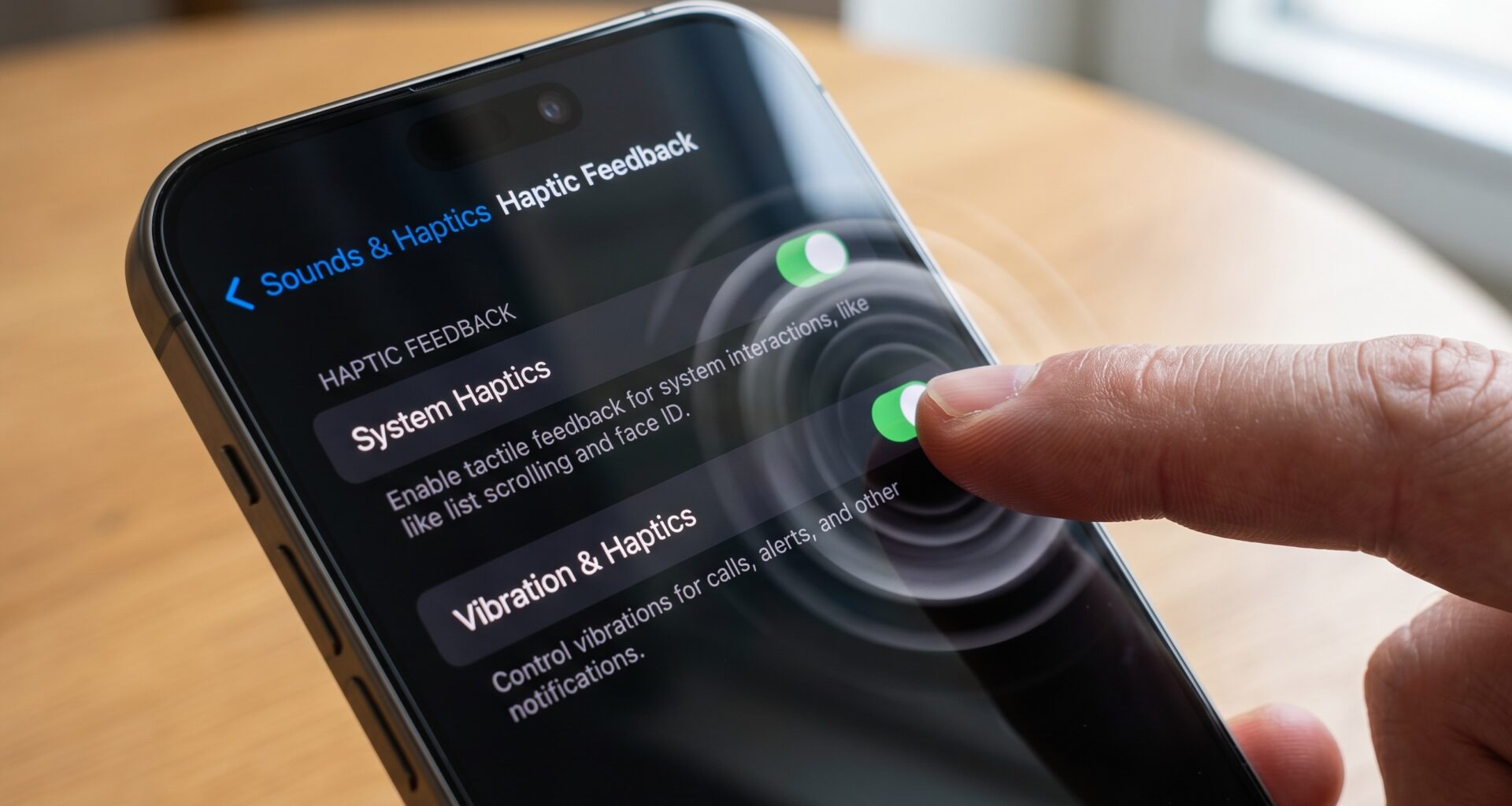
.success) only when an action has finished well. Using the error pattern (.error) for a positive action will create cognitive dissonance for the user. - Respect user settings: At the operating system level (iOS), users can disable vibrations for accessibility reasons or personal preference. The beauty of using Apple’s native APIs (whether
.sensoryFeedbackin SwiftUI orUIFeedbackGeneratorin Swift) is that the OS automatically handles not playing the vibration if the user has disabled it. Do not try to force it by bypassing these rules.
8. Conclusion
Haptic Feedback in SwiftUI is one of the most powerful and often underestimated tools in an iOS Developer‘s belt. It transforms applications that feel “flat” and cold into tactile, alive, and responsive software experiences.
Throughout this article, we have explored how Swift programming allows us to tackle this challenge from two fronts in Xcode: leveraging the cutting-edge .sensoryFeedback modifier for projects aimed at the latest system versions, and building a robust, platform-independent HapticManager to support broader ecosystems that span iOS, macOS, and watchOS.
By properly integrating Haptic Feedback, you are not just writing good Swift code; you are improving your app’s accessibility and demonstrating a level of polish and attention to detail that separates good applications from exceptional ones.