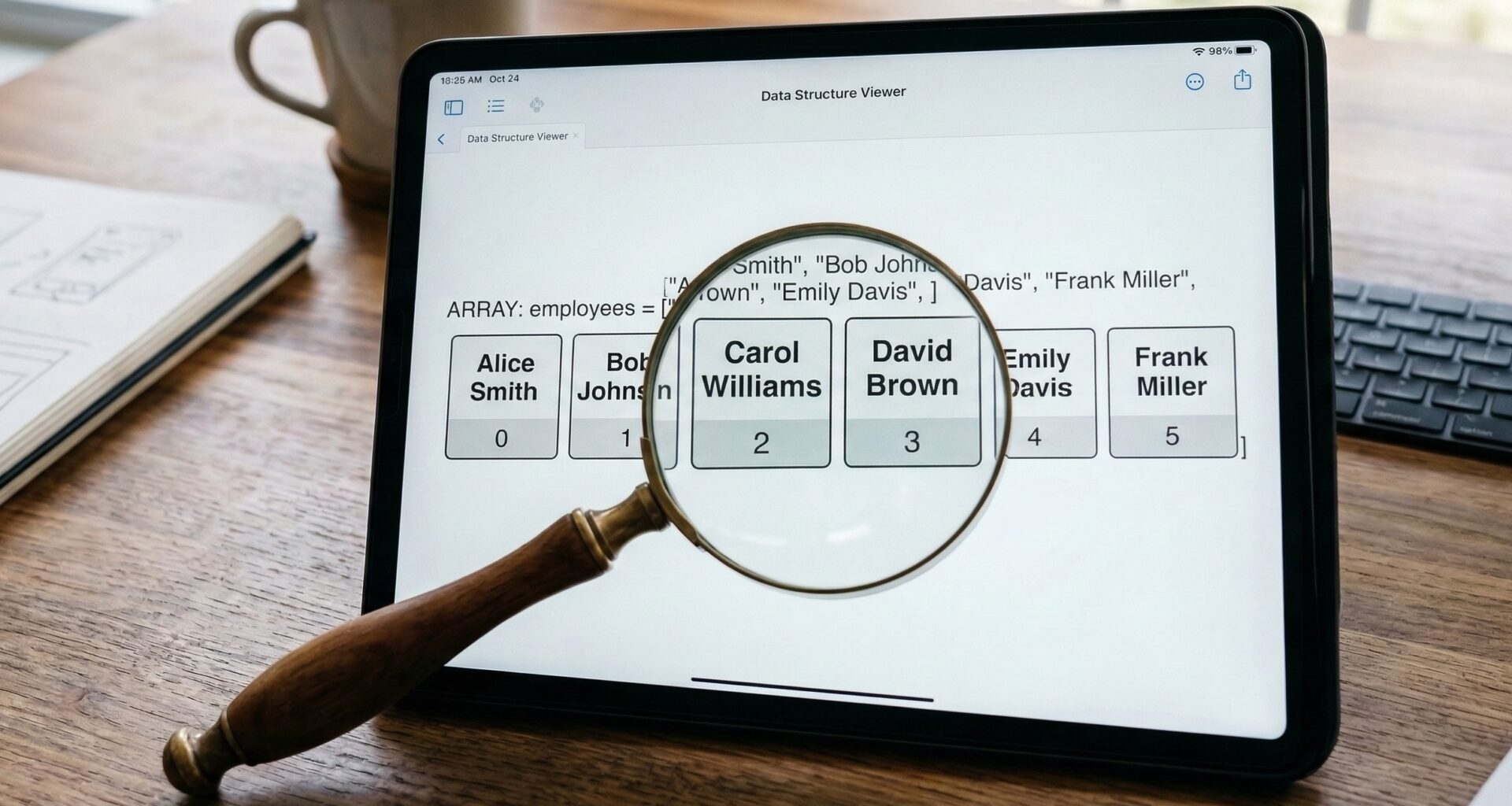

If you are an iOS Developer, whether you are taking your first steps or already have experience building complex architectures, there is one data structure you will deal with every day: Arrays. Mastering Swift programming implies deeply knowing Apple’s Standard Library, and knowing how to search for an element in an array in Swift efficiently is a non-negotiable skill.
Whether you are developing the next big app for the iPhone, adapting a fluid interface with SwiftUI, or writing cross-platform code for macOS and watchOS in Xcode, the way you search, filter, and manipulate data collections dictates the performance and readability of your project.
In this mega-tutorial, we will explore everything from the most basic methods to the most advanced techniques for searching elements in collections using Swift.
1. The Essentials: Checking for the Existence of an Element
The most common need in Swift programming is not always knowing where an element is, but simply knowing if it exists.
The contains(_:) Method
The fastest and semantically clearest method to know if an element exists in an array is contains. This method returns a boolean value (true or false).
let languages = ["Swift", "Objective-C", "Python", "C++"]

// Search for an element in an array in Swift using contains
let hasSwift = languages.contains("Swift") // Returns true
let hasJava = languages.contains("Java")   // Returns false

if hasSwift {
    print("Perfect for an iOS Developer!")
}
Performance note: The
contains(_:)method has a time complexity of O(n), which means that in the worst-case scenario, Swift will have to traverse the entire array from the beginning to the end to find your element.
2. Finding the Position: Indices in Swift
Sometimes, it’s not enough to know the element is there; you need its exact position to modify or delete it later. This is where Xcode will autocomplete indexing methods for you.
firstIndex(of:) and lastIndex(of:)
As an iOS Developer, you will often work with dynamic lists. firstIndex(of:) returns the first occurrence of an element, while lastIndex(of:) returns the last one. Both return an Optional (Int?), since the element might not exist.
let iOSVersions = [14, 15, 16, 17, 18, 15]

if let firstIndexValue = iOSVersions.firstIndex(of: 15) {
    print("The first time iOS 15 appears is at index: \(firstIndexValue)") // Prints 1
}

if let lastIndexValue = iOSVersions.lastIndex(of: 15) {
    print("The last time iOS 15 appears is at index: \(lastIndexValue)") // Prints 5
}
It is crucial to unwrap the optional value (using if let or guard let) to avoid runtime errors (crashes) in your application.
3. Advanced Searches with Closures
In the real world of SwiftUI and UIKit development, you will rarely search for simple Strings or Ints. You will most likely have arrays of complex data models (Structs or Classes). How do we search for an element in an array in Swift when the criteria are complex?
contains(where:)
Imagine you have a list of users and you want to know if there is any user who is of legal age.
struct User {
    let name: String
    let age: Int
}

let users = [
    User(name: "Ana", age: 16),
    User(name: "Carlos", age: 22),
    User(name: "Elena", age: 17)
]

let hasAdults = users.contains { $0.age >= 18 }
print(hasAdults) // Returns true
first(where:)
If instead of a boolean you want to extract the complete object that meets your condition, first(where:) is your best friend. It returns the first element that matches the closure’s condition.
if let firstAdult = users.first(where: { $0.age >= 18 }) {
    print("The first adult found is \(firstAdult.name)")
    // Prints "The first adult found is Carlos"
}
filter(_:)
What if you want all the elements that meet a condition, and not just the first one? filter will iterate over the entire collection and return a new array with the results.
let minors = users.filter { $0.age < 18 }
print("There are \(minors.count) minors.") // Prints 2
4. The Equatable Protocol: The Key to Custom Types
A very common mistake for the junior iOS Developer is trying to use contains(of:) on an array of custom Structs and finding that Xcode throws a compilation error.
Swift is a strongly typed language. For it to compare two objects and know if they are equal, your Struct or Class must conform to the Equatable protocol.
struct Device: Equatable {
    let model: String
    let capacityGB: Int
}

let inventory = [
    Device(model: "iPhone 15 Pro", capacityGB: 256),
    Device(model: "iPad Air", capacityGB: 64)
]

let myPhone = Device(model: "iPhone 15 Pro", capacityGB: 256)

// This ONLY compiles because 'Device' conforms to Equatable
let weHaveIt = inventory.contains(myPhone)
If you do not conform to Equatable, the Xcode compiler has no way of knowing what makes two Devices identical (Is it the name? Is it the capacity? Is it both?).
5. Performance: When the Array is Not the Best Option
In Swift programming, searching an array is fast for small collections, but as your array grows to thousands of elements, a linear search (O(n)) can affect the frames per second (FPS) of your interface in SwiftUI.
[Image of binary search algorithm flowchart]
Binary Search
If your array is previously sorted, you can implement a binary search, which reduces the search time to O(log n). Although the Standard Library does not include a native .binarySearch() function by default for regular collections, you can easily implement it or use the functionality offered by Apple’s Algorithms framework.
Alternatives: Sets and Dictionaries
If your application requires checking the existence of elements constantly, consider converting your Array into a Set or using a Dictionary. Searches in Sets and Dictionaries take constant time (O(1)), which is incredibly faster.
// Convert an array to a Set for ultra-fast searches
let identifiersArray = ["ID1", "ID2", "ID3", "ID4"]
let identifiersSet = Set(identifiersArray)

// This search is O(1)
let exists = identifiersSet.contains("ID3")
6. Bringing it to the Interface: Searching an Array using SwiftUI
Theory is great, but as an iOS Developer, your final work is seen on the screen. SwiftUI makes it incredibly easy to connect a filtered array to the user interface using the .searchable modifier.
This code is fully functional on iOS, macOS, and watchOS.
import SwiftUI

struct SearchView: View {
    let frameworks = ["SwiftUI", "UIKit", "CoreData", "CloudKit", "Combine", "SpriteKit"]

    @State private var searchText = ""

    // Computed property to filter the array
    var filteredResults: [String] {
        if searchText.isEmpty {
            return frameworks
        } else {
            return frameworks.filter { $0.localizedCaseInsensitiveContains(searchText) }
        }
    }

    var body: some View {
        NavigationView {
            List(filteredResults, id: \.self) { framework in
                Text(framework)
            }
            .navigationTitle("Apple Frameworks")
            // The magic modifier of SwiftUI
            .searchable(text: $searchText, prompt: "Search framework...")
        }
    }
}
What is happening here?
- State (
@State): We hold the text the user types in Xcode. - Computed Property: Every time the text changes,
filteredResultsevaluates the original array. localizedCaseInsensitiveContains: It is vital to use this instead of a simple.containsfor text strings, as it ignores uppercase and lowercase (e.g., “swiftui” will find “SwiftUI”).
7. Writing Cross-Platform Code (iOS, macOS, watchOS)
One of the marvels of modern Swift programming is its portability. The methods we have seen in this tutorial (contains, firstIndex, filter) are part of the Swift Standard Library.
This means that if you are programming in Xcode, the logical code you write to search for an element in an array in Swift for an iPhone (iOS) is exactly the same that will compile for a Mac desktop app (macOS) or an Apple Watch app (watchOS).
The only difference will lie in how you present that information to the user through SwiftUI, since an Apple Watch screen requires a different layout of elements than a resizable Mac window.
Summary and Best Practices
Being an excellent iOS Developer requires making the right decisions at the right time. Here is your cheat sheet for arrays in Swift:
- Use
contains(_:)if you only need to know if an element exists (true/false). - Use
firstIndex(of:)if you need the exact position at the index. - Use
first(where:)if you need to retrieve the first object that meets a condition. - Use
filter(_:)if you need a sub-collection with all matching elements. - Implement
Equatablein your custom data models to facilitate native searches. - In SwiftUI interfaces, use the
.searchablemodifier along with.filterto create native and fluid search bars.
Mastering these Swift programming techniques in Xcode will save you hours of debugging and make your apps more robust and faster.
If you have any questions about this article, please contact me and I will be happy to help you 🙂. You can contact me on my X profile or on my Instagram profile.