

For years, Swift programming in the Apple ecosystem had a clear barrier: the user interface was built with UIKit or SwiftUI, but high-performance graphic effects required diving into the depths of MetalKit. For the average iOS Developer, this meant dealing with command buffers, render pipelines, and verbose configuration that deterred many from creating immersive visual experiences.
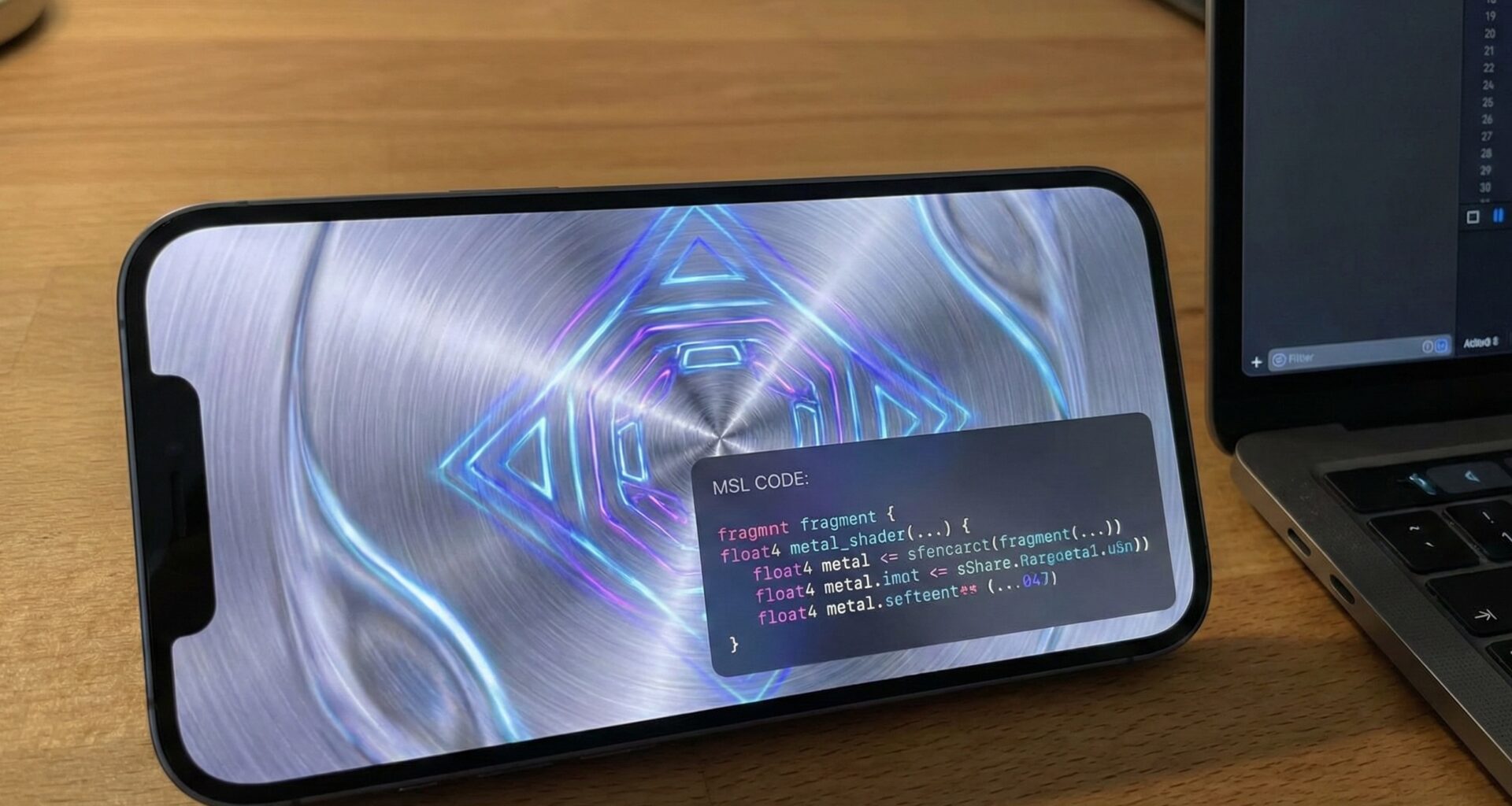
However, with the arrival of iOS 17, macOS Sonoma, and watchOS 10, Apple changed the game. The native integration of Metal shaders in SwiftUI has democratized access to the GPU. Now, manipulating pixels, creating water distortions, glass effects, or complex animations is as simple as applying a modifier to a view.
In this comprehensive tutorial, we will explore what these shaders are, how to configure them in Xcode, and how you can use them to differentiate your apps. If you are looking to master modern Swift programming, this is the logical next step in your career.
What are Metal Shaders in SwiftUI?
A Shader is nothing more than a small function or program that runs directly on your device’s Graphics Processing Unit (GPU). Unlike the CPU, which processes tasks sequentially, the GPU is designed for massive parallelism. This allows for calculating the color or position of millions of pixels on the screen simultaneously, 60 or 120 times per second, without blocking your application’s main thread.
In the context of SwiftUI, Apple has introduced three key modifiers that act as bridges between your Swift code and the Metal Shading Language (MSL):
- .colorEffect: Allows altering the color of each pixel of a view independently (sepia filter, inversion, color correction).
- .distortionEffect: Allows changing the geometric position of pixels (wave effects, liquefy, warping).
- .layerEffect: The most powerful, allows sampling any pixel in the view, ideal for effects that depend on neighboring pixels like blur or pixellation.
Setting Up the Environment in Xcode
To get started, you need Xcode 15 or higher. Create a new project and make sure to select SwiftUI as the interface technology.
Step 1: Create the Metal File
Shaders are not written in Swift, but in Metal Shading Language (a variant of C++). In your project navigator in Xcode, create a new file named Shaders.metal. Xcode will automatically compile it and make it available to your Swift code.
Inside this file, we will add our first function. It is crucial to use the [[ stitchable ]] tag, which tells the compiler that this function is designed to be dynamically “stitched” into the SwiftUI renderer.
#include <metal_stdlib>
using namespace metal;

// A simple shader that inverts colors
[[ stitchable ]] half4 invertColor(float2 position, half4 color) {
    return half4(1.0 - color.r, 1.0 - color.g, 1.0 - color.b, color.a);
}
Implementing the First Shader with Swift
Once the shader is defined in C++, we return to our Swift programming environment. SwiftUI automatically generates access to these functions via ShaderLibrary. Let’s see how to apply this inversion effect to an image.
import SwiftUI

struct BasicShaderView: View {
    var body: some View {
        VStack {
            Image(systemName: "globe.americas.fill")
                .resizable()
                .aspectRatio(contentMode: .fit)
                .frame(width: 200, height: 200)
                .foregroundStyle(.blue)
                // We apply the shader using ShaderLibrary
                // The name 'invertColor' matches the function in the .metal file
                .colorEffect(ShaderLibrary.invertColor())

            Text("Hello, Metal in SwiftUI")
                .font(.title)
                .padding()
        }
    }
}

#Preview {
    BasicShaderView()
}
Animations and the Time Factor
A static shader is functional, but the real magic happens when we introduce time. For an iOS Developer, handling animations in the render loop might seem complex, but SwiftUI simplifies it with TimelineView.
First, let’s update our .metal file to accept a time argument:
[[ stitchable ]] half4 gradientWave(float2 position, half4 color, float time) {
    // We use the sine of time and position to create a wave
    float wave = sin(position.x * 0.05 + time * 3.0);

    // Modify the red channel based on the wave
    return half4(wave, color.g, color.b, color.a);
}
Now, we implement the animated view in Swift. Notice how we pass the time parameter as a Float.
import SwiftUI

struct AnimatedShaderView: View {
    // Reference point to calculate elapsed time
    let startDate = Date()

    var body: some View {
        TimelineView(.animation) { context in
            // Calculate elapsed seconds
            let elapsedTime = context.date.timeIntervalSince(startDate)

            Rectangle()
                .fill(.cyan)
                .frame(width: 300, height: 200)
                .colorEffect(
                    ShaderLibrary.gradientWave(
                        .float(elapsedTime) // Pass the argument to Metal
                    )
                )
        }
    }
}
Geometric Distortion: Modifying Space
While colorEffect only changes color, distortionEffect changes where the pixel is drawn. This is fundamental for water effects, magnifying glasses, or liquid transitions.
In the Metal file, the function signature changes. Instead of returning a color (half4), we return a position (float2).
[[ stitchable ]] float2 waveDistortion(float2 position, float time) {
    // Deform the Y coordinate based on X
    float moveY = sin(position.x * 0.02 + time) * 20.0;
    return float2(position.x, position.y + moveY);
}
When applying this in Swift, we must be careful with the view bounds. If we move a pixel too far, it might go outside the frame. We use maxSampleOffset to warn SwiftUI how much extra space it needs to render.
struct DistortionExample: View {
    let startDate = Date()

    var body: some View {
        TimelineView(.animation) { context in
            let time = context.date.timeIntervalSince(startDate)

            Image("cityscape") // Make sure you have this image in Assets
                .resizable()
                .aspectRatio(contentMode: .fill)
                .frame(width: 300, height: 400)
                .clipped()
                .distortionEffect(
                    ShaderLibrary.waveDistortion(
                        .float(time)
                    ),
                    maxSampleOffset: .zero // Or CGSize(width: 0, height: 20) if clipped
                )
        }
    }
}
Layer Effects: The Power of Pixellation
The .layerEffect modifier is the most advanced. It allows us to access the entire layer via SwiftUI::Layer. This is necessary when a pixel’s color depends on other pixels (like in a blur or pixellation).
For this example, we will create a dynamic pixellation filter that an iOS Developer could use to hide sensitive content or as an aesthetic effect.
Metal Code:
#include <SwiftUI/SwiftUI.h> // Required for 'SwiftUI::Layer'

[[ stitchable ]] half4 pixellate(float2 position, SwiftUI::Layer layer, float strength) {
    float pixelSize = max(1.0, strength);

    // "Floor" the position to create the block effect
    float2 coord = floor(position / pixelSize) * pixelSize;

    // Sample the color of the original layer at the new coordinate
    return layer.sample(coord);
}
Swift Code:
struct PixellateEffectView: View {
    @State private var strength: Float = 10.0

    var body: some View {
        VStack {
            Image("portrait")
                .resizable()
                .scaledToFit()
                .frame(width: 300)
                .layerEffect(
                    ShaderLibrary.pixellate(
                        .layer, // SwiftUI injects the layer automatically
                        .float(strength)
                    ),
                    maxSampleOffset: .zero
                )

            Slider(value: $strength, in: 1...50) {
                Text("Pixellation Level")
            }
            .padding()
        }
    }
}
Optimization and Best Practices in Swift Programming
Although Apple devices are powerful, misuse of Metal shaders can drain the battery or heat up the device. Here are key tips for every developer:
- Use ‘half’ instead of ‘float’: On mobile GPUs, 16-bit (half) operations are much faster and consume less power than 32-bit (float) ones. Always use them for colors.
- Precalculate on CPU: If you have values that don’t change per pixel (like total screen size or a configuration constant), pass them as arguments from Swift instead of calculating them inside the shader.
- Control the TimelineView: If the animation isn’t constantly needed, pause the
TimelineViewto stop redrawing at 60fps.
Conclusion
The introduction of Metal shaders in SwiftUI marks a milestone in the history of Xcode and development for Apple platforms. We have gone from needing hundreds of lines of “boilerplate” code to simple declarative modifiers.
For the modern iOS Developer, these tools open up an unprecedented range of creative possibilities on iOS, macOS, and watchOS. Experiment, break things, and above all, have fun manipulating light and geometry in your applications.
If you have any questions about this article, please contact me and I will be happy to help you 🙂. You can contact me on my X profile or on my Instagram profile.