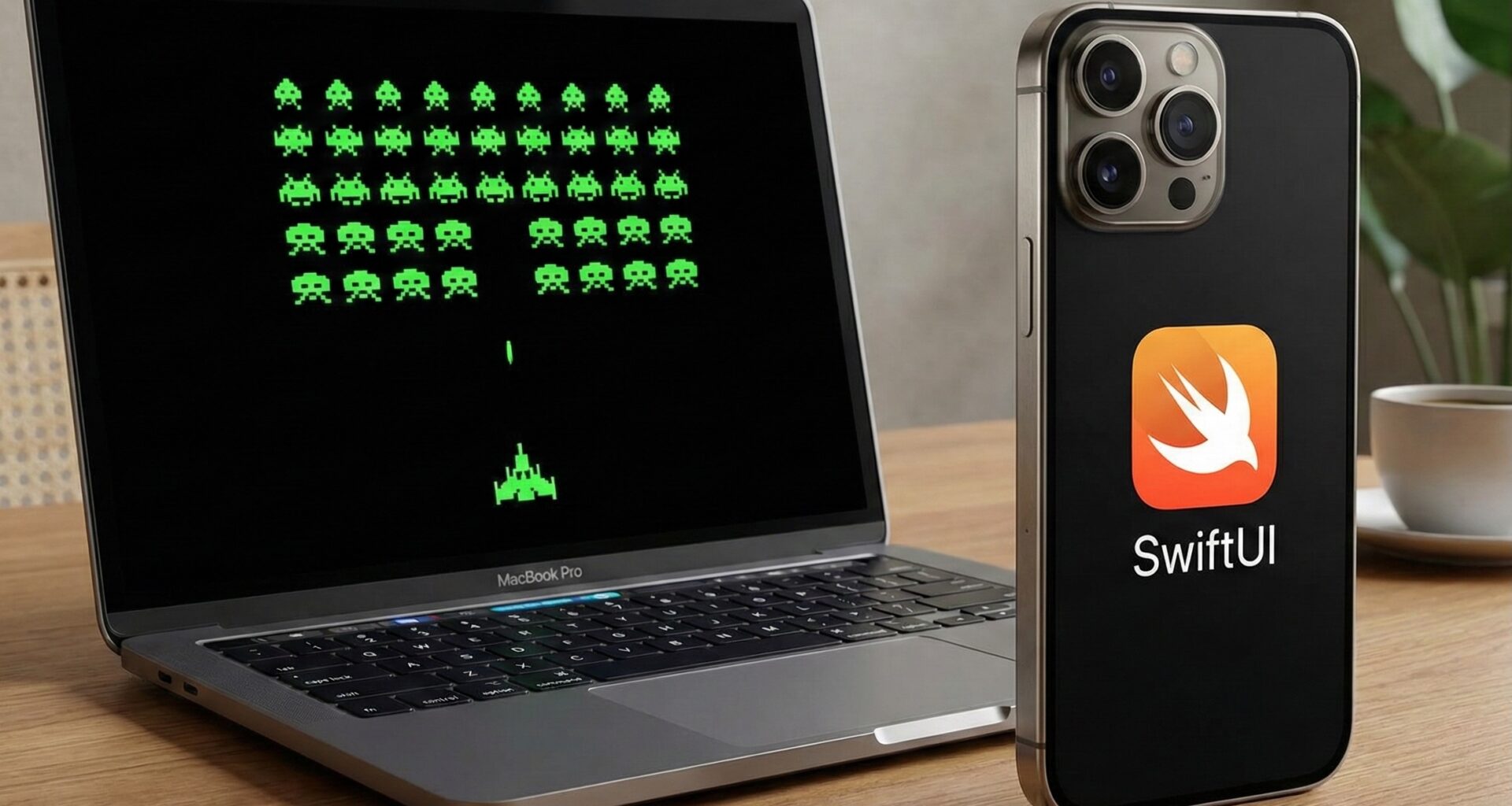

If you are an iOS Developer looking to expand your horizons beyond productivity apps and to-do lists, you’ve come to the right place. Game development in the Apple ecosystem has undergone a silent but powerful revolution: the fusion of SpriteKit and SwiftUI.
For years, SpriteKit has been Apple’s native 2D engine: robust, performant, and easy to learn. On the other hand, SwiftUI has redefined how we build interfaces. What happens when we bring them together? We get the best of both worlds: the physics and game rendering of SpriteKit with the state management and modern UI of SwiftUI.
In this Swift programming tutorial, we are going to create a game with SpriteKit in SwiftUI from scratch. But we won’t limit ourselves to the iPhone; we will design a cross-platform architecture that works on iOS, macOS, and watchOS using the same codebase in Xcode.
Why SpriteKit + SwiftUI?
Before opening Xcode, it is vital to understand the architecture. Traditionally, a SpriteKit game used SKView as the root view in a UIViewController (UIKit) or NSViewController (AppKit). This created a barrier to integrating modern UI elements like menus, scores, or settings.
With the arrival of SpriteView in SwiftUI, we can treat our game scene (SKScene) as if it were any other view (like a Text or an Image). This makes it incredibly easy to:
- Overlay UI: Place a “Pause” button or a “Game Over” screen made in SwiftUI on top of the game.
- State Management: Use
@StateandObservableObjectto control the score and communicate it between the game and the interface. - Cross-Platform: SwiftUI abstracts platform differences, allowing us to deploy to the watch, phone, and desktop with minimal changes.
Step 1: Project Setup in Xcode
To start our adventure in Swift, we need to configure an environment that supports multiple targets.
- Open Xcode (make sure you have the latest stable version).
- Select Create New Project.
- Go to the Multiplatform tab and select App.
- Name your project:
SpaceDefenderMulti. - In the organization and identifier, use your iOS Developer credentials.
- Make sure the Interface is SwiftUI and the Language is Swift.
This will create a structure with shared folders and specific folders for iOS, macOS, and watchOS. We will work 90% of the time in the Shared folder.
Step 2: Game Logic (Pure SpriteKit)
The heart of our game resides in a class that inherits from SKScene. This is where the magic of physics and rendering happens. We are going to create a simple “dodge and collect” game set in space.
Create a new file in the shared folder called GameScene.swift.
import SpriteKit
import SwiftUI

class GameScene: SKScene, SKPhysicsContactDelegate {

    // Game variables
    var player: SKSpriteNode!
    var gameIsActive: Bool = false

    // Communication with SwiftUI
    var scoreChanged: ((Int) -> Void)?
    var gameOver: (() -> Void)?

    private var score: Int = 0 {
        didSet {
            scoreChanged?(score)
        }
    }

    override func didMove(to view: SKView) {
        // Initial scene setup
        self.physicsWorld.contactDelegate = self
        self.backgroundColor = .black

        setupPlayer()
        setupStarField()
        startGame()
    }

    func setupPlayer() {
        // We will use SKShapeNode to avoid depending on external assets in this tutorial
        // In a real game, you would use SKSpriteNode(imageNamed: "ship")
        player = SKSpriteNode(color: .cyan, size: CGSize(width: 40, height: 40))
        player.position = CGPoint(x: size.width / 2, y: 100)

        // Player physics
        player.physicsBody = SKPhysicsBody(rectangleOf: player.size)
        player.physicsBody?.isDynamic = true
        player.physicsBody?.categoryBitMask = 1
        player.physicsBody?.contactTestBitMask = 2 // Detect contact with enemies
        player.physicsBody?.collisionBitMask = 0 // Do not bounce
        player.physicsBody?.affectedByGravity = false

        addChild(player)
    }

    func setupStarField() {
        if let particles = SKEmitterNode(fileNamed: "StarField") {
            particles.position = CGPoint(x: size.width / 2, y: size.height)
            particles.advanceSimulationTime(10)
            addChild(particles)
        }
    }

    func startGame() {
        gameIsActive = true
        score = 0

        // Timer to spawn enemies
        let spawnAction = SKAction.run { [weak self] in
            self?.spawnEnemy()
        }
        let waitAction = SKAction.wait(forDuration: 1.0)
        let sequence = SKAction.sequence([spawnAction, waitAction])
        run(SKAction.repeatForever(sequence), withKey: "spawning")
    }

    func spawnEnemy() {
        guard gameIsActive else { return }

        let enemy = SKSpriteNode(color: .red, size: CGSize(width: 30, height: 30))

        // Random X position
        let randomX = CGFloat.random(in: 20...(size.width - 20))
        enemy.position = CGPoint(x: randomX, y: size.height + 30)

        // Enemy physics
        enemy.physicsBody = SKPhysicsBody(rectangleOf: enemy.size)
        enemy.physicsBody?.categoryBitMask = 2
        enemy.physicsBody?.contactTestBitMask = 1
        enemy.physicsBody?.collisionBitMask = 0
        enemy.physicsBody?.isDynamic = true
        enemy.physicsBody?.affectedByGravity = false

        addChild(enemy)

        // Movement downwards
        let moveAction = SKAction.moveTo(y: -50, duration: 3.0)
        let removeAction = SKAction.removeFromParent()
        let scoreAction = SKAction.run { [weak self] in
            if self?.gameIsActive == true {
                self?.score += 1
            }
        }

        enemy.run(SKAction.sequence([moveAction, scoreAction, removeAction]))
    }

    // Collision Detection
    func didBegin(_ contact: SKPhysicsContact) {
        guard gameIsActive else { return }

        // Simplification: Any contact is Game Over
        gameOverLogic()
    }

    func gameOverLogic() {
        gameIsActive = false
        removeAction(forKey: "spawning")
        player.color = .gray
        gameOver?()
    }
}
Code Analysis for the iOS Developer
In the block above, we defined the basic logic that every expert in Swift programming knows: a lifecycle (didMove), a physics system (SKPhysicsBody), and actions (SKAction).
The interesting part here is the scoreChanged and gameOver closures. This is our escape route to SwiftUI. Instead of painting an SKLabelNode inside the scene, we’ll tell SwiftUI: “Hey, the score changed” or “The game is over,” and let SwiftUI handle the UI.
Step 3: Multiplatform Control Handling
One of the challenges of creating a game with SpriteKit in SwiftUI for multiple devices is input handling.
- iOS: Touch screen.
- macOS: Keyboard or Mouse.
- watchOS: Digital Crown or Taps.
We are going to extend our GameScene class to handle this conditionally. Add this code inside GameScene.swift:
<pre class="wp-block-syntaxhighlighter-code">extension GameScene {

    // Move player to a specific X position
    func movePlayer(to x: CGFloat) {
        let clampedX = max(player.size.width/2, min(x, size.width - player.size.width/2))
        let moveAction = SKAction.moveTo(x: clampedX, duration: 0.2)
        player.run(moveAction)
    }
    #if os(iOS) || os(watchOS)
    override func touchesMoved(_ touches: Set<UITouch>, with event: UIEvent?) {
        guard let touch = touches.first, gameIsActive else { return }
        let location = touch.location(in: self)
        movePlayer(to: location.x)
    }
    #endif
    #if os(macOS)
    override func keyDown(with event: NSEvent) {
        guard gameIsActive else { return }

        // Key code 123 is left arrow, 124 is right arrow
        if event.keyCode == 123 {
            movePlayer(to: player.position.x - 40)
        } else if event.keyCode == 124 {
            movePlayer(to: player.position.x + 40)
        }
    }
    #endif
}</pre>
Note: On watchOS, although we have touches, the screen is small. Later we will see how to use the Digital Crown via SwiftUI.
Step 4: The ViewModel (The Bridge)
To follow the MVVM (Model-View-ViewModel) pattern so beloved in SwiftUI, we need an object that owns the scene and publishes changes. Create a file GameViewModel.swift:
import SwiftUI
import SpriteKit

class GameViewModel: ObservableObject {
    @Published var score: Int = 0
    @Published var isGameOver: Bool = false

    // The scene is kept alive here
    var scene: GameScene

    init() {
        self.scene = GameScene()
        self.scene.scaleMode = .aspectFill

        // Connect scene closures with the ViewModel
        self.scene.scoreChanged = { [weak self] newScore in
            DispatchQueue.main.async {
                self?.score = newScore
            }
        }

        self.scene.gameOver = { [weak self] in
            DispatchQueue.main.async {
                self?.isGameOver = true
            }
        }
    }

    func restartGame() {
        // Restart logic
        score = 0
        isGameOver = false

        // Recreate the scene for a clean restart
        let newScene = GameScene()
        newScene.scaleMode = .aspectFill

        // Re-connect closures
        newScene.scoreChanged = self.scene.scoreChanged
        newScene.gameOver = self.scene.gameOver

        self.scene = newScene
    }
}
This step is crucial for good architecture. The GameScene is imperative, but the GameViewModel is reactive.
Step 5: The Interface in SwiftUI
Now, let’s integrate everything. This is where we see the true power of using SpriteView. Go to ContentView.swift.
import SwiftUI
import SpriteKit

struct ContentView: View {
    @StateObject private var viewModel = GameViewModel()

    var body: some View {
        ZStack {
            // Layer 1: The Game
            SpriteView(scene: viewModel.scene)
                .ignoresSafeArea()
                .onAppear {
                    // Adjust scene size to view size
                    // Note: In a real environment we would use GeometryReader
                    viewModel.scene.size = CGSize(width: 300, height: 600) // Simplified
                }

            // Layer 2: Game UI (HUD)
            VStack {
                HStack {
                    Text("Score: \(viewModel.score)")
                        .font(.largeTitle)
                        .foregroundColor(.white)
                        .padding()
                        .background(Color.black.opacity(0.5))
                        .cornerRadius(10)

                    Spacer()
                }
                .padding(.top, 40)

                Spacer()
            }

            // Layer 3: Game Over Screen
            if viewModel.isGameOver {
                Color.black.opacity(0.8)
                    .ignoresSafeArea()

                VStack(spacing: 20) {
                    Text("GAME OVER")
                        .font(.system(size: 50, weight: .heavy, design: .monospaced))
                        .foregroundColor(.red)

                    Text("Final Score: \(viewModel.score)")
                        .font(.title)
                        .foregroundColor(.white)

                    Button(action: {
                        viewModel.restartGame()
                    }) {
                        Text("Retry")
                            .font(.title2)
                            .padding()
                            .background(Color.blue)
                            .foregroundColor(.white)
                            .cornerRadius(10)
                    }
                }
                .transition(.scale)
            }
        }
    }
}
The Magic of ZStack
By using a ZStack, we place the SpriteView at the bottom. Everything we put on top is native SwiftUI UI. This means our menus have native accessibility, support Dark Mode (if we wanted), and render with vector sharpness.
Step 6: Platform-Specific Optimizations
To make this article a true gem for the iOS Developer, we must polish the details for each platform.
Adaptation for watchOS
On the Apple Watch, the ContentView needs to be simpler due to space. Also, we can use the Digital Crown. You can use conditional compilation within SwiftUI:
// Inside ContentView
#if os(watchOS)
.focusable()
.digitalCrownRotation($scrollAmount) // State variable to control the ship
.onChange(of: scrollAmount) { newValue in
    // Convert rotation to X position in the scene
    viewModel.scene.movePlayer(to: mapRotationToScreen(newValue))
}
#endif
Adaptation for macOS
On macOS, make sure the window has an appropriate size in the App.swift file, as SpriteKit can consume a lot of resources if rendered full screen on a 5K monitor unnecessarily.
#if os(macOS)
WindowGroup {
    ContentView()
        .frame(minWidth: 400, maxWidth: 600, minHeight: 600, maxHeight: 800)
}
#else
WindowGroup {
    ContentView()
}
#endif
Conclusion
You have learned to create a game with SpriteKit in SwiftUI by integrating the best of Apple’s technologies. This architecture is not only clean and modern, but it allows you to scale your game to iOS, macOS, and watchOS with minimal effort.
Summary of what you’ve learned:
- Multiplatform project setup in Xcode.
- Pure game logic with SpriteKit (
SKScene,SKPhysicsBody). - Reactive communication between the game and UI via
ObservableObject. - Overlaying modern interfaces with SwiftUI.
- Handling platform-specific inputs (Touch vs Keyboard).
Game development in Swift is at its peak. The barrier to entry has lowered, but the ceiling of what you can achieve is infinite.
If you have any questions about this article, please contact me and I will be happy to help you 🙂. You can contact me on my X profile or on my Instagram profile.