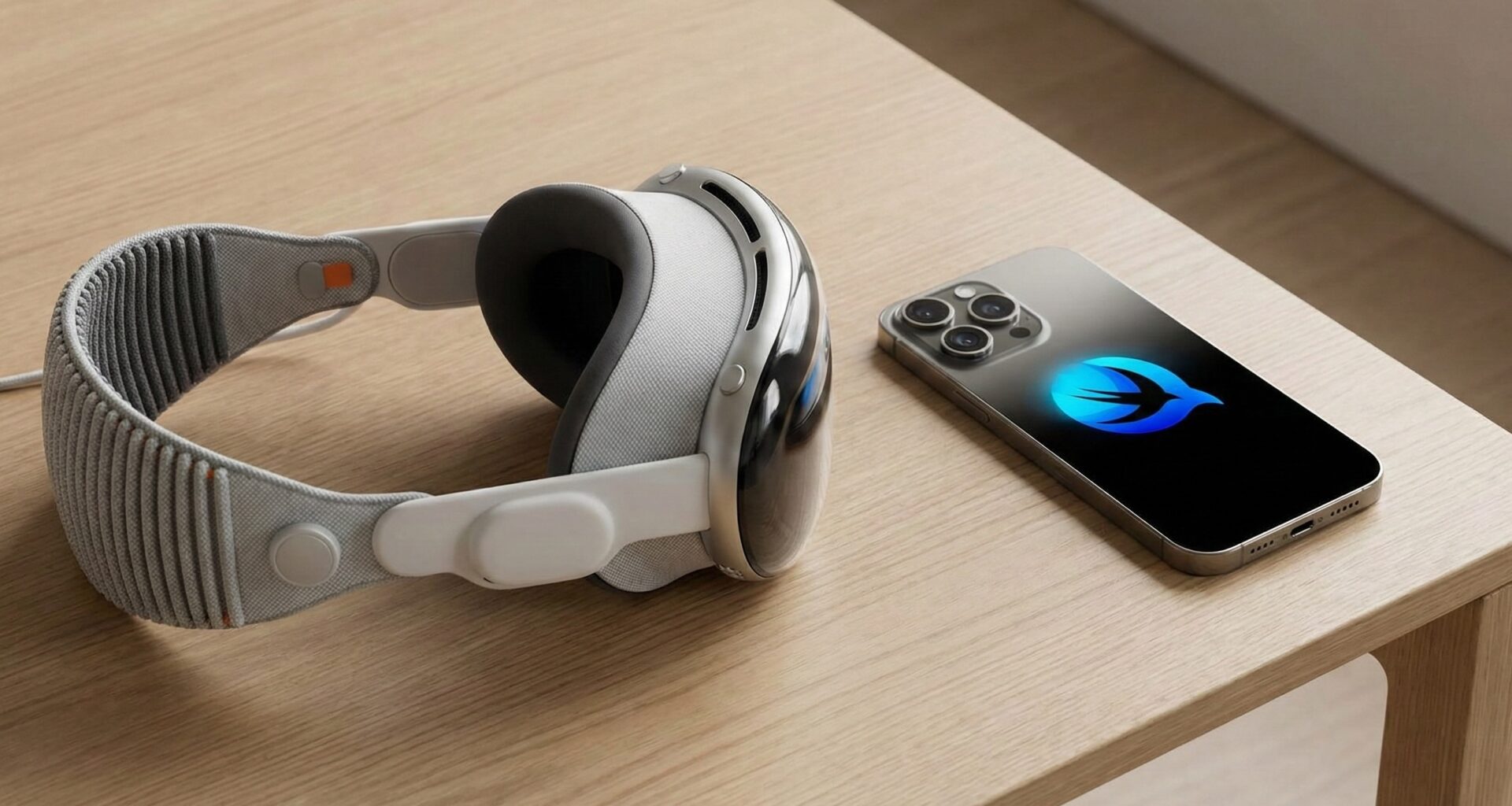

The arrival of spatial computing has marked a turning point in the Apple ecosystem. For an iOS developer, the transition from thinking in flat rectangular screens (iPhone and iPad) to an infinite 3D canvas can seem daunting. However, if you already master Swift and SwiftUI, you have 90% of the journey covered.
Today, we are going to dive into one of the most distinctive and powerful interface concepts in visionOS: SwiftUI Ornaments. If you are looking to take your Swift programming to the next level and develop immersive applications using Xcode, this tutorial is your mandatory starting point.
Introduction: What are Ornaments and why do they matter?
In traditional iOS development, we are used to TabBars, NavigationBars, and Toolbars that live inside the boundaries of the Safe Area. In visionOS, the rules change. Windows float in the user’s physical space, and content should not feel enclosed.
Enter Ornaments.
An Ornament in SwiftUI is an interface element that floats on a separate Z-plane (slightly in front of the main window), anchored to an edge of your window, but visually distinct from it. Think of them as floating toolbars, side menus, or playback controls that accompany your main window without obstructing the central content.
For an iOS developer, understanding ornaments is crucial because they are the standard for navigation and control in visionOS. Not using ornaments in visionOS is like not using a UINavigationBar in iOS: technically possible, but a poor user experience.
Prerequisites: Preparing Your Environment in Xcode
Before writing a single line of code, ensure you have the right tools. Swift programming for spatial computing requires updated hardware and software.
- Xcode 15 or higher: You need the latest stable or beta version that includes the visionOS SDK.
- Apple Silicon Mac: Although development on Intel is possible, the visionOS simulator is demanding.
- SwiftUI Knowledge: This tutorial assumes you understand
@State,View, and basic modifiers.
Open Xcode, create a new project selecting the visionOS template, and make sure to choose SwiftUI as the interface technology.
Anatomy of a SwiftUI Ornament
The magic happens thanks to a specific view modifier introduced for visionOS. Unlike traditional style modifiers, this one defines a spatial position.
The basic signature of the modifier is:
.ornament(
    visibility: Visibility,
    attachmentAnchor: OrnamentAttachmentAnchor,
    contentAlignment: Alignment,
    ornament: () -> View
)
Let’s break this down for the Swift developer:
- Visibility: Controls whether the ornament is visible or hidden (useful for immersive modes).
- AttachmentAnchor: Defines “where” the ornament attaches relative to the window (Top, Bottom, Left, Right).
- ContentAlignment: Defines how the ornament’s content aligns relative to its anchor.
- Ornament: The
Closurethat returns the SwiftUI view you want to display.
Step-by-Step Tutorial: Creating Your First Ornament
We are going to build a simple photo viewing application. We will have a main window with an image and use SwiftUI ornaments for “Next”, “Previous”, and “Favorite” controls.
Step 1: The Main View
First, let’s define a basic structure in our ContentView.swift file.
import SwiftUI
import RealityKit

struct ContentView: View {
    @State private var currentImageIndex = 0
    let images = ["landscape1", "landscape2", "landscape3"] // Ensure these images are in your Assets

    var body: some View {
        VStack {
            Image(images[currentImageIndex])
                .resizable()
                .aspectRatio(contentMode: .fit)
                .cornerRadius(20)
                .padding()
        }
        // We will apply the ornament here
    }
}
If you run this in the Xcode simulator, you will see a standard floating window with your image.
Step 2: Implementing the Bottom Ornament (The Toolbar)
The most common use of an ornament is as a bottom toolbar. Apple recommends this because it is ergonomic for the user’s eyes and hands (if using direct interaction).
Add the following modifier to the VStack or the Image:
<pre class="wp-block-syntaxhighlighter-code">
.ornament(
    attachmentAnchor: .scene(.bottom),
    contentAlignment: .bottom
) {
    // Ornament Content
    HStack(spacing: 20) {
        Button(action: {
            if currentImageIndex > 0 { currentImageIndex -= 1 }
        }) {
            Label("Previous", systemImage: "arrow.left")
        }

        Button(action: {
            // Favorite logic
        }) {
            Label("Favorite", systemImage: "heart")
        }

        Button(action: {
            if currentImageIndex < images.count - 1 { currentImageIndex += 1 }
        }) {
            Label("Next", systemImage: "arrow.right")
        }
    }
    .padding()
    .glassBackgroundEffect() // Crucial for the native look!
}</pre>
Analysis for the iOS Developer:
.scene(.bottom): Tells visionOS that this element belongs to the bottom edge of the “scene” (window)..glassBackgroundEffect(): In iOS, we use solid colors or blurs. In visionOS, the standard material is “Glass”. This modifier automatically adapts the background to the virtual environment’s lighting. Without this, your buttons would float strangely without a visual container.
Step 3: Side Ornaments
Sometimes, a bottom bar isn’t enough. Maybe you need a list of filters or categories. Side ornaments are perfect for secondary navigation.
Let’s add a side menu to our photo app. Add this second modifier to your view (you can chain multiple ornaments):
.ornament(
    attachmentAnchor: .scene(.leading),
    contentAlignment: .leading
) {
    VStack(spacing: 12) {
        ForEach(["Nature", "Urban", "Portrait"], id: \.self) { category in
            Button(action: {
                print("Selected category: \(category)")
            }) {
                Text(category)
                    .padding(.horizontal, 8)
            }
            .buttonStyle(.plain) // Cleaner style for lists
        }
    }
    .padding()
    .glassBackgroundEffect()
}
Here we changed the attachmentAnchor to .scene(.leading). Notice how SwiftUI automatically handles spacing so it doesn’t overlap with the main window.
Deep Dive into Customization and Design
As a Swift programming expert, you know that “it works” isn’t the same as “it feels right.” In visionOS, spatial design is delicate.
The Ornament Coordinate System
It is vital to understand that the ornament’s coordinate system is relative to its anchor.
If you use contentAlignment: .bottom, the ornament will grow upwards from the bottom edge of its own frame, but will remain stuck to the bottom edge of the main window.
Interactivity and State
Ornaments are full SwiftUI views. This means they can have their own @State, @StateObject, or receive @Binding from the parent view.
A common mistake for a novice iOS developer in visionOS is forgetting that the ornament shares the lifecycle of the window it is attached to. If you close the window, the ornament disappears.
Example of complex state handling:
struct FilterOrnament: View {
    @Binding var selectedFilter: FilterType

    var body: some View {
        Picker("Filter", selection: $selectedFilter) {
            Text("Original").tag(FilterType.none)
            Text("Vivid").tag(FilterType.vivid)
            Text("B/W").tag(FilterType.bw)
        }
        .pickerStyle(.segmented)
        .padding()
        .glassBackgroundEffect()
    }
}
Call from the main view:
.ornament(attachmentAnchor: .scene(.top)) {
    FilterOrnament(selectedFilter: $currentFilter)
}
Apple Best Practices (Human Interface Guidelines)
To stand out as a great developer in the ecosystem, and not just one who writes code, you must follow design guidelines. When using Xcode for visionOS:
- Avoid Clutter: Don’t fill all four sides of the window with ornaments. Use the bottom edge for main controls and the left for navigation (Vertical Tab bar). Leave the other sides free if possible.
- Use Glass Effect: Always use
.glassBackgroundEffect()for the ornament container. This ensures readability and consistency with the operating system. - Touch Target Size: Remember that in visionOS, eyes are the cursor. Buttons must be large enough and have enough spacing for the eye-tracking system to know exactly what you are looking at. SwiftUI in visionOS automatically adds a visual “hover effect” when you look at an interactive element; do not break this with custom button styles that remove visual feedback.
- Hierarchy: The main window is the content. The ornament is the control. Do not put primary content (like long text to read) in an ornament.
Key Differences for the iOS Developer
If you come from programming for iPhone, here is a mental comparison table to help you adapt your Swift programming:
| Concept in iOS | Equivalent/Evolution in visionOS |
|---|---|
UITabBar (Bottom) |
TabView adapted automatically as a left-side or floating Ornament. |
UINavigationBar |
Often replaced by top Ornaments or titles inside the window, as “push” navigation feels different in 3D. |
Toolbar |
Bottom Ornaments (.bottom). |
Safe Area |
Less relevant for “notches”, but critical to ensure ornaments aren’t clipped by virtual furniture or other windows. |
| Xcode Preview | Now interactive in 3D. Use it constantly to check the depth of your ornaments. |
Advanced Techniques: Dynamic Ornaments
A powerful feature of SwiftUI is its reactive capability. You can hide or show ornaments or change their position based on context.
Imagine a video player. When the video is playing, you want the controls to disappear.
struct VideoPlayerView: View {
    @State private var showControls = true

    var body: some View {
        VideoPlayer(player: player)
            .onTapGesture {
                withAnimation {
                    showControls.toggle()
                }
            }
            .ornament(
                visibility: showControls ? .visible : .hidden, // Dynamic control
                attachmentAnchor: .scene(.bottom)
            ) {
                PlayerControls()
                    .glassBackgroundEffect()
            }
    }
}
The visibility parameter in the .ornament modifier is key here. By animating the showControls state, the ornament fades smoothly, providing that immersive cinematic experience expected in Apple’s headset.
Troubleshooting Common Issues in Xcode
When developing with SwiftUI ornaments, you might encounter some hurdles. Here are quick fixes for the iOS developer:
- The Ornament does not appear:
- Check that you are not in an
ImmersiveSpacewithout a defined main window, or that the anchor (attachmentAnchor) is not out of the field of view. - Make sure
.glassBackgroundEffect()is applied; sometimes, without a background, white text on a light environment is invisible.
- Check that you are not in an
- Buttons do not respond:
- Sometimes, if an ornament overlaps too much with the main window, the window might “steal” input events. Try adjusting the
contentAlignmentto move it slightly away.
- Sometimes, if an ornament overlaps too much with the main window, the window might “steal” input events. Try adjusting the
- Layout breaks when resizing the window:
- Windows in visionOS are user-resizable. Ensure your ornament uses
HStack,VStack, andSpacercorrectly to adapt to variable widths, just as you would on iPadOS.
- Windows in visionOS are user-resizable. Ensure your ornament uses
The Future of Swift Programming in Spatial Computing
Mastering SwiftUI ornaments is just the first step. As Apple refines visionOS, we will likely see new types of anchors and smarter behaviors.
For you, as an iOS developer, the investment in learning this now is huge. The syntax is pure Swift, the environment is your familiar Xcode, but the result is futuristic. You are reusing your business logic and state management skills but presenting them in a completely new dimension.
Remember:
- Ornaments live outside the window.
- They use coordinates relative to the scene.
- They are essential for visionOS UX.
- They require
.glassBackgroundEffect()to look native.
Conclusion
The transition to visionOS is a golden opportunity for any iOS developer. It’s not about learning a new language, but about expanding your vocabulary of design and architecture in SwiftUI.
Ornaments are the perfect bridge between what you already know (toolbars, buttons, state) and the new world (depth, space, immersion). By mastering SwiftUI ornaments, you are not just creating better apps for the Vision Pro, you are positioning yourself at the forefront of Swift programming.
If you have any questions about this article, please contact me and I will be happy to help you  . You can contact me on my X profile or on my Instagram profile.