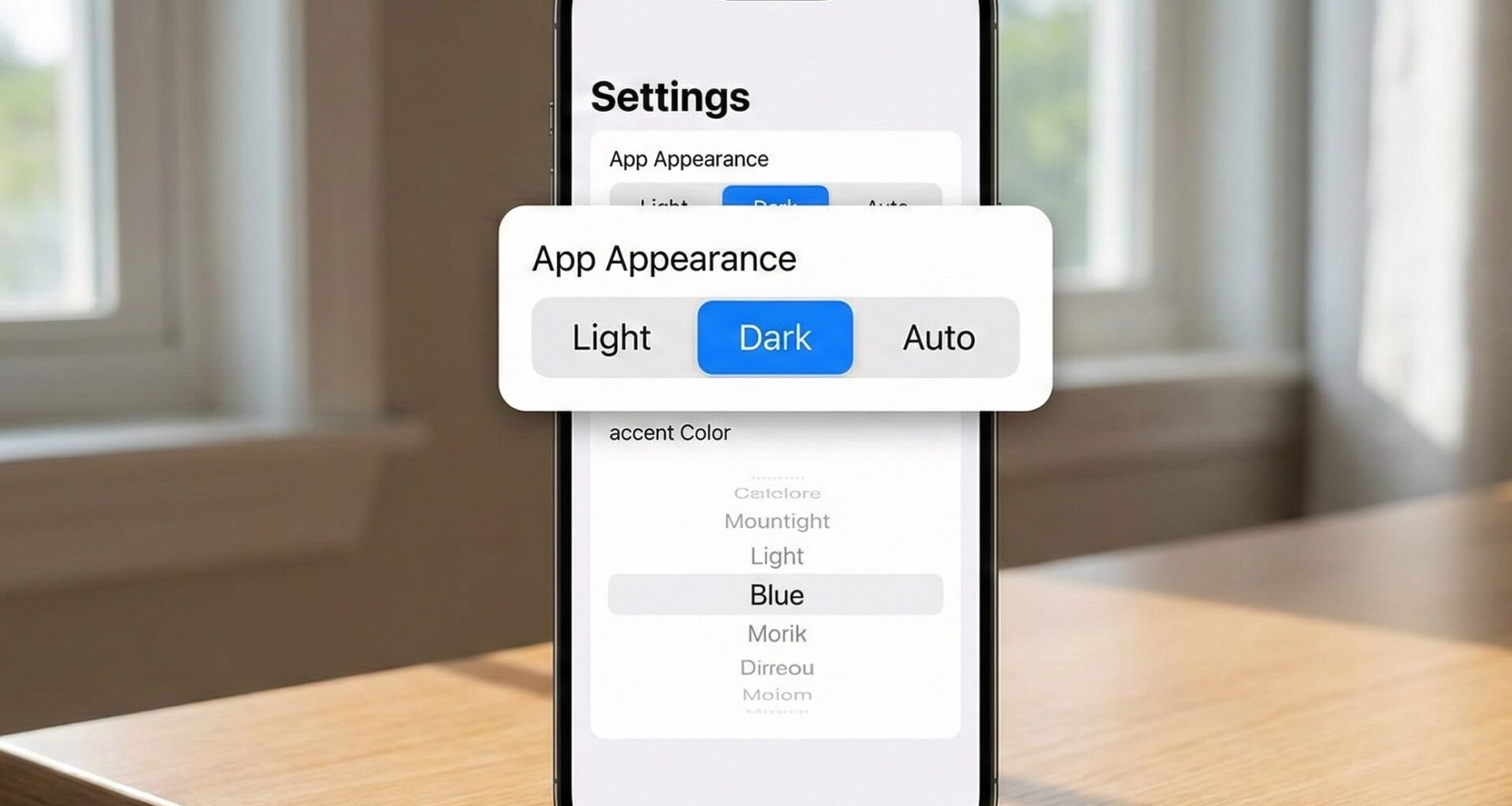

In the vast universe of user interface development, the ability to allow the user to choose an option from a set of possibilities is fundamental. Whether selecting a t-shirt size, a payment method, or a search filter, selection controls are ubiquitous.
In native Apple development, SwiftUI offers us a chameleon-like and powerful tool for this purpose: the Picker.
Unlike the old days of UIKit and AppKit, where you had to wrestle with UIPickerView, UISegmentedControl, or NSPopUpButtonas separate entities, SwiftUI unifies everything under a single declarative concept. This article is a deep dive that will take you from basic syntax to advanced patterns, teaching you how to master the Picker across all Apple platforms.
Part 1: Anatomy of a Picker
Before launching into creating complex interfaces, we must understand what a Picker is structurally. In computer science terms, a Picker is a visual representation of an enumerated type or a finite list.
The Basic Syntax
A Picker requires three essential ingredients to function:
- A Title: Generally used for accessibility or when the specific style requires a label.
- A Source of Truth (Binding): A state variable that will store what the user selects.
- The Content: The available options.
Let’s look at the simplest possible example in Xcode:
import SwiftUI

struct BasicPickerView: View {
    // 1. The State
    @State private var selectedFlavor = "Vanilla"
    let flavors = ["Chocolate", "Vanilla", "Strawberry", "Mint"]

    var body: some View {
        VStack {
            Text("You chose: \(selectedFlavor)")

            // 2. The Component
            Picker("Flavor", selection: $selectedFlavor) {
                ForEach(flavors, id: \.self) { flavor in
                    Text(flavor)
                }
            }
        }
        .padding()
    }
}
The Vital Concept: Tags
In the example above, we used ForEach with id: \.self. This works because Strings are unique and conform to Hashable. However, the real magic happens with the .tag() modifier.
When you tap an option in the Picker, SwiftUI takes the value of that view’s .tag() and assigns it to your @State variable (selection). If you don’t specify an explicit tag, SwiftUI tries to infer it (as in the ForEach case above), but for complex types, you must be explicit.
Part 2: The UI Chameleon (PickerStyles)
The most powerful feature of the Picker in SwiftUI is its adaptability. The same base code can be rendered in totally different ways by applying a simple modifier: .pickerStyle().
This is crucial for cross-platform design. You don’t want a giant “wheel” on a macOS desktop app, nor a tiny dropdown menu on an Apple Watch.
1. Automatic Style (.automatic)
By default, the Picker adapts to its container.
- In a
VStack: usually looks like a menu or button (iOS 15+). - In a
FormorList(iOS): behaves like a navigation cell that opens a new screen with the list of options.
2. SegmentedPickerStyle (.segmented)
Transforms the Picker into a horizontal bar of segments. It is ideal when you have few options (between 2 and 5). It is excellent for switching between view modes (e.g., “Map” vs “List”).
Picker("Mode", selection: $viewMode) {
    Text("Map").tag(0)
    Text("List").tag(1)
}
.pickerStyle(.segmented)
3. WheelPickerStyle (.wheel)
The classic iOS scrolling wheel. Useful for date selection (although DatePicker is better for that) or numeric values where vertical space is not an issue.
- Note: On macOS, this style is not native in the same way and may behave differently or not be available.
4. MenuPickerStyle (.menu)
Presents a button that, when pressed, displays a floating menu or pop-up. It is the modern standard for saving space in dense interfaces.
5. PalettePickerStyle (.palette)
Recently introduced, ideal for selecting colors or icons, showing options in a horizontal grid.
Part 3: Developing for iOS (iPhone and iPad)
In iOS, context is everything. The behavior of the Picker changes drastically if it is “loose” in the view or if it is encapsulated in a Form.
The Navigation Pattern in Forms
When you place a Picker inside a Form in iOS, SwiftUI assumes you are creating a settings screen.
struct SettingsView: View {
    @State private var notificationLevel = "All"
    let levels = ["All", "Important Only", "None"]

    var body: some View {
        NavigationStack {
            Form {
                Section(header: Text("Notifications")) {
                    Picker("Alert Level", selection: $notificationLevel) {
                        ForEach(levels, id: \.self) { level in
                            Text(level)
                        }
                    }
                    // By default in a Form, this uses .navigationLink behavior
                }
            }
            .navigationTitle("Settings")
        }
    }
}
What happens here? Instead of a dropdown menu, you will see a row with the title on the left and the selected value on the right (in gray). When tapping the row, iOS navigates (pushes) to a new automatically generated screen where the user selects the option. Upon selection, it automatically goes back. This is the native behavior iOS users expect.
If you want to avoid this inside a Form and prefer an inline menu or a wheel, you must force the style: .pickerStyle(.wheel) or .pickerStyle(.inline).
Part 4: Developing for macOS
Development on macOS requires a different mindset. Here we have a mouse/trackpad and resizable windows. Controls must be denser and more precise.
RadioGroupPickerStyle
Exclusive to macOS. Shows options as radio buttons where only one can be active.
Picker("Render", selection: $renderQuality) {
    Text("Low").tag(Quality.low)
    Text("Medium").tag(Quality.medium)
    Text("High").tag(Quality.high)
}
.pickerStyle(.radioGroup)
PopUpButtonPickerStyle
This is the equivalent of NSPopUpButton. It is the default style in macOS for most containers. It saves a lot of space and is familiar to desktop users.
Pro Tip for macOS: Make sure your labels (Text) are brief. On macOS, interface controls often have fixed widths or compete for horizontal space in toolbars.
Part 5: Developing for watchOS
The Apple Watch presents the biggest challenge: tiny screens and large fingers.
The Digital Crown is Your Friend
In watchOS, the .wheel style is highly optimized for using the Digital Crown. It provides haptic feedback as the user scrolls through options. It is the most ergonomic way to select values on the watch.
If you have a list of text options (like choosing a city), the default style (.automatic) will present a vertical list of large buttons, easy to tap while walking.
// In watchOS
Picker("City", selection: $city) {
    Text("Madrid").tag("MAD")
    Text("Barcelona").tag("BCN")
    Text("Sevilla").tag("SVQ")
}
// Without a specified style, this creates a navigation list.
Part 6: Powering Up the Picker with Enums
Using arrays of Strings (["Option A", "Option B"]) is error-prone. If you make a typo in a string, the selection will fail silently.
The professional way to use Pickers in Swift is via Enums.
Step 1: Define the Enum
The enum must conform to String (for the raw value), CaseIterable (to iterate over it), and Identifiable (to use it in ForEach seamlessly).
enum CoffeeSize: String, CaseIterable, Identifiable {
    case small = "Small"
    case medium = "Medium"
    case large = "Large"
    case venti = "Venti"

    var id: Self { self } // Identifiable requirement

    // Computed property for icons (Optional)
    var iconName: String {
        switch self {
        case .small: return "cup.and.saucer"
        case .medium: return "mug"
        case .large: return "mug.fill"
        case .venti: return "pail" // Inside joke ;)
        }
    }
}
Step 2: Implement the Typed Picker
struct CoffeeOrderView: View {
    @State private var selectedSize: CoffeeSize = .medium

    var body: some View {
        VStack {
            Picker("Size", selection: $selectedSize) {
                ForEach(CoffeeSize.allCases) { size in
                    // Here we customize the view of each row
                    HStack {
                        Image(systemName: size.iconName)
                        Text(size.rawValue)
                    }
                    .tag(size) // CRITICAL: The tag must match the @State type
                }
            }
            .pickerStyle(.segmented)
        }
        .padding()
    }
}
By using Enums:
- Type Safety: The compiler warns you if you forget a case.
- Refactoring: If you change “Small” to “Short”, you only change the Enum, not the entire UI.
- Automatic Tags: In many cases, SwiftUI infers the tag if the type is the same, but putting
.tag(size)explicitly is a good defensive practice.
Part 7: Advanced Visual Customization
The content inside the Picker block doesn’t have to be just text. SwiftUI is compositional.
Images and Shapes
You can put Image, Circle, or any complex view inside the Picker options.
Warning: Not all styles support complex content.
.segmented: On iOS 16+ supports text and images, but if you put very complex views, it may fail or look bad..wheel: Consistently supports plain text only..menu: Supports icons and text (Label).
Example of a custom color selector:
@State private var selectedColor = Color.red
let colors: [Color] = [.red, .blue, .green, .orange]

Picker("Color", selection: $selectedColor) {
    ForEach(colors, id: \.self) { color in
        HStack {
            Circle().fill(color).frame(width: 20, height: 20)
            Text(color.description)
        }
        .tag(color)
    }
}
Part 8: Troubleshooting Common Issues
Throughout my experience with development teams, I’ve seen that 90% of Picker problems boil down to two causes:
1. The Mystery of the Missing Tag
Symptom: You select an option in the UI, but the @State variable doesn’t change, or the Picker jumps back to the original selection. Cause: The data type of your @State variable does not exactly match the data type of the .tag().Example: Your state is an Int (@State var index = 0), but your tags are String, or you didn’t put tags and the ForEach uses strings. Swift is strict. An Int will never equal a String.
2. The Optional Selection Problem
What if you want the Picker to start with nothing selected? You must use an Optional Binding: @State private var selection: String? = nil. However, SwiftUI’s standard Picker doesn’t always handle nulls visually well depending on the style. It will often show the first option or a blank space. It is better to use a “sentinel” or “placeholder” value in your Enum, like case none = "Select...".
Part 9: Performance and Large Lists
A common mistake is trying to use a Picker to select among thousands of options (e.g., a list of all countries in the world or currencies).
If you load 200 options into a MenuPickerStyle, SwiftUI has to build those 200 views. Although efficient, it can cause a slight stutter (lag).
For very large lists, do not use a standard Picker. Instead:
- Use a
NavigationLinkthat leads to a custom view with aListand a search bar (.searchable). - When tapping an item in that list, update the state and close the view (
dismiss). This offers a much better User Experience (UX) than an infinite wheel or a menu that runs off the screen.
Conclusion
The @Observable component has changed the data game, but the Picker remains the king of selection interaction.
Mastering the Picker in SwiftUI isn’t just about knowing how to write the code; it’s about understanding when to use which style.
- Are you in an iOS form? Let the system use navigation.
- Are there only two options? Use
.segmented. - Are you on the Watch? Think about the Digital Crown.
The beauty of SwiftUI lies in the fact that you can write your selection logic once (using Enums and State) and then simply change the .pickerStyle modifier to adapt your application to an iPhone, a Mac, or a watch.
If you have any questions about this article, please contact me and I will be happy to help you 🙂. You can contact me on my X profile or on my Instagram profile.