




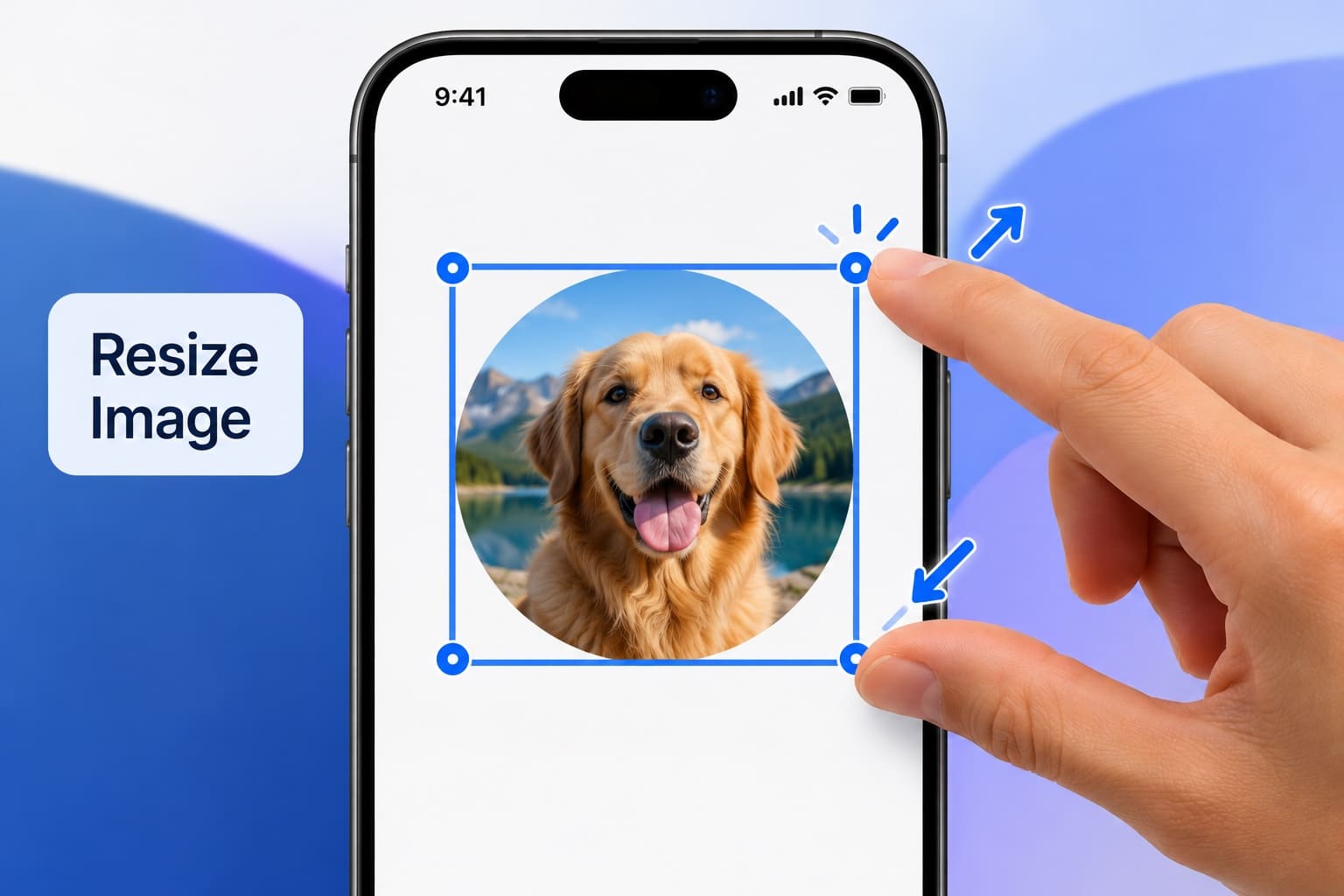

If you are an iOS Developer learning SwiftUI, creating circular images is a useful technique for designing modern and visually appealing iOS applications. Circular images are commonly used for profile pictures, contact lists, user avatars, and social media interfaces. They help create a consistent appearance and make important visual elements stand out.
In this tutorial, you will learn how to create a circular image in SwiftUI using the .clipShape() modifier. We will explore why circular images are useful, explain how this modifier works, and build a practical example using Swift, Xcode, and SwiftUI.
Why Create a Circular Image in SwiftUI?
Images are essential components of many mobile applications. However, displaying every image as a rectangle can make an interface feel repetitive or visually unbalanced.
Circular images offer several advantages:
- Better visual design: Circular profile pictures create a clean, modern appearance.
- Consistent layouts: Using the same circular dimensions helps maintain visual harmony across lists and profile screens.
- Improved user recognition: Round avatars make it easier to identify users in messaging applications, social networks, and collaboration tools.
- Reusable components: You can create a circular image component and reuse it throughout your application.
For these reasons, learning how to create a circular image in SwiftUI is a valuable skill for any iOS Developer.
What Is the .clipShape() Modifier in SwiftUI?
In SwiftUI, the .clipShape() modifier allows you to mask a view using a specific shape. Any part of the view that falls outside the specified shape becomes invisible.
For example, applying .clipShape(Circle()) to an image makes it appear circular by clipping its rectangular boundaries.
In modern SwiftUI syntax, you can also use the shape shorthand .circle when supported by the relevant API and Swift version. However, the widely compatible and standard approach is .clipShape(Circle()).
It is important to understand that .clipShape() does not modify the original image file. Instead, it changes how the image is displayed on the screen.
Step 1: Add an Image to Your Xcode Project
First, open your project in Xcode and locate the asset catalog, usually named Assets.xcassets.
Drag an image into the catalog and give it a descriptive name, such as profile.
Next, create a SwiftUI view and display the image:
import SwiftUI

struct ContentView: View {
    var body: some View {
        Image("profile")
    }
}
This code displays the image using its default rectangular appearance. In the next step, we will transform it into a circular image.
Step 2: Create a Circular Image Using .clipShape()
To create a circular image, apply .clipShape(Circle()) to the Image view.
import SwiftUI

struct ContentView: View {
    var body: some View {
        Image("profile")
            .clipShape(Circle())
    }
}
The Circle() shape defines the circular boundary, while .clipShape() clips the image to match that shape.
However, if the original image has different width and height dimensions, the visible result might not look like the perfect profile picture you expect. To achieve a consistent circular image, we should control its size.
Step 3: Resize the Image Before Clipping It
A common approach is to combine .resizable(), .scaledToFill(), .frame(), and .clipShape().
Image("profile")
    .resizable()
    .scaledToFill()
    .frame(width: 120, height: 120)
    .clipShape(Circle())
    .clipped()
Let’s examine each modifier:
.resizable()allows the image to scale..scaledToFill()scales the image to fill the available space while preserving its aspect ratio..frame(width: 120, height: 120)establishes a square frame measuring 120 by 120 points..clipShape(Circle())clips the image into a circular shape..clipped()prevents overflowing image content from appearing outside the frame.
This combination is ideal for creating profile pictures and user avatars.
Step 4: Add a Border to Your Circular Image
You can improve the appearance of a circular image by adding a border using .overlay() and .stroke().
Image("profile")
    .resizable()
    .scaledToFill()
    .frame(width: 120, height: 120)
    .clipShape(Circle())
    .overlay {
        Circle()
            .stroke(.blue, lineWidth: 3)
    }
    .clipped()
This example adds a blue border around the circular image. You can customize the color and thickness to match your application’s design.
Conclusion
Learning how to create a circular image in SwiftUI is a simple but valuable skill for any iOS Developer. The .clipShape() modifier allows you to control the visible shape of an image without modifying the original file.
By combining .clipShape(Circle()) with .resizable(), .scaledToFill(), and .frame(), you can create professional-looking avatars and profile pictures in Swift, Xcode, and SwiftUI.
Experiment with different image sizes, borders, and shapes to build reusable components and improve the visual quality of your iOS applications.