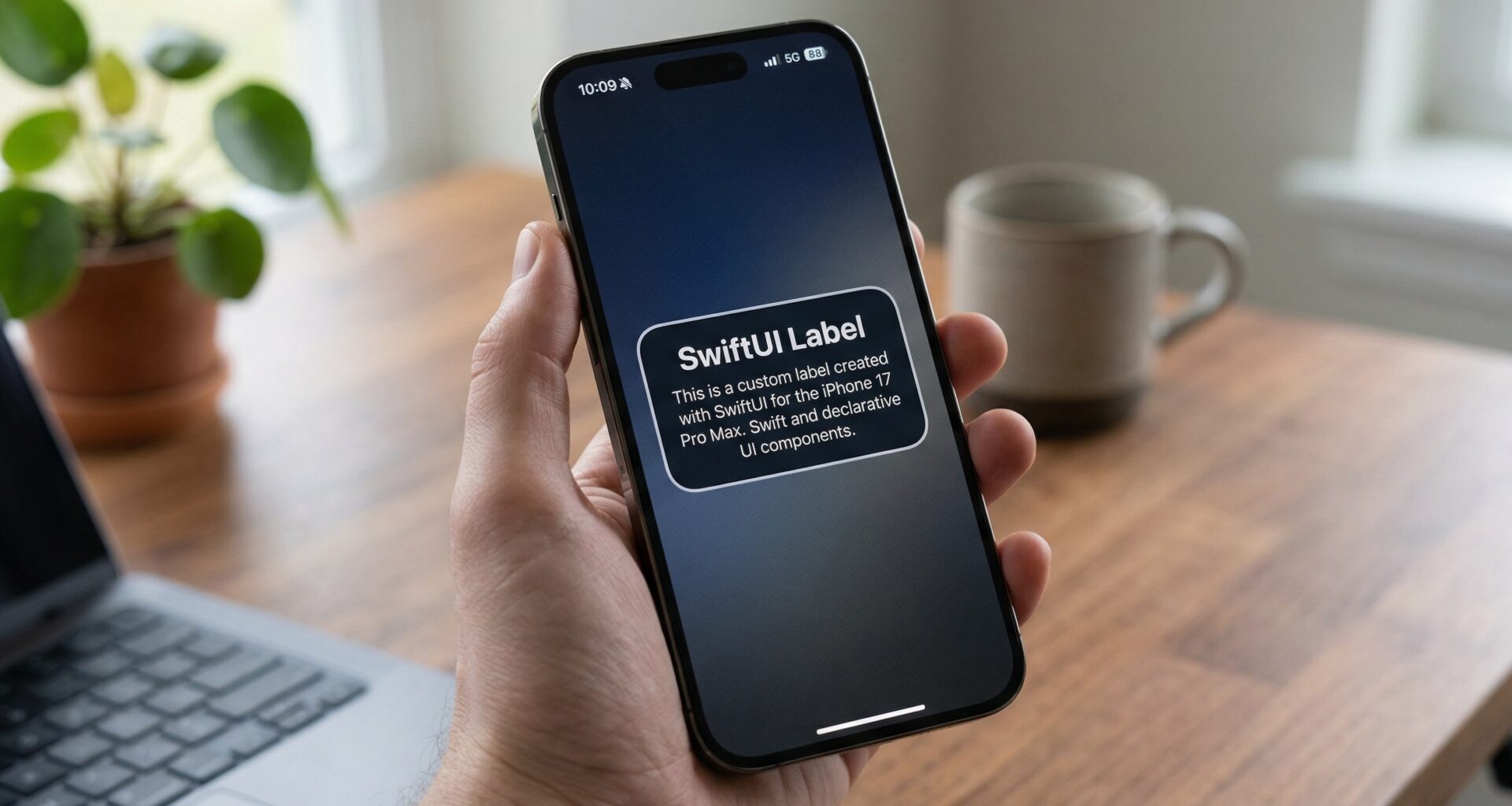

If you are an iOS Developer looking to take your app interfaces to the next level, mastering the customization of native components is a mandatory step. Since its launch, SwiftUI has revolutionized the way we build interfaces in the Apple ecosystem, moving us away from complex UIKit delegates and closer to a much cleaner and more efficient declarative paradigm.
In this extensive tutorial, we will dive into one of the most versatile yet often underestimated components: the Label. We will learn step by step how to create a Custom Label Style in SwiftUI, optimizing our code in Swift using Xcode. Furthermore, we will ensure that these styles are perfectly adaptable for a multiplatform environment, working flawlessly on iOS, macOS, and watchOS.
1. Understanding the Label Component in SwiftUI
Before we run, we must learn to walk. In SwiftUI, a Label is a standard view that combines a graphical element (usually an icon or image) with a descriptive text. It is the foundation of lists, menus, and navigation in virtually any modern Apple application.
The basic syntax that every iOS Developer knows is the following:
Label("Settings", systemImage: "gearshape.fill")
By default, SwiftUI renders this horizontally: the icon on the left and the text on the right. This behavior is dictated by the operating system and the context where it is located (for example, inside a List or a Toolbar).
However, what happens if your UI/UX team’s design requires the icon to be above the text? Or if you need the icon to have a colored circular background with the text to the side? This is where the power of customization and creating a Custom Label Style in SwiftUI comes into play.
2. The LabelStyle Protocol
The architecture of SwiftUI is built on the idea of separating structure from presentation. To achieve this with the Label, Apple provides us with the LabelStyle protocol.
This protocol requires the implementation of a single method:
func makeBody(configuration: Configuration) -> some View
The configuration parameter is of type LabelStyleConfiguration, which gives us access to two crucial properties:
configuration.icon: The view representing the image or icon.configuration.title: The view representing the text.
By adopting this protocol, we take full control over how these two views are organized, styled, and presented on the screen.
3. Preparing our workspace in Xcode
To follow this tutorial, make sure you have:
- A Mac running macOS Ventura or later.
- Xcode 15 or higher (to take advantage of the latest Swift features).
- Intermediate knowledge of Swift programming.
Create a new project in Xcode. Select “Multiplatform” and then “App”. This will allow us to write code that will compile and run on iOS, macOS, and watchOS from a single place.
4. Creating our first Custom Label Style in SwiftUI: Vertical Style
Let’s start with the most common use case: stacking the icon on top of the text. This is extremely useful for custom tab bars, grids (LazyVGrid), or quick action menus.
Create a new Swift file named VerticalLabelStyle.swift and add the following code:
import SwiftUI

struct VerticalLabelStyle: LabelStyle {
    // Define the spacing between the icon and the text
    var spacing: CGFloat = 8

    func makeBody(configuration: Configuration) -> some View {
        VStack(alignment: .center, spacing: spacing) {
            configuration.icon
                // Apply modifiers to the icon to ensure it stands out
                .font(.title)
                .foregroundColor(.accentColor)

            configuration.title
                // Modifiers for the text
                .font(.caption)
                .fontWeight(.semibold)
                .foregroundColor(.secondary)
        }
    }
}
4.1. Refining the Developer Experience (DX)
As an iOS Developer, you should always think about how you or your team will use the code in the future. Writing .labelStyle(VerticalLabelStyle()) every time you need this style can become tedious.
To make our style feel like a native Apple API, we can extend LabelStyle as follows:
extension LabelStyle where Self == VerticalLabelStyle {
    static var vertical: VerticalLabelStyle {
        VerticalLabelStyle()
    }

    static func vertical(spacing: CGFloat) -> VerticalLabelStyle {
        VerticalLabelStyle(spacing: spacing)
    }
}
4.2. Using our new style
Now, in your ContentView.swift file, you can apply this style extremely cleanly:
struct ContentView: View {
    var body: some View {
        HStack(spacing: 40) {
            Label("Home", systemImage: "house.fill")
            Label("Search", systemImage: "magnifyingglass")
            Label("Profile", systemImage: "person.crop.circle")
        }
        // Apply the custom style to all Labels in the HStack
        .labelStyle(.vertical)
        .padding()
    }
}
5. Advanced Design: The “Card” Style
Let’s take Swift programming a step further. Imagine we are building a financial app or a dashboard. We want our Labels to look like small summary cards.
We will create a CardLabelStyle that encapsulates the icon in a colored background circle and elegantly places the text.
struct CardLabelStyle: LabelStyle {
    var backgroundColor: Color = .blue.opacity(0.1)
    var iconColor: Color = .blue

    func makeBody(configuration: Configuration) -> some View {
        HStack(spacing: 16) {
            // Icon Container
            configuration.icon
                .font(.title2)
                .foregroundColor(iconColor)
                .frame(width: 44, height: 44)
                .background(backgroundColor)
                .clipShape(Circle())

            // Title Container
            configuration.title
                .font(.headline)
                .foregroundColor(.primary)

            Spacer() // Pushes content to the left
        }
        .padding()
        .background(Color(NSColor.windowBackgroundColor)) // We will use a macro later for multiplatform
        .cornerRadius(12)
        .shadow(color: Color.black.opacity(0.05), radius: 5, x: 0, y: 2)
    }
}

extension LabelStyle where Self == CardLabelStyle {
    static var card: CardLabelStyle {
        CardLabelStyle()
    }
}
6. Optimizing for Multiplatform (iOS, macOS, watchOS)
This is where a good iOS Developer separates themselves from the rest. The Apple ecosystem is vast, and what looks good on the iPhone might be huge on the Apple Watch or too small on an M3 Mac screen.
In Swift, we can handle these differences using Compiler Directives (#if os()) or by utilizing SwiftUI‘s dynamic modifiers.
Let’s modify our CardLabelStyle to make it a true multiplatform citizen in Xcode:
struct CardLabelStyle: LabelStyle {
    var iconColor: Color = .blue

    func makeBody(configuration: Configuration) -> some View {
        HStack(spacing: currentOSSpacing) {
            configuration.icon
                .font(currentOSIconFont)
                .foregroundColor(iconColor)
                .frame(width: iconSize, height: iconSize)
                .background(iconColor.opacity(0.1))
                .clipShape(Circle())

            configuration.title
                .font(currentOSTitleFont)
                .foregroundColor(.primary)
                .lineLimit(1)
                .minimumScaleFactor(0.8)

            #if os(iOS) || os(macOS)
            Spacer()
            #endif
        }
        .padding(currentOSPadding)
        .background(dynamicBackgroundColor)
        .cornerRadius(12)
    }

    // MARK: - Multiplatform Optimizations

    private var currentOSSpacing: CGFloat {
        #if os(watchOS)
        return 8
        #else
        return 16
        #endif
    }

    private var iconSize: CGFloat {
        #if os(watchOS)
        return 32
        #else
        return 44
        #endif
    }

    private var currentOSIconFont: Font {
        #if os(watchOS)
        return .body
        #else
        return .title2
        #endif
    }

    private var currentOSTitleFont: Font {
        #if os(watchOS)
        return .footnote
        #else
        return .headline
        #endif
    }

    private var currentOSPadding: CGFloat {
        #if os(watchOS)
        return 8
        #else
        return 16
        #endif
    }

    private var dynamicBackgroundColor: Color {
        #if os(iOS)
        return Color(UIColor.secondarySystemBackground)
        #elseif os(macOS)
        return Color(NSColor.controlBackgroundColor)
        #elseif os(watchOS)
        return Color.white.opacity(0.1) // watchOS uses dark backgrounds
        #endif
    }
}
Analysis of the Multiplatform Code
- Spacing and Sizes: In
watchOS, screen real estate is scarce. We reduce the icon size from44to32, and adjust the fonts from.title2to.body. - Conditional Spacer: On the watch, we often want elements to be centered or to take up only the necessary space. We omit the
Spacer()in watchOS to prevent the Label from trying to occupy a width that doesn’t exist, while keeping it in iOS and macOS for list-like alignment. - Dynamic Background Color: We use the semantic APIs of each platform (
UIColorin iOS,NSColorin macOS) to ensure the card natively respects Dark Mode and Light Mode.
7. Creative Use Cases and Best Practices
Creating a Custom Label Style in SwiftUI isn’t just about moving icons around. It’s about semantics and accessibility.
7.1. Accessibility (VoiceOver)
When building complex views, sometimes VoiceOver (Apple’s screen reader) can get confused. Fortunately, by using Label and modifying only the LabelStyle, SwiftUI preserves native accessibility. VoiceOver will automatically read the title property and ignore the icon if it is purely decorative.
7.2. Environment-based Conditionals
What if we want our Label to show only the icon if the user has Dynamic Type set to a huge size due to vision impairments? We can inject the environment into our style:
struct AdaptiveLabelStyle: LabelStyle {
    @Environment(\.sizeCategory) var sizeCategory

    func makeBody(configuration: Configuration) -> some View {
        if sizeCategory.isAccessibilityCategory {
            // If the user needs giant text, we show only the text
            // to save space and improve readability.
            configuration.title
                .font(.largeTitle)
        } else {
            // Normal behavior
            HStack {
                configuration.icon
                configuration.title
            }
        }
    }
}
8. Creating a Reusable “Icon-Only” or “Title-Only” Style
Sometimes, we are constrained by space and need to dynamically hide parts of the Label. SwiftUI already provides .labelStyle(.iconOnly) and .labelStyle(.titleOnly), but understanding how they are built internally enriches our experience in Swift programming.
If you were to build your own icon-only style, it would be as simple as this:
struct MyIconOnlyLabelStyle: LabelStyle {
    func makeBody(configuration: Configuration) -> some View {
        configuration.icon
            // We intentionally omit configuration.title
    }
}
The power of this lies in the parent views. If you apply this style to the top container (for example, to a List or a VStack), all child Labels will inherit the style, making your code in Xcode incredibly declarative and clean.
Conclusion
Mastering the user interface is not about reinventing the wheel, but knowing how to customize the tools Apple already gives us. As an iOS Developer, mastering the creation of a Custom Label Style in SwiftUI allows you to abstract design logic, create highly reusable components, and maintain clean code in Xcode.