






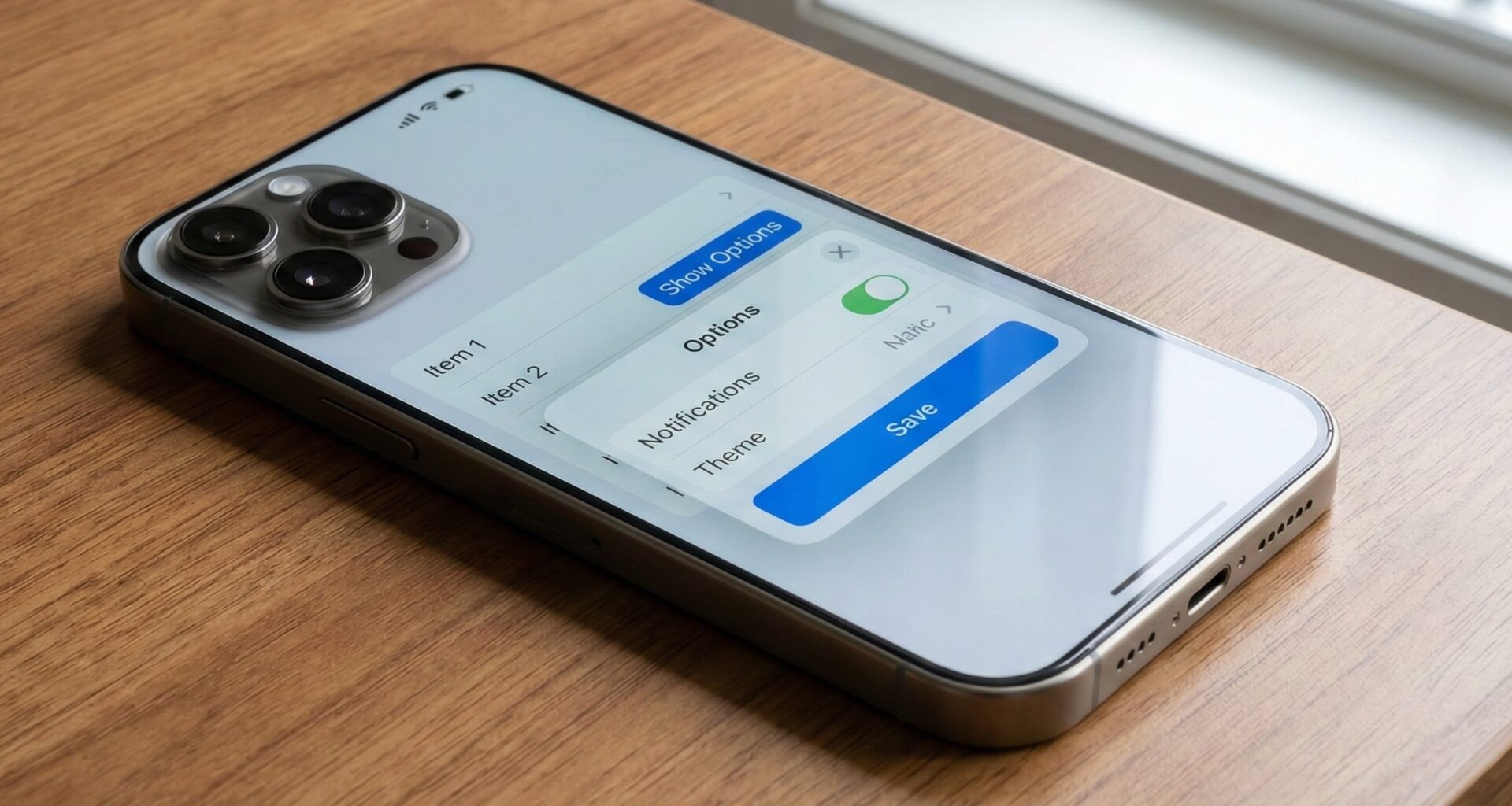

In the vast universe of Xcode development, the user interface is queen. As an iOS Developer, you strive to create experiences that are not only functional but visually striking. However, sometimes Apple’s native tools impose their own design rules that clash with our creative vision. One of the most common “villains” in UI customization is the standard Popover component.
The native popover is a fantastic tool in Swift programming: it is accessible, manages its own lifecycle, and adapts to the system. But it has a visual feature that designers often hate: the arrow pointing to the source element. What if you want a clean floating menu, a minimalist tooltip, or a contextual modal window that doesn’t look like a comic book speech bubble?
In this comprehensive SwiftUI tutorial, we will learn exactly what a popover without the arrow in SwiftUI is, why the system forces it by default, and most importantly, the technical strategies to remove it in your applications for iOS, macOS, and watchOS.
The Native Popover Challenge in SwiftUI
Before diving into the code, it is vital to understand how the .popover modifier works in SwiftUI. Unlike UIKit, where you had granular control over the UIPopoverPresentationController, SwiftUI abstracts much of the complexity. This is great for getting started, but frustrating for customization.
By default, when you use .popover on iPad or macOS, the system automatically draws an arrow anchoring the content to the source view. On iPhone, this behavior usually transforms into a modal sheet, unless you force the style. Removing this arrow isn’t as simple as setting arrowDirection = .none, as that API isn’t directly exposed in standard SwiftUI modifiers.
Strategy 1: The “Pure” Solution in SwiftUI (Custom Overlay)
The most robust, cross-platform (iOS, macOS, watchOS), and “future-proof” way to create a popover without the arrow in SwiftUI is not fighting the system, but creating your own component. This strategy is a favorite of the modern iOS Developer because it offers full control over animations, shadows, and positioning.
We will use ZStack, overlay, and GeometryReader to calculate where to show our floating popover.
Step 1: Create the View Modifier
We are going to create a View extension that allows us to inject any content as a custom popover. The key here is to use .overlay in a top-level ZStack context or use the new iOS 16+ APIs.
import SwiftUI

// We define a transparent container to detect taps outside the popover
struct PopoverContainerView<Content: View>: View {
    @Binding var isPresented: Bool
    let content: Content

    var body: some View {
        ZStack {
            if isPresented {
                // Semi-transparent or invisible background to dismiss on tap outside
                Color.black.opacity(0.001)
                    .edgesIgnoringSafeArea(.all)
                    .onTapGesture {
                        withAnimation {
                            isPresented = false
                        }
                    }

                // The popover content
                content
                    .transition(.scale.combined(with: .opacity))
                    .zIndex(1)
            }
        }
    }
}

// Extension for easier usage
extension View {
    func customPopover<Content: View>(isPresented: Binding<Bool>, @ViewBuilder content: @escaping () -> Content) -> some View {
        self.overlay(
            PopoverContainerView(isPresented: isPresented, content: content())
        )
    }
}
This approach eliminates the arrow because, technically, we are not using the system’s UIPopoverController. We are drawing one view on top of another. However, this basic code has a problem: it centers the popover on the original view. To position it perfectly without an arrow, we need geometry.
Step 2: Advanced Positioning with GeometryReader
For an iOS Developer, understanding the coordinate system is crucial. We are going to improve our code so that the popover appears right above or below the button, floating freely without the annoying triangular arrow.
struct NoArrowPopoverModifier<PopoverContent: View>: ViewModifier {
    @Binding var isPresented: Bool
    let popoverContent: PopoverContent

    func body(content: Content) -> some View {
        content
            .background(
                GeometryReader { geometry in
                    Color.clear
                        .preference(key: ContentRectKey.self, value: geometry.frame(in: .global))
                }
            )
            .overlay(
                ZStack {
                    if isPresented {
                        popoverContent
                            .padding()
                            .background(Color("PopoverBackground"))
                            .cornerRadius(12)
                            .shadow(radius: 10)
                            // Manual offset to simulate popover position
                            .offset(x: 0, y: -50)
                            .transition(.opacity.combined(with: .move(edge: .top)))
                    }
                }
            )
    }
}

// Preference key to read size
struct ContentRectKey: PreferenceKey {
    static var defaultValue: CGRect = .zero
    static func reduce(value: inout CGRect, nextValue: () -> CGRect) {
        value = nextValue()
    }
}
Strategy 2: The Native Solution (iOS 16.4+ and macOS 13+)
Apple has answered our prayers. In the most recent versions of Xcode and iOS SDKs, we have more control over presentation. Although it is still difficult to remove the arrow in a strict system .popover, we can use .presentationCompactAdaptation to control how modals behave.
However, the real hidden gem for removing the arrow in native components is not the popover, but the creative use of menus or the new TipKit (if it is for tutorials). But if you need a custom view, we return to the underlying UIKit limitation.
Strategy 3: UIKit Introspection (The iPad Trick)
If you are developing a professional application and need to use the native component (for accessibility and keyboard behavior) but hate the arrow, you can resort to “Introspection”. This involves accessing the underlying UIPopoverPresentationController and setting its permittedArrowDirections to an empty set.
This method is advanced and requires knowledge of how SwiftUI wraps UIKit. Note that this only works on iOS/iPadOS, not watchOS or pure macOS.
Implementing the “Arrow Killer”
To achieve this, we need to create a UIViewControllerRepresentable or inject code into the view lifecycle. Here I present a clean way to do it using an extension.
Note: This code accesses the view hierarchy, which is fragile to future iOS updates, but it is the only way to modify the actual native component.
import SwiftUI
import UIKit

struct PopoverArrowHider: UIViewControllerRepresentable {
    func makeUIViewController(context: Context) -> UIViewController {
        return UIViewController()
    }

    func updateUIViewController(_ uiViewController: UIViewController, context: Context) {
        // We look for the presentation controller in the hierarchy
        DispatchQueue.main.async {
            guard let parent = uiViewController.parent else { return }
            // Go up the hierarchy to find the popover container
            if let popoverController = parent.popoverPresentationController {
                popoverController.permittedArrowDirections = [] // Remove all arrow directions
                popoverController.delegate = context.coordinator // Optional: to force styles
            }
        }
    }

    func makeCoordinator() -> Coordinator {
        Coordinator()
    }

    class Coordinator: NSObject, UIPopoverPresentationControllerDelegate {
        // Implement delegate methods if additional customization is required (e.g. .none)
        func adaptivePresentationStyle(for controller: UIPresentationController) -> UIModalPresentationStyle {
            return .none // Force popover behavior even on iPhone
        }
    }
}

// Usage in SwiftUI
extension View {
    func hidePopoverArrow() -> some View {
        self.background(PopoverArrowHider())
    }
}
To use this hack in your view:
Button("Show Popover") {
    showPopover = true
}
.popover(isPresented: $showPopover) {
    Text("Hello, I am a floating popover without an arrow")
        .padding()
        .hidePopoverArrow() // Magic!
}
Adaptation for macOS and watchOS
The beauty of Swift programming lies in its cross-platform capability, but the UI has nuances.
macOS (AppKit)
In macOS, the native component is NSPopover. As in iOS, it has a style property. If you use Strategy 1 (Custom Overlay), it will work perfectly on macOS. If you use the native .popover modifier of SwiftUI on macOS, removing the arrow (known as “beak”) requires introspection similar to iOS but looking for the underlying AppKit window.
watchOS
On the Apple Watch, the concept of “arrow” does not exist in the same way due to screen size. Popovers usually take up the entire screen or present themselves as sheets. Here, the best option is always to use .sheet or .fullScreenCover. If you need a floating tooltip in watchOS, the only viable option is Strategy 1 (ZStack and Overlay).
Designing the Custom Popover UI
Once you manage to remove the arrow, you face a blank canvas. A popover without the arrow in SwiftUI must differentiate itself visually from the background so as not to confuse the user. Here are some design tips for the detail-oriented iOS Developer:
- Shadows: Essential. Without the arrow connecting the popover to its source, the shadow is the only cue for depth (Z-axis). Use
.shadow(color: .black.opacity(0.2), radius: 10, x: 0, y: 5). - Borders and Corners: Rounded corners are mandatory in Apple’s design language. A
.cornerRadius(16)usually works well. - Materials (Blur): Instead of a solid white background, consider using
.background(.ultraThinMaterial). This gives it a native and modern touch, allowing background content to be subtly visible.
struct ModernPopoverContent: View {
    var body: some View {
        VStack(alignment: .leading, spacing: 12) {
            Text("Information")
                .font(.headline)
            Text("This is a clean design without distracting visual arrows.")
                .font(.subheadline)
                .foregroundColor(.secondary)
        }
        .padding()
        .frame(width: 250)
        .background(.ultraThinMaterial) // Native iOS translucent effect
        .cornerRadius(20)
        .shadow(color: Color.black.opacity(0.15), radius: 20, x: 0, y: 10)
        .overlay(
            RoundedRectangle(cornerRadius: 20)
                .stroke(Color.white.opacity(0.5), lineWidth: 1)
        )
    }
}
Accessibility Considerations
When creating “Custom Views” in Xcode, we often break native accessibility. If you use Strategy 1 (the Overlay), VoiceOver will not automatically know that it is a modal.
To fix this, you must use accessibility modifiers:
.accessibilityAddTraits(.isModal): Indicates that it is an important temporary view..accessibilityViewIsModal(true): Makes VoiceOver ignore elements behind the popover while it is visible.
Conclusion
Creating a popover without the arrow in SwiftUI is a task that separates beginners from experts. While a beginner would settle for the default design, an advanced iOS Developer knows how to bend the rules of Swift and Xcode to achieve the desired aesthetic.
We have explored everything from manual creation with overlays (the safest and most flexible option) to deep UIKit manipulation. The choice depends on your needs: if you are looking for total control and cross-platform compatibility, build your own component. If you need native window management behavior on iPadOS, use introspection.
If you have any questions about this article, please contact me and I will be happy to help you  . You can contact me on my X profile or on my Instagram profile.