



Alerts are one of the most important UI elements in any modern application. They are used to communicate errors, confirm actions, request permissions, or display critical information to the user. In the Apple ecosystem, SwiftUI provides a powerful, declarative, and elegant system for presenting alerts consistently across iOS, iPadOS, macOS, and other platforms.
In this tutorial, you will learn from scratch and in a professional way how to show alerts in SwiftUI using Xcode — from basic usage to advanced configurations with multiple buttons, roles, styles, and state management.
This article is designed for both beginners and intermediate developers who want to fully master SwiftUI alerts.
1. What is an alert in SwiftUI?
An alert is a modal view that appears above the main content of the app to capture the user’s attention. It usually contains:
- A title
- A message
- One or more buttons
Common examples:
- “Do you want to delete this file?”
- “No Internet connection”
- “Saved successfully”
SwiftUI allows alerts to be defined using view modifiers that depend on state, which fits perfectly with its declarative design philosophy.
2. Create a SwiftUI project in Xcode
Before we begin, create a new project:
- Open Xcode
- Click Create a new Xcode project
- Choose App
- Select Interface: SwiftUI
- Language: Swift
- Save the project
Open ContentView.swift.
3. Your first basic alert
Let’s create a button that shows an alert when tapped.
Step 1 – Create a state variable
SwiftUI uses @State to control when the alert appears.
@State private var showAlert = falseStep 2 – Create a button
Button("Show alert") {
    showAlert = true
}
Step 3 – Add the .alert modifier
.alert("Hello", isPresented: $showAlert) {
    Button("OK", role: .cancel) { }
}
Full code
struct ContentView: View {
    @State private var showAlert = false

    var body: some View {
        Button("Show alert") {
            showAlert = true
        }
        .alert("Hello", isPresented: $showAlert) {
            Button("OK", role: .cancel) { }
        }
    }
}
When you tap the button, an alert appears with the title “Hello” and an OK button.
4. Adding a message to the alert
Alerts can include additional descriptive text.
.alert("Information", isPresented: $showAlert) {
    Button("Accept", role: .cancel) { }
} message: {
    Text("This is an alert created with SwiftUI.")
}
This greatly improves the user experience.
5. Alerts with multiple buttons
An alert can contain multiple buttons to allow the user to choose an action.
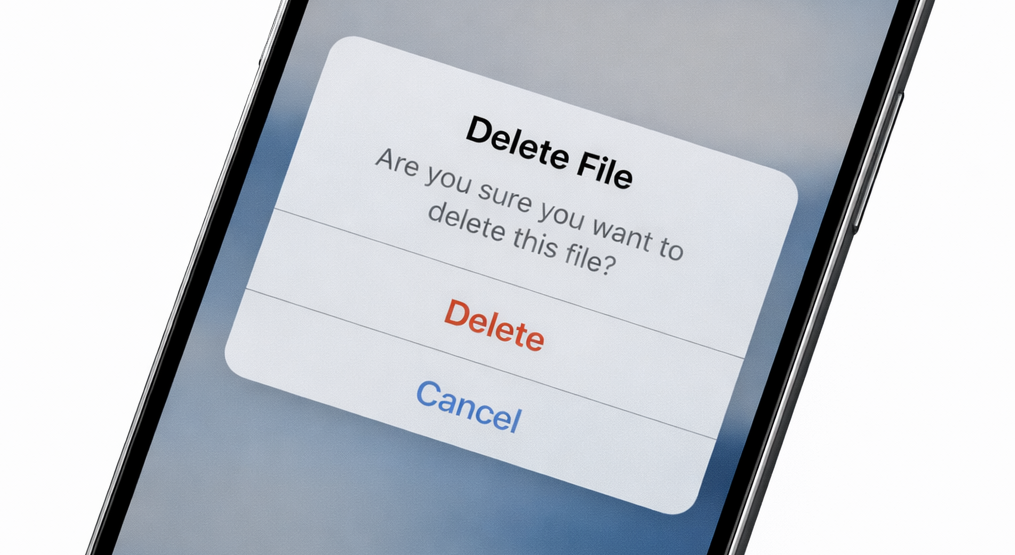
.alert("Delete file", isPresented: $showAlert) {
    Button("Delete", role: .destructive) {
        print("File deleted")
    }
    Button("Cancel", role: .cancel) { }
} message: {
    Text("Are you sure you want to delete this file?")
}
Important roles:
| Role | Purpose |
|---|---|
.cancel | Close without action |
.destructive | Dangerous actions |
.none | Normal button |
SwiftUI uses the role to style and order buttons correctly.
6. Running code when the user taps a button
Each button can execute logic:
Button("Save") {
    saveData()
}
This allows you to:
- Save data
- Navigate
- Delete content
- Send information
Alerts are not just visual — they are part of your app’s logic flow.
7. Using enums to manage multiple alerts
Real apps usually have more than one alert. SwiftUI lets you use an enum.
enum AppAlert {
    case error
    case success
}@State private var currentAlert: AppAlert?.alert(item: $currentAlert) { alert in
switch alert {
case .error:
return Alert(title: Text("Error"),
message: Text("Something went wrong"),
dismissButton: .default(Text("OK")))
case .success:
return Alert(title: Text("Success"),
message: Text("Everything worked"),
dismissButton: .default(Text("Great")))
}
}This approach lets you control many alerts with a single variable.
8. Alerts with text fields (iOS 17+)
In modern iOS versions, you can include TextField in an alert.
.alert("Name", isPresented: $showAlert) {
    TextField("Enter your name", text: $name)
    Button("OK") { }
    Button("Cancel", role: .cancel) { }
}
This allows you to collect input directly from the user.
9. Best practices when using alerts
Alerts are useful, but they must be used correctly:
✔ Use only when necessary
✔ Write clear messages
✔ Use descriptive button labels
✔ Avoid overusing alerts
✔ Do not block the user unnecessarily
Poorly implemented alerts frustrate users.
10. Difference between Alert and ConfirmationDialog
SwiftUI also provides confirmationDialog, which is ideal for action menus.
| Alert | ConfirmationDialog |
|---|---|
| Critical messages | Action menus |
| Confirmations | Multiple options |
| Fewer buttons | More buttons |
Example:
.confirmationDialog("Options", isPresented: $showDialog) {
    Button("Delete", role: .destructive) { }
    Button("Edit") { }
}
11. Common mistakes
❌ Using too many alerts
❌ Forgetting @State
❌ Not using button roles
❌ Writing vague messages
❌ Alerts that block the UX
12. Conclusion
Alerts are a fundamental part of any professional app. SwiftUI makes them extremely easy to implement thanks to its state-driven, declarative approach.
You have learned:
- How to create basic alerts
- How to add messages
- How to use multiple buttons
- How to execute actions
- How to manage multiple alerts
- How to use text fields
- How to follow best practices
Mastering alerts in SwiftUI will help you build safer, clearer, and more professional applications.
If you are building apps with Xcode and SwiftUI, this system is an essential tool.
If you have any questions about this article, please contact me and I will be happy to help you 🙂. You can contact me on my X profile or on my Instagram profile.