





Text is one of the most important elements in any application. A well-designed interface needs readable text, especially when displaying articles, descriptions, instructions, or other content that occupies several lines. In SwiftUI, Apple provides several modifiers that make it easy to control how text is displayed.
One of these modifiers is .lineSpacing(). This modifier allows an iOS Developer to control the amount of additional vertical space between lines of text. Used correctly, line spacing in SwiftUI can significantly improve readability and create a more polished interface.
In this tutorial, you will learn what .lineSpacing() does, how to use it in Xcode, and how it can improve the user experience of an application.
What Is lineSpacing() in SwiftUI?
The .lineSpacing() modifier controls the amount of additional space between lines in a Text view.
When displaying a paragraph, SwiftUI automatically determines the height required for each line. By default, the lines are positioned according to the font’s metrics. However, some types of content can benefit from additional vertical space.
For example, a long article may look crowded if several lines of text are placed too close together. Adding a small amount of extra space can make the content considerably easier to read.
The basic syntax is straightforward:
Text("This is a multiline text example.")
    .lineSpacing(8)
The value passed to .lineSpacing() represents the additional spacing between lines.
This makes the modifier particularly useful when working with Multiline Text in SwiftUI.
How to Use lineSpacing() in Xcode
To experiment with .lineSpacing(), open Xcode and create a new SwiftUI project. You can then add a Text view containing enough content to produce multiple lines.
Once the text is displayed, apply .lineSpacing() to the view.
For example:
Text("SwiftUI makes it easy to create beautiful user interfaces. Developers can control the appearance and layout of text using modifiers.")
    .lineSpacing(10)
When you run the application, the lines will have additional vertical space between them.
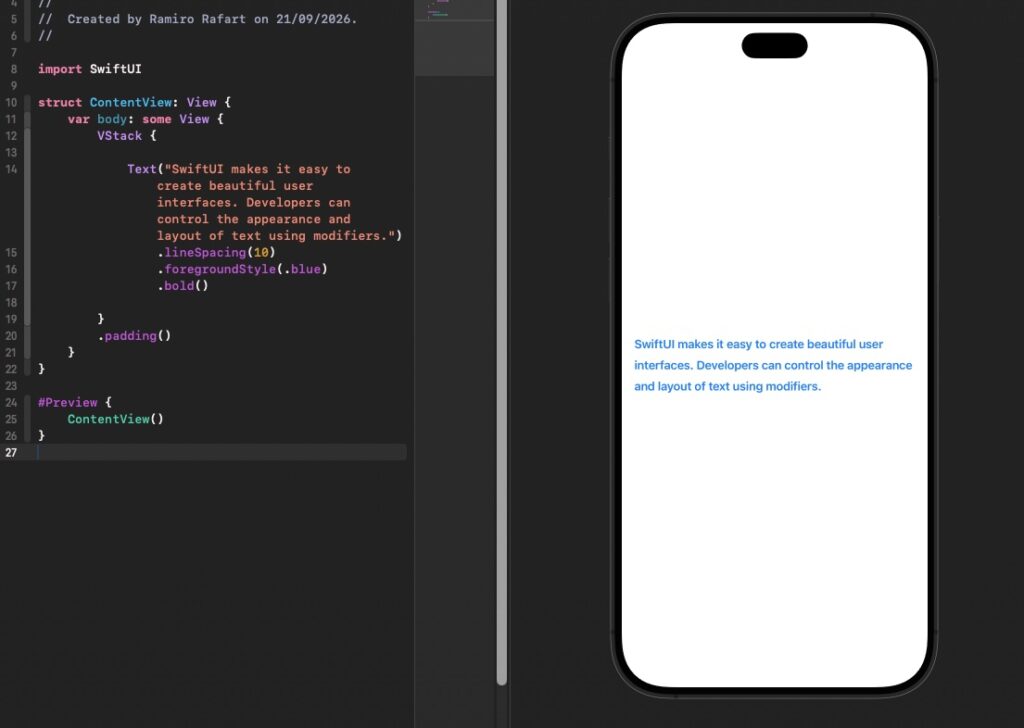
The important thing to understand is that .lineSpacing() does not change the font size. It only adds vertical space between lines. This makes it different from modifiers such as .font().
Understanding the Spacing Value
The value supplied to .lineSpacing() is measured in points.
For example:
Text("Example text")
    .lineSpacing(5)
adds five points of additional spacing between lines.
A larger value creates more space:
Text("Example text")
    .lineSpacing(15)
The correct value depends on the design of your application. Small values can improve readability without significantly increasing the height of a view, while very large values can make paragraphs appear unnecessarily separated.
For most interfaces, it is useful to start with a relatively small value and test the result using different amounts of content.
Improving Readability with line spacing in SwiftUI
One of the most useful applications of line spacing in SwiftUI is improving readability.
Imagine an application that displays a long article. If the lines are too close together, users may find the text difficult to scan. Increasing the spacing slightly creates more visual separation and gives the interface a less crowded appearance.
This can be particularly useful for:
- News applications
- Blogs
- Documentation
- Terms and conditions
- Instructions
- Educational applications
- Long descriptions
For an iOS Developer, this is an easy way to improve typography without creating a complicated custom layout.
Combining lineSpacing() with Other Modifiers
The .lineSpacing() modifier can be combined with other SwiftUI text modifiers.
For example, you can specify a font, text color, alignment, and line spacing on the same Text view:
Text("Swift programming allows you to build powerful applications for Apple's platforms. SwiftUI provides a declarative approach to designing their interfaces.")
    .font(.body)
    .lineSpacing(8)
    .multilineTextAlignment(.leading)
Each modifier has a different responsibility.
The .font() modifier controls the typography, .lineSpacing() controls the additional vertical space between lines, and .multilineTextAlignment() controls how the lines are horizontally aligned.
Combining these modifiers allows you to create consistent typography throughout your application.
lineSpacing() and Dynamic Content
Modern applications frequently display content that changes dynamically. Text can come from a server, database, user input, or another external source.
Because you cannot always predict how many lines a piece of text will contain, controlling the spacing between those lines becomes important.
SwiftUI automatically adapts the height of the Text view to its content. Adding .lineSpacing() changes the vertical rhythm while still allowing SwiftUI to handle the layout.
This is one of the advantages of using SwiftUI for interface development: you describe how the content should behave rather than manually calculating every dimension.
Best Practices for lineSpacing()
When using .lineSpacing() in Swift programming, moderation is important. Excessive spacing can make an interface harder to scan and can unnecessarily increase the height of a screen.
A good approach is to use consistent spacing throughout similar sections of your application. For example, if several article screens use body text, applying a similar line-spacing value helps create a consistent visual language.
You should also test your interface with different font sizes and accessibility settings. Users can increase their preferred text size, and your layout should continue to work correctly.
Why lineSpacing() Is Useful in SwiftUI
Typography has a major impact on the usability of an application. Even when the content itself is excellent, poor spacing can make an interface uncomfortable to read.
The .lineSpacing() modifier provides a simple way to improve the vertical rhythm of multiline text without requiring custom layout code.
For an iOS Developer, understanding this modifier is another useful step toward creating professional interfaces with SwiftUI.
Conclusion
The .lineSpacing() modifier is a simple but effective tool for controlling text presentation in SwiftUI. It adds extra vertical space between lines, making it especially useful for paragraphs and other multiline content.
By experimenting with different values in Xcode, you can find the spacing that best matches your application’s design. Combined with other text modifiers, .lineSpacing() gives you greater control over typography and helps make your application easier and more comfortable to read.
For developers learning Swift programming, mastering small modifiers such as .lineSpacing() is an important part of understanding how SwiftUI handles text and layout.