


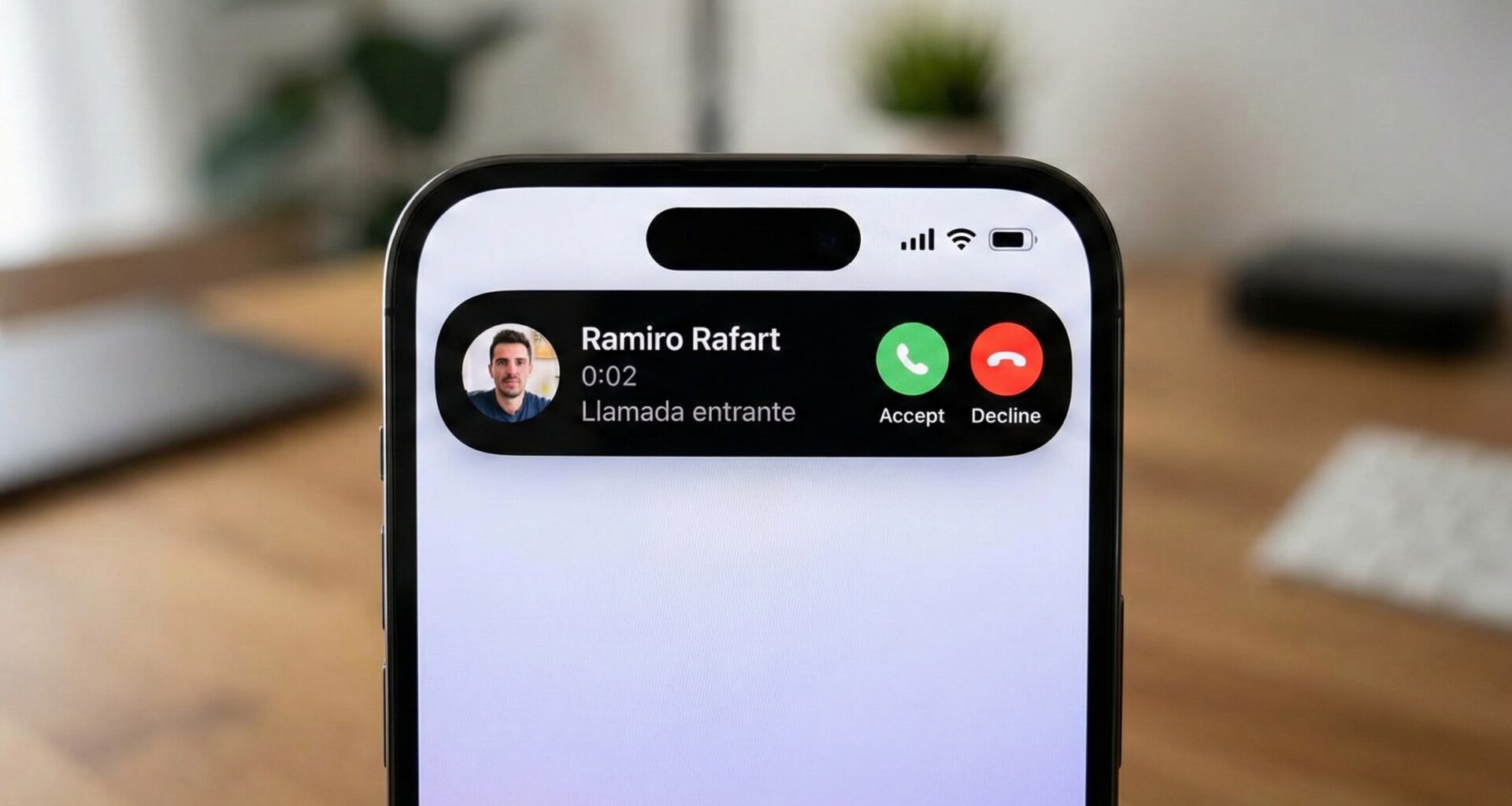

Since the launch of the iPhone 14 Pro, the Dynamic Island has transformed the way users interact with their applications in the background. What began as a clever hardware solution to hide the front camera array has evolved into a vital interactive canvas for User Experience (UX) on iOS.
For SwiftUI developers, this isn’t just an aesthetic shift; it is an opportunity. Integrating your app with the Dynamic Island using ActivityKit and Live Activities allows you to keep your users informed in real-time without forcing them to unlock their phones or enter the application.
In this step-by-step tutorial, we will explore how to implement a Live Activity from scratch, design the different views of the Dynamic Island, and manage the data lifecycle.
1. Understanding the Ecosystem: ActivityKit and Live Activities
Before writing a single line of code, it is crucial to understand the architecture. The Dynamic Island does not work in isolation; it is the visible face of a Live Activity.
A Live Activity is a persistent, interactive notification that lives on the Lock Screen and, on compatible models, in the Dynamic Island. Unlike a traditional Widget that updates periodically (using a timeline), a Live Activity receives instant updates, either from the app running in the foreground or via remote push notifications.
The Three UI States
When developing for the Dynamic Island, you are not designing a single view, but rather several adaptations depending on the system context:
- Compact: The standard view when the island is idle. It is divided into Leading (Left) and Trailing (Right).
- Expanded: The view that appears when the user long-presses the island. Here you have much more space to display details.
- Minimal: Displayed when multiple apps are using the island simultaneously. Your app is reduced to a small circle or icon.
2. Project Setup and Prerequisites
To follow this tutorial, you will need:
- Xcode 14.1 or higher.
- A device or simulator running iOS 16.1 or higher.
- An iPhone with Dynamic Island support (iPhone 14 Pro or later) to test the full experience.
Step 1: Modify Info.plist
Live Activities require explicit permission in the project configuration.
- Go to your
Info.plistfile. - Add a new key:
NSSupportsLiveActivities. - Set its Boolean value to
YES(ortrue).
Step 2: Create the Widget Target
Live Activities live within a Widget Extension, not in your main app code.
- In Xcode, go to File > New > Target.
- Search for and select Widget Extension.
- Ensure the “Include Live Activity” checkbox is selected (if available), or simply create the widget, and we will configure it manually.
- Name it, for example,
DeliveryTrackerWidget.
3. Defining Data: ActivityAttributes
The heart of ActivityKit is ActivityAttributes. This structure defines which data is static (does not change during the activity’s life) and which is dynamic (updates in real-time).
Let’s imagine we are building a Pizza Delivery app.
Create a file named PizzaDeliveryAttributes.swift and ensure it belongs to both your main App Target and your Widget Target.
import ActivityKit
import Foundation

struct PizzaDeliveryAttributes: ActivityAttributes {
    public typealias PizzaDeliveryStatus = ContentState

    // Dynamic variables (change over time)
    public struct ContentState: Codable, Hashable {
        var driverName: String
        var estimatedDeliveryTime: Date
        var deliveryStatus: String // E.g., "In the oven", "On the way"
    }

    // Static variables (do not change once the activity starts)
    var totalAmount: String
    var orderNumber: String
    var numberOfPizzas: Int
}
Note: It is vital that
ContentStateconforms toCodableandHashable, as ActivityKit serializes this data to pass it between the app and the operating system.
4. Designing the Dynamic Island Interface
Now we enter SwiftUI territory. Inside your Widget Extension, we will create the activity configuration. This is where we define how the island looks in its different states.
The code uses the ActivityConfiguration modifier. Notice how we handle the different regions.
import WidgetKit
import SwiftUI
import ActivityKit

struct PizzaDeliveryWidget: Widget {
    var body: some WidgetConfiguration {
        ActivityConfiguration(for: PizzaDeliveryAttributes.self) { context in
            // LOCK SCREEN VIEW
            // This is the classic view that appears in notifications/lock screen
            VStack {
                Text("Order #\(context.attributes.orderNumber)")
                    .font(.headline)
                HStack {
                    Image(systemName: "box.truck.badge.clock")
                    Text(context.state.deliveryStatus)
                }
            }
            .padding()
            .activityBackgroundTint(Color.cyan)
            .activitySystemActionForegroundColor(Color.black)

        } dynamicIsland: { context in
            // DYNAMIC ISLAND CONFIGURATION
            DynamicIsland {
                // MARK: - Expanded UI
                // This view is shown when holding down the island
                DynamicIslandExpandedRegion(.leading) {
                    Label("\(context.attributes.numberOfPizzas) Pizzas", systemImage: "bag")
                        .font(.caption2)
                }

                DynamicIslandExpandedRegion(.trailing) {
                    Label {
                        Text(timerInterval: Date()...context.state.estimatedDeliveryTime, countsDown: true)
                            .multilineTextAlignment(.trailing)
                            .frame(width: 50)
                            .monospacedDigit()
                    } icon: {
                        Image(systemName: "timer")
                    }
                    .font(.caption2)
                }

                DynamicIslandExpandedRegion(.center) {
                    Text("\(context.state.driverName) is on the way")
                        .lineLimit(1)
                        .font(.caption)
                }

                DynamicIslandExpandedRegion(.bottom) {
                    // A progress bar or action button
                    Link(destination: URL(string: "pizzapp://call-driver")!) {
                        Label("Call Driver", systemImage: "phone.fill")
                            .padding()
                            .background(Color.green.opacity(0.2))
                            .clipShape(Capsule())
                    }
                }

            } compactLeading: {
                // MARK: - Compact Leading (Left)
                HStack {
                    Image(systemName: "cart.fill")
                        .foregroundColor(.orange)
                    Text("\(context.attributes.numberOfPizzas)")
                }
                .padding(.leading, 4)

            } compactTrailing: {
                // MARK: - Compact Trailing (Right)
                Text(timerInterval: Date()...context.state.estimatedDeliveryTime, countsDown: true)
                    .multilineTextAlignment(.trailing)
                    .frame(width: 40)
                    .font(.caption2)
                    .monospacedDigit()

            } minimal: {
                // MARK: - Minimal
                // When two apps use the island, yours looks like this (usually an icon)
                Image(systemName: "timer")
                    .foregroundColor(.orange)
            }
        }
    }
}
Breaking Down the Regions
- CompactLeading & CompactTrailing: You have very little horizontal space. Use SF Symbols and very short text. The system automatically clips content if it exceeds the width.
- Expanded Regions:
.leading,.trailing,.center,.bottom.- The
.centerregion is placed below the camera hardware (the physical “notch”), while.bottomis ideal for showing more context or interactive buttons (which work via Deep Links, as widgets do not support standard SwiftUI buttons).
- Minimal: This is your “survival flag.” If the user is using Maps and your Pizza App at the same time, the system will decide who gets the minimal view. Make sure your icon is instantly recognizable.
5. Managing Lifecycle from the App
Once the UI is designed, we need to “ignite” the island from our main application. This is done using the Activity class.
You must import ActivityKit in your ViewModel or Controller.
Starting the Activity
import ActivityKit

func startDelivery() {
    // 1. Define static data
    let attributes = PizzaDeliveryAttributes(
        totalAmount: "$25.50",
        orderNumber: "A-998",
        numberOfPizzas: 2
    )

    // 2. Define initial state
    let initialContentState = PizzaDeliveryAttributes.ContentState(
        driverName: "Carlos",
        estimatedDeliveryTime: Date().addingTimeInterval(30 * 60), // +30 mins
        deliveryStatus: "Preparing ingredients"
    )

    // 3. Request the activity
    do {
        let activity = try Activity<PizzaDeliveryAttributes>.request(
            attributes: attributes,
            content: .init(state: initialContentState, staleDate: nil),
            pushType: nil // Use 'token' if you are going to use Push Notifications
        )
        print("Activity started with ID: \(activity.id)")
    } catch {
        print("Error starting activity: \(error.localizedDescription)")
    }
}
Updating the Activity
When the order state changes (e.g., “In the oven”), we update the activity. This will refresh the UI on the Dynamic Island immediately.
func updateDeliveryStatus() {
    let newStatus = PizzaDeliveryAttributes.ContentState(
        driverName: "Carlos",
        estimatedDeliveryTime: Date().addingTimeInterval(15 * 60),
        deliveryStatus: "In the oven 🔥"
    )

    Task {
        // We get the current activity (in a real app you would manage the specific ID)
        for activity in Activity<PizzaDeliveryAttributes>.activities {
            await activity.update(using: newStatus)
        }
    }
}
Ending the Activity
It is essential to clean up the activity when the process ends. You don’t want a delivered pizza to continue taking up space in the user’s Dynamic Island.
func endDelivery() {
    let finalStatus = PizzaDeliveryAttributes.ContentState(
        driverName: "Carlos",
        estimatedDeliveryTime: Date(),
        deliveryStatus: "Delivered! 🍕"
    )

    Task {
        for activity in Activity<PizzaDeliveryAttributes>.activities {
            // DismissalPolicy:
            // .default: Stays on the lock screen for a while before disappearing.
            // .immediate: Disappears instantly.
            // .after(Date): Disappears at a specific time.
            await activity.end(using: finalStatus, dismissalPolicy: .default)
        }
    }
}
6. Best Practices and Design (Human Interface Guidelines)
Making it work is easy; making it feel native is an art. Apple is very strict about Dynamic Island design. Here are keys to polishing your implementation:
Colors and Background
The Dynamic Island is always black. Never try to put a white or solid color background on the entire island.
- Use white or light gray text.
- Use your Brand Color only for icons, accents, or progress bars, not for full backgrounds.
- The system applies a blur and opacity around the island; respect the margins SwiftUI gives you by default.
Animations
SwiftUI handles size transitions (from Compact to Expanded) automatically with fluid animations (interpolating spring). However, within your view, you can use .contentTransition(.numericText()) for counters or timers. This makes numbers slide elegantly, just like in the native iOS stopwatch.
Sporadic Updates
Do not abuse activity.update. Although ActivityKit is efficient, sending updates every second can drain the battery.
- Correct: Update when the state changes (preparing -> cooking -> shipping).
- Incorrect: Using the update for a manual second counter. For countdowns, use the
Text(timerInterval:...)style which delegates counting to the OS with zero battery cost.
Deep Linking
The Dynamic Island is not a mini-phone. You cannot place forms or complex scrolls. Any complex interaction should take the user to the main App. Use Link(destination: ...) to wrap your controls in the expanded view.
7. Limitations and Technical Considerations
When deploying this to production, keep in mind:
- Size Limit: The update payload (your
ContentStateJSON) cannot exceed 4KB. If you try to send a Base64 encoded image, it will fail. Images must be in the app bundle or previously downloaded and cached (though using SF Symbols or local assets is ideal). - Runtime: Live Activities can remain active for up to 8 hours, but the system will remove them from the Dynamic Island if they are not relevant, keeping them only on the lock screen for up to 12 hours.
- Network (Push Notifications): In this tutorial, we used local updates. In a real app (like Uber or DoorDash), updates would come from your backend server using ActivityKit Push Notifications. This requires configuring specific APNs certificates.
Conclusion
The Dynamic Island represents a paradigm shift: we are moving from asking the user to enter our app, to taking our app to where the user is already looking.
Mastering ActivityKit in SwiftUI is not just about learning a new API; it is about understanding how to synthesize the most valuable information of your product into the smallest and most privileged space on the iPhone. If you can make that little black pill provide real value, you will have earned a permanent place in your users’ daily routine.
If you have any questions about this article, please contact me and I will be happy to help you 🙂. You can contact me on my X profile or on my Instagram profile.