




Of all the structures defined by SwiftUI for creating views, the Text structure is probably the most useful. This structure takes a string and returns a view that displays the text in the Xcode simulator on the screen. The structure defines multiple initializers. The following are the ones most commonly used:
Text(string)
This initializer creates a Text view with the text defined by the argument.
Text(Date, style: DateStyle)
This initializer creates a Text view to display a date on the screen. The first argument defines a date, while the style argument is a structure that determines the format. The structure includes the date, offset, relative, time, and timer type properties to define its value.
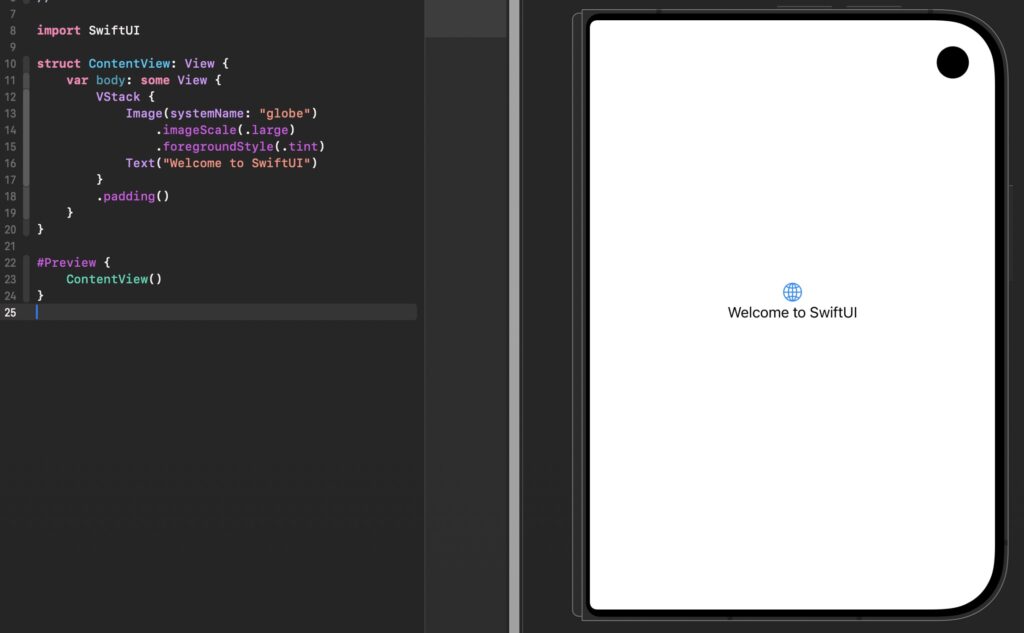
Because text is the primary means of communication, Text views are widely used in SwiftUI apps. The Text view included by default in the ContentView.swift file is created with a String value to display the text “Welcome to SwiftUI”, as we can see in the following example in Xcode:
What Is the Text Structure in SwiftUI?
When building an application with SwiftUI, displaying text is one of the most common tasks an iOS Developer needs to perform. Whether you are creating a welcome message, a button label, a title, a description, or information retrieved from a data source, the Text structure is one of the fundamental components available in Apple’s declarative UI framework.
The SwiftUI Text view is designed to display one or more characters on the screen. It is simple to use, but it also provides many modifiers and options that allow developers to customize the appearance and behavior of text in an application.
What Is Text in SwiftUI?
The Text structure is a SwiftUI view that displays a string of characters. In its simplest form, you can create a text view by passing a string to the Text initializer.
For example:
Text("Welcome to SwiftUI")
This code creates a Text view displaying the message “Welcome to SwiftUI”. When you run the application in Xcode, the text appears in the simulator or on a connected Apple device.
Unlike traditional imperative UI frameworks, SwiftUI uses a declarative approach. Instead of telling the application how to create and update a text label step by step, you describe what you want the interface to look like.
Creating Text in Xcode
To use Text in SwiftUI, open an existing SwiftUI project in Xcode or create a new iOS project using the SwiftUI interface.
Inside the ContentView.swift file, you will normally find a body property containing a view hierarchy. You can add a Text view directly inside it:
struct ContentView: View {
    var body: some View {
        Text("Hello, world!")
    }
}
When you run the project, Xcode compiles the Swift code and displays the result in the iOS Simulator.
This makes Text one of the easiest SwiftUI views to learn when starting Swift programming.
Customizing a Text View
One of the biggest advantages of SwiftUI Text is the ability to customize its appearance using view modifiers.
For example:
Text("Welcome to SwiftUI")
    .font(.title)
    .foregroundStyle(.blue)
The font modifier changes the size and typography, while foregroundStyle changes the visual style of the text.
You can also make text bold:
Text("Important information")
    .bold()
Other commonly used modifiers include italic(), underline(), multilineTextAlignment(), and lineLimit().
Because modifiers can be combined, developers can create customized text interfaces without needing complex configuration.
Displaying Dates with Text
The Text view can also display dates using a dedicated initializer. This is useful when an application needs to show information such as the current time, a relative date, or a timer.
For example:
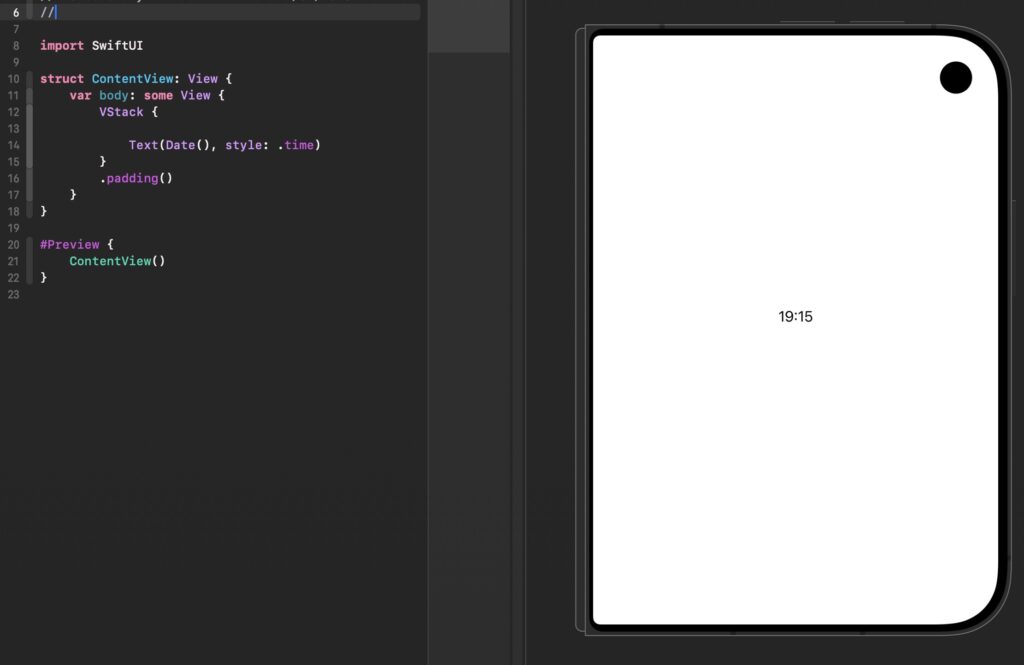
Text(Date(), style: .time)
This creates a Text view that displays the current time. SwiftUI provides different date styles, including .date, .time, .relative, .offset, and .timer.
This functionality can be particularly useful in applications that display schedules, events, notifications, or other time-related information.
Why Text Is Important in SwiftUI
The Text structure in SwiftUI is one of the most important views for any iOS Developer to understand. It provides a straightforward way to display information while supporting extensive customization through SwiftUI modifiers.
As you continue learning Swift programming and developing applications with Xcode, you will use Text repeatedly throughout your projects. Understanding how it works provides a solid foundation for creating more complex SwiftUI interfaces and building modern iOS apps.