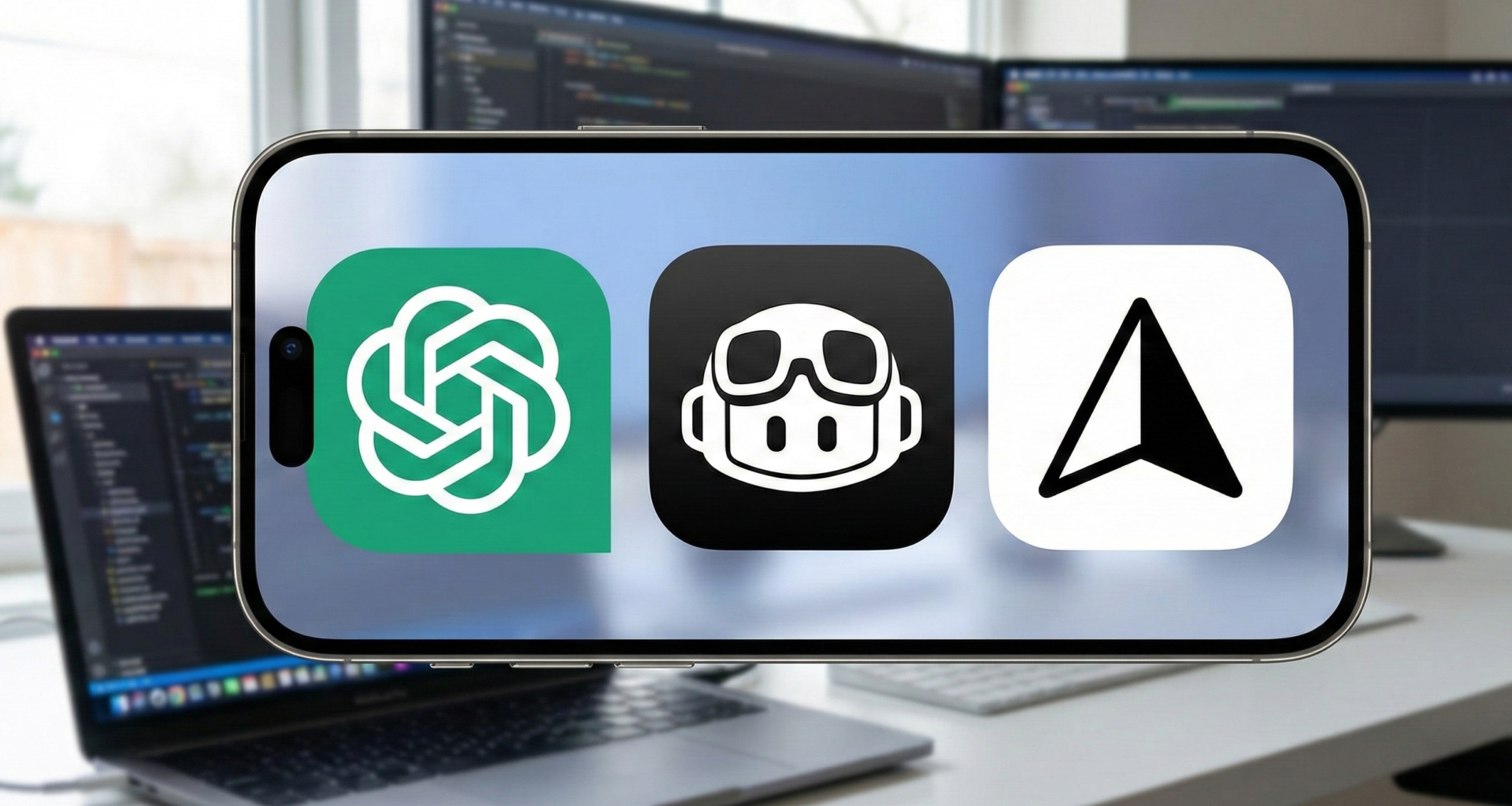

Programming has changed forever. If you are an iOS developer, you probably remember the days when your best friend was StackOverflow and your worst nightmare was cryptic SourceKit errors. Today, the landscape is radically different. Artificial Intelligence hasn’t arrived to replace developers, but to supercharge their capabilities, eliminating the friction of repetitive code and allowing architectural creativity to flourish.
In the Apple ecosystem, where Swift and SwiftUI evolve at breakneck speed, keeping up is a challenge. This is where AI becomes an indispensable co-pilot. But with so many options on the market, which ones are truly worth it for an environment as closed and specific as Xcode?
In this article, we analyze in depth the 5 best Artificial Intelligence tools specifically curated for iOS developers. We will break down how they help you code in Swift, their competitive advantages, and, of course, their disadvantages.
1. Xcode 16+ (Swift Assist & Predictive Code Completion)
The Native Apple Solution
We couldn’t start this list without addressing the elephant in the room. With the arrival of Xcode 16 and macOS Sequoia updates, Apple integrated AI directly into the heart of our IDE. Unlike other tools that are “generalists,” this one is trained specifically with the Apple SDK, Swift documentation, and Cupertino’s best practices.
How does it help you code?
Apple has divided its AI into two main fronts:
- Predictive Code Completion: This isn’t your standard autocomplete. It uses a local model (running on your Apple Silicon chip) to predict not just the next word, but entire blocks of code based on the context of your surrounding variables and functions.
- Swift Assist: An integrated conversational assistant. You can write in natural language: “Create a SwiftUI view that displays a list of users with a circular image and bold text, and navigates to a detail view upon tapping.”Swift Assist will generate the complete
struct, using the latest SwiftUI modifiers.
Pros
- Absolute Privacy: Apple places great emphasis on this. Predictive completion runs locally on your Mac. Your proprietary code is not sent to third-party servers to train public models.
- Up-to-date SDK Knowledge: Being from Apple, the AI knows the APIs released yesterday. While GPT-4 might not know what changed in iOS 18, Xcode does.
- Frictionless Integration: No plugins needed, no extra subscription fees (beyond your developer account), and no API key configuration. It works “out of the box.”
Cons
- Hardware Dependent: To get the most out of it, you need a Mac with Apple Silicon and a generous amount of RAM (16GB minimum recommended) so that local models don’t slow down the system.
- Conservatism: Apple’s AI tends to be more cautious. Sometimes it doesn’t suggest solutions as creative or complex as massive cloud-based models.
- Limited to Xcode: If you like coding Swift in VS Code or using other editors, you lose these advantages.
2. GitHub Copilot
The Industry Standard
GitHub Copilot, powered by OpenAI models, was the pioneer that normalized AI in programming. Although its natural “home” is VS Code, its impact on iOS development is undeniable, especially for those who use external tools or unofficial integrations to bring it into Xcode.
How does it help you code?
Copilot shines in algorithmic logic and boilerplate code.
- Data Models: If you start writing a
structcalledMoviewith JSON properties, Copilot will autocomplete theCodableprotocol, coding keys, and even an initializer. - Business Logic: Write a comment like
// Function to filter users over 18 and sort them alphabetically, and Copilot will write the complete Swift closure. - Unit Tests: It is exceptionally good at writing tests. If you have a complex function, Copilot can suggest the corresponding XCTest cases.
Pros
- Blistering Speed: Latency is minimal. As soon as you stop typing, the “ghost” suggestion appears.
- Multi-language Context: If your iOS project includes Python scripts for the backend or Ruby for Fastlane, Copilot handles them with the same ease as Swift.
- Ecosystem: Being part of GitHub, it integrates well if your team already uses GitHub Enterprise.
Cons
- The Xcode Barrier: Officially, GitHub Copilot does not have a native plugin for Xcode maintained by Apple or Microsoft. You must use bridge apps like Copilot for Xcode (a third-party app) that works via accessibility services. This makes the user experience a bit “clunky” and less fluid than in VS Code.
- Syntax Hallucinations: Sometimes it suggests old Swift syntax (Swift 4 or 5) or tries to apply paradigms from other languages (like JavaScript) to Swift, generating compilation errors.
3. Cursor (with Claude 3.5 Sonnet)
The IDE That Changes Everything
Cursor is not a plugin; it is a fork of VS Code designed from the ground up for coding with AI. Currently, it is considered by many senior developers as the most powerful tool on the market. Although it doesn’t compile iOS apps (you still need Xcode for Build & Run), many developers are writing their Swift code in Cursor and only using Xcode for compiling and visual interface design.
How does it help you code?
Cursor has a killer feature: Codebase Awareness.
- Chat with your Project: You can ask: “Where is user authentication handled, and how can I add a new field to the token?” Cursor indexes your entire Swift project and answers by pointing to the exact files.
- Predictive Editing (Cmd+K): Select a block of SwiftUI code, press Cmd+K, and write: “Refactor this to use MVVM and extract the logic to a ViewModel.” Cursor will make the changes in-situ, showing a clean “diff.”
- Cutting-Edge Models: Cursor allows you to choose which “brain” to use. Currently, Anthropic’s Claude 3.5 Sonnet model (available in Cursor) is considered superior to GPT-4o for writing clean and safe Swift code.
Pros
- Superior Reasoning Capability: It understands your app’s architecture better than any autocompleter. It can suggest changes across multiple files at once.
- Model Flexibility: You can switch between GPT-4o, Claude 3.5 Sonnet, or small, fast models as needed.
- Smart Tab: Its “Copilot++” feature predicts where you are going to place the cursor next, not just the text.
Cons
- Split Workflow: You have to write in Cursor and compile in Xcode. Constant window switching (Cmd+Tab) can be annoying for some.
- Cost: To access premium features and the best models without limits, you need a monthly subscription (approx. $20/month).
- SwiftUI Preview: Although extensions exist, you don’t have Xcode’s native SwiftUI “Canvas,” so you lose real-time preview while coding.
4. ChatGPT (Plus/Team)
The Architect and Mentor
Sometimes you don’t need code, you need to understand why. ChatGPT (especially with the GPT-4o model) acts like a senior developer sitting next to you. It doesn’t integrate into your editor but lives in your browser or desktop app as a constant consultation tool.
How does it help you code?
- Objective-C to Swift Conversion: If you work on a legacy codebase, you can paste a complex Objective-C class and ask it to translate it to modern Swift using concurrency (
async/await). - Error Debugging: When Xcode throws an unintelligible error in the console, pasting the log into ChatGPT usually gives you the root cause and solution in seconds.
- Mock Data Generation: “Generate a JSON with 20 dummy users following the structure of my User model, including random image URLs.” This saves hours of manual work.
Pros
- Ability to “See”: You can upload screenshots of a UI (a Figma design or an existing app) and ask: “Give me the SwiftUI code to replicate this screen.” The results are surprisingly accurate.
- Deep Reasoning: It is excellent for discussing architectural decisions (e.g., “Should I use CoreData or SwiftData for this use case?”).
Cons
- Lack of Context: Unless you upload your files manually, ChatGPT doesn’t “know” your project. If you rename a variable in a file, it doesn’t know.
- The Copy-Paste Problem: You have to copy code from the chat and paste it into Xcode, which breaks the concentration flow (Flow State).
- Knowledge Cutoff: Although it browses the internet, its “frozen” base knowledge might not have the latest tricks from the iOS beta released last week.
5. CodiumAI
The Quality and Testing Specialist
Developers love writing features but hate writing tests. CodiumAI is a tool that focuses almost exclusively on code integrity. It integrates into IDEs (like VS Code and JetBrains, and has workflows compatible with Swift) to analyze your code and suggest robust tests.
How does it help you code?
- XCTest Generation: It analyzes your Swift function and tells you: “Hey, you haven’t checked what happens if this array arrives empty or if the network fails.” Then, it generates the unit test code to cover those edge cases.
- Code Explanation: It offers a step-by-step analysis of what your code does, which is great for performing Code Reviews or understanding code written by a colleague.
- Code Improvement: It suggests refactorings to make your code more testable and solid.
Pros
- Focus on Safety: While other AIs just want to complete your code quickly, Codium wants your code not to fail.
- Confidence: Drastically increases your test coverage without manual effort, reducing bugs in production.
- Free for Individuals: It has a very generous free plan for individual developers.
Cons
- Integration Curve: Like Copilot, its native integration with Xcode is limited or non-existent directly, requiring external workflows or use through its platform.
- Limited Focus: It is not a tool for “building an app from scratch,” but for perfecting what you have already written.
Summary Comparison Table
| Tool | Best For… | Xcode Integration | Main Model | Cost |
| Xcode AI | Privacy & Native Ecosystem | Native (100%) | Apple On-Device | Free (with compatible Mac) |
| GitHub Copilot | Fast Autocomplete | Via 3rd-party plugins | OpenAI Codex | $10/mo |
| Cursor | Refactoring & Context | No (Separate IDE) | Claude 3.5 / GPT-4o | Free / $20 mo |
| ChatGPT | Architecture & Consulting | None (Web/App) | GPT-4o | Free / $20 mo |
| CodiumAI | Testing & QA | Limited | Proprietary/Hybrid | Free / Paid |
Conclusion: Which one should you choose?
There is no “silver bullet,” but there is a winning combination for this year.
- If you are an Apple purist: Stick with Xcode 16. The integration of Swift Assist and predictive completion is enough to speed up your flow without leaving the official environment.
- If you are looking for maximum power: The combination of Cursor + Xcode is unbeatable today. Use Cursor to write all logic, networking, and data models (leveraging Claude 3.5 Sonnet), and use Xcode to assemble views, preview in Canvas, and compile.
- If you are a beginner: ChatGPT is your best mentor. Use it to explain concepts and generate examples that you can then study.
AI in iOS development allows you to focus on what you want to build, rather than struggling with how to write the correct syntax. Adopt these tools today, and you will see your productivity (and your enjoyment of coding) skyrocket.
If you have any questions about this article, please contact me and I will be happy to help you 🙂. You can contact me on my X profile or on my Instagram profile.