



If you are an iOS Developer looking to master all the architectural and communication tools the Apple ecosystem has to offer, you are in the perfect place.
Today we are going to dive into one of the oldest, most robust, and useful design patterns in Apple platform development. We are going to learn what it is and how to use NotificationCenter in SwiftUI. Even though SwiftUI introduced a completely new and reactive way to handle data flow, the NotificationCenter remains a fundamental piece in modern Swift programming.
Whether you are building an iPhone app, designing a desktop tool for Mac, or creating a compact experience for the Apple Watch, mastering this tool in Xcode will allow you to connect parts of your application that would otherwise be completely isolated.
1. What is NotificationCenter?
Before diving into SwiftUI code, it is crucial to understand the fundamental concept. In the world of Swift programming, the NotificationCenter is a message dispatch mechanism based on the Observer design pattern.
Imagine the NotificationCenter as a radio station. One part of your app (the transmitter) “broadcasts” a message on a specific frequency. Other parts of your app (the observers) “tune into” that frequency to hear the message and react accordingly.
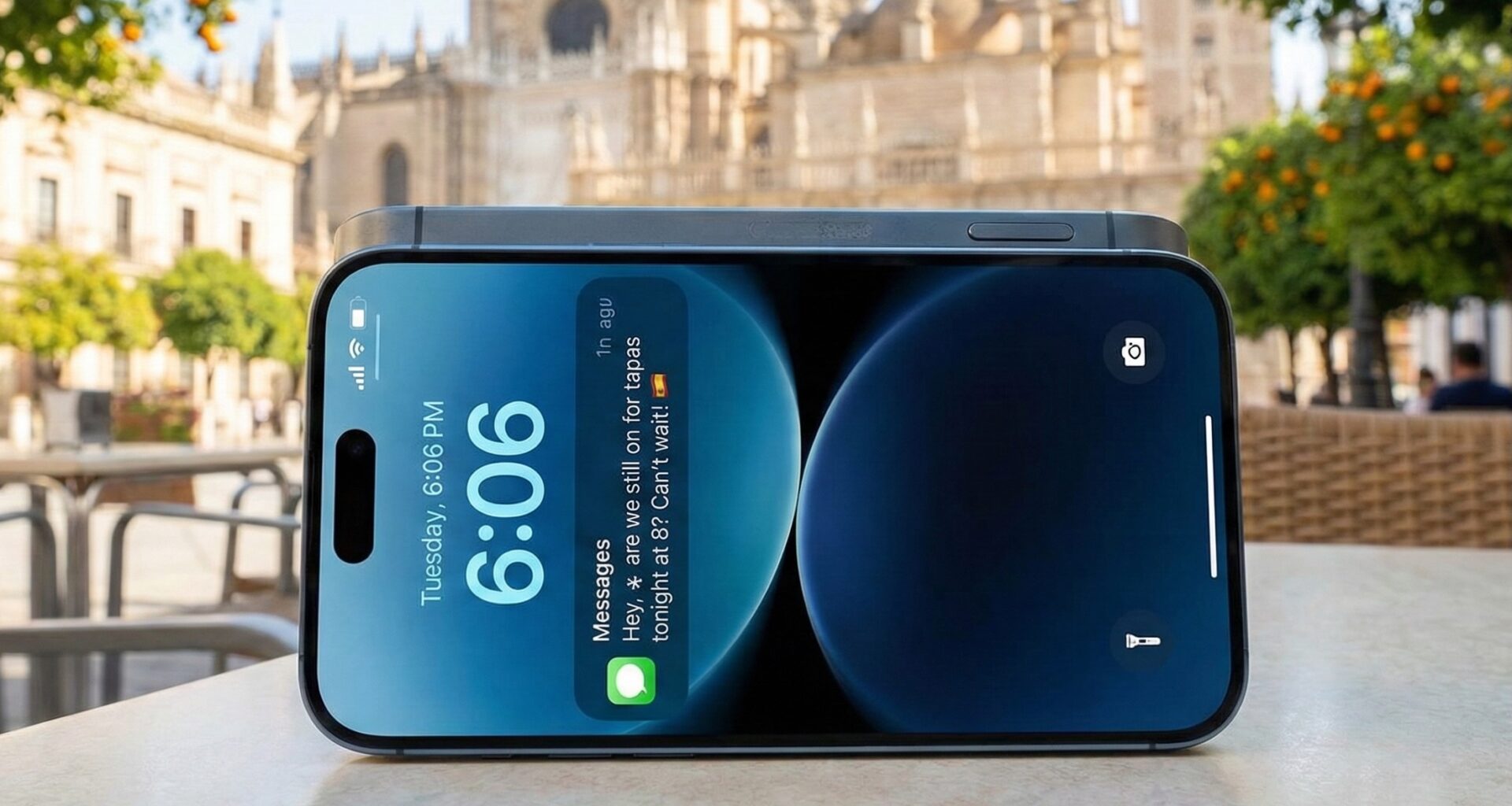
Important: Do not confuse NotificationCenter with Push or Local Notifications (the alerts that appear on your device’s lock screen). The NotificationCenter is strictly for internal communication within your own application.
Why is it still relevant in the SwiftUI era?
As an iOS Developer, you might be wondering: “If SwiftUI already has @State, @Binding, @EnvironmentObject, and the Observation framework, why do I need to learn how to use NotificationCenter in SwiftUI?”
The answer boils down to three key scenarios where standard SwiftUI data flow falls short:
- System Events: iOS, macOS, and watchOS use the
NotificationCenterto alert your app about global events, such as when the virtual keyboard appears, when the app goes into the background, or when the device orientation changes. - Extreme Decoupling: Sometimes, you want a module of your app (like a background audio service) to send a signal to the user interface without any direct relationship, dependency, or object injection between them.
- Integration with Legacy Code (UIKit / AppKit): If you are migrating an older app to SwiftUI, the
NotificationCenteris the perfect bridge to communicate your oldUIViewControllers with your shiny new SwiftUIViews.
2. How to use NotificationCenter in SwiftUI: The Native Approach
In the days of UIKit, you had to register an observer, specify a selector (an @objc function) and, most critically, remember to remove the observer to avoid memory leaks.
Modern Swift programming with SwiftUI makes this incredibly elegant, declarative, and safe thanks to the Combine framework. In SwiftUI, we use the .onReceive modifier to subscribe directly to a NotificationCenter publisher.
Example 1: Listening to System Events (The Keyboard)
Let’s create a view in Xcode that detects when the user shows and hides the keyboard on iOS.
import SwiftUI

struct KeyboardMonitorView: View {
    // State to store if the keyboard is visible
    @State private var isKeyboardVisible = false

    var body: some View {
        VStack(spacing: 20) {
            Image(systemName: isKeyboardVisible ? "keyboard.chevron.compact.down" : "keyboard")
                .font(.system(size: 60))
                .foregroundColor(isKeyboardVisible ? .red : .blue)

            Text(isKeyboardVisible ? "The keyboard is ACTIVE" : "The keyboard is HIDDEN")
                .font(.title2)
                .bold()

            TextField("Tap here to type...", text: .constant(""))
                .textFieldStyle(RoundedBorderTextFieldStyle())
                .padding()
        }
        .padding()
        // 1. We listen when the keyboard appears
        .onReceive(NotificationCenter.default.publisher(for: UIResponder.keyboardWillShowNotification)) { _ in
            withAnimation {
                isKeyboardVisible = true
            }
        }
        // 2. We listen when the keyboard disappears
        .onReceive(NotificationCenter.default.publisher(for: UIResponder.keyboardWillHideNotification)) { _ in
            withAnimation {
                isKeyboardVisible = false
            }
        }
    }
}
What is happening here?
The .onReceive modifier takes a Publisher (in this case, one generated by the NotificationCenter). When the iOS system emits the UIResponder.keyboardWillShowNotification notification, the code block inside .onReceive runs, updating our @State and prompting SwiftUI to redraw the view. And the best part: SwiftUI automatically manages memory. When this view disappears from the screen, the subscription cancels itself.
3. Creating and Emitting Custom Notifications
Knowing how to listen to the system is great, but the true magic of Swift programming happens when you create your own radio frequencies.
To achieve this, we need three steps:
- Define a unique name for the notification.
- Emit (post) the notification from somewhere.
- Listen for (receive) the notification in our view.
Step 1: Defining the Notification
It is a best practice as an iOS Developer to extend Notification.Name to keep your code organized and avoid typos when writing plain strings. Open a new file in Xcode and add this:
import Foundation

extension Notification.Name {
    // We define the name of our custom notification
    static let userDidCompleteTask = Notification.Name("userDidCompleteTask")
}
Steps 2 & 3: Emitting and Listening
Let’s create a scenario with two completely independent views. One view will be a button that completes a task (the Emitter), and the other will be a stats dashboard that updates when it hears about that task (the Receiver).
import SwiftUI

// --- EMITTER VIEW ---
struct TaskButtonView: View {
    var body: some View {
        Button(action: {
            // We emit the notification to the entire application
            NotificationCenter.default.post(name: .userDidCompleteTask, object: nil)
        }) {
            Label("Complete Task", systemImage: "checkmark.circle.fill")
                .font(.headline)
                .foregroundColor(.white)
                .padding()
                .background(Color.green)
                .cornerRadius(10)
        }
    }
}

// --- RECEIVER VIEW ---
struct StatsDashboardView: View {
    @State private var completedTasks = 0

    var body: some View {
        VStack {
            Text("Completed Tasks")
                .font(.headline)
                .foregroundColor(.secondary)

            Text("\(completedTasks)")
                .font(.system(size: 80, weight: .bold, design: .rounded))
                .foregroundColor(.blue)
        }
        .padding()
        .background(Color.blue.opacity(0.1))
        .cornerRadius(20)
        // We listen to the custom notification
        .onReceive(NotificationCenter.default.publisher(for: .userDidCompleteTask)) { _ in
            // We react by incrementing the counter
            completedTasks += 1

            // Optional: Provide haptic feedback
            let impactMed = UIImpactFeedbackGenerator(style: .medium)
            impactMed.impactOccurred()
        }
    }
}

// --- MAIN VIEW (Container) ---
struct CustomNotificationDemoView: View {
    var body: some View {
        VStack(spacing: 50) {
            StatsDashboardView()
            TaskButtonView()
        }
    }
}
This is the perfect example of how to use NotificationCenter in SwiftUI to decouple views. TaskButtonView has no idea that StatsDashboardView exists. It just shouts into the void: “Hey, I completed a task!”, and anyone listening can react.
4. Sending Data in the Payload (userInfo)
Often, knowing an event occurred isn’t enough; we need to know the details of that event. The NotificationCenter allows you to attach a data dictionary called userInfo.
Imagine we are downloading files and want to notify the interface of the progress.
// 1. Extension for the name and dictionary keys
extension Notification.Name {
    static let fileDownloadProgress = Notification.Name("fileDownloadProgress")
}

enum NotificationKeys: String {
    case progressValue
    case fileName
}

// 2. Download Simulator (Emitter)
class DownloadManager {
    static func simulateDownload() {
        let name = "vacation_video.mp4"
        let progress = 0.75 // 75%

        // We pack the data into a dictionary
        let payload: [String: Any] = [
            NotificationKeys.progressValue.rawValue: progress,
            NotificationKeys.fileName.rawValue: name
        ]

        // We emit the notification with the payload
        NotificationCenter.default.post(
            name: .fileDownloadProgress,
            object: nil,
            userInfo: payload
        )
    }
}

// 3. User Interface (Receiver)
struct DownloadProgressView: View {
    @State private var currentProgress: Double = 0.0
    @State private var currentFile: String = "Waiting..."

    var body: some View {
        VStack(spacing: 20) {
            Text(currentFile)
                .font(.headline)

            ProgressView(value: currentProgress, total: 1.0)
                .progressViewStyle(LinearProgressViewStyle(tint: .blue))
                .padding(.horizontal)

            Button("Simulate 75% Progress") {
                DownloadManager.simulateDownload()
            }
        }
        .padding()
        // We listen and extract the payload
        .onReceive(NotificationCenter.default.publisher(for: .fileDownloadProgress)) { notification in
            // We safely extract info from the userInfo dictionary
            if let userInfo = notification.userInfo,
               let progress = userInfo[NotificationKeys.progressValue.rawValue] as? Double,
               let fileName = userInfo[NotificationKeys.fileName.rawValue] as? String {

                withAnimation {
                    self.currentProgress = progress
                    self.currentFile = fileName
                }
            }
        }
    }
}
By using an enumeration (enum NotificationKeys) for our dictionary keys, we maintain the characteristic robustness of Swift and avoid silent failures due to typos.
5. NotificationCenter in the MVVM Paradigm (Model-View-ViewModel)
Up to this point, we have handled notifications directly inside SwiftUI views. However, as your application grows, you will likely adopt architectures like MVVM. As an advanced iOS Developer, you will want to handle business logic outside the view.
You can subscribe to NotificationCenter inside an ObservableObject (or a class with @Observable in the new Swift standards) using the Combine framework.
import Combine
import SwiftUI

class NetworkMonitorViewModel: ObservableObject {
    @Published var isOnline: Bool = true

    // We need to store our Combine subscriptions so they are not destroyed
    private var cancellables = Set<AnyCancellable>()

    init() {
        setupObservers()
    }

    private func setupObservers() {
        // We subscribe to a hypothetical connectivity notification
        NotificationCenter.default.publisher(for: .networkStatusChanged)
            // We extract the value directly using Combine
            .compactMap { notification -> Bool? in
                return notification.userInfo?["isOnline"] as? Bool
            }
            // We ensure UI updates happen on the main thread
            .receive(on: RunLoop.main)
            // We update our @Published property
            .assign(to: \.isOnline, on: self)
            // We save the subscription
            .store(in: &cancellables)
    }

    deinit {
        // Subscriptions are automatically canceled here when emptying the Set
        cancellables.removeAll()
    }
}
This separation of concerns makes your code much cleaner, testable, and maintainable in Xcode.
6. Cross-Platform Considerations (iOS, macOS, and watchOS)
One of the great advantages of SwiftUI is its cross-platform approach. However, when interacting with system events through the NotificationCenter, you must keep in mind that each operating system has its own lifecycles.
On iOS and iPadOS
You will listen for events dependent on UIApplication, such as:
UIApplication.didEnterBackgroundNotificationUIApplication.willEnterForegroundNotification
On macOS
The Mac doesn’t use UIApplication; it uses NSApplication. Therefore, in a cross-platform project in Xcode, you should listen for:
NSApplication.willResignActiveNotificationNSApplication.didBecomeActiveNotification
On watchOS
The Apple Watch, due to its battery restrictions and architecture, uses WKExtension:
WKExtension.applicationDidEnterBackgroundNotification
How to deal with this? If you are developing a universal app in Swift, you can use compiler directives #if os() to subscribe to the correct notification based on the platform.
struct LifecycleMonitorView: View {
    @State private var isActive = true

    // We define which notification to listen to depending on the OS
    #if os(iOS) || os(tvOS)
    let backgroundNotification = UIApplication.didEnterBackgroundNotification
    #elseif os(macOS)
    let backgroundNotification = NSApplication.willResignActiveNotification
    #elseif os(watchOS)
    let backgroundNotification = WKExtension.applicationDidEnterBackgroundNotification
    #endif

    var body: some View {
        Text(isActive ? "App in use" : "App in background")
            .onReceive(NotificationCenter.default.publisher(for: backgroundNotification)) { _ in
                isActive = false
                print("The system saved resources.")
            }
    }
}
7. Best Practices and Anti-patterns
To wrap up this guide on how to use NotificationCenter in SwiftUI, I want to leave you with the golden rules that every senior iOS Developer applies:
- Do not use it for primary data flow: If you are passing data from a parent view to a child view, use
@Binding. If you are sharing data across an entire view tree, use@EnvironmentObject. Reserve theNotificationCenterfor specific events or connecting architecturally distant components. - Abusing
userInfo: Avoid sending extremely large or complexuserInfodictionaries. If you find yourself passing massive data objects via notifications, your architecture likely needs a review, perhaps using a shared model or a Singleton. - Threading: Notifications are received on the same thread they were posted on. If you emit a
NotificationCenter.default.postfrom a background thread (e.g., after a network API call), and your.onReceivein SwiftUI tries to update the user interface based on that notification, your app could freeze or crash. Always ensure you wrap your UI changes inDispatchQueue.main.asyncor use.receive(on: RunLoop.main)if using Combine in a ViewModel. - Extend Safely: Always use
extension Notification.Nameinstead of instantiating the notification with raw strings directly in the code. This prevents hard-to-track bugs caused by subtle typos.
Conclusion
The NotificationCenter is a veteran of Apple’s platforms that has adapted beautifully to the declarative world of SwiftUI. It is a powerful broadcasting tool that encourages loose coupling and provides a direct bridge to listen to the heartbeat of the underlying operating system.
Understanding how to use NotificationCenter in SwiftUI, how to extract its data with userInfo, and how to elegantly integrate it with Combine for the MVVM architecture, is a crucial milestone in your Swift programming journey.
Keep experimenting, break things, and rebuild them in Xcode. Every line of Swift you write brings you closer to mastering the art of native development across the iOS, macOS, and watchOS ecosystems.
If you have any questions about this article, please contact me and I will be happy to help you 🙂. You can contact me on my X profile or on my Instagram profile.